Setting Up JoVE Content with Blackboard Ultra

Integrating JoVE content into Blackboard Ultra is simple. Below are six primary methods to add JoVE videos, playlists, and quizzes.

1. Embedding JoVE Videos

  • Steps:
    1. Open the JoVE website. Click on a video of interest.
    2. Below the video, click the <> EMBED button.
    3. Copy the URL code.
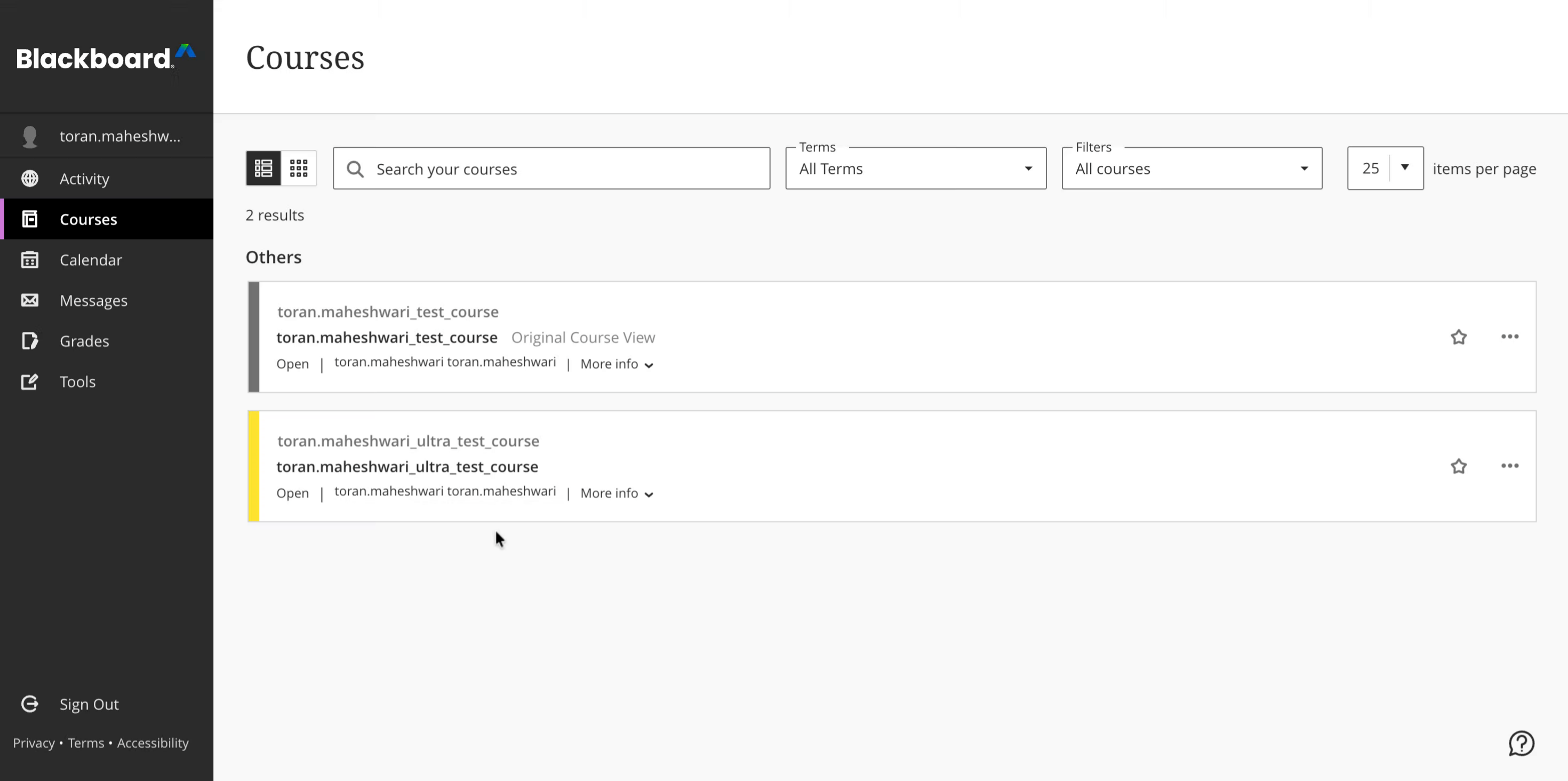
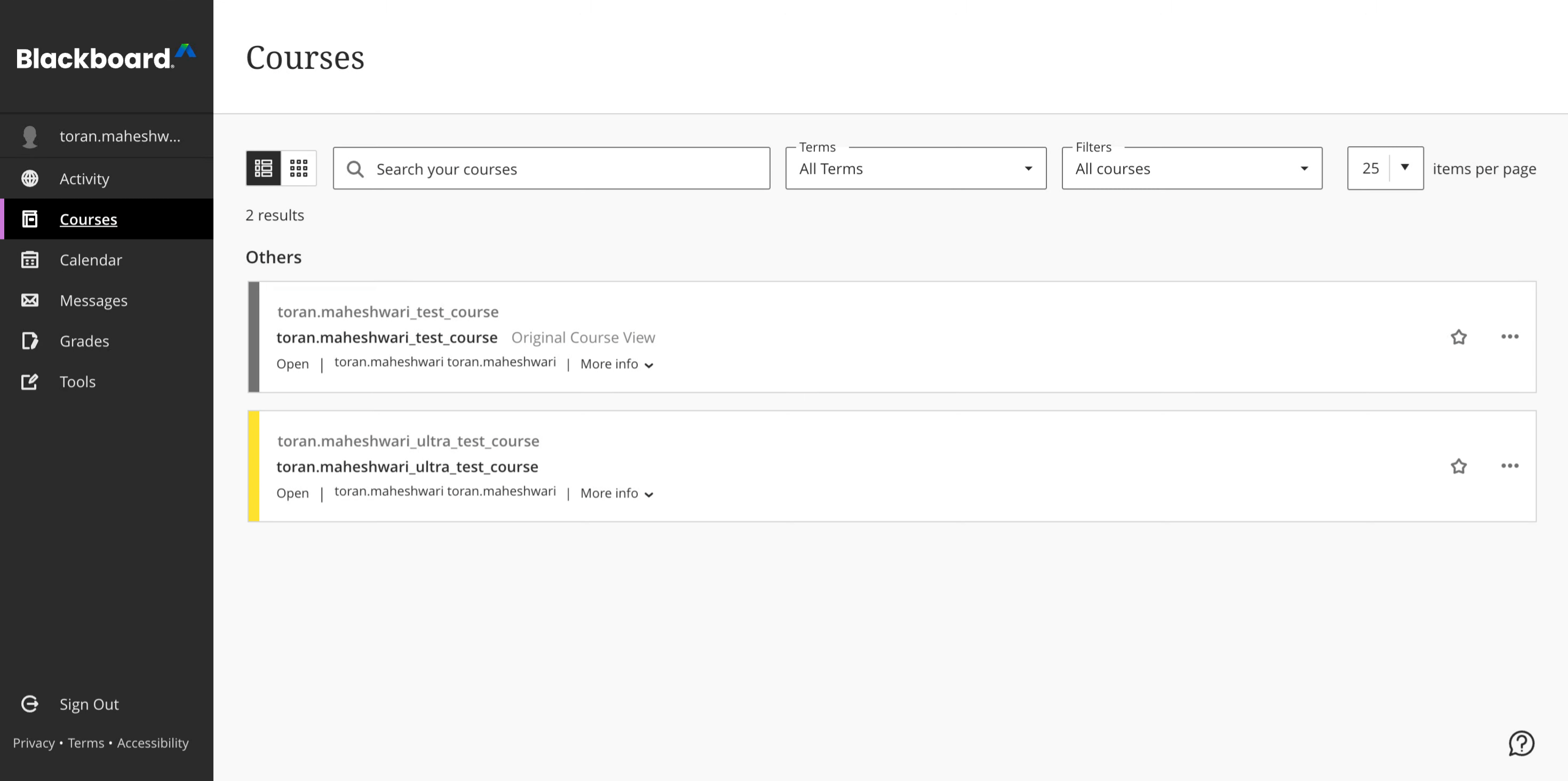
    4. Log into Blackboard Ultra.
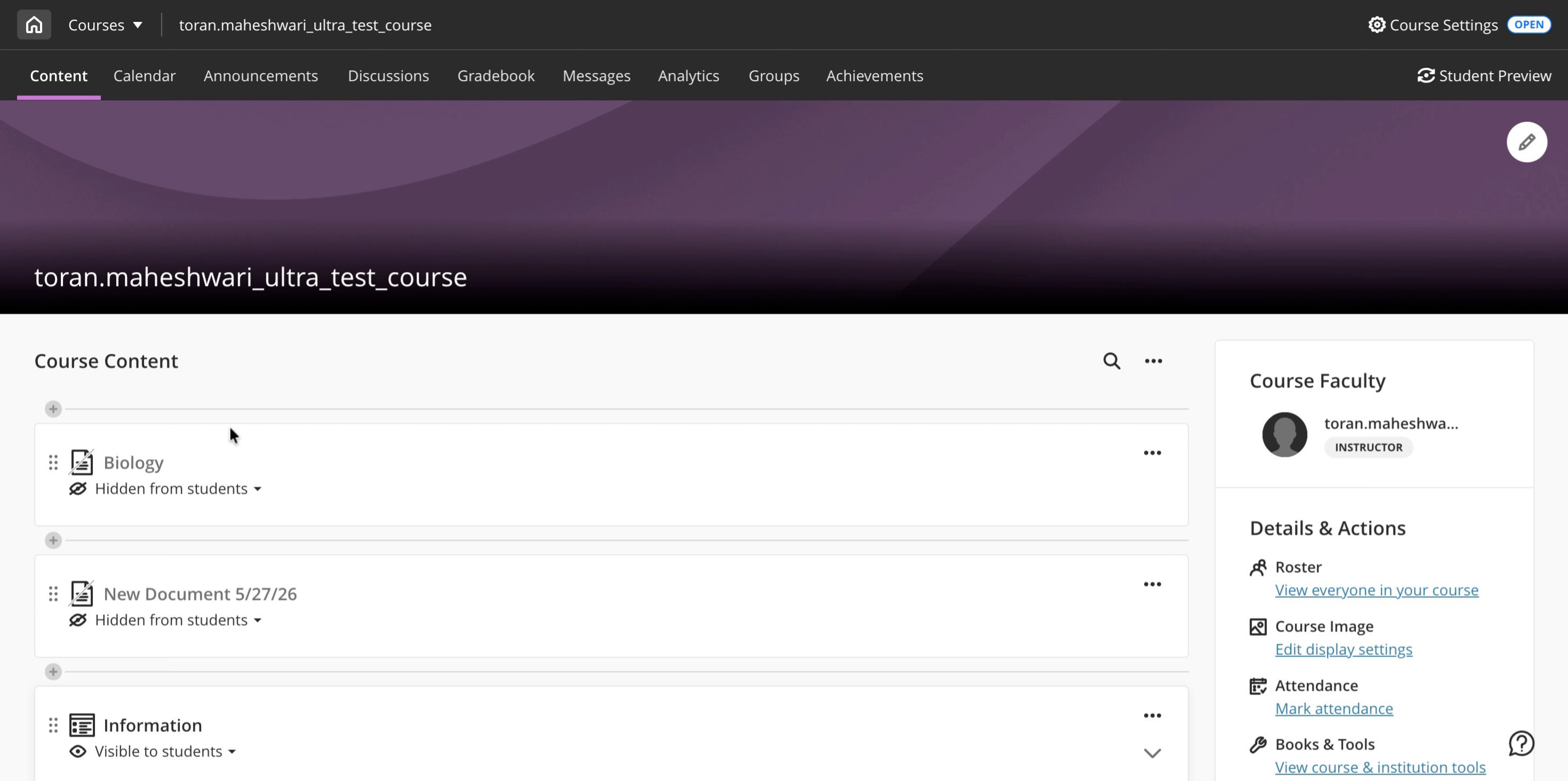
    5. Go to the Course Content and click on +.
    6. Click on Create.
    7. Select Link from the right-side panel.
    8. Paste the URL copied from JoVE into the Link URL box.
    9. Enter the name of the video in the Description box.
    10. Click Save and click the video link to view it.

2. Loading a Common Cartridge File

You can request a Common Cartridge from your JoVE Curriculum Specialist. If you’re not sure who that is, email CustomerSuccess@jove.com.

  • Steps:
    1. Log into Blackboard Ultra.
    2. Go to the Course Content and click on +.
    3. Select Create → SCORM package.
    4. Click on Browse Content Collection.
    5. Click the Upload tab next to Browse.
    6. Select Upload files.
    7. Under Attach Files, click Browse local files.
    8. Select the Common Cartridge file from your computer. (Contact your Curriculum Specialist to request one.)
    9. Click Open, then Submit.
    10. The file now appears in the Browse tab. Select it and click Submit.
    11. In the SCORM Settings window, uncheck Grade SCORM and click Save.
    12. Click the added file in the Course Content and Launch Course.

3. Loading a SCORM File with JoVE Quiz Content

  • Steps:
    1. On the JoVE site, go to Education → JoVE Quiz.
    2. Go to My Quizzes.
    3. For the quiz you want, click Download as SCORM.
    4. In Blackboard Ultra, click + and select Create.
    5. On the right menu, select SCORM package.
    6. Drag your SCORM file into the Upload SCORM package section.
    7. Fill in the fields as shown:

      Section Value
      Title Set a title for the SCORM
      Due Date Set a date until which students can submit
      Attempts Allowed Set how many times students can attempt
      Grade SCORM Check to create a gradebook item
      Maximum Score Set a maximum score
    8. Click Save.
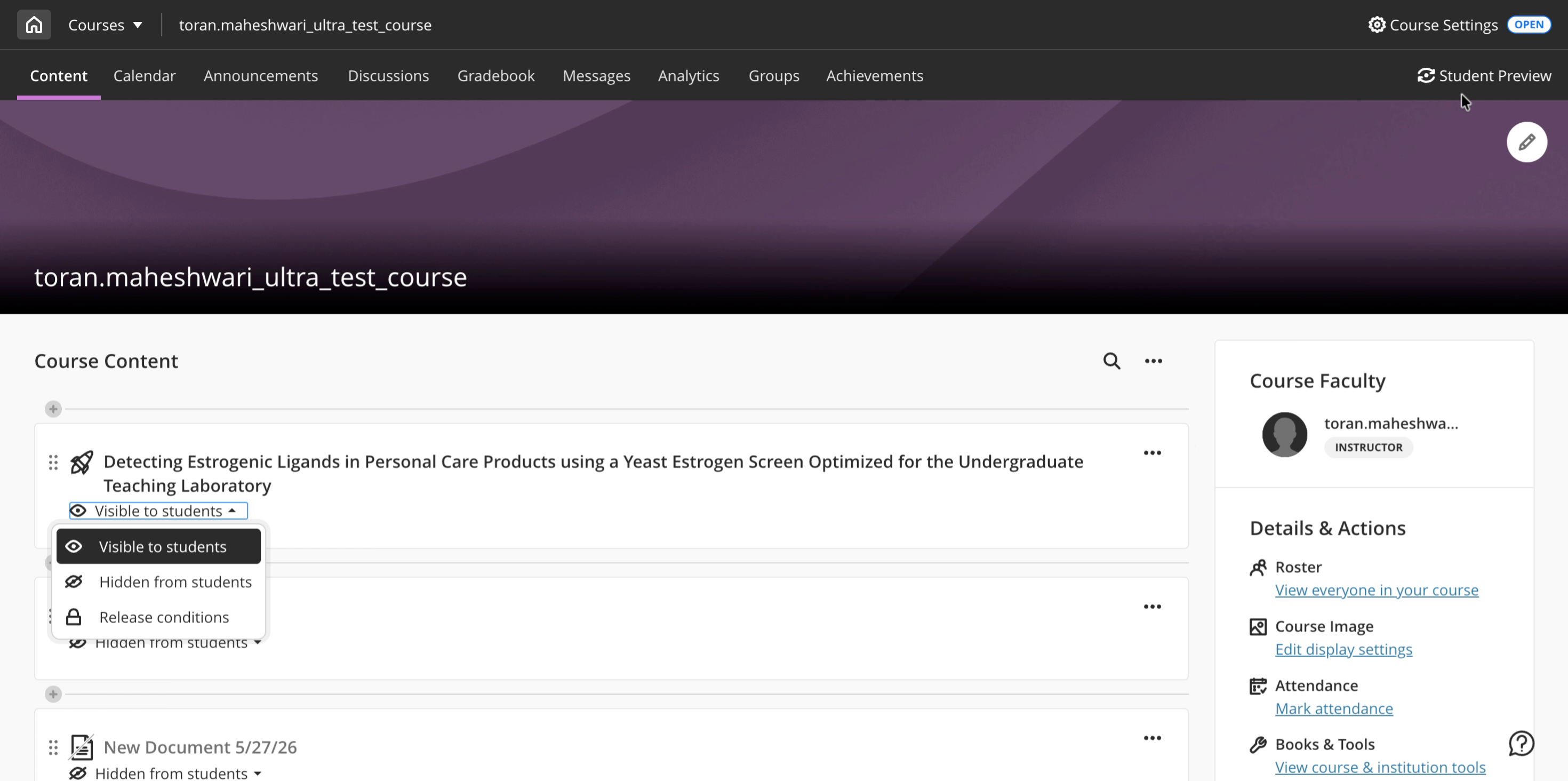
    9. To make available, change from Hidden to Visible.

4. Using the JoVE LTI 1.3 Tool - Add Videos

  • Steps:
    1. Log into Blackboard Ultra.
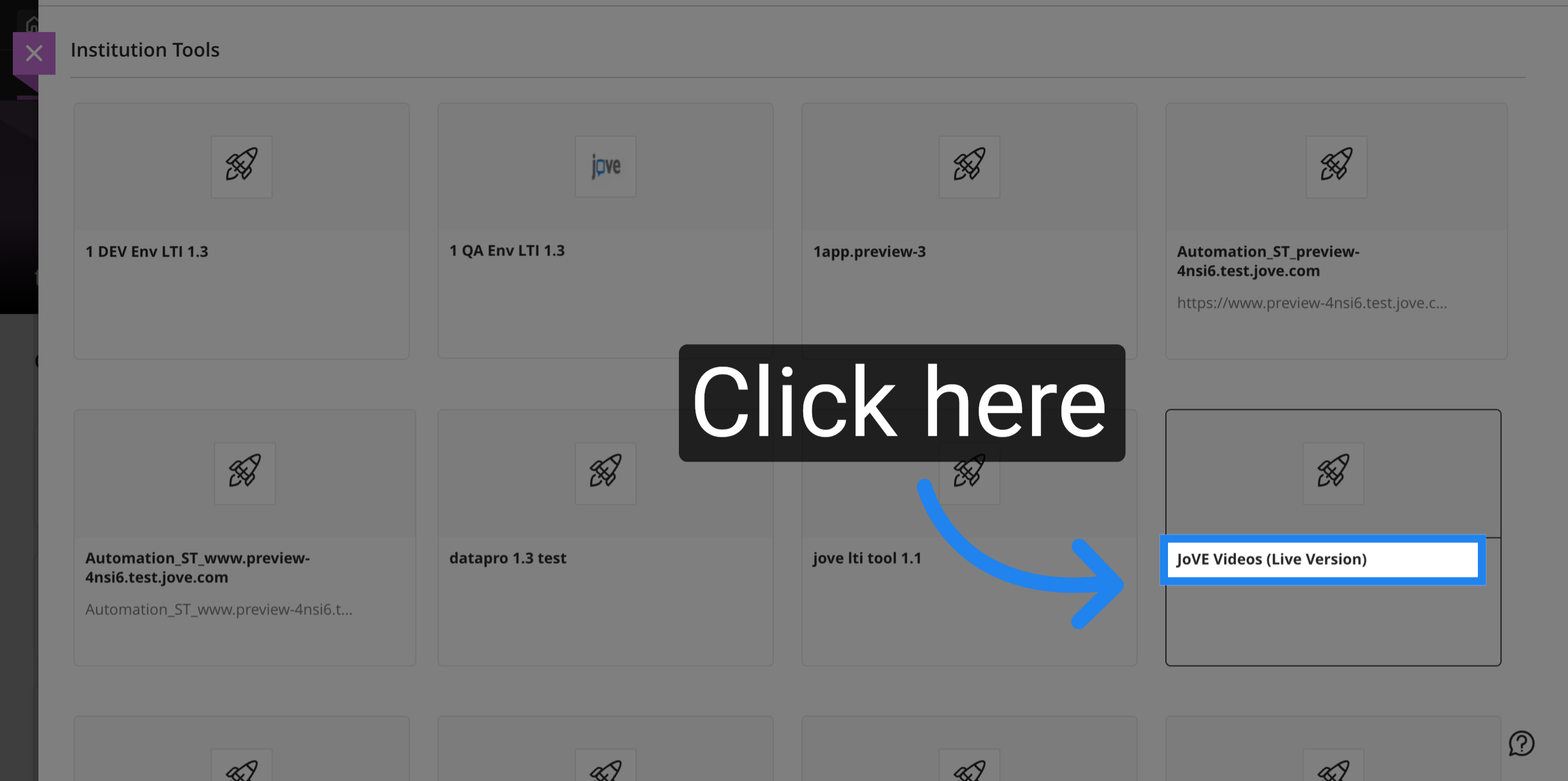
    2. Click +, then select Content Market.
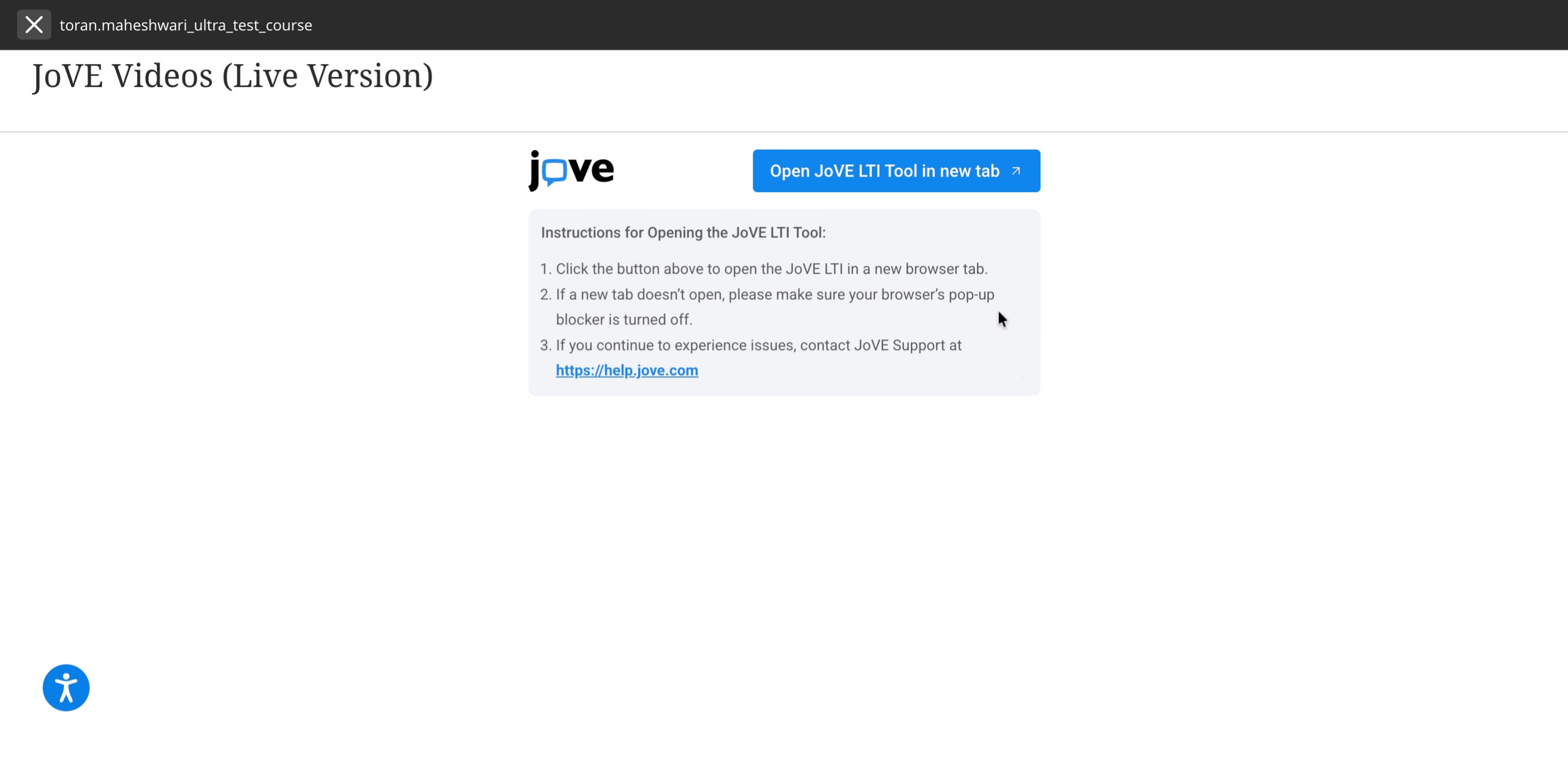
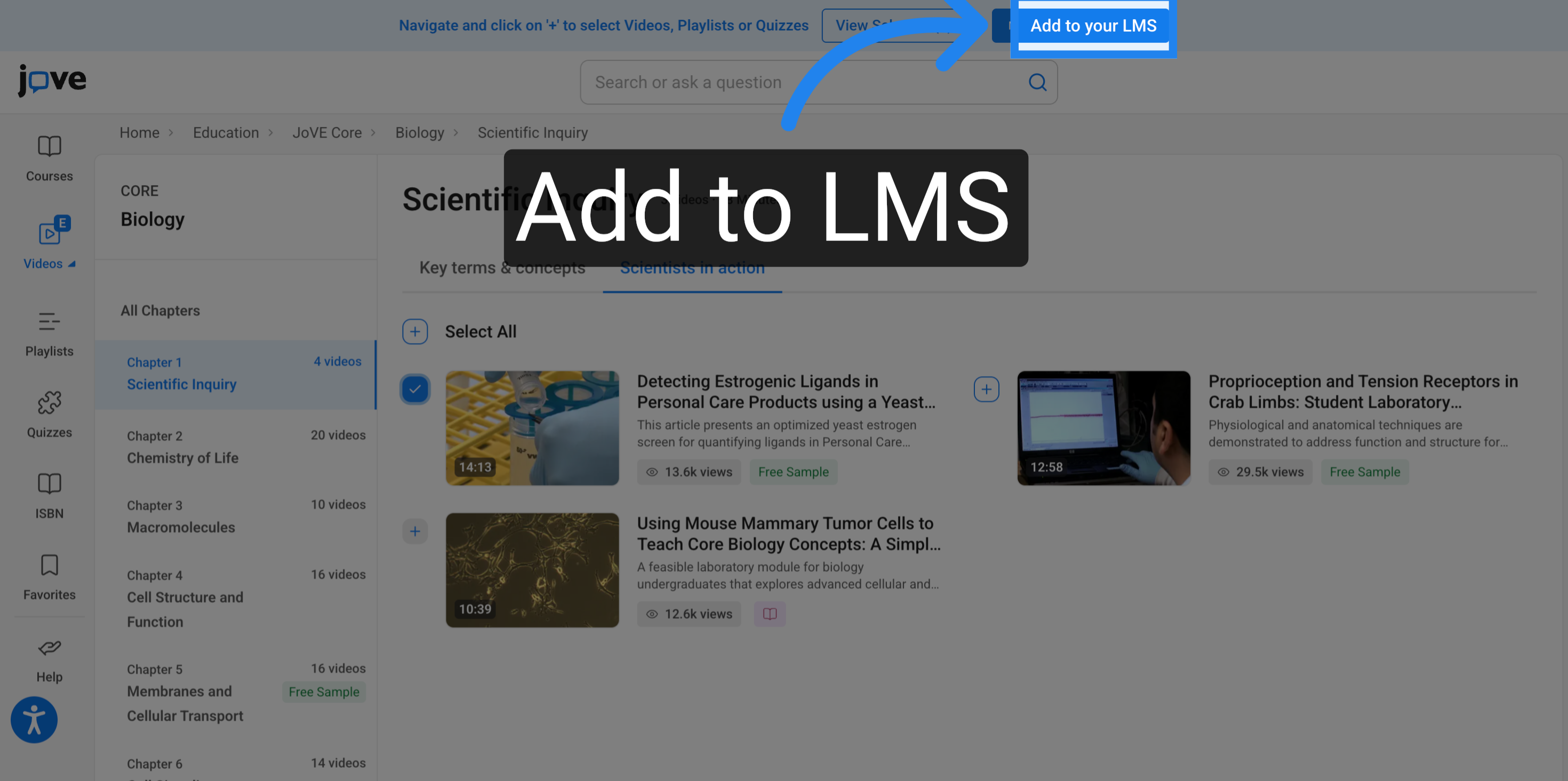
    3. Select JoVE LTI Tool 1.3.
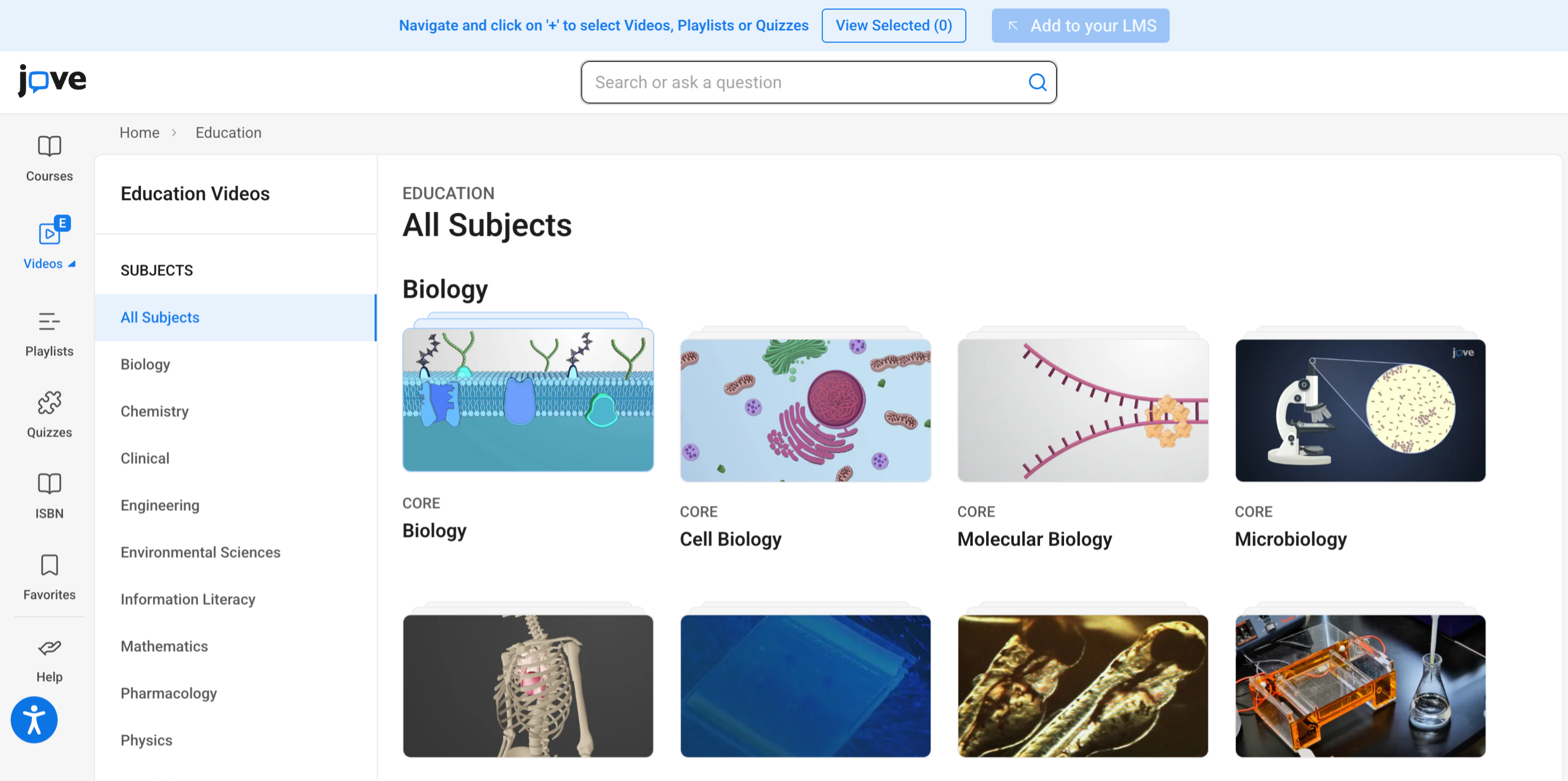
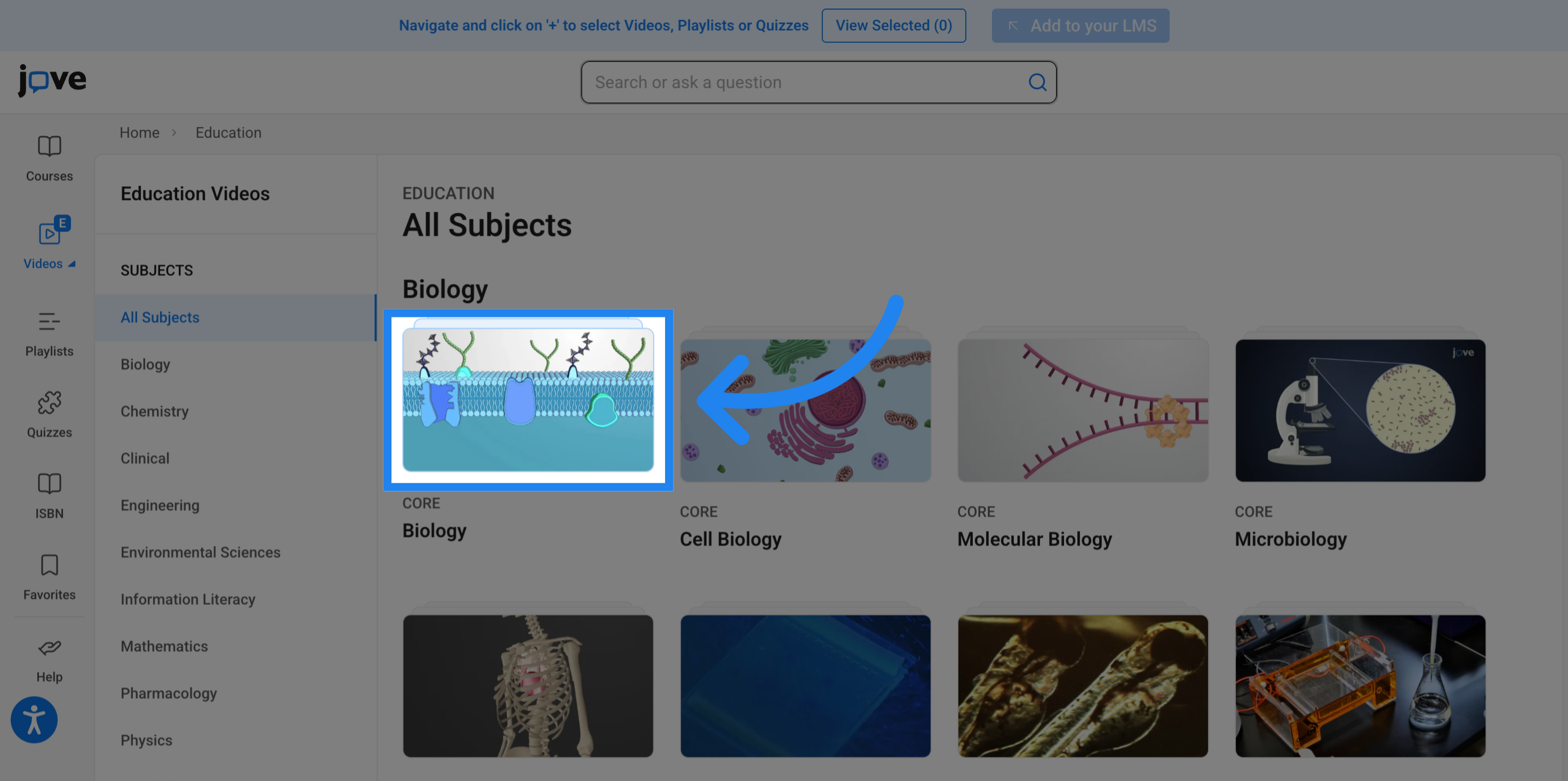
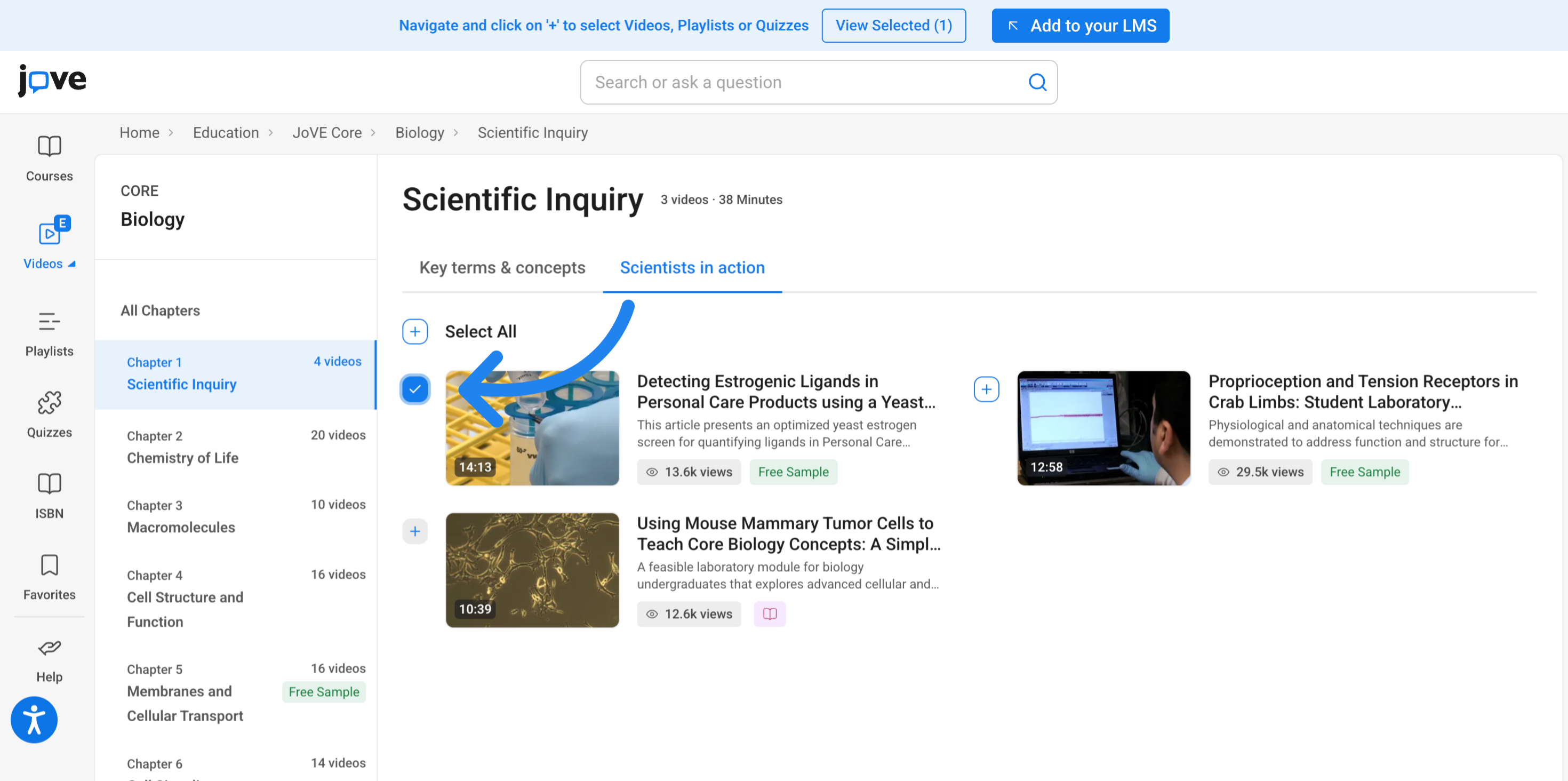
    4. Select Videos from the JoVE navigation pane to add one or more videos.
    5. Click Submit.
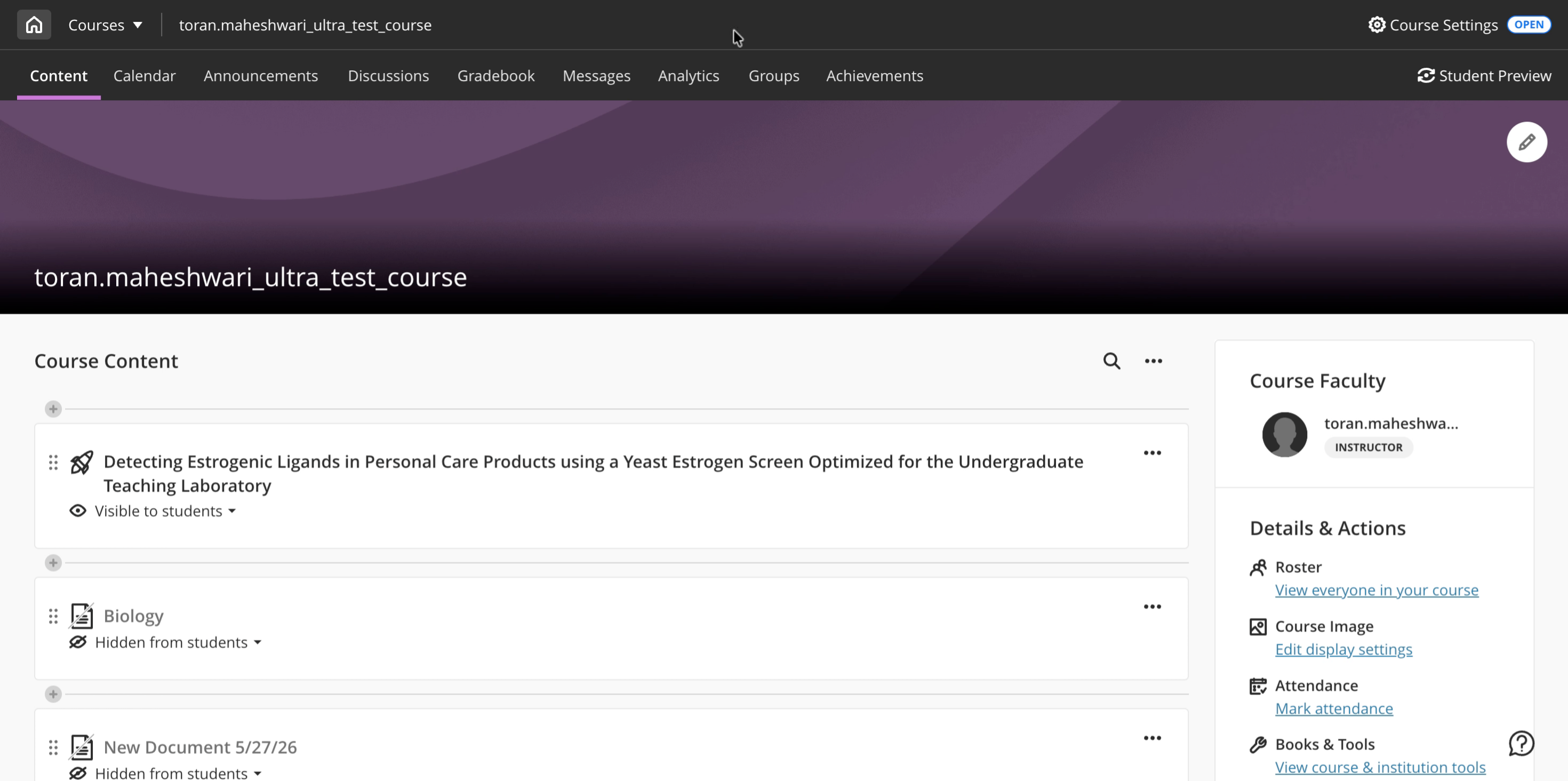
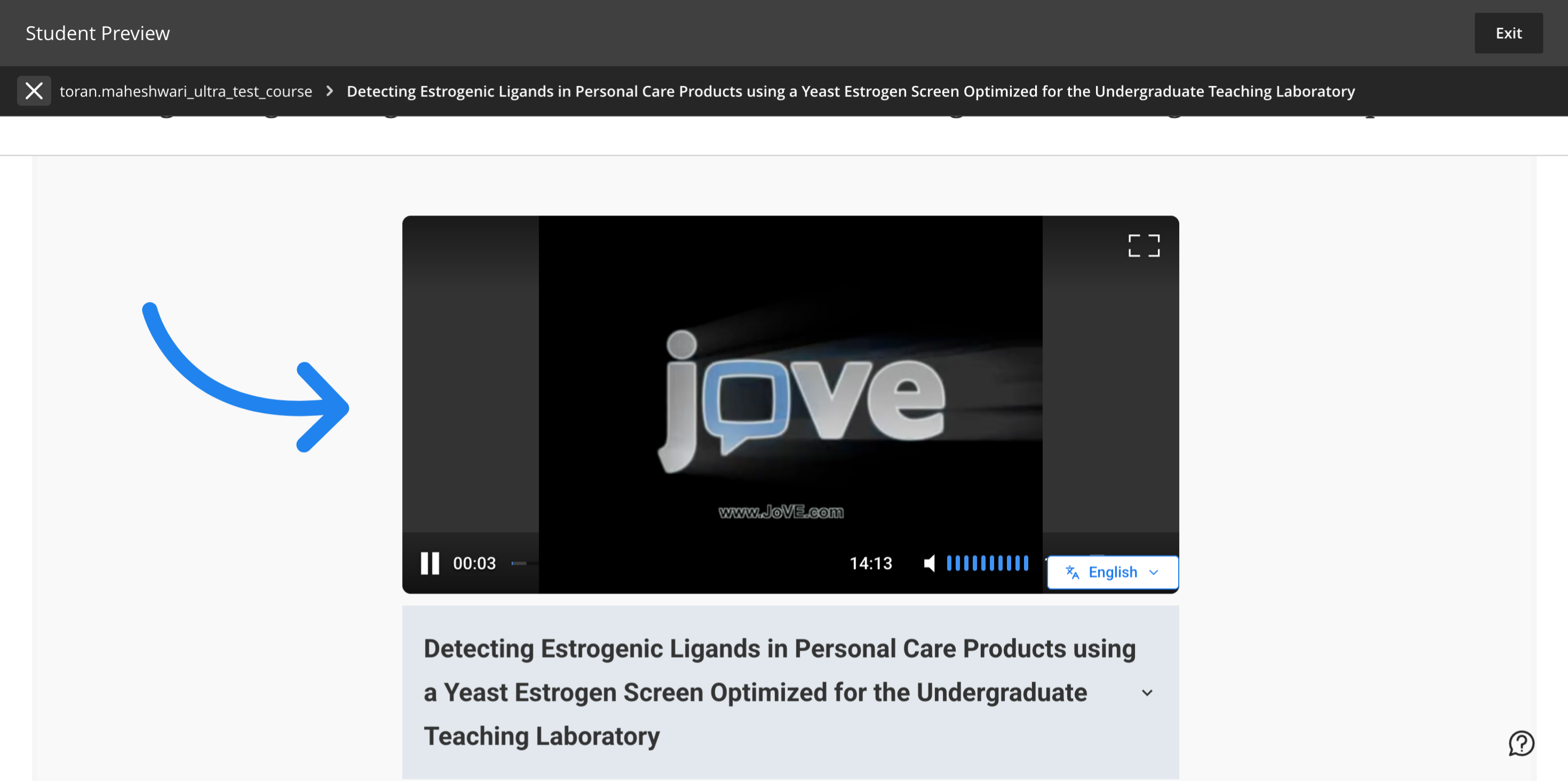
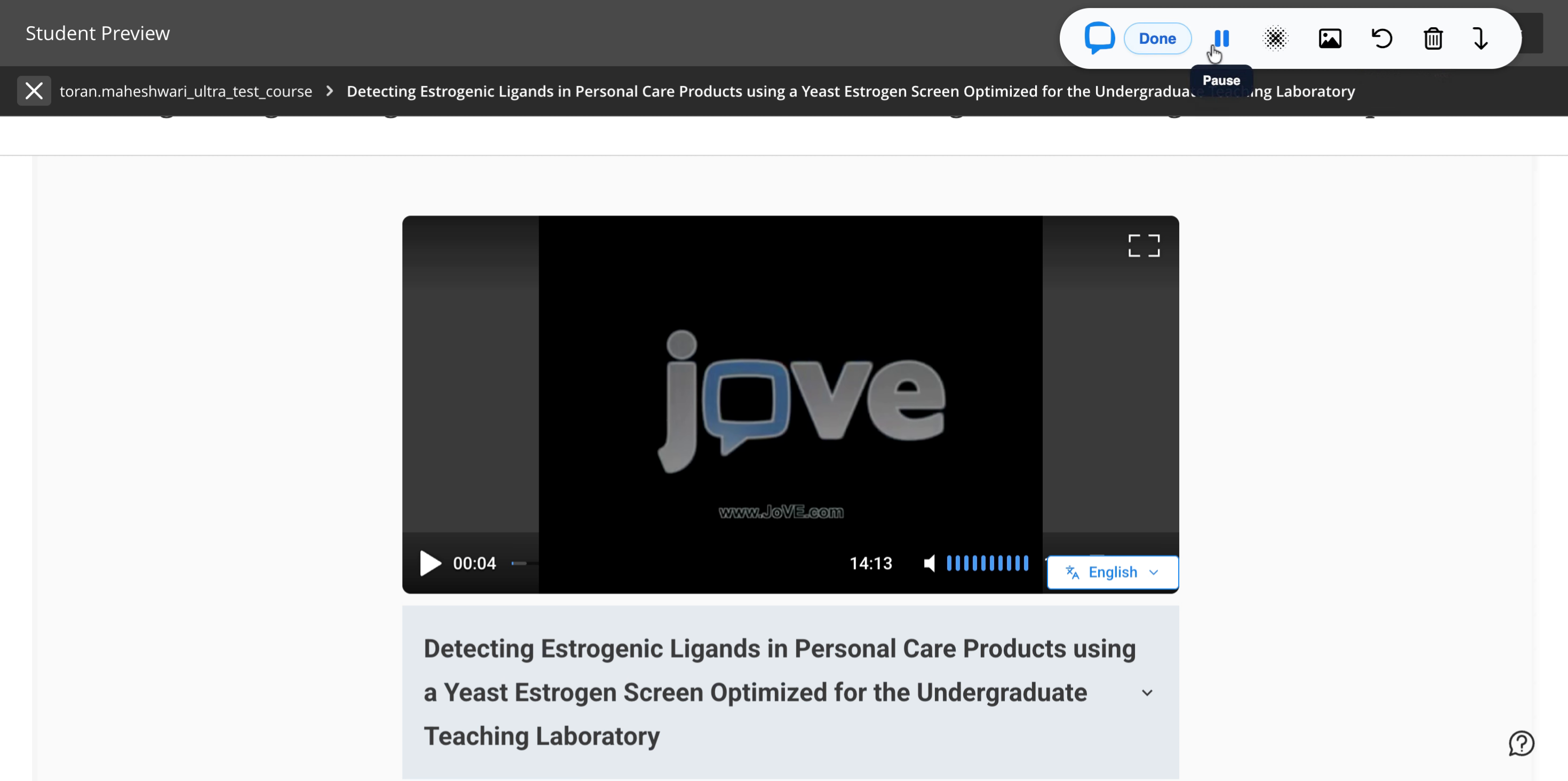
    6. The content is integrated into the course. Click to watch the video.

5. Using the JoVE LTI 1.3 Tool - Add Playlists

  • Steps:
    1. Log into Blackboard Ultra.
    2. Click +, then select Content Market.
    3. Select JoVE LTI Tool 1.3.
    4. Select Playlist from My Playlists, JoVE Playlists, or Shared With Me.
    5. Click Submit.
    6. The content is integrated. Click a video to start watching the playlist.

6. Using the JoVE LTI 1.3 Tool - Add Quizzes

  • Steps:
    1. Log into Blackboard Ultra.
    2. Click +, then select Content Market.
    3. Select JoVE LTI Tool 1.3.
    4. Select Quiz from the Content Type.
    5. Click Create a test (top right).
    6. Name the test and select Ungraded as the assessment type.
    7. Select Add Subjects and choose a subject.
    8. Optionally set an End Date and a duration (e.g. 10 minutes).
    9. Scroll down, click +, and choose:
      • Add Blank Question
      • Import Playlist (move playlist to right pane)
      • Videos (questions from chosen videos)
    10. Click the X to close the window.
    11. Click Save Assessment at the bottom.
    12. Click + to add the Test under Add New LTI Tool; the quiz will appear under Content.
    13. Click Submit (bottom right).
    14. Return to Blackboard Ultra, click the three-dot menu next to the quiz, and select Edit.
    15. Enter the points in the Points field and click Save.
    16. The assessment is now available for students to complete.

Note: Selecting Ungraded ensures the quiz syncs with the grade book when you manually enter points in the LMS.

For any additional help or questions, please reach out to CustomerSuccess@jove.com.