Resetting Your Password on app.jove.com via email link
This video demonstrates the process of resetting a forgotten password on app.jove.com via email link. It guides you through requesting a reset link and setting a new password securely.
1. Password Reset Process Overview
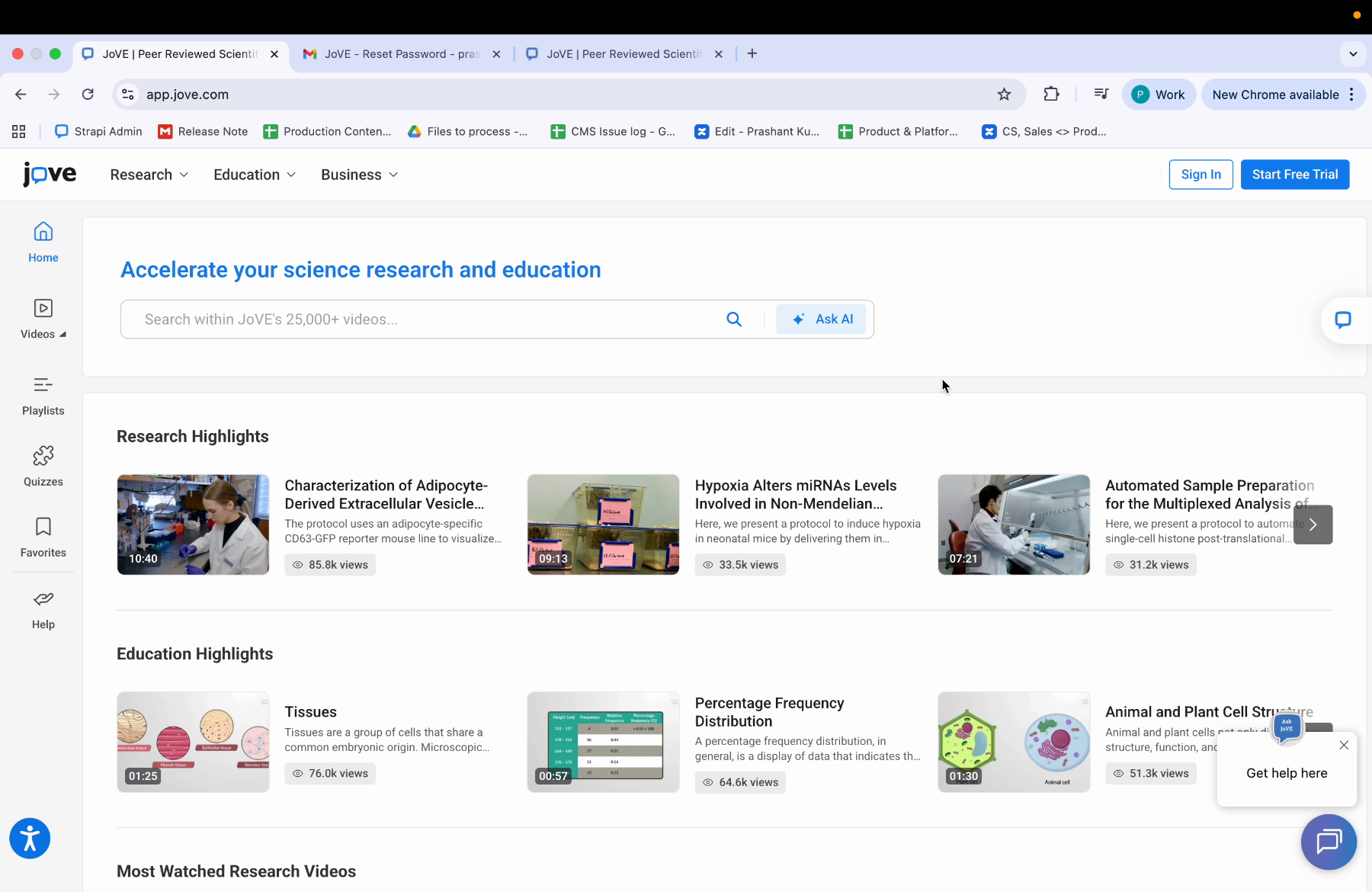
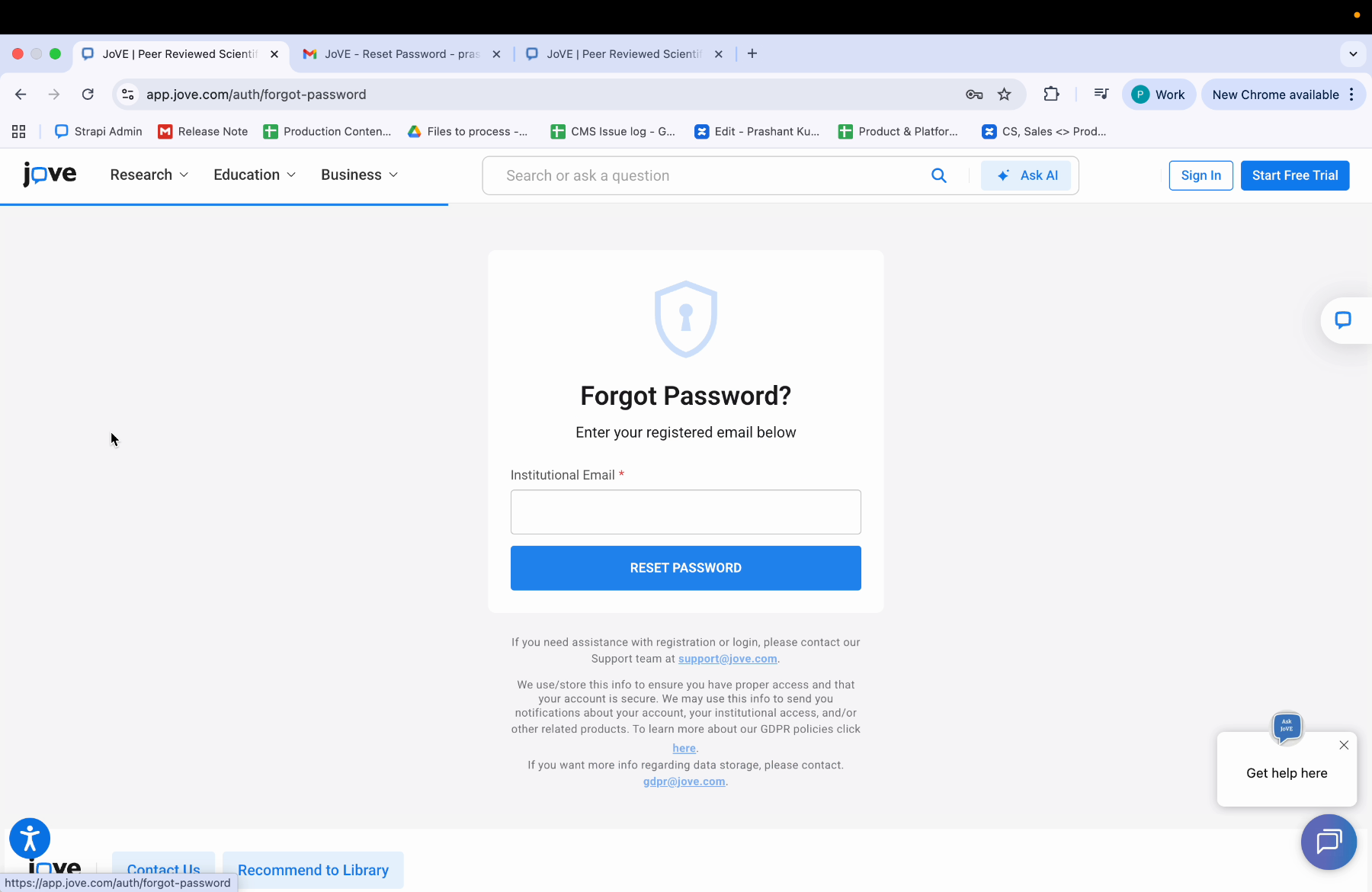
To understand how to reset the password via email link if you have forgotten it on app.jove.com, click on sign in, let's say you have entered a wrong password, then you click on forgot password, and you enter your institutional email. Then you click on reset password.
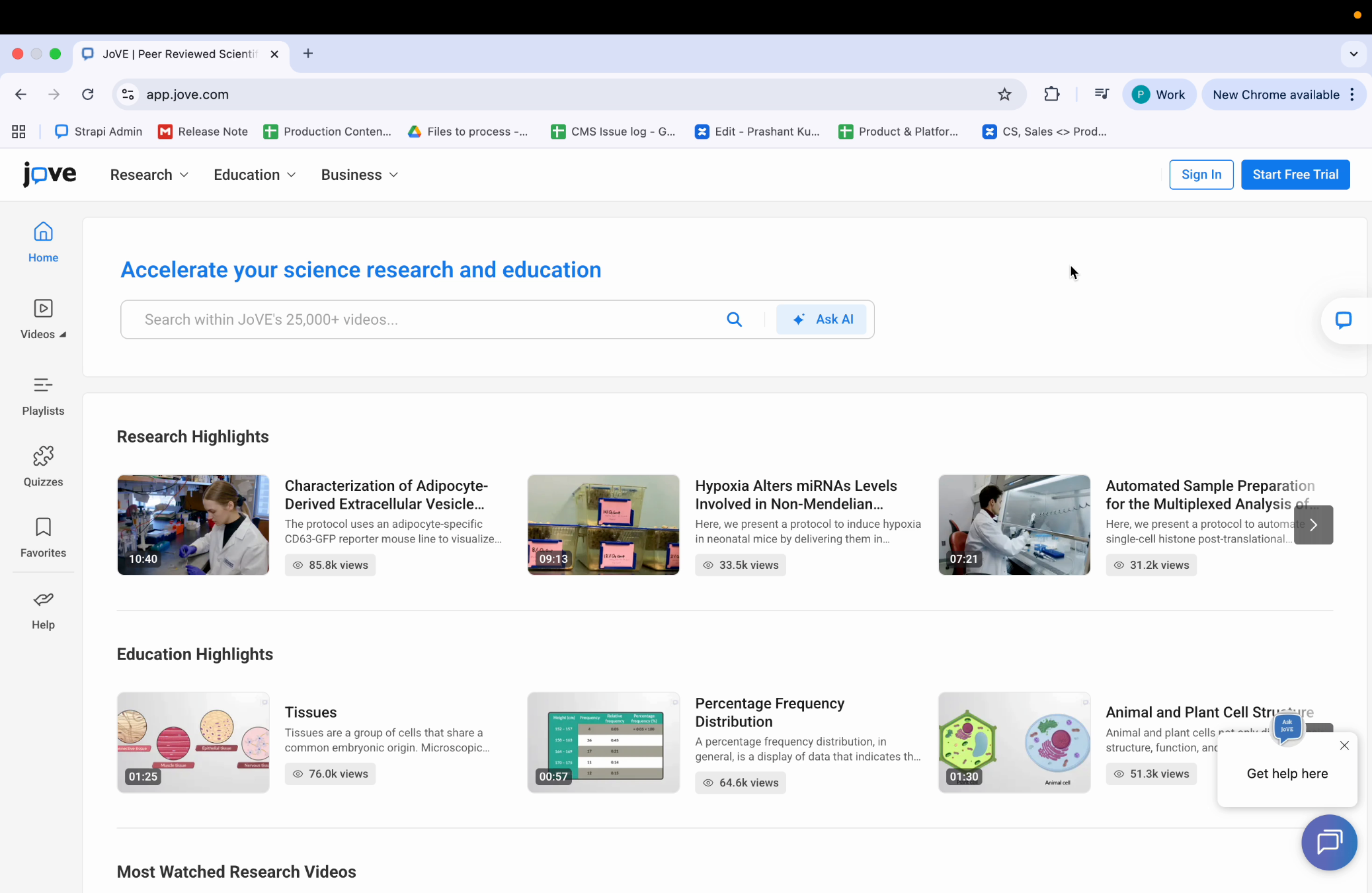
2. Receiving Password Reset Email
You would have received a mail.
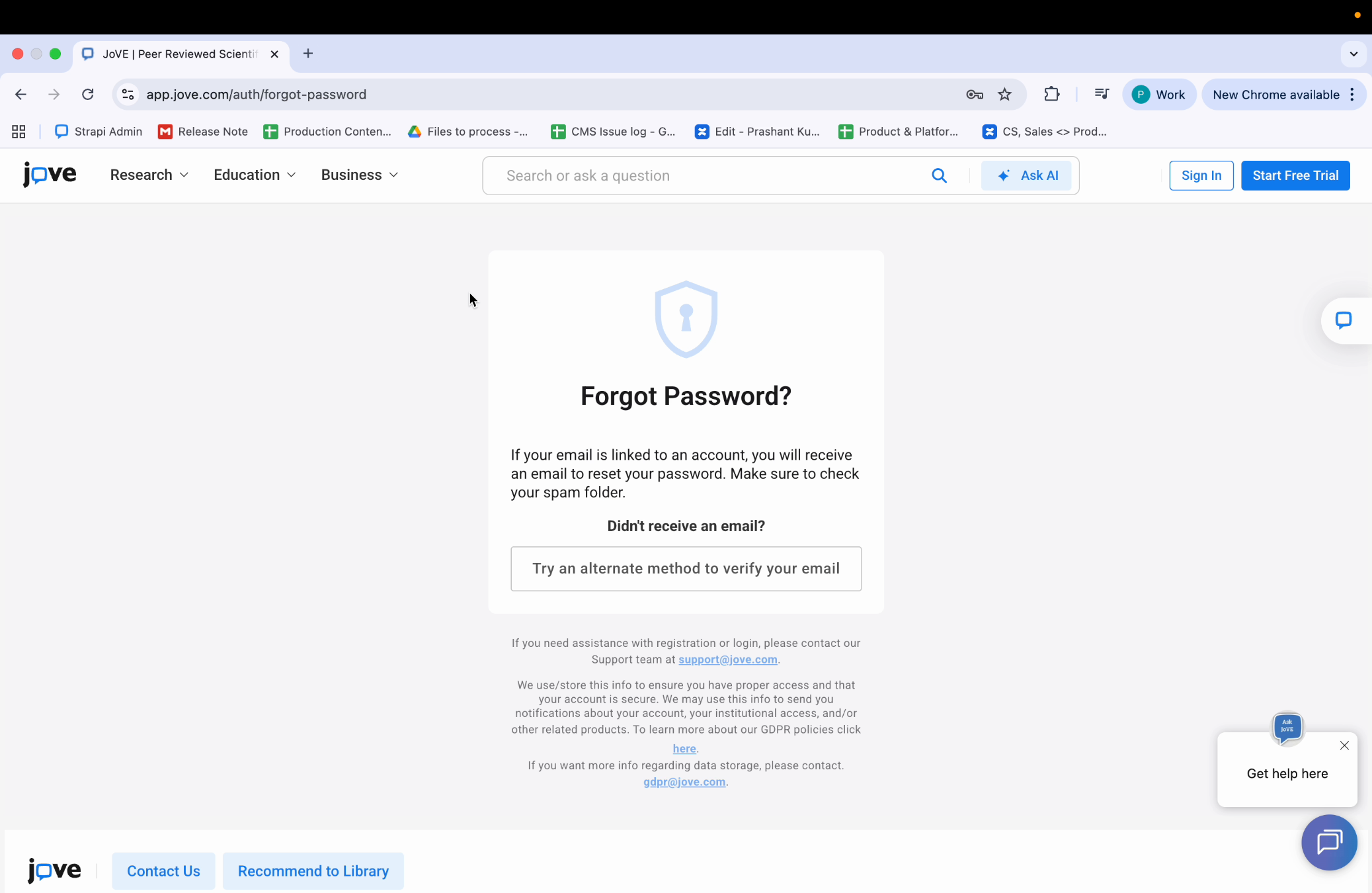
3. Reset Email Link Instructions
You check your inbox for reset password mail from jove. It says please click here to set a new password for a jove account. And if you cannot click that link, please copy and paste this URL into your web browser. Then, you click on this link.
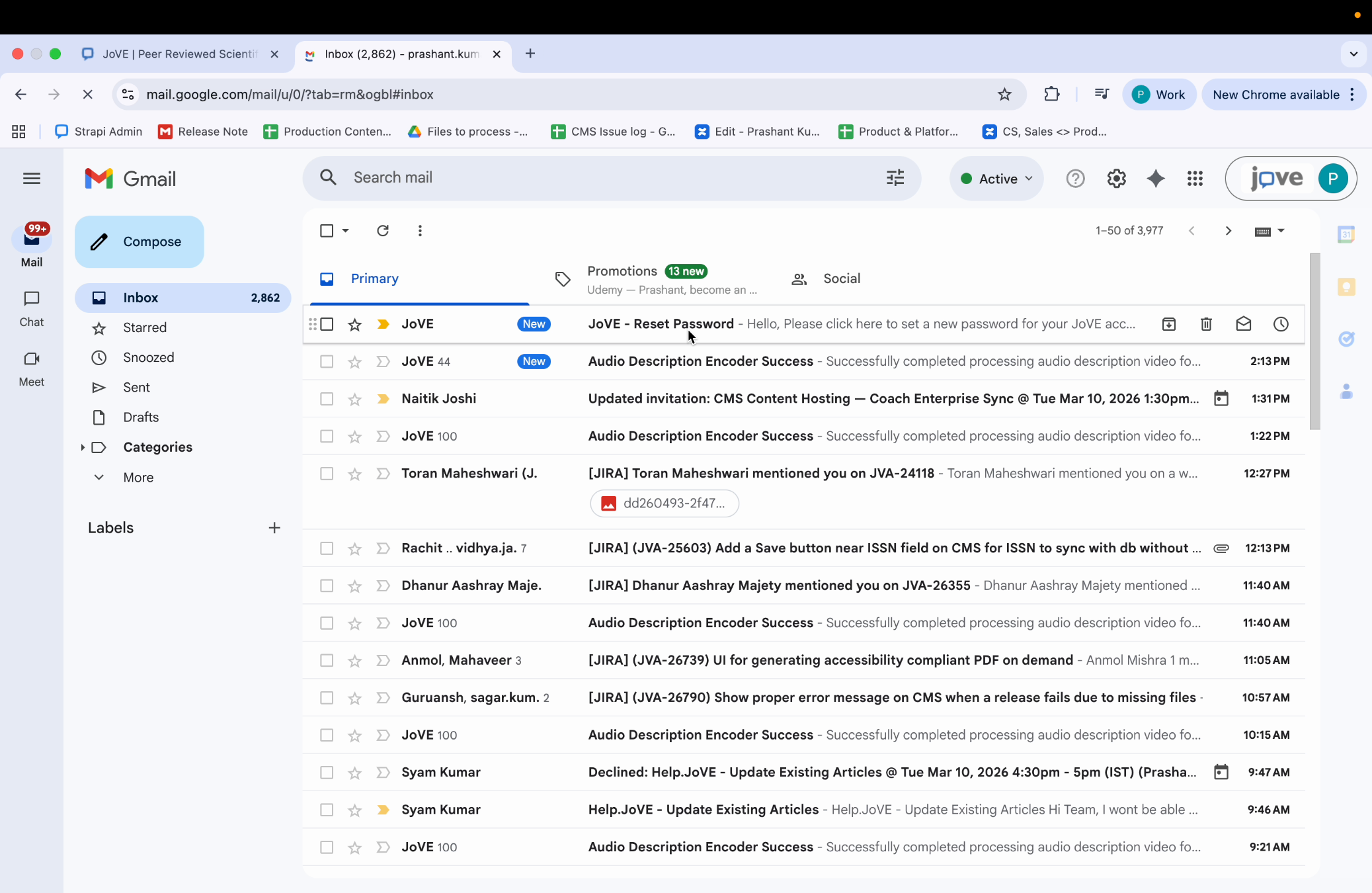
4. Setting New Password Confirmation
You are redirected to the reset password page. Here you can enter your new password. After you have entered your new password and confirmed, you click on the 'set password' button. After you click on the 'set password' button, your password is reset, and you will be redirected to the Jove homepage. You can then save your updated password in your browser.
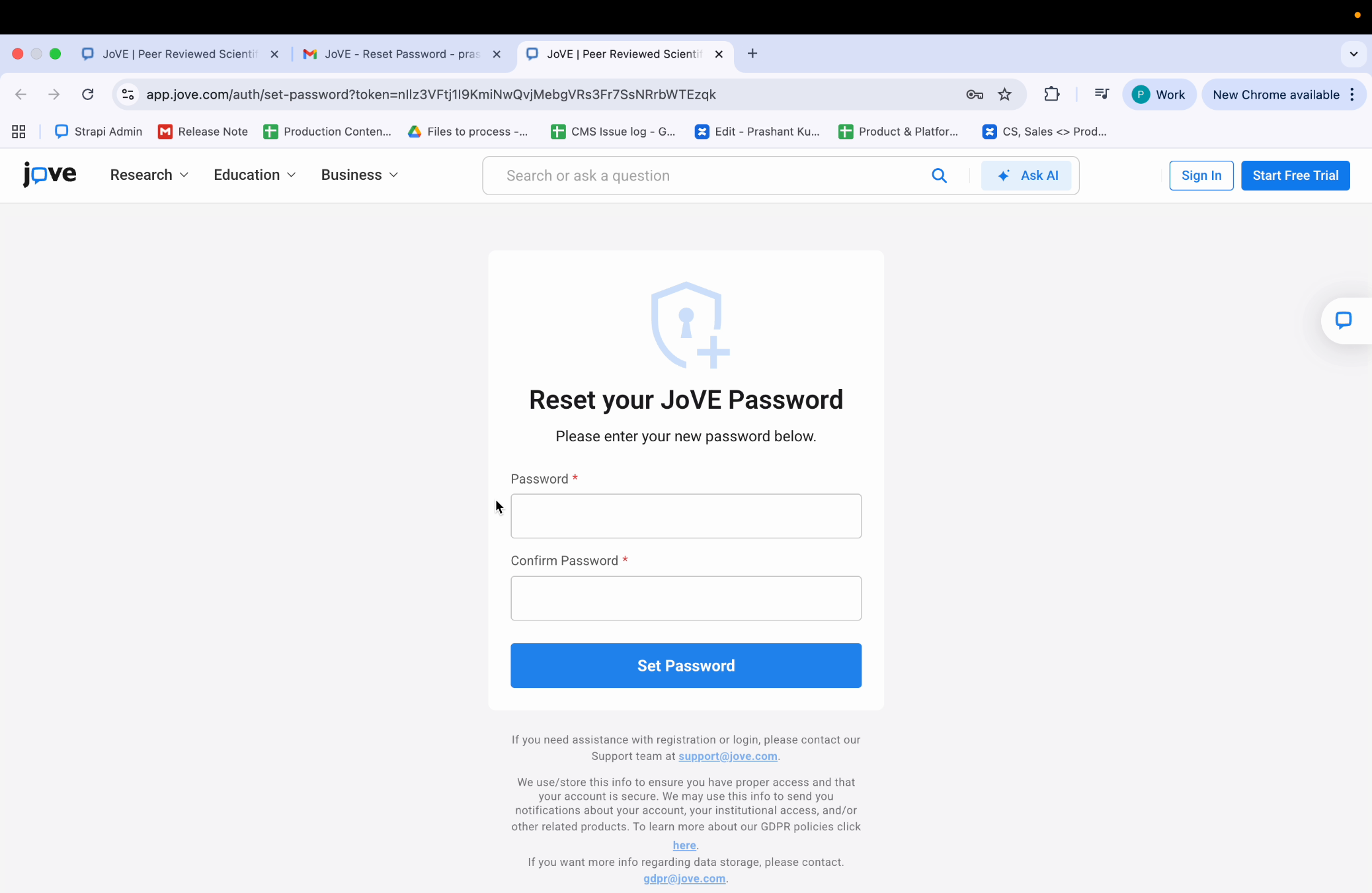
The video shows how to request a password reset email, access the reset link, and successfully update the password on app.jove.com.
Recover Password Using Institutional Email Verification
This video demonstrates how to regain access to your account by verifying your institutional email. It covers methods to receive and use a six-digit code to reset your password securely.
1. Password Recovery Introduction
Another method of regaining your password is to opt to receive a 6-digit verification code, which can be used to reset your password quickly. When you have forgotten your password,
2. Institutional Email Verification Issues
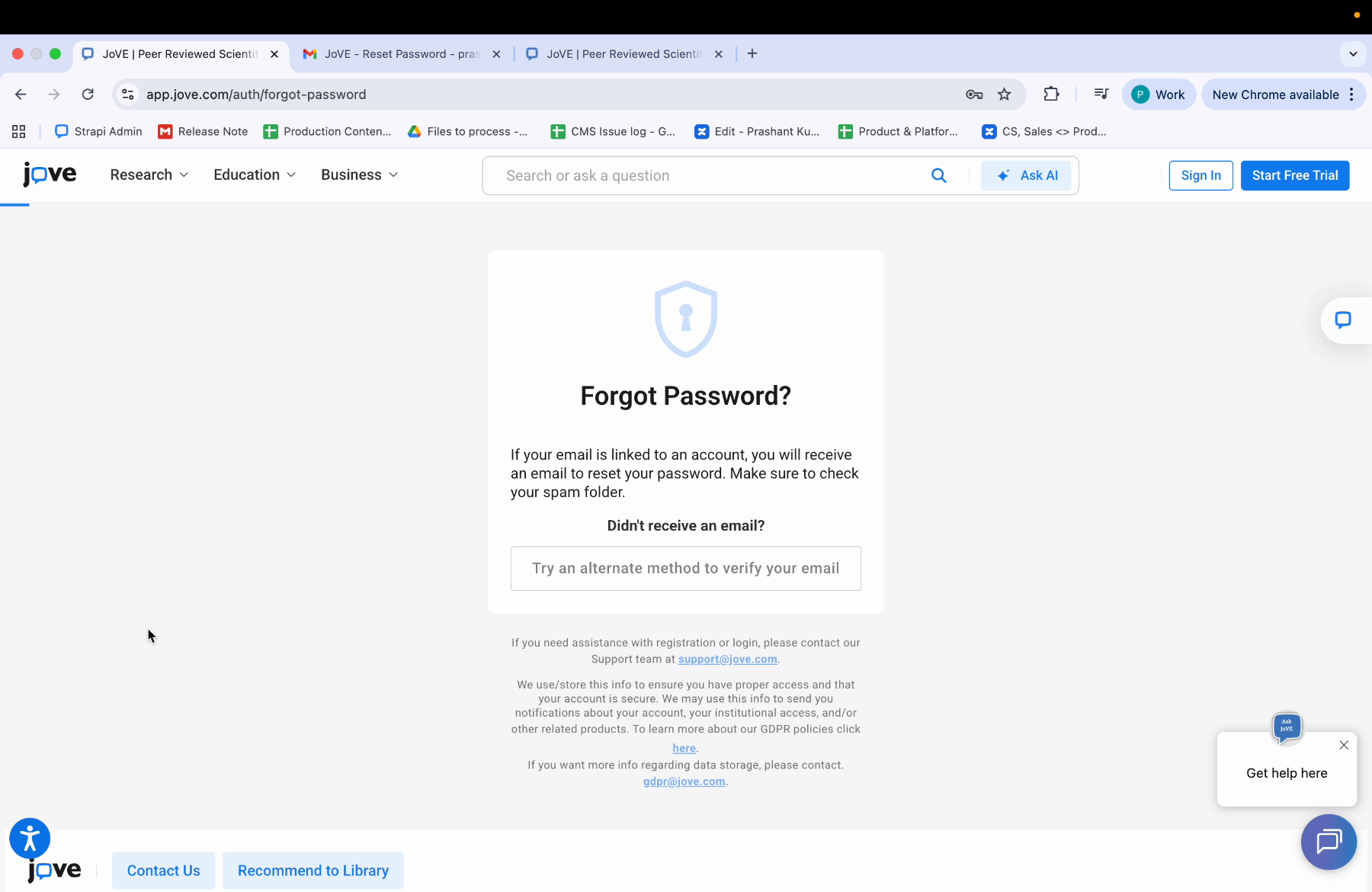
you enter your institutional email and click on reset password. If you have not received an email, you can click on the button 'try an alternate method to verify your email'.
3. Six Digit Code Email Instructions
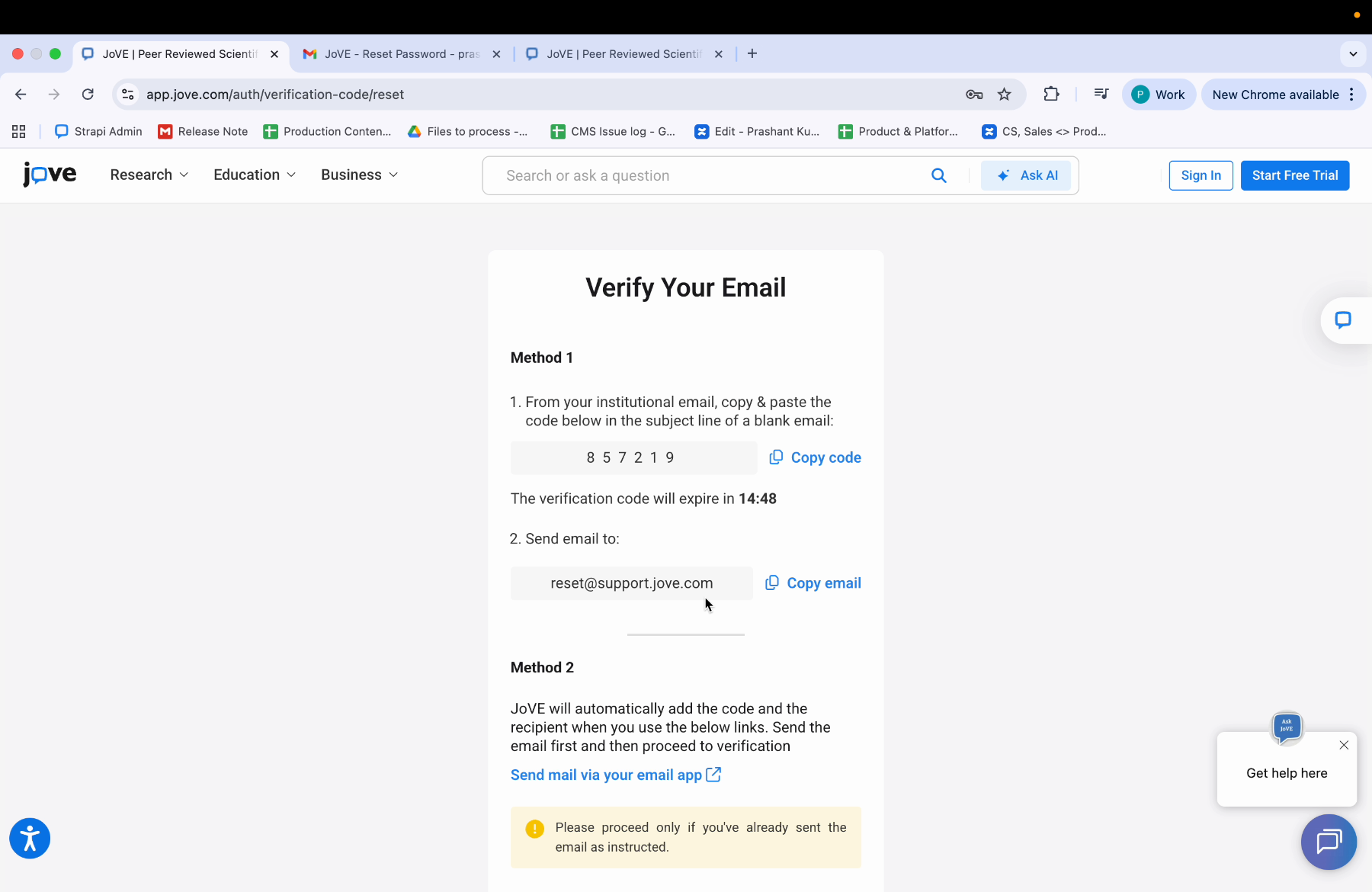
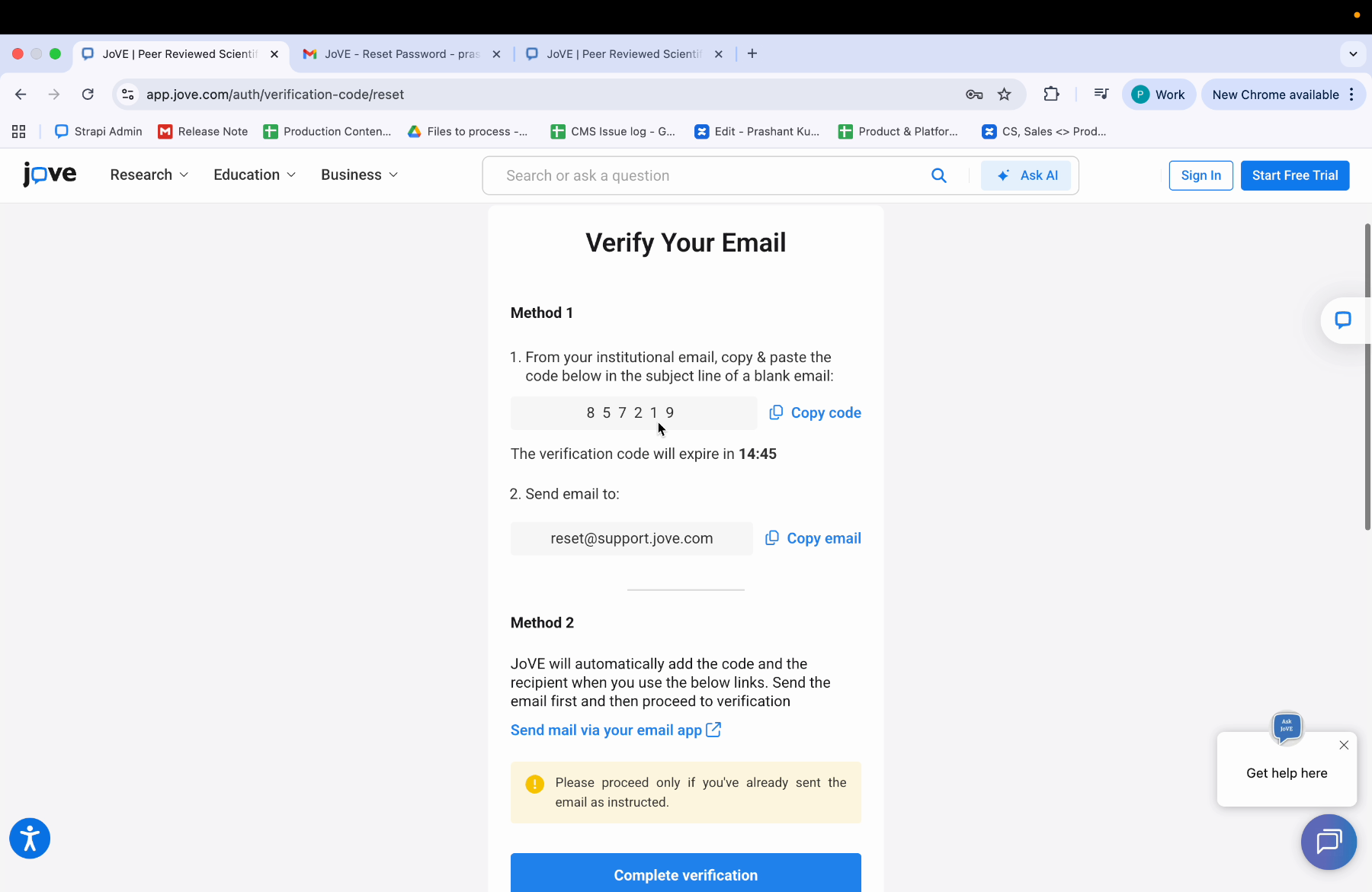
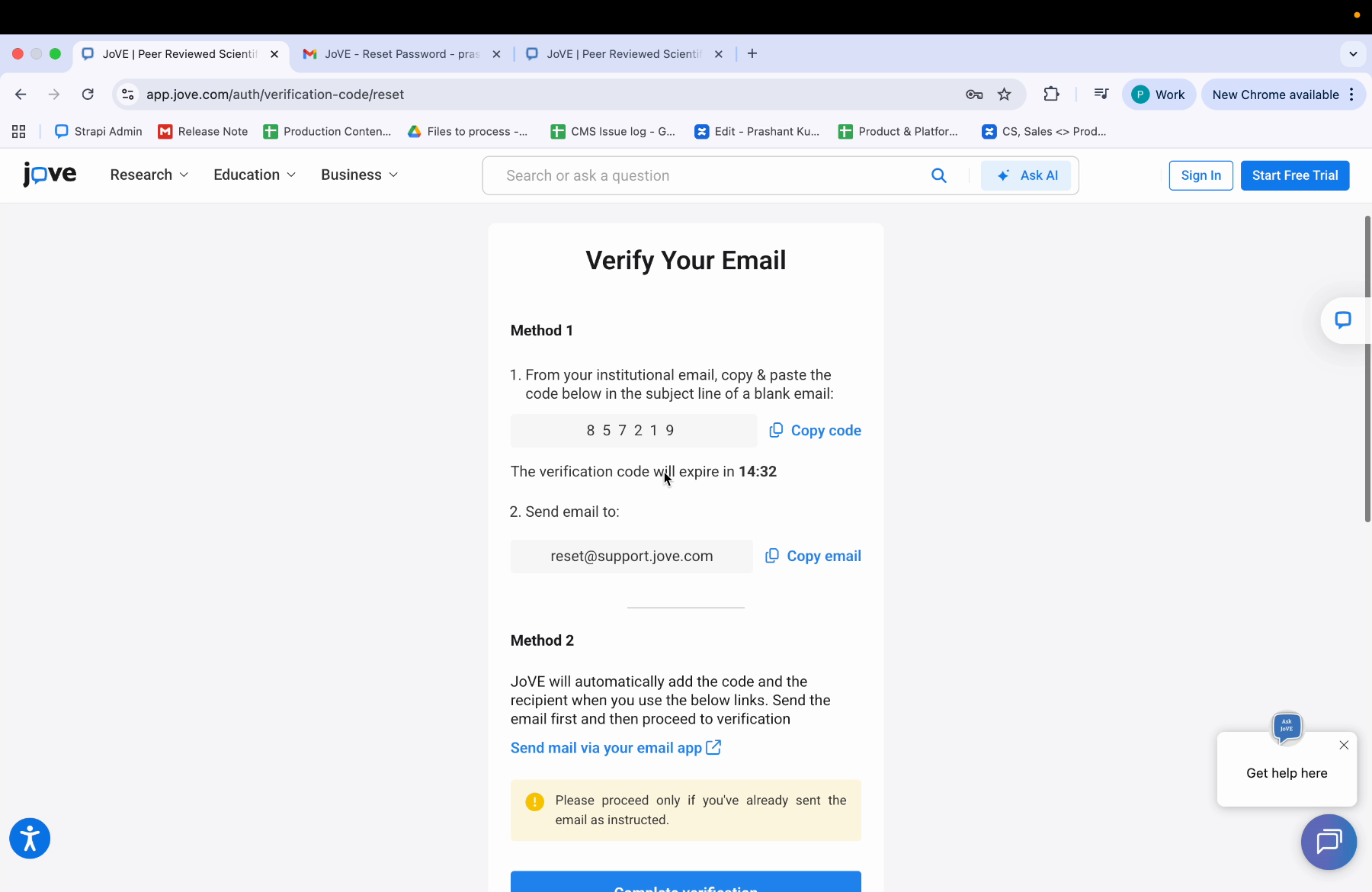
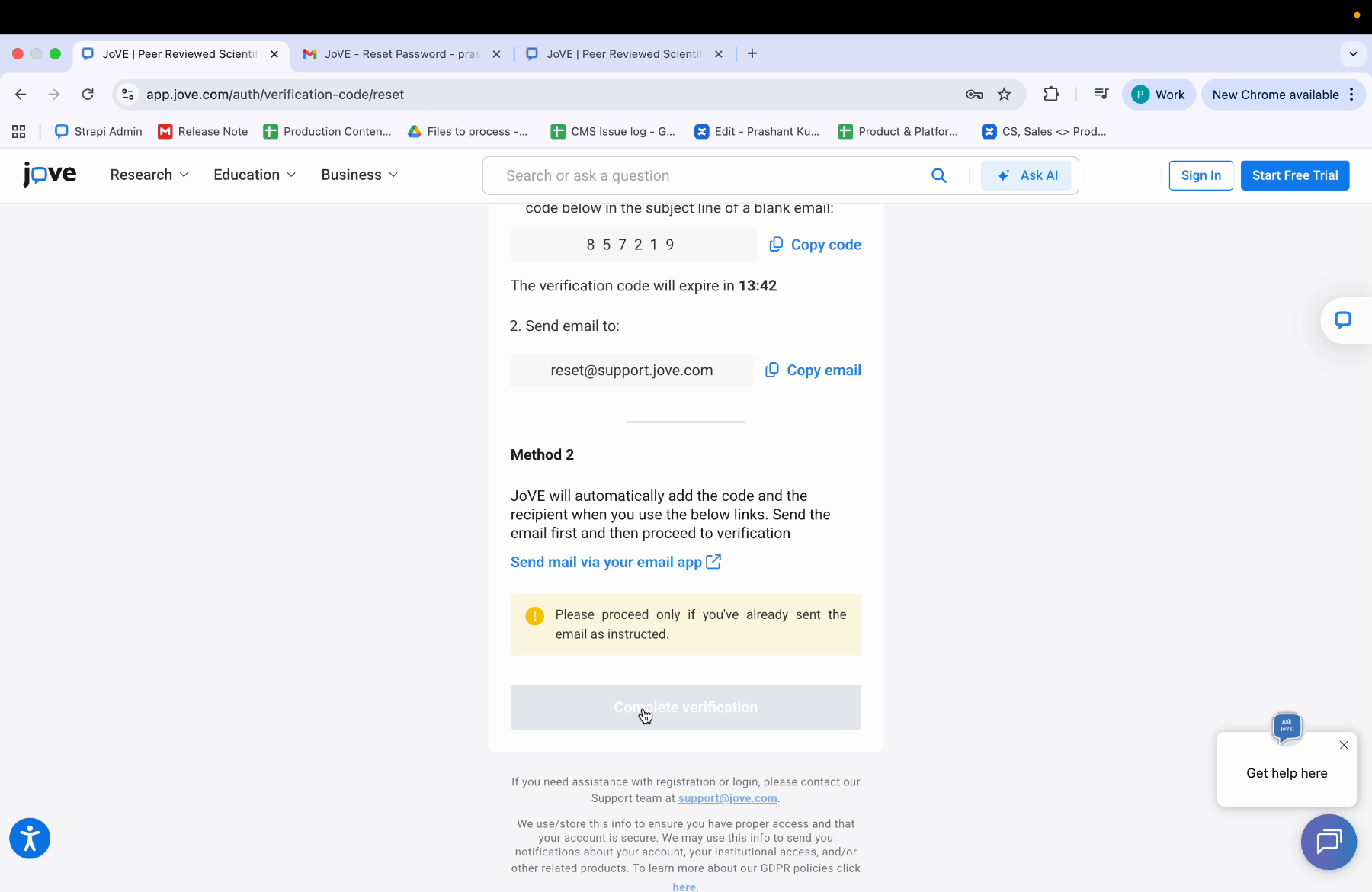
Once you click on this button, it creates a six digit code which is displayed on the screen here. Copy and paste the code in the subject line of a blank mail and send mail to reset@support.jove.com.
4. Method One Explanation
This is method one.
5. Method Two Email Automation
Method two automatically adds the code and the recipient when you use the links below. Send the email first, then proceed to verification.
6. Copy And Send Verification Code
You can copy the code and send an email to reset@support.jove.com.
7. Subject Line Email Preparation
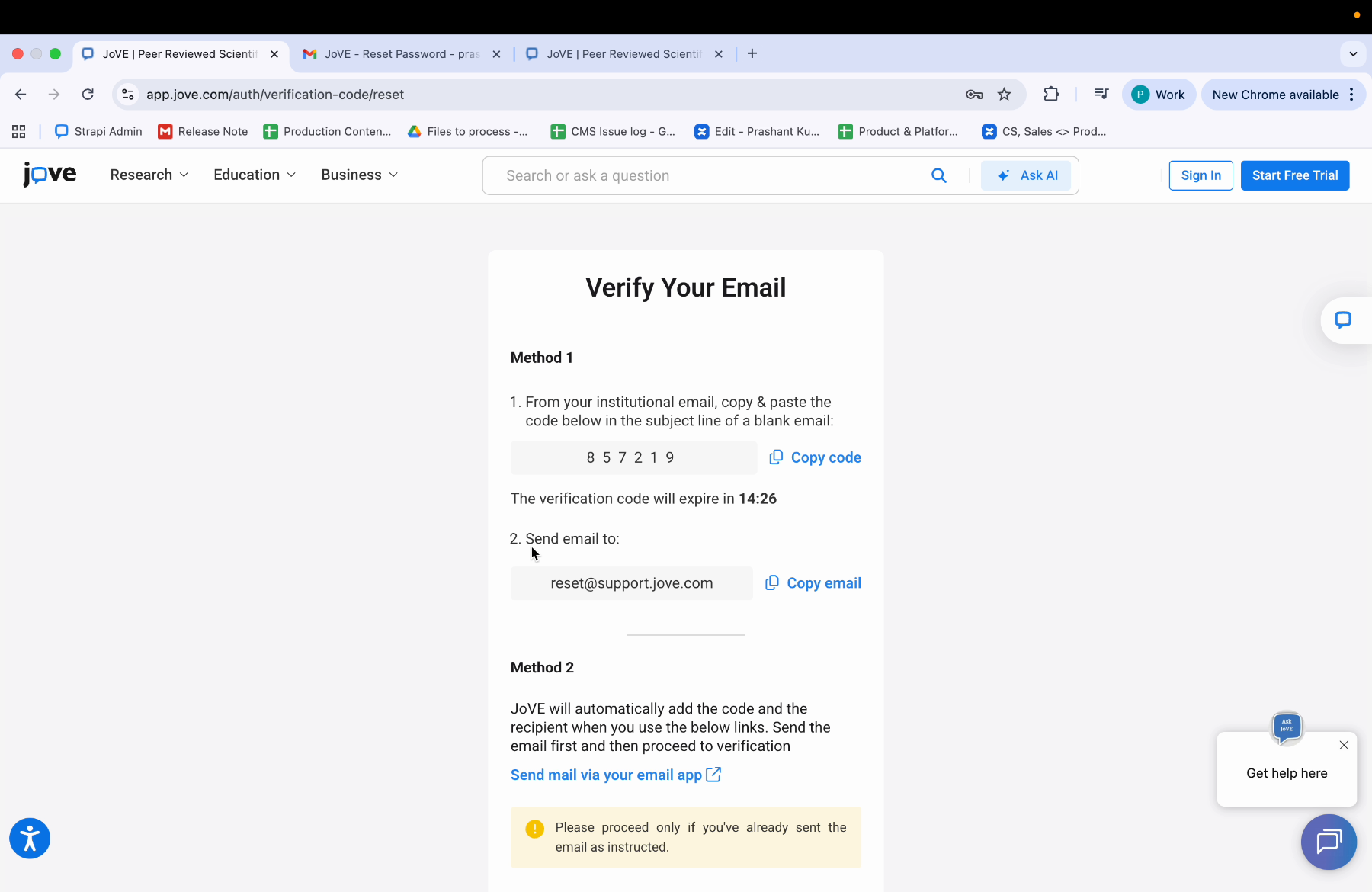
Copy and paste the code in the subject line. You can paste this in the subject line and send it to reset@support.jove.com in the recipient.
8. Sending Verification Email
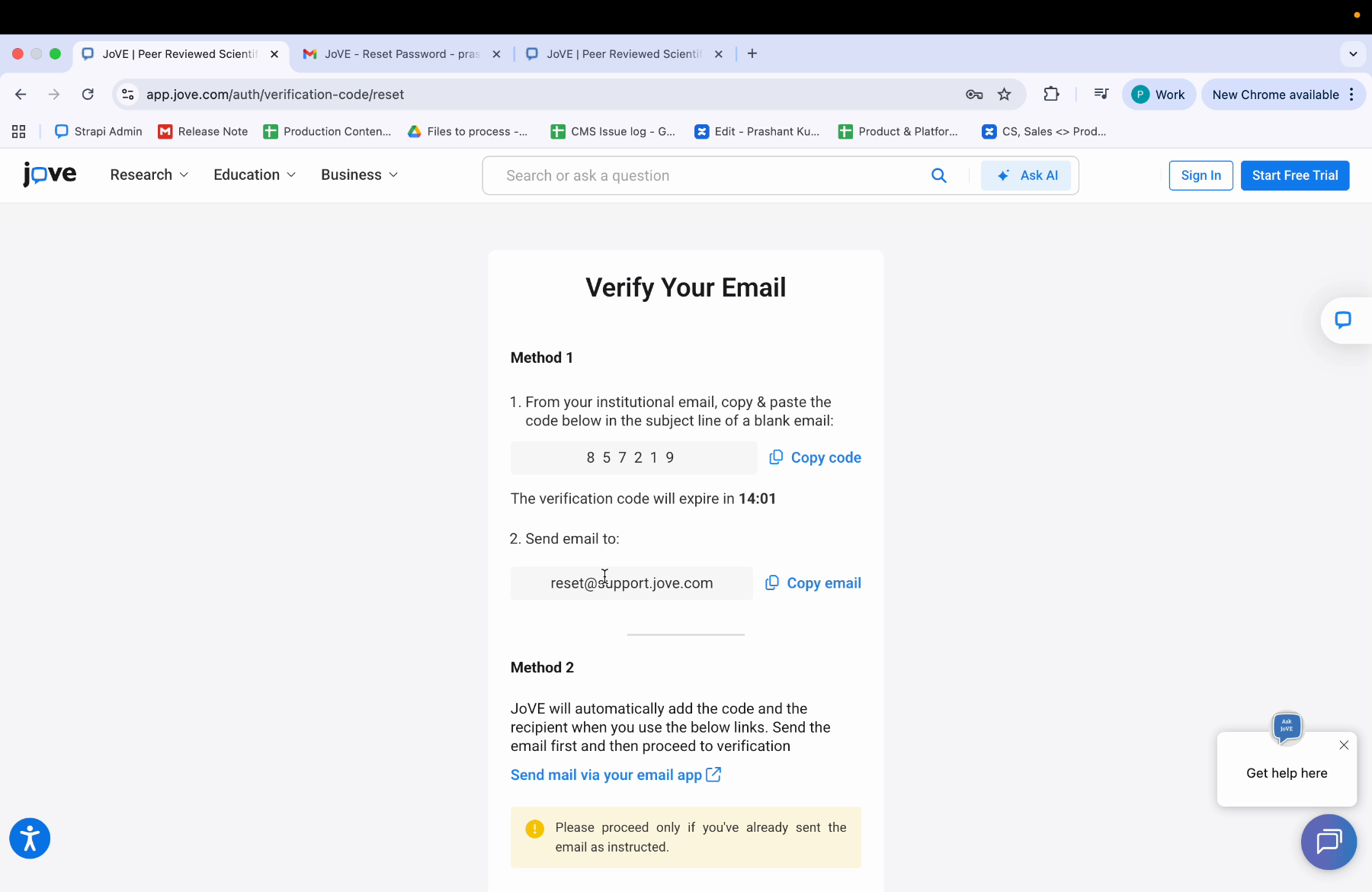
Then send this mail. Once you have sent the mail, click on the 'Complete Verification' button. Your verification is complete
9. Account Verification Status
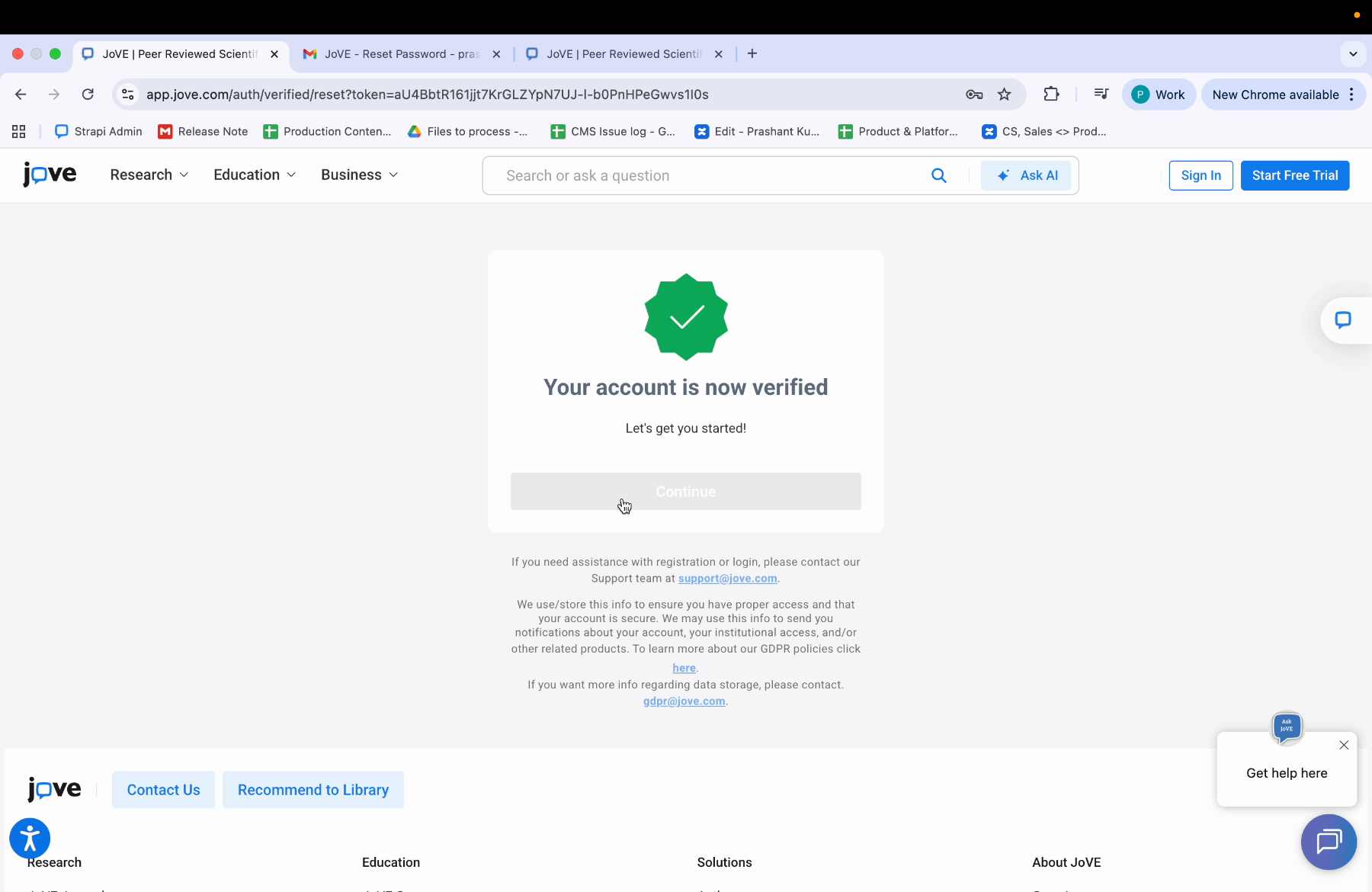
Your account is now verified.
10. Password Reset Completion
You can click on continue button to reset the password. You can enter a password, and you can see your password has been reset.
The video shows how to verify an institutional email and use a six-digit code to reset a forgotten password effectively.