Accessing Jove Quizzes
This video explains how to access Jove Quiz and understand the constraints involved.
Go to app.jove.com
1. Left Side Navigation
The first entry point is the left-hand side navigation pane that you see here. Click "Quizzes" to begin.
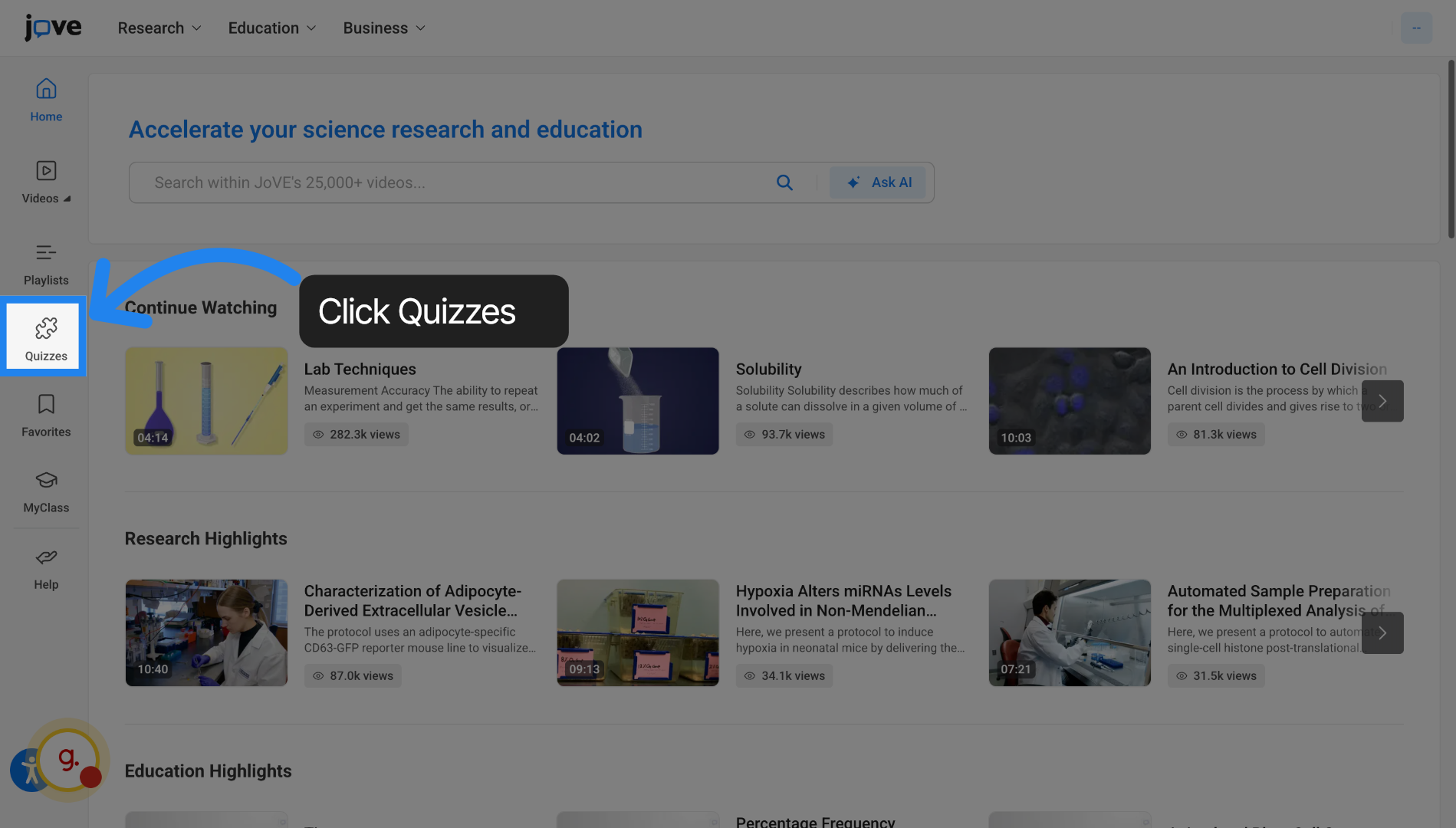
2. Education dropdown
Another entry point is the education dropdown where you will find Jove Quiz listed.
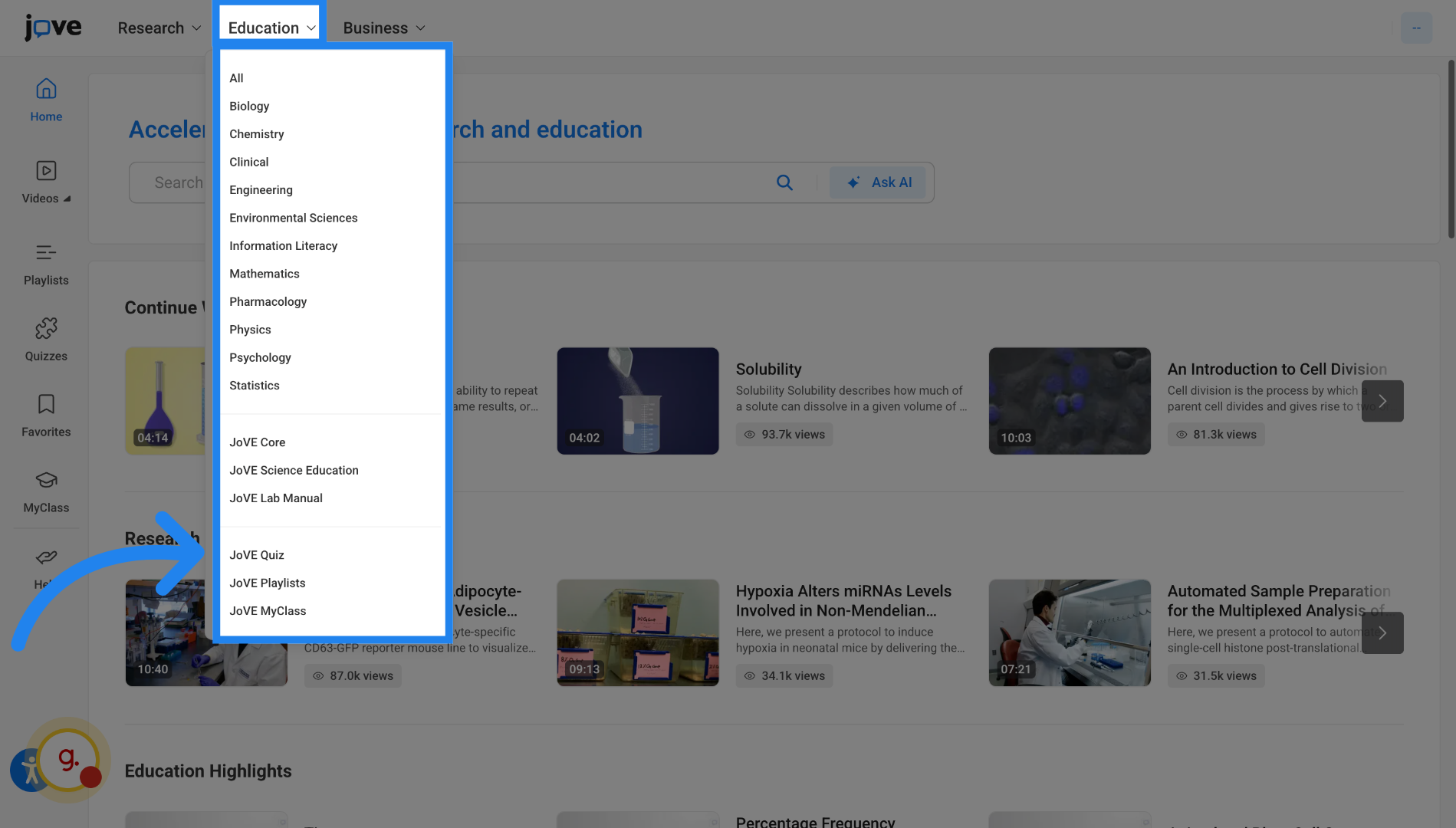
3. Search Page
You will find the Jove Quiz entry point on the search page for all Education videos.
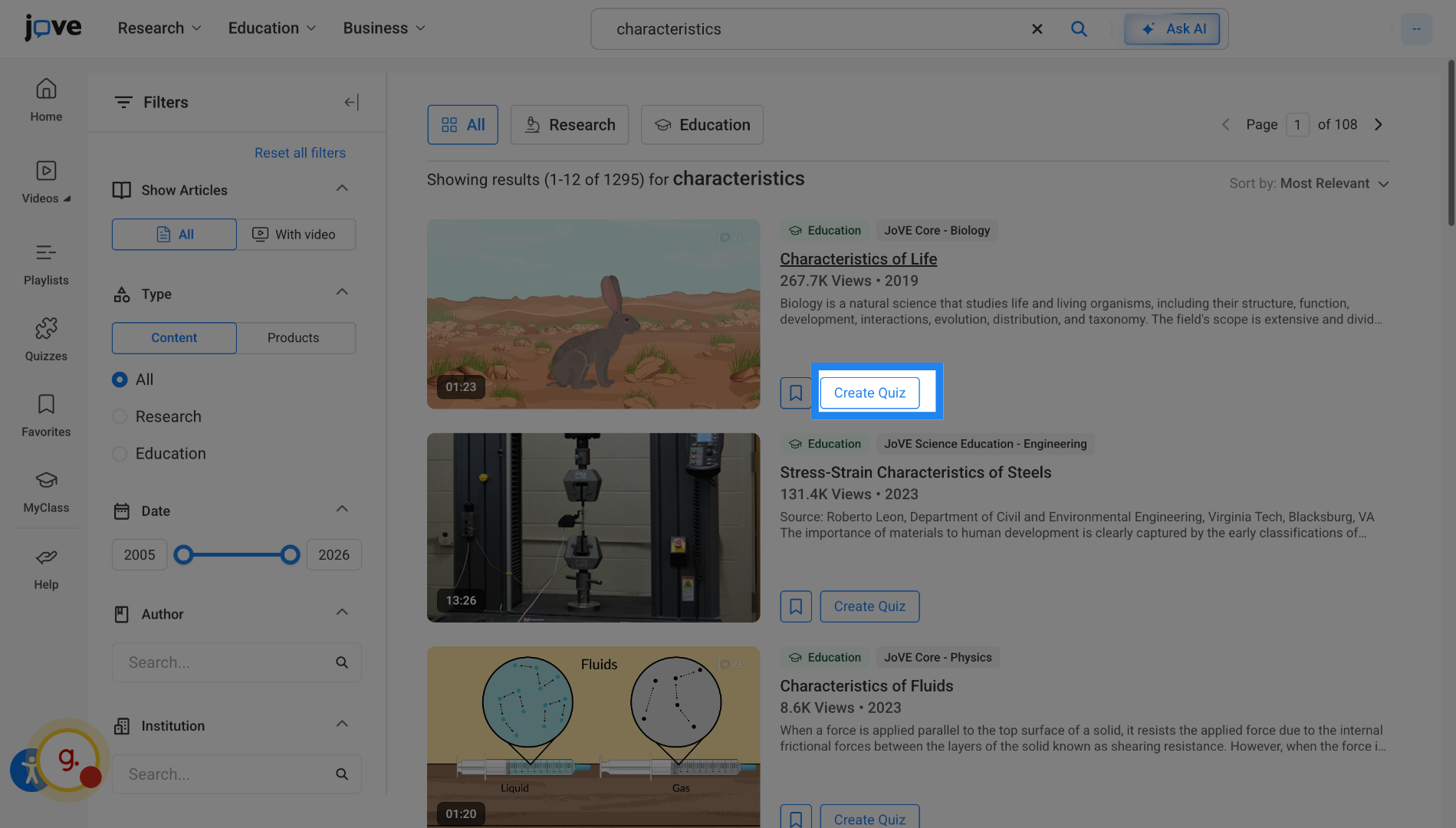
4. Access Video Page
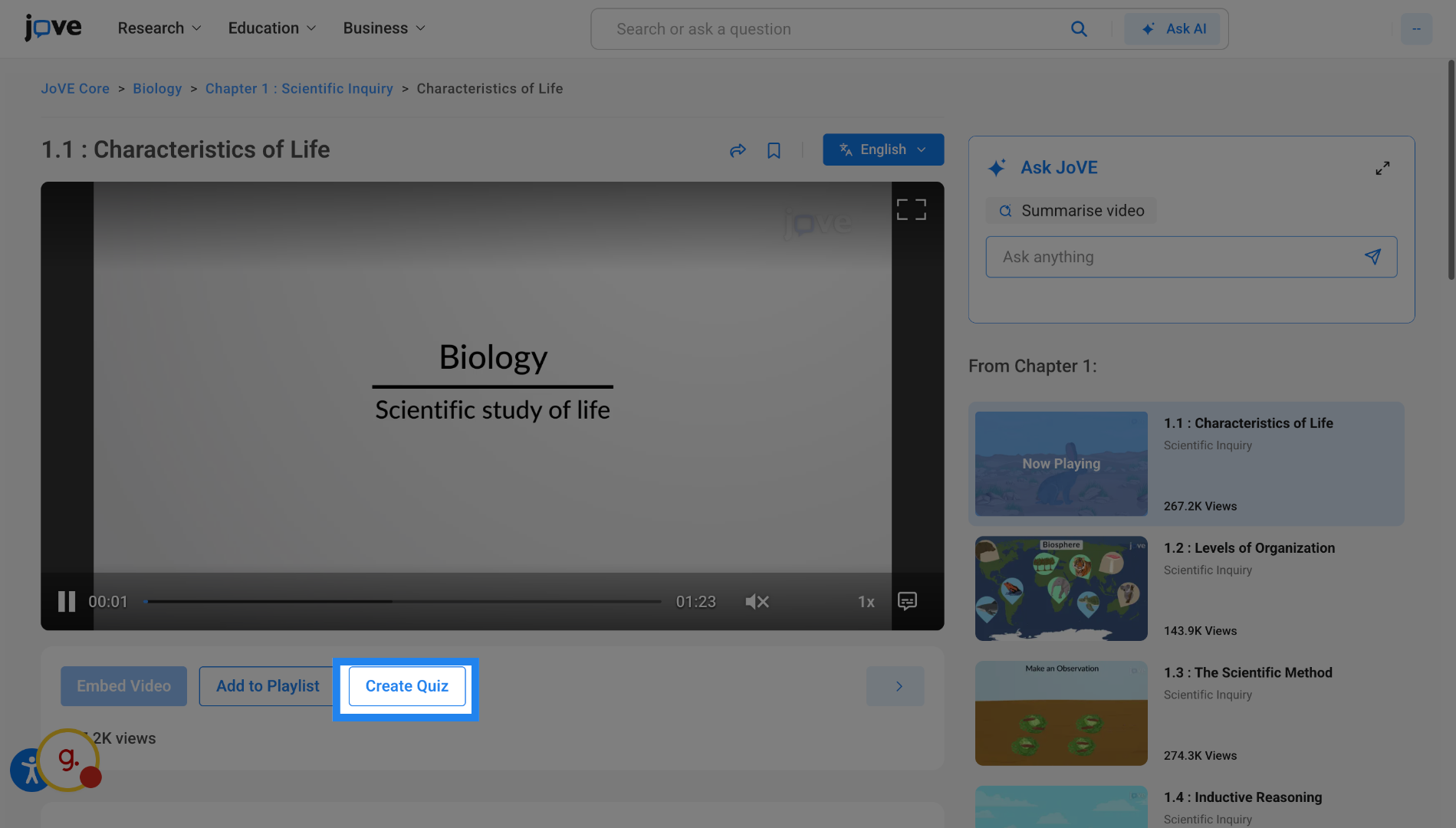
You'll also be able to access Jove Quiz through video page. The entry points for search page and video page are shown only to professors or instructors or librarians.
5. Open Playlists Section
You can also access Jove Quiz through "Jove Playlists".
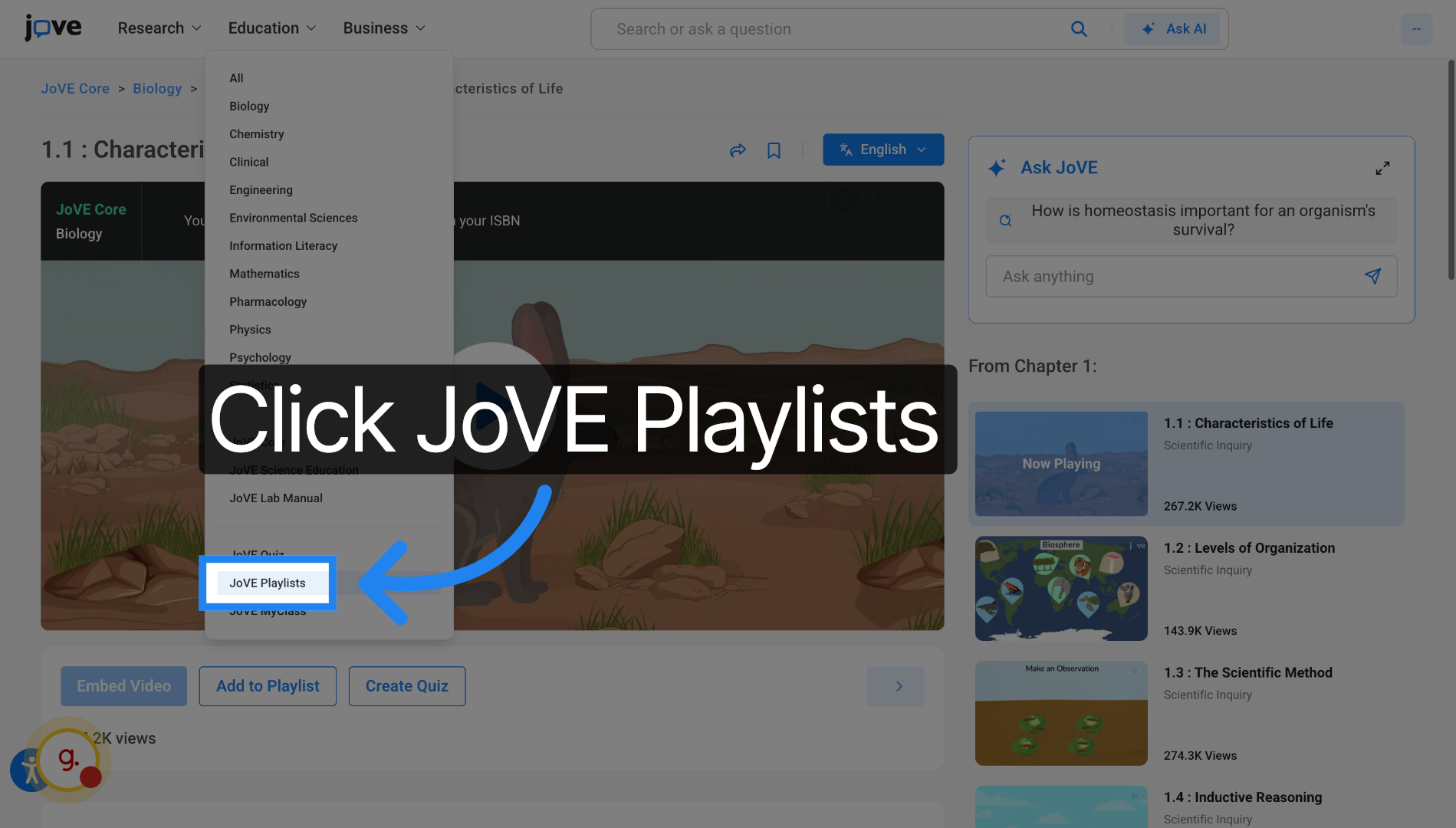
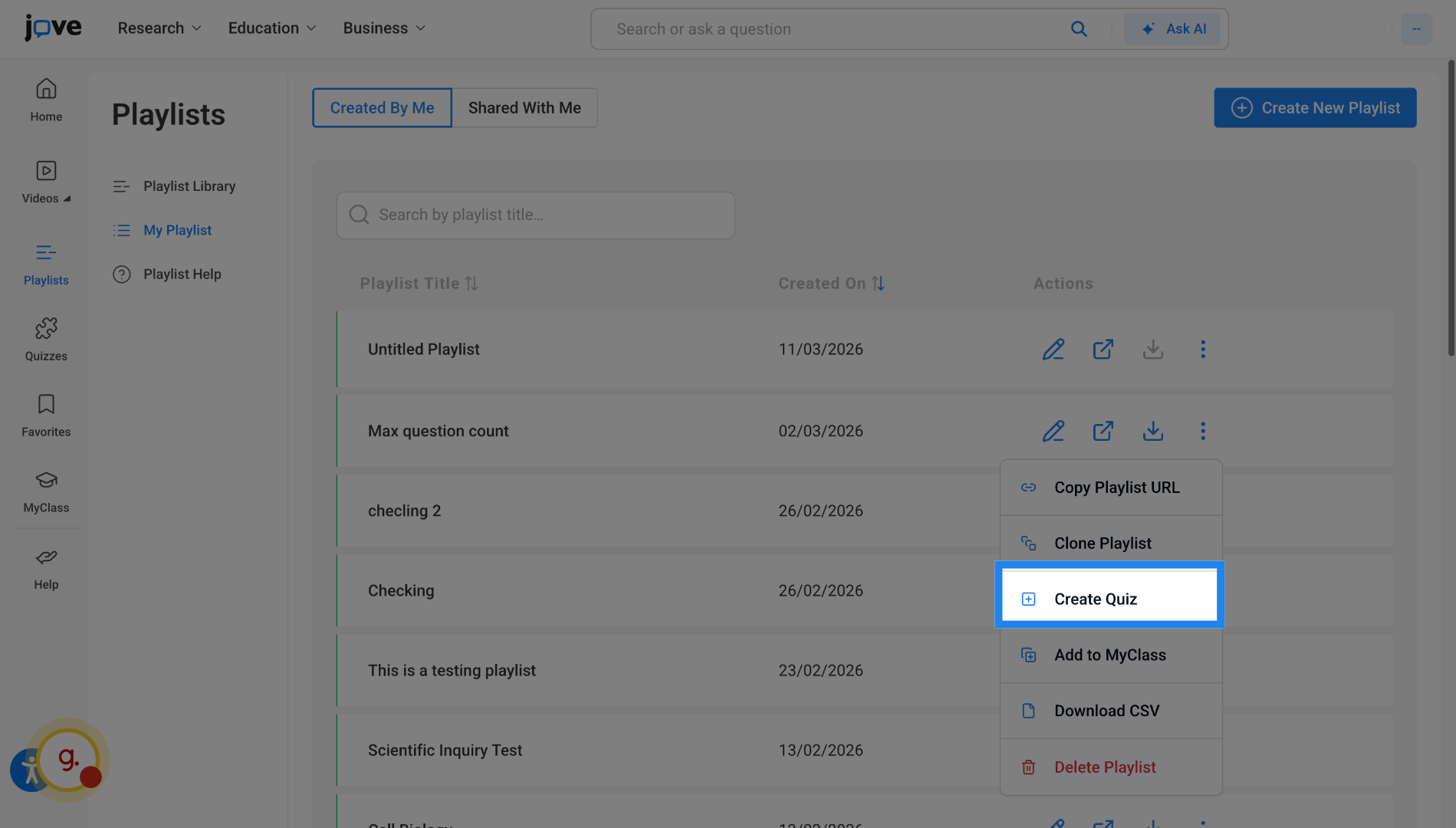
6. Access Quizzes via playlist
You can create quizzes from your playlists.
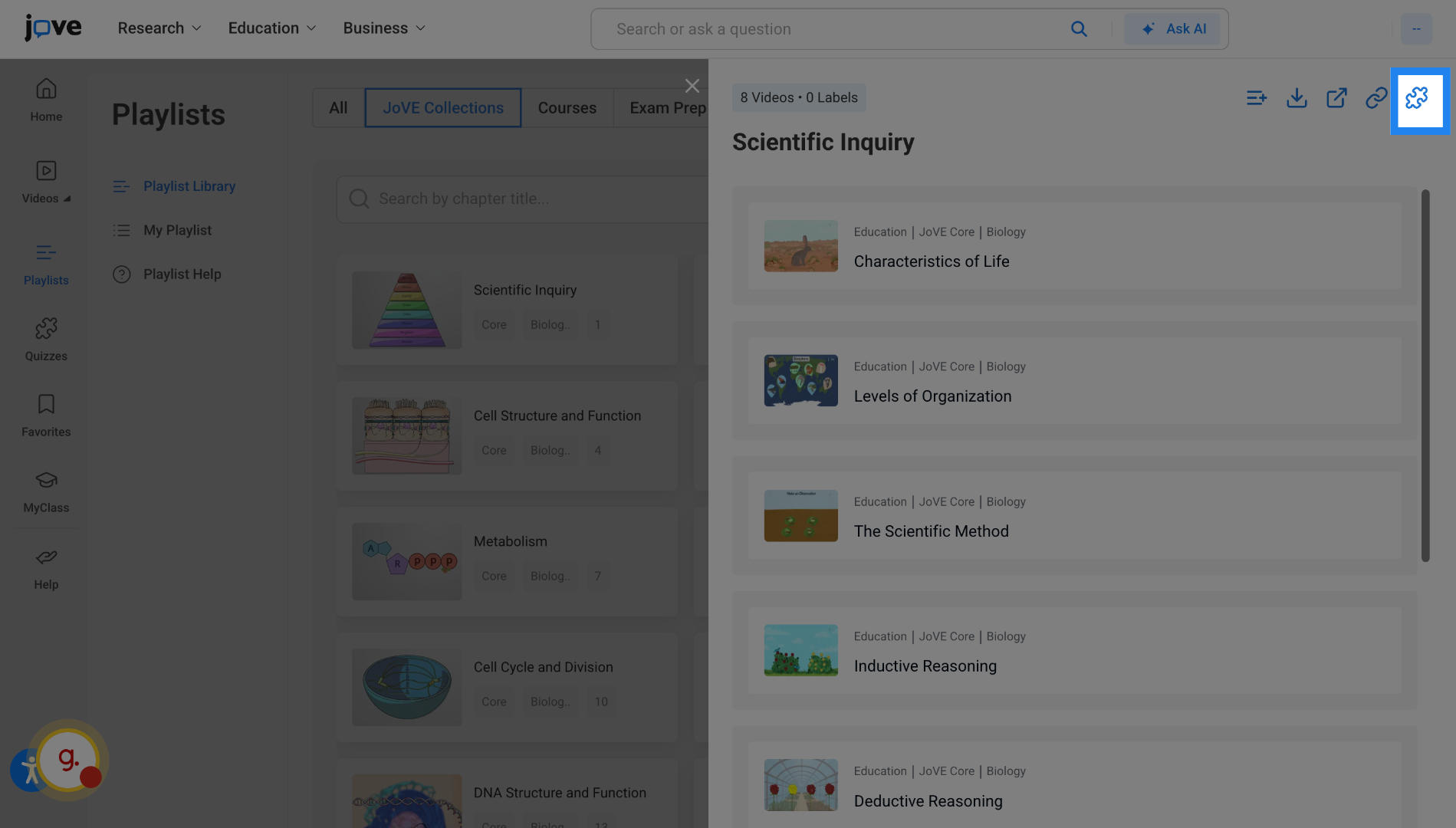
7. Playlist Library - Quizzes
You can also create quizzes from the template playlists enlisted in playlist library.
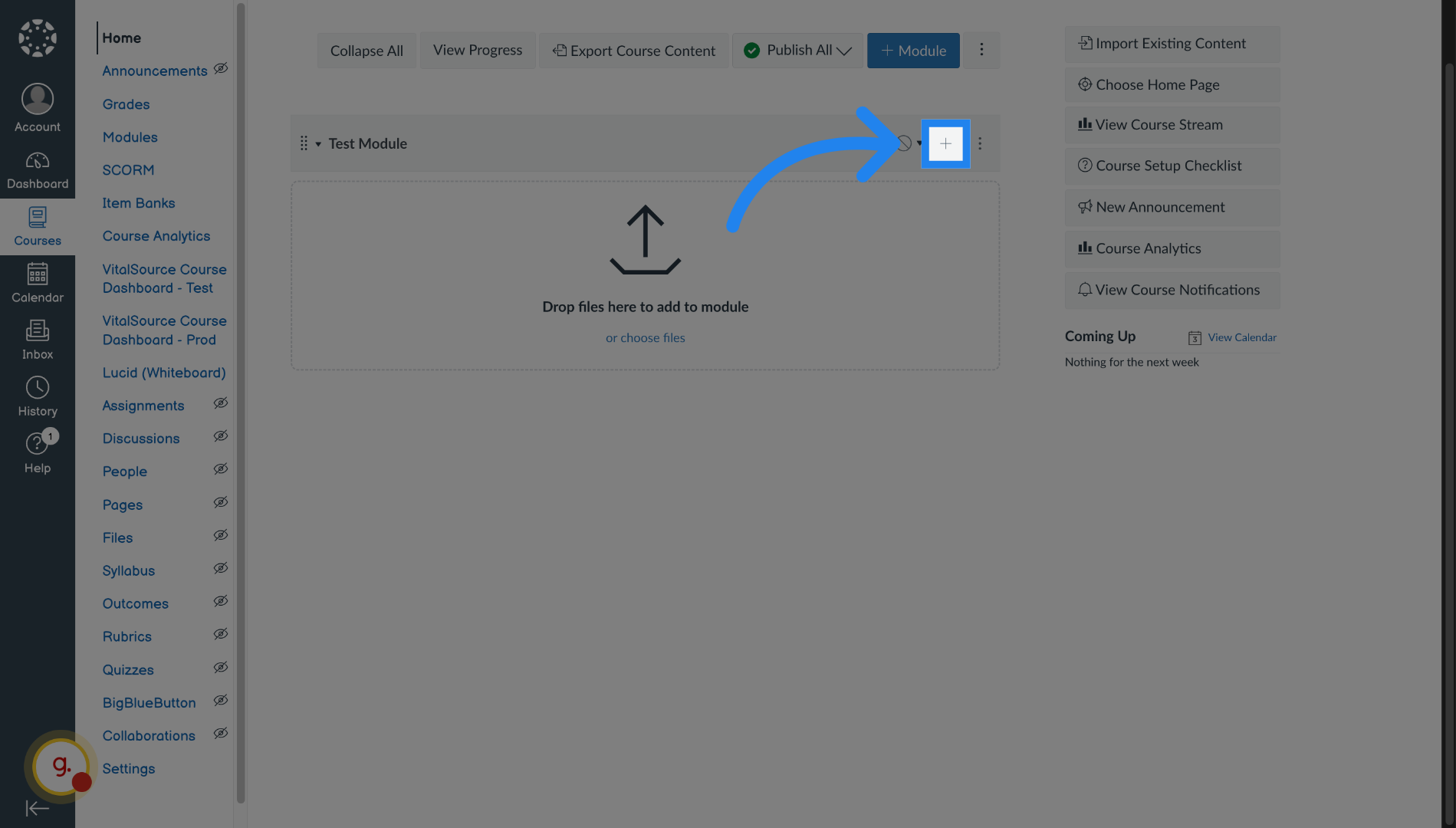
8. Open Course Module
You can also access Jove quiz through your LMS. Inside your course, click on add resources
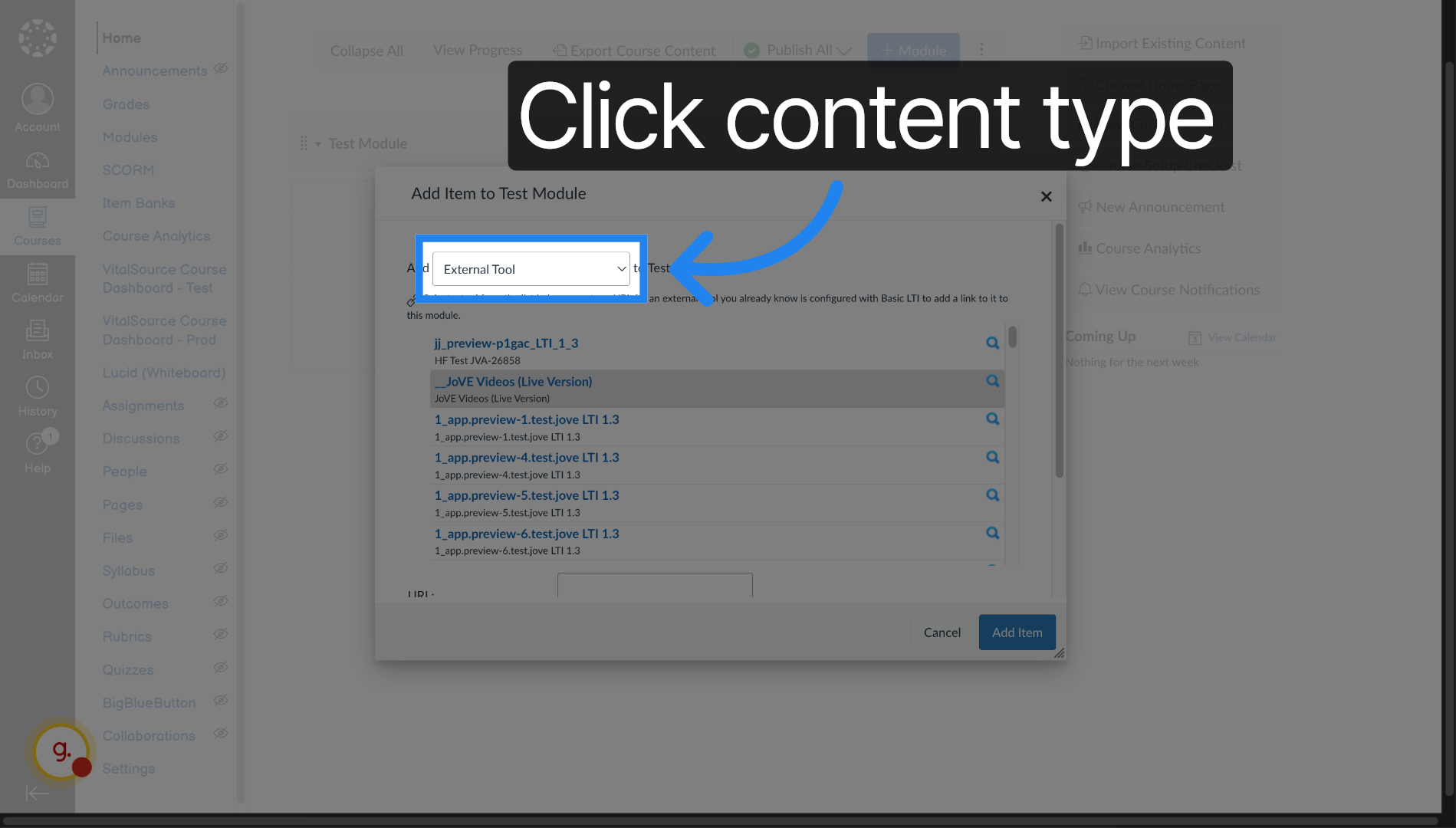
9. Select Content Type
Click "External Tool" to choose the content type to add.
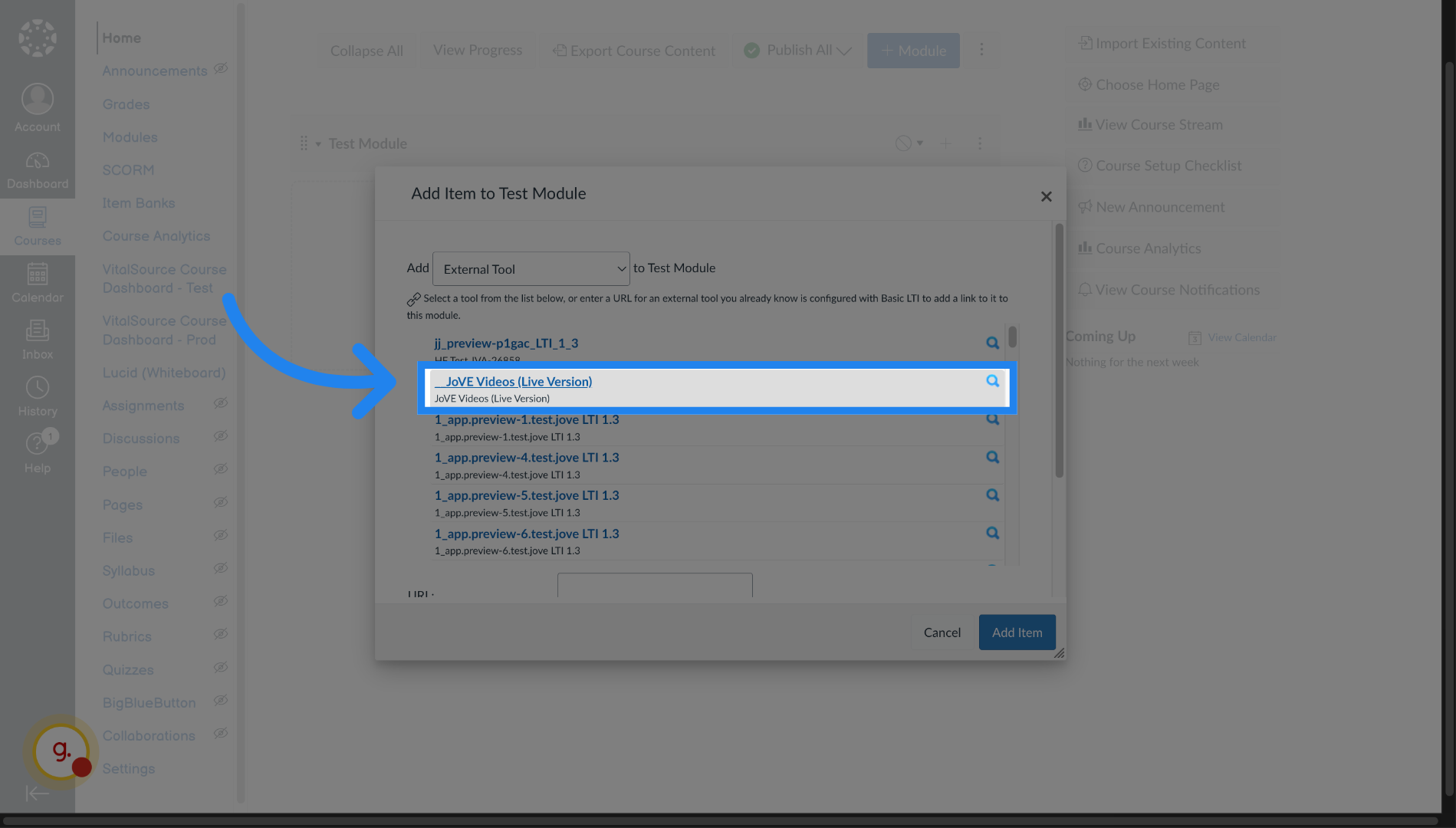
10. Choose JoVE Videos
Click "Jove Videos" to add Jove video content
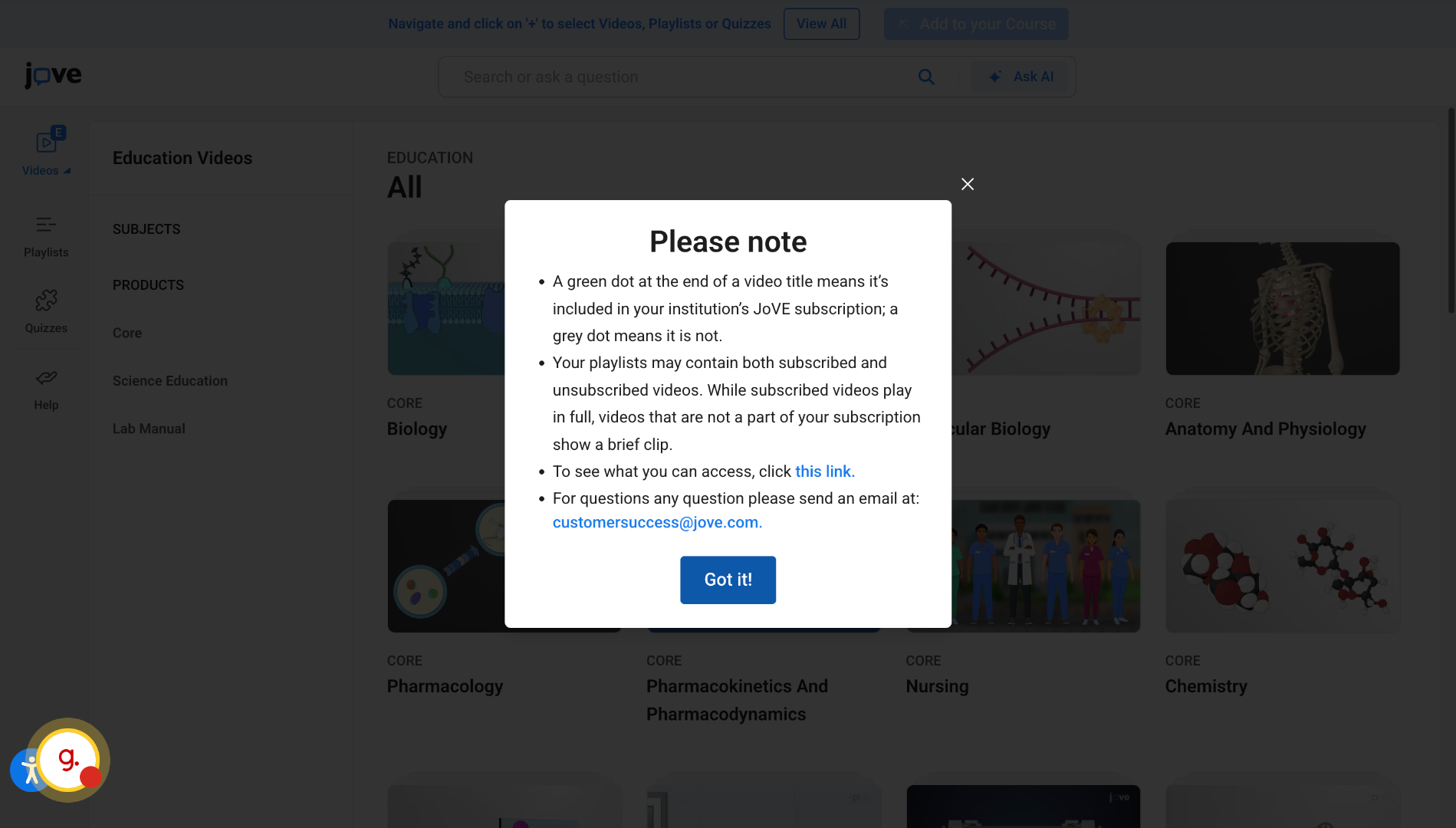
11. Switch to JoVE Education
Launch the Jove LTI experience.
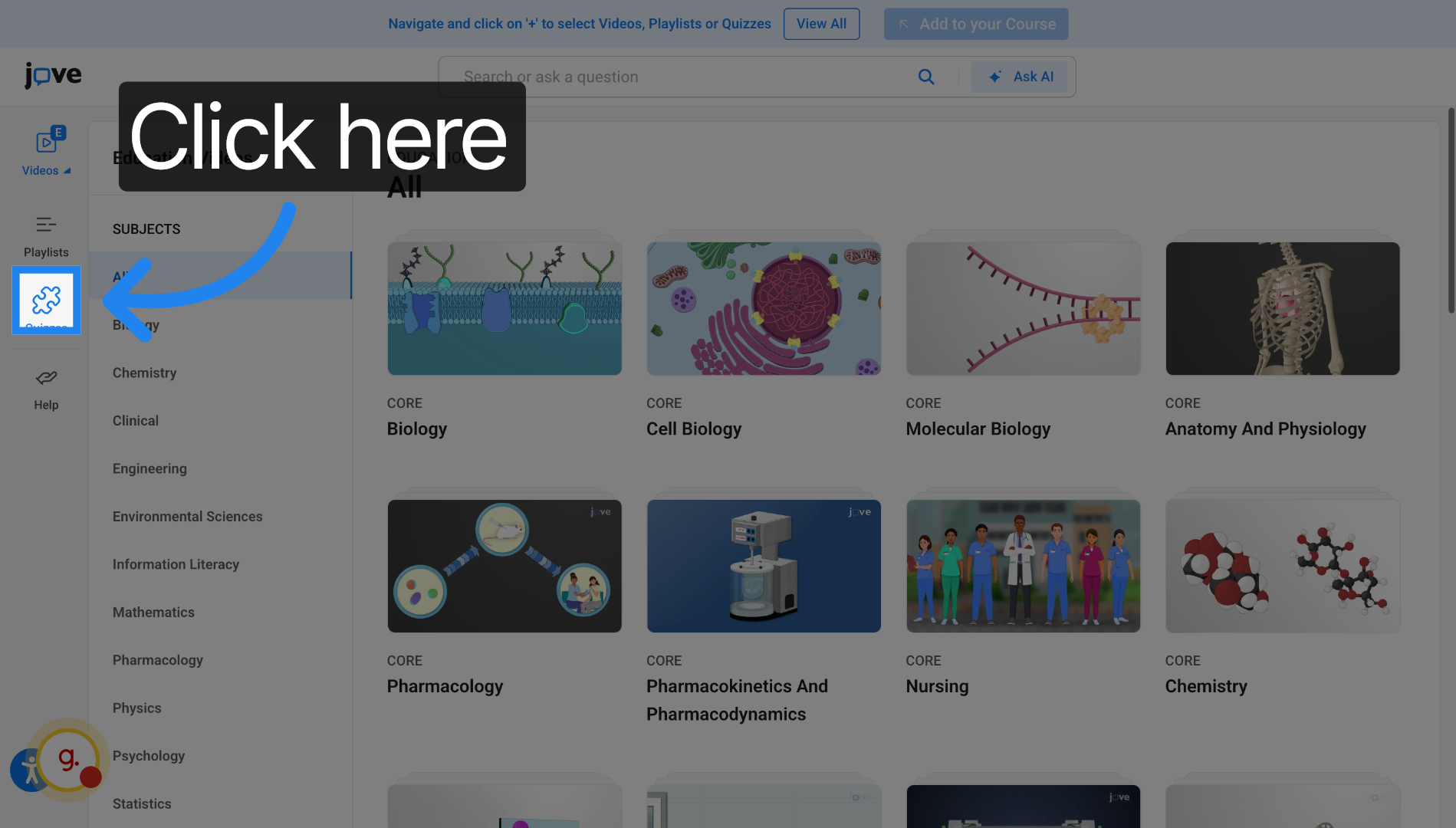
12. Select Entry Point
Click here to enter Jove Quiz.
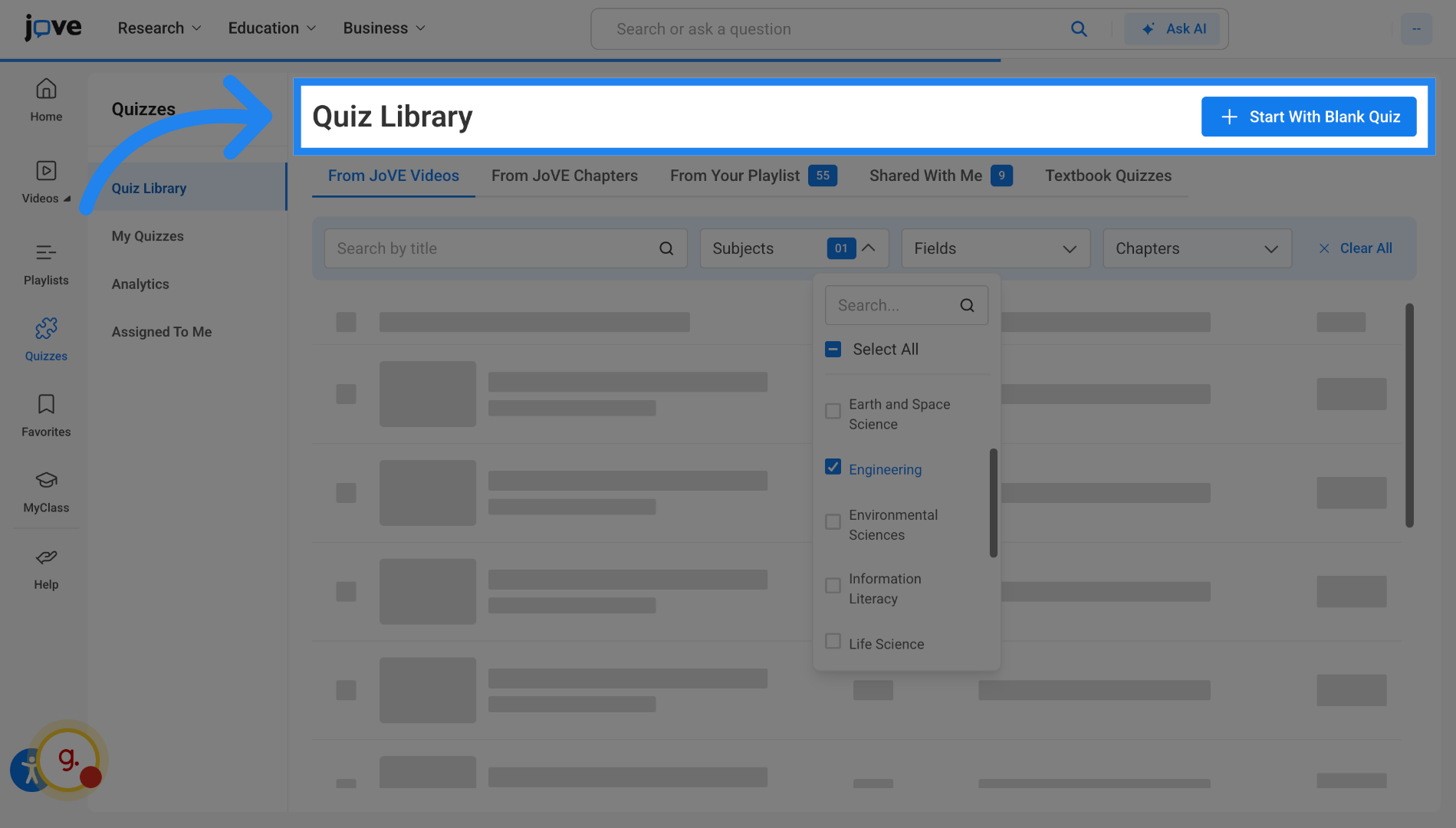
13. Open Quiz Library
Click "Start With Blank Quiz" to start a new quiz.
14. Check Subscription Status
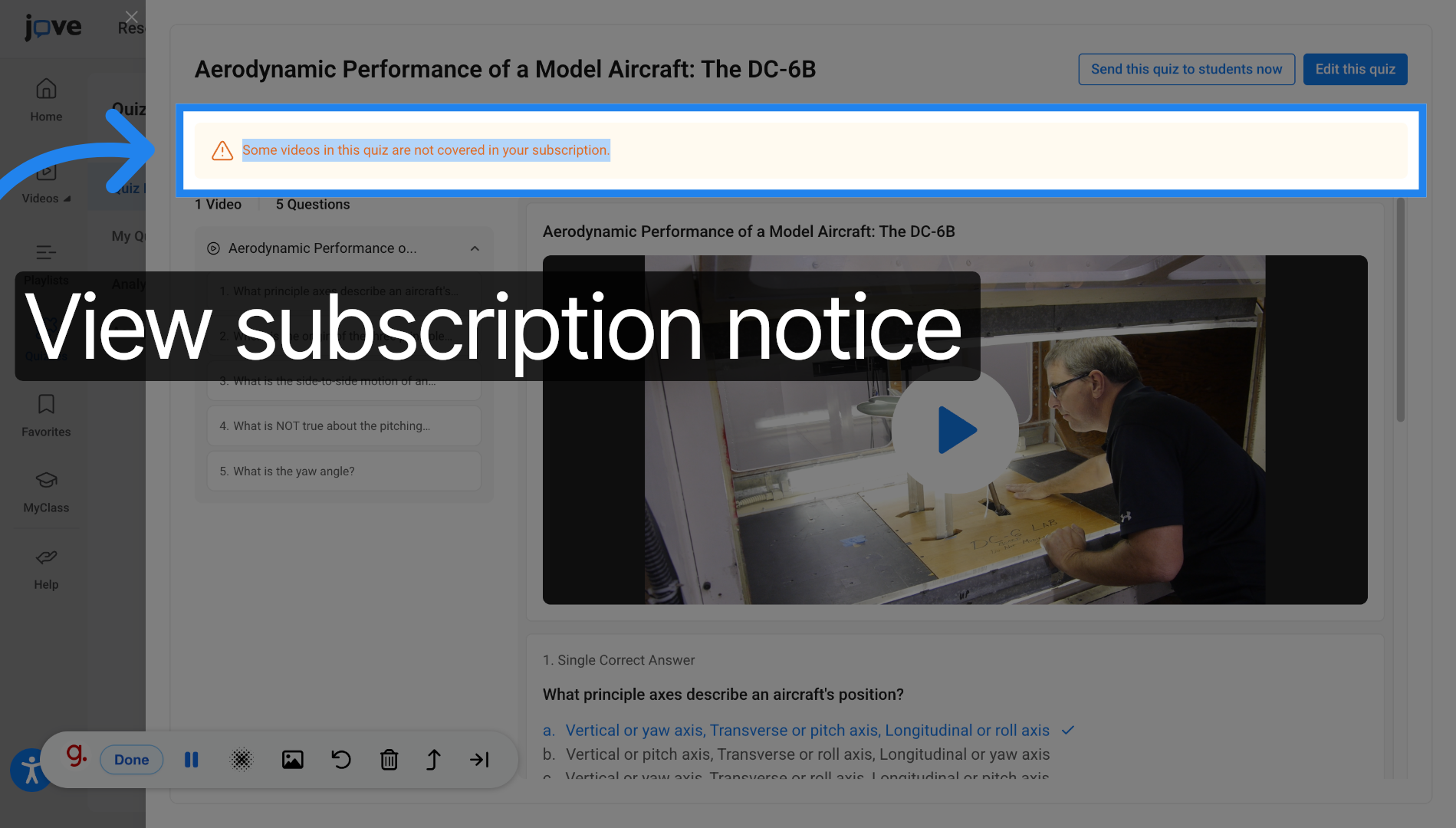
You can also use Jove quiz templates for creating quizzes.Quizzes that are not a part of users' subscription will be shown a disclaimer stating that "Some videos in this quiz are not covered in your subscription."
Related to