Creating a quiz (New)
Go to www.jove.com
1. Introduction to Quiz Creation
Hello everyone. In this video, we'll learn how to create a quiz.
2. Quiz Library
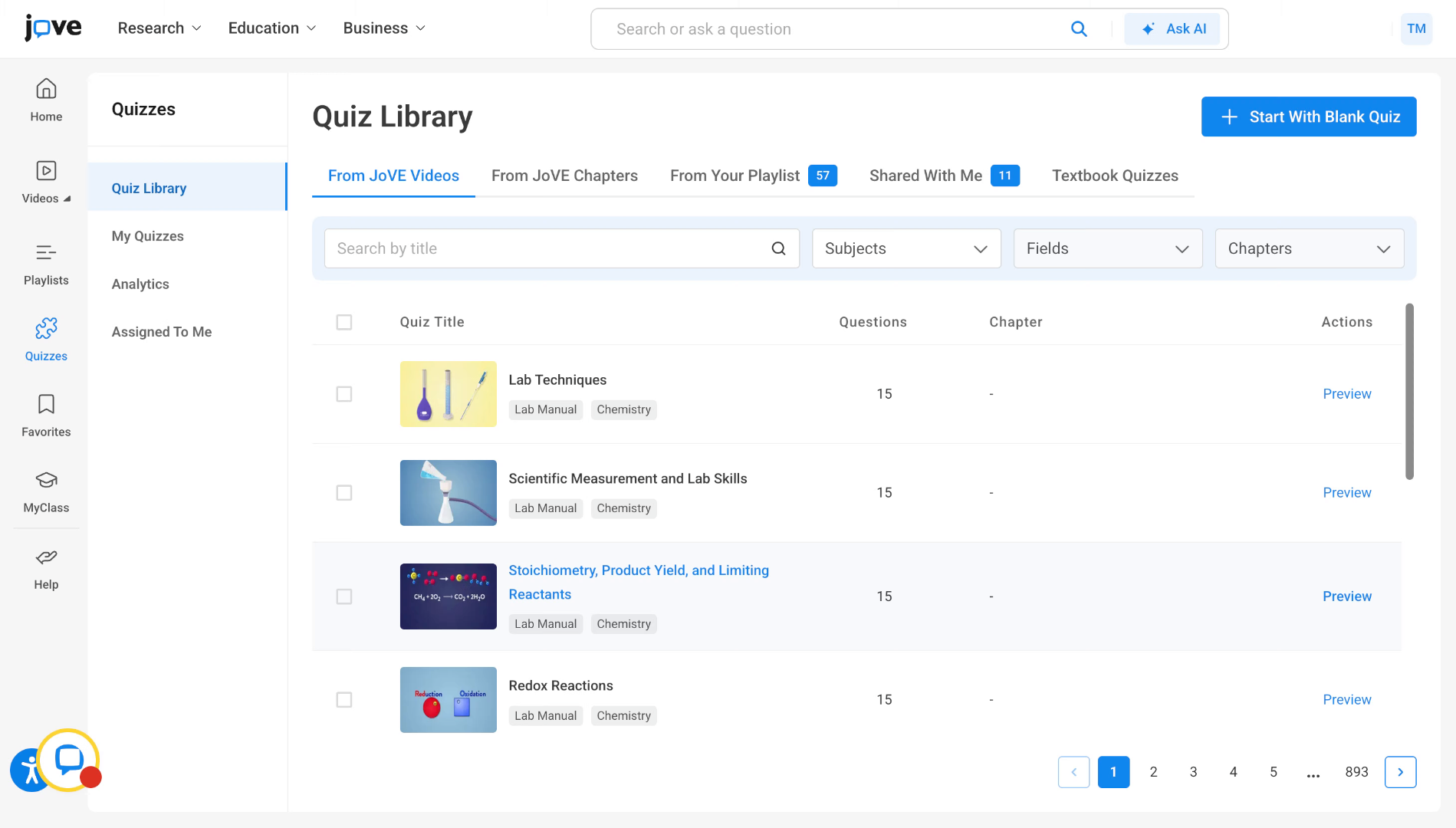
When a professor first lands on the quiz page, the professor will see the quiz library.
3. Overview of Quiz Library
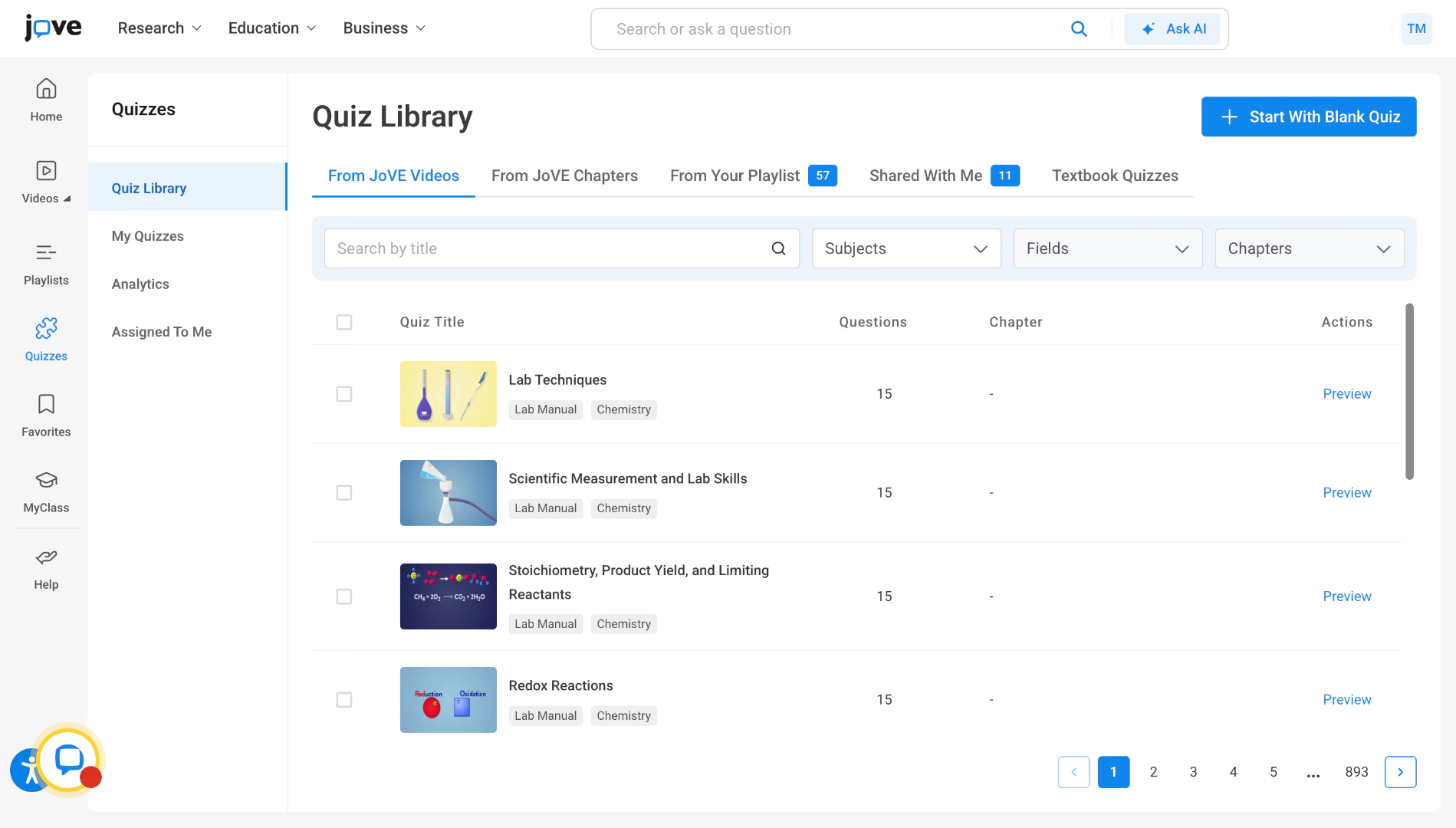
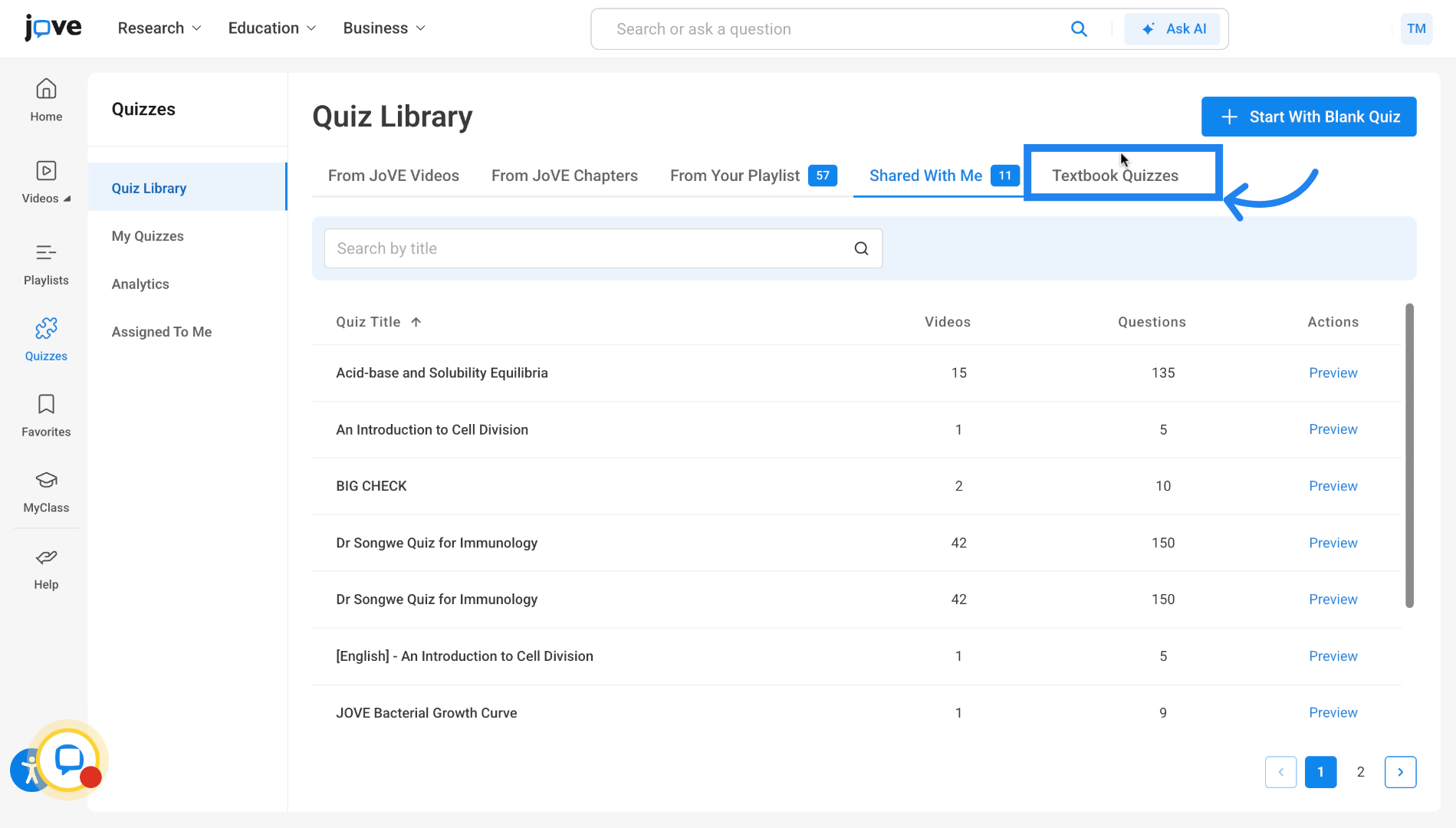
This is where we store all the template quizzes that are present in Jove. these are pre-made quizzes that the professors can use as it is for evaluating their students.
4. Explore Five types of Template Quiz
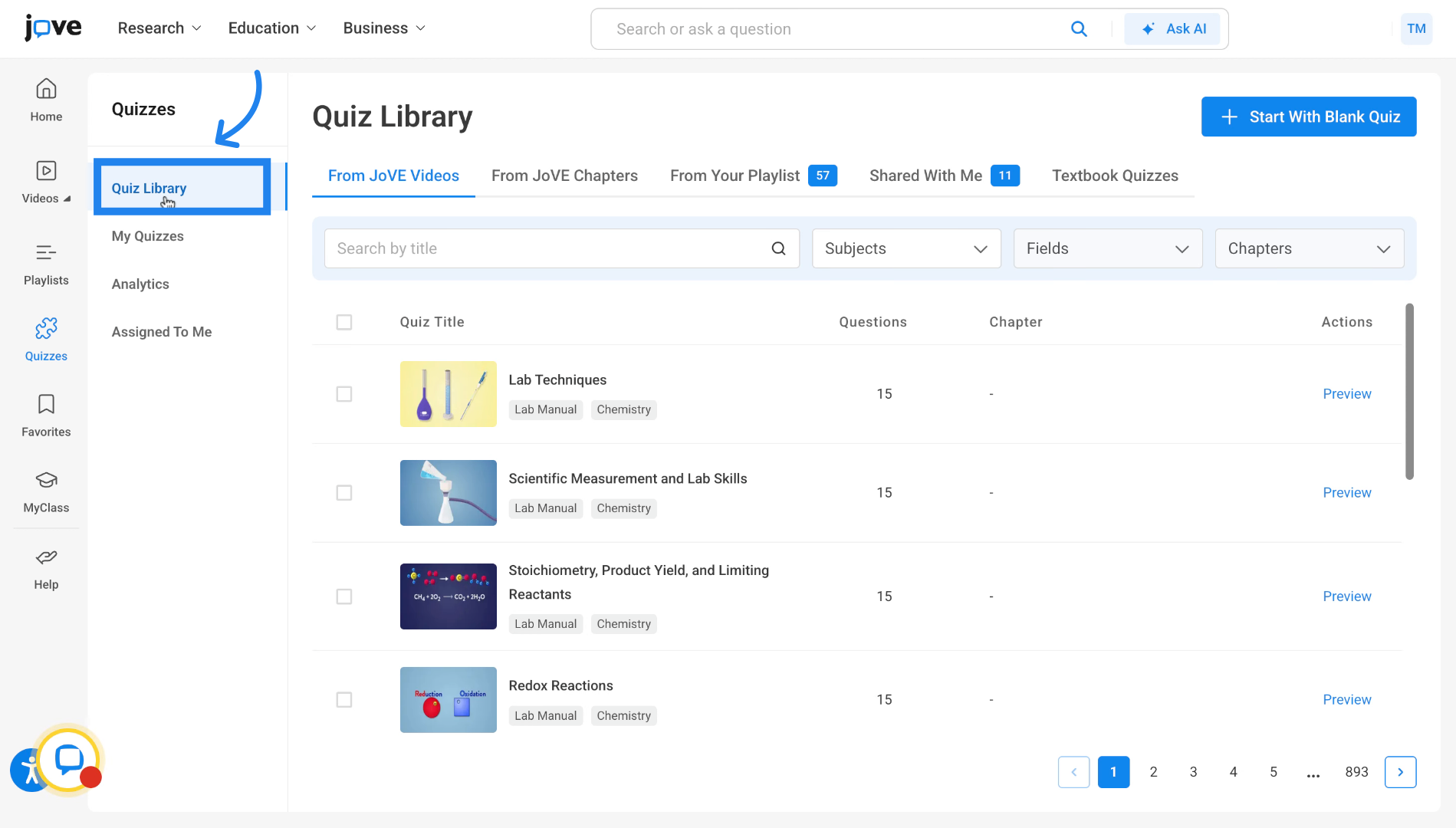
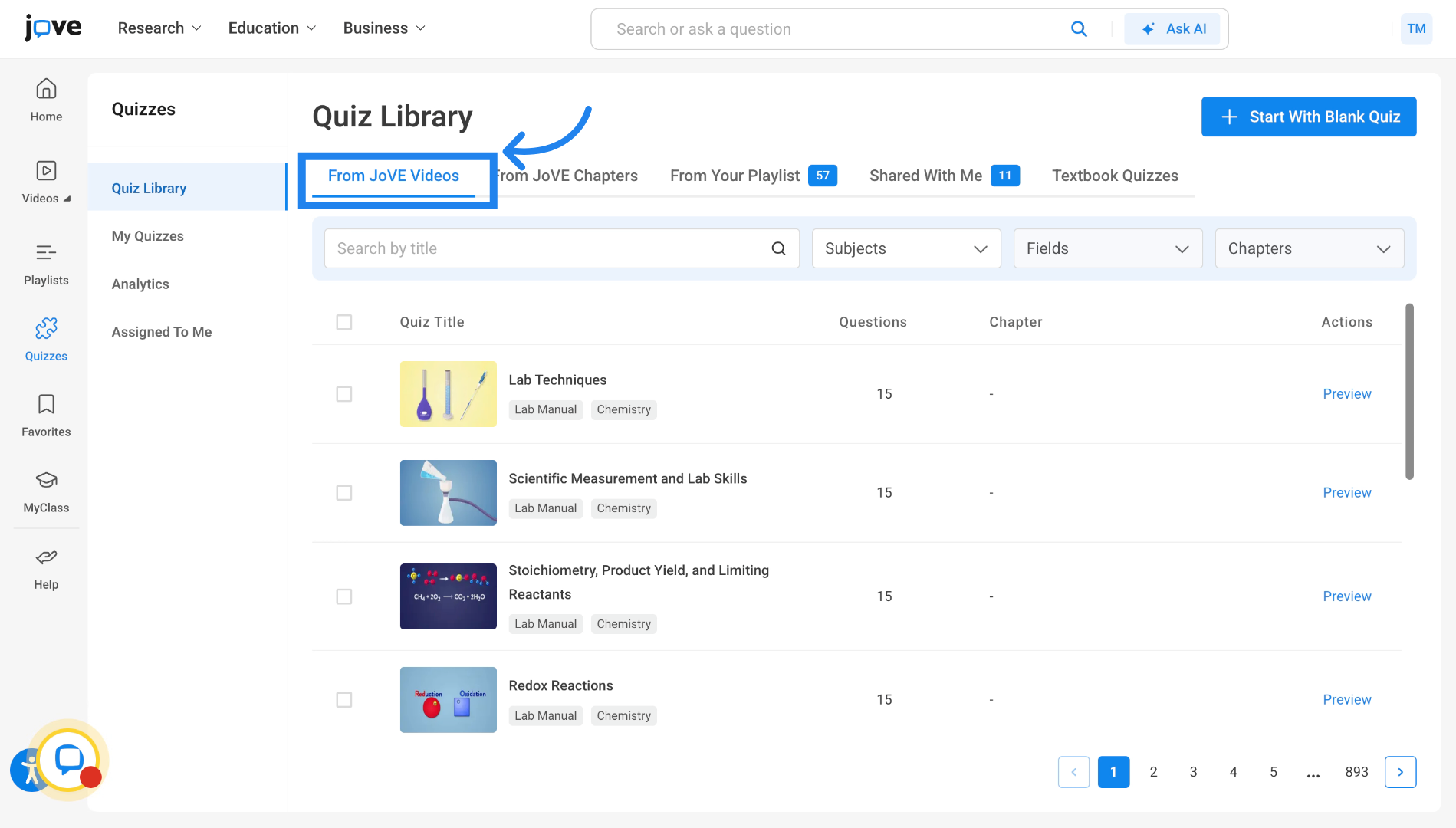
We have five types of template quizzes. The first tab houses all the quizzes that are single video quizzes.
5. From JoVE Videos tab
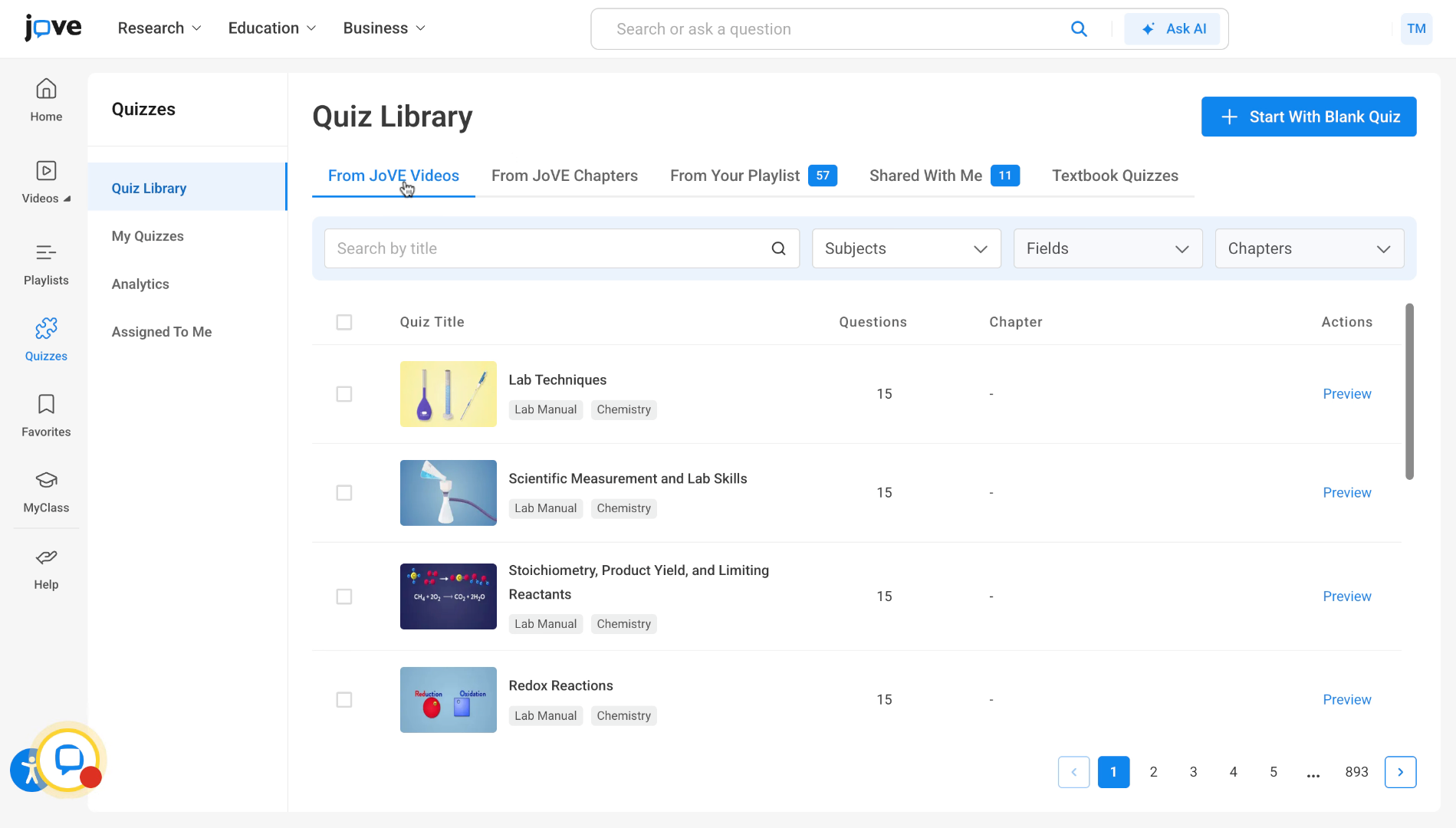
all Jove education and jove business videos have certain questions attached to them. For each of these videos, we have a corresponding quiz that is stored here.
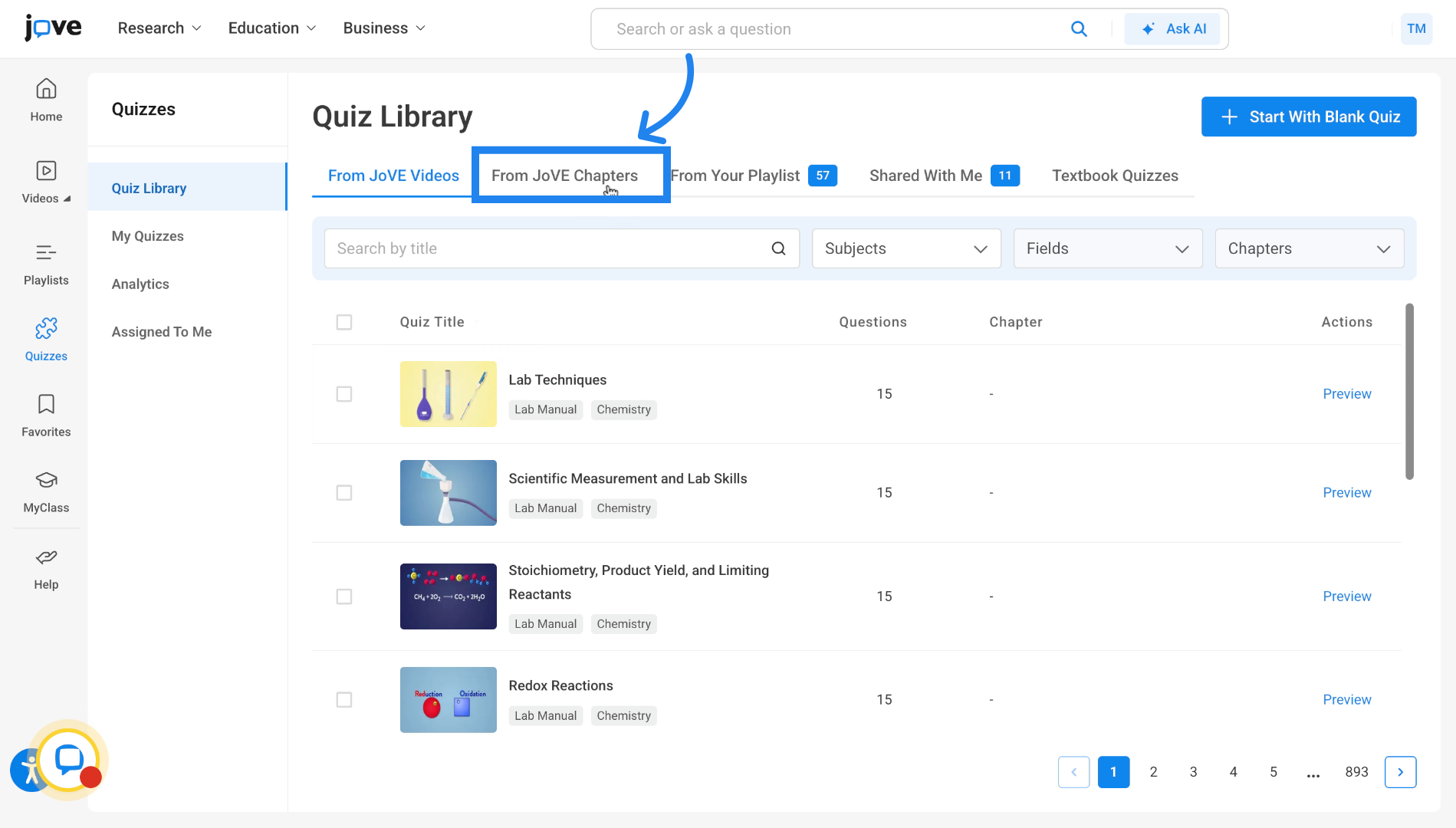
6. From JoVE Chapters
In the second tab, we have the quizzes made from all the jove chapters found across the jove site.
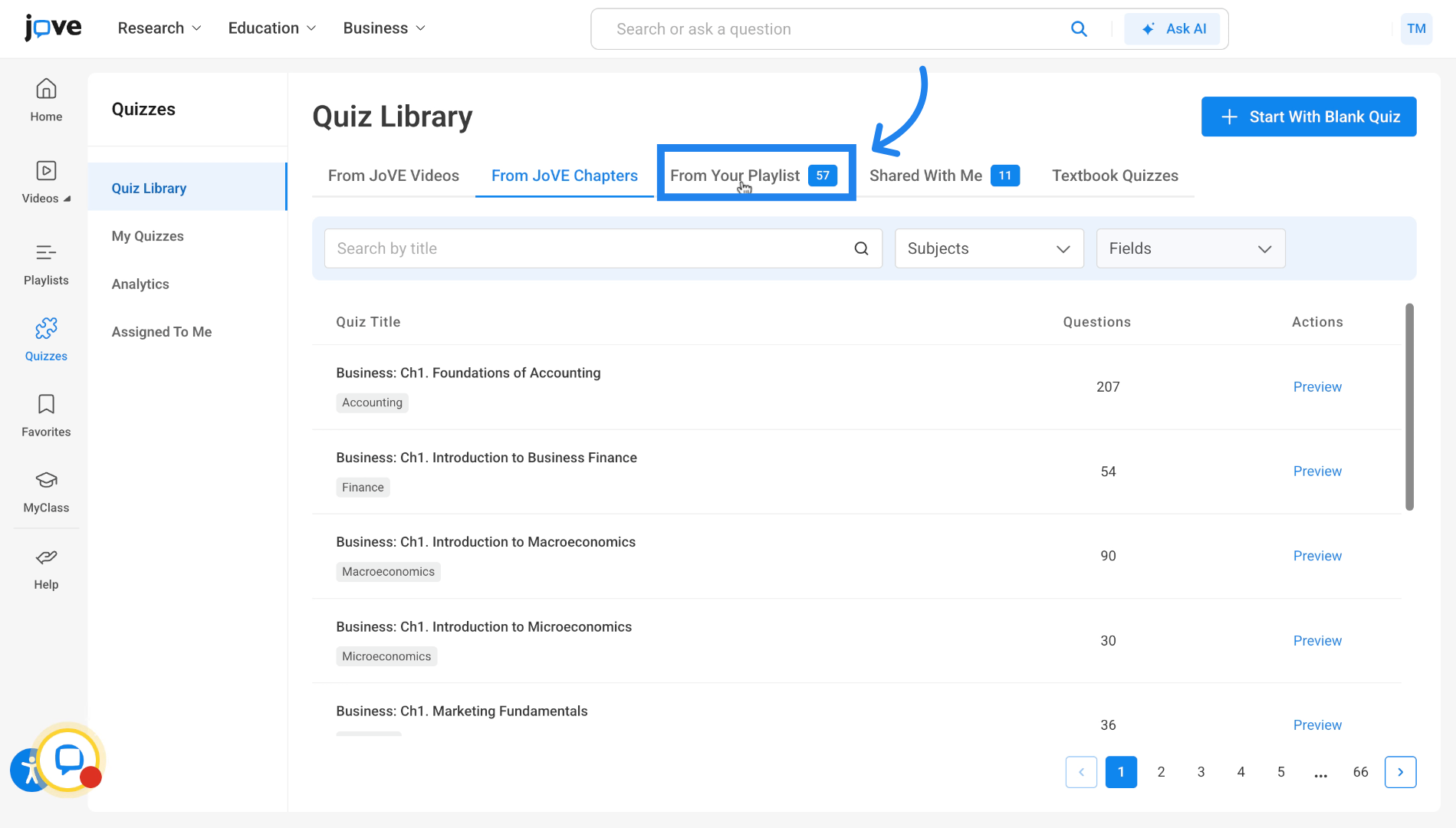
7. From Your Playlists
The third tab is the playlist tab, where all quizzes originating from the playlists created by users are stored. Quizzes corresponding to these playlists are stored here.
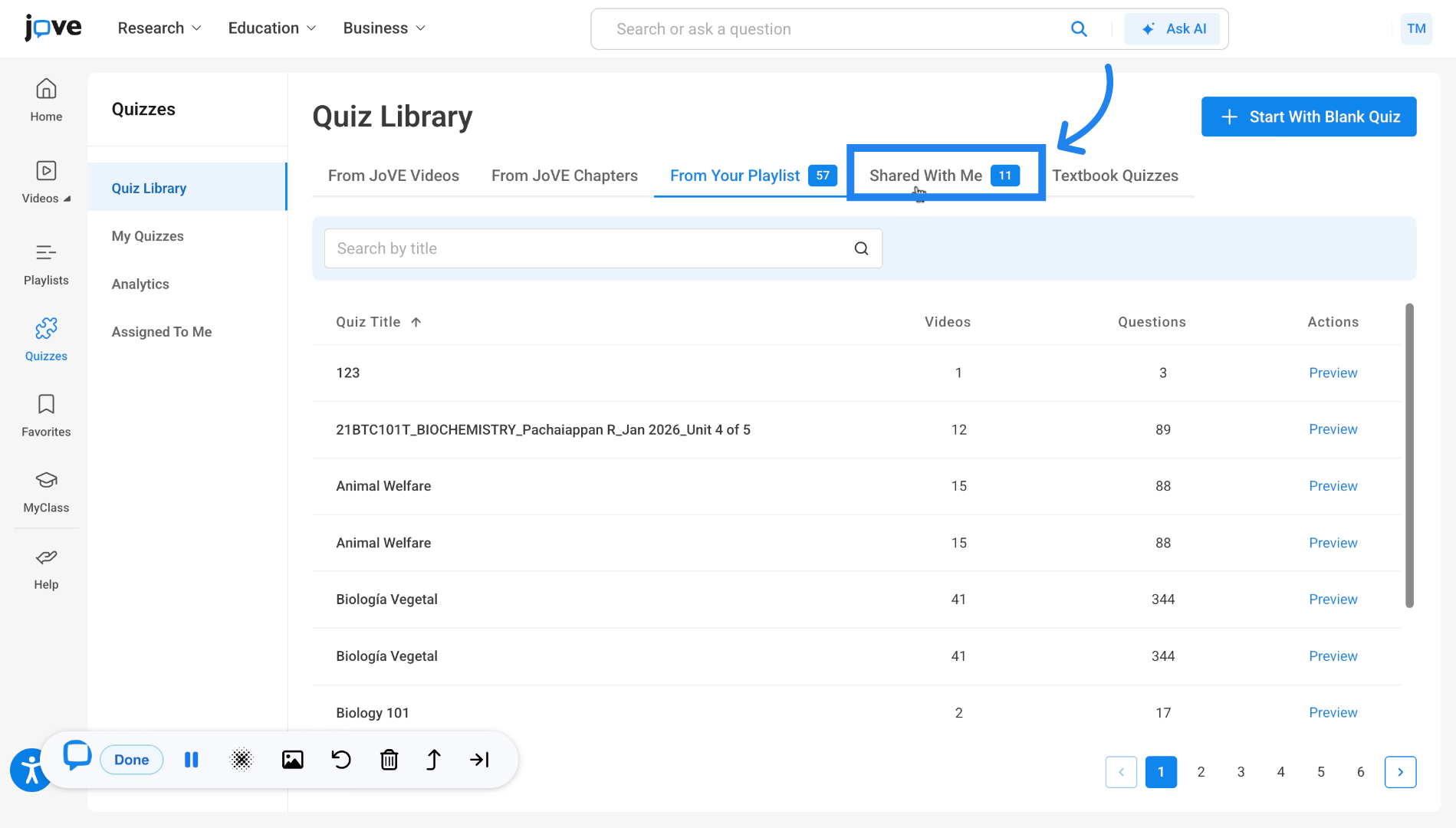
8. Shared with Me
The fourth tab is the Shared With Me tab. In this tab, all quizzes shared to the user by other professors or by the Jove team are stored.
9. Textbook Quizzes
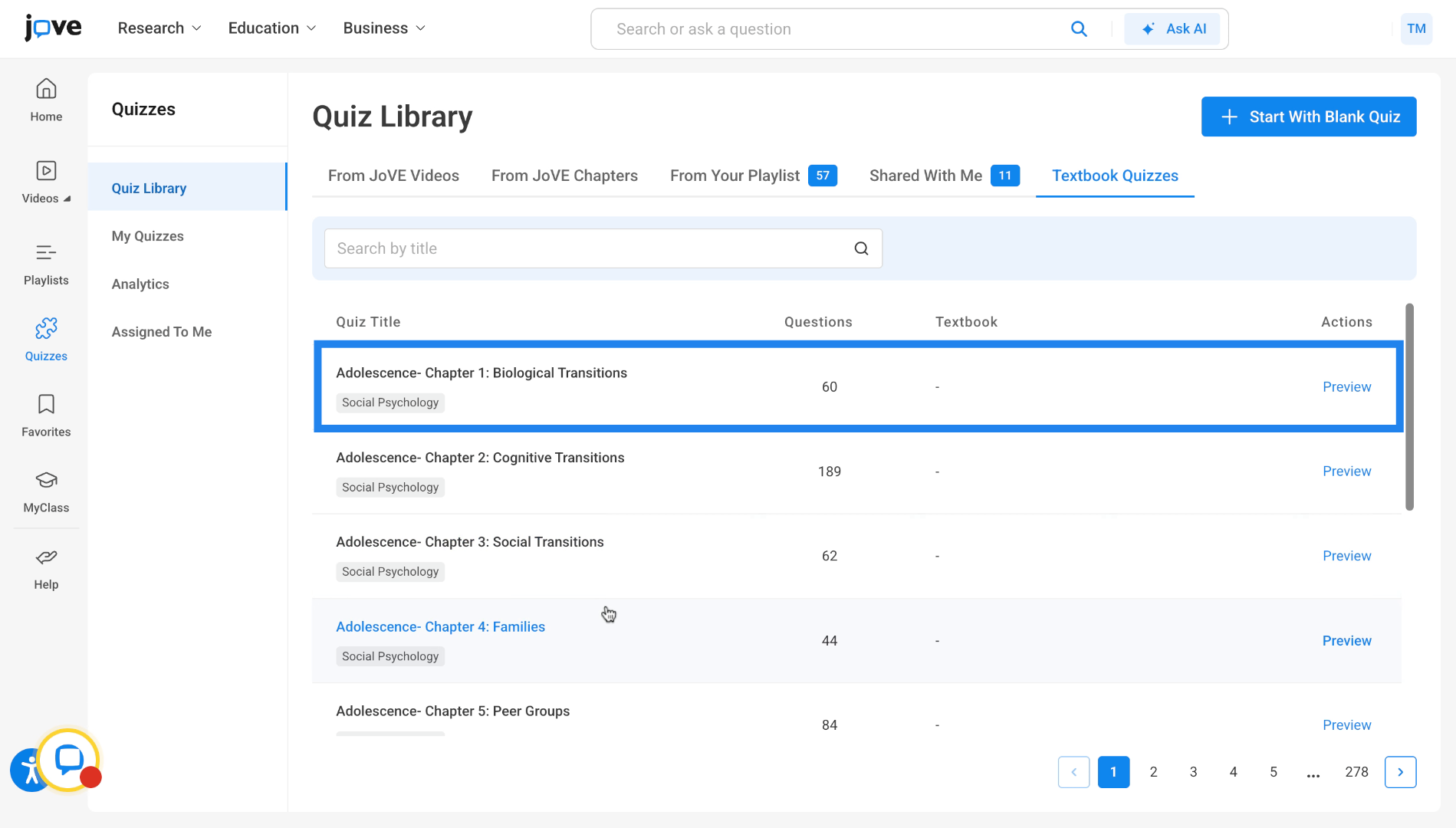
In the last tab, we have textbook quizzes, which store all the quizzes derived from famous textbooks like Campbell Biology, etc.
10. Quiz Preview
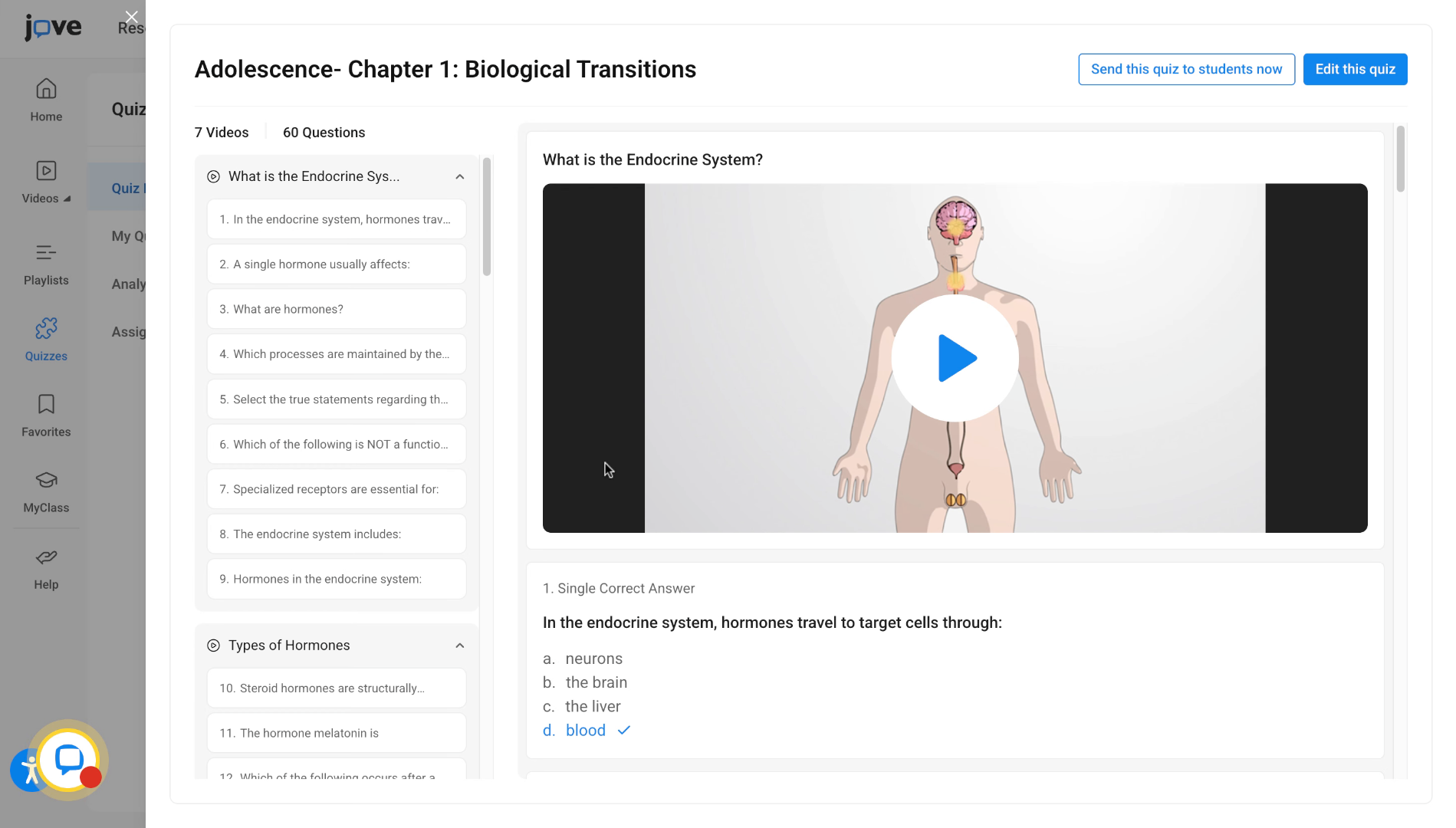
In order to use any of these quizzes, the user has to click on the quiz entry and they'll see a quiz preview open up.
11. Navigate Quiz Preview
In this page, the user will be able to navigate between all the quiz content and check out the quiz.
12. Sending quiz to students through Quiz Preview
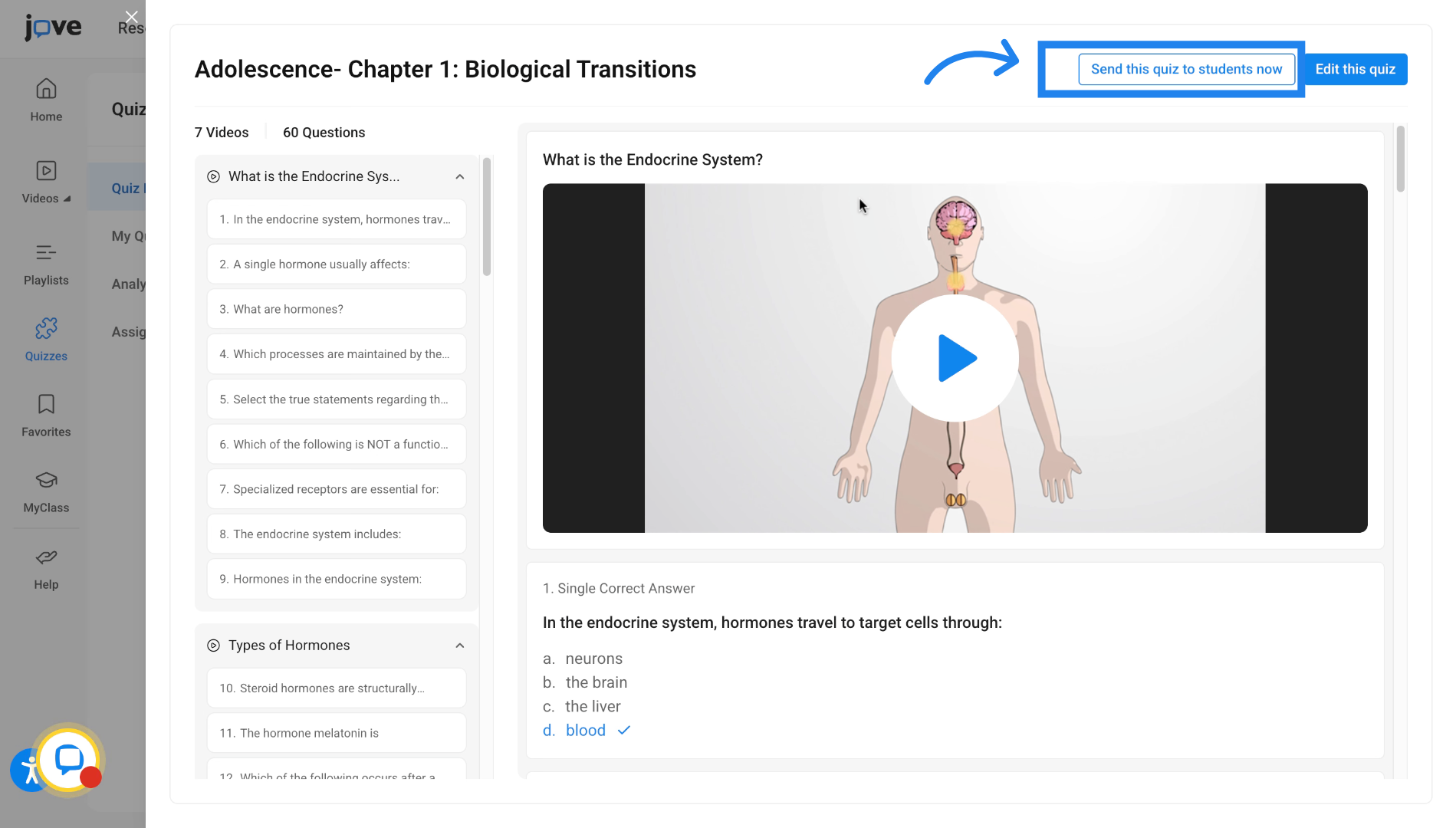
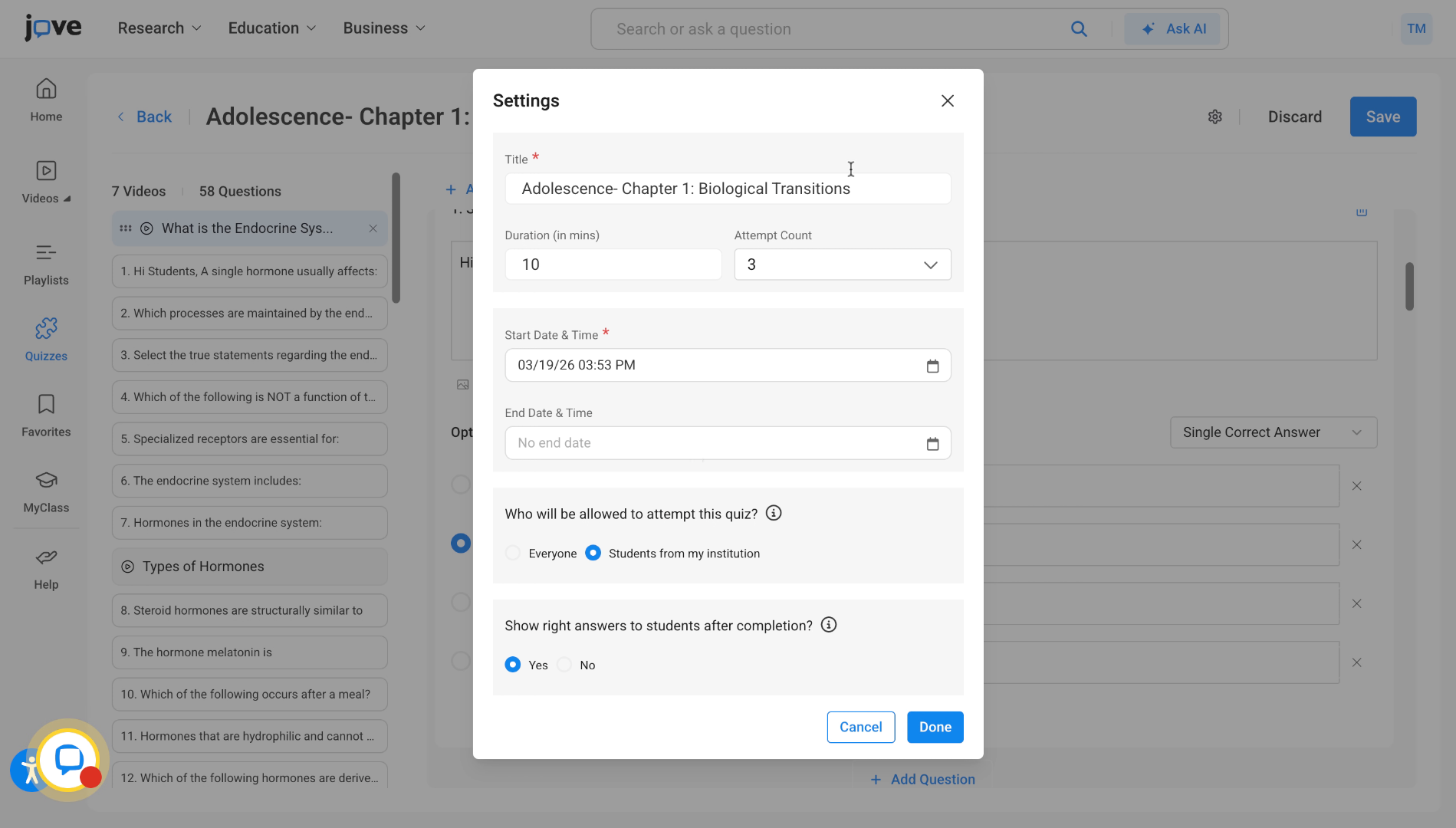
If the user wants to share the quiz as it is to the students, they can use this action button. Clicking on this action button will open the settings modal. Upon finalising thee quiz settings, the user can click on done to save the quiz.
13. Understand Quiz Sharing Options
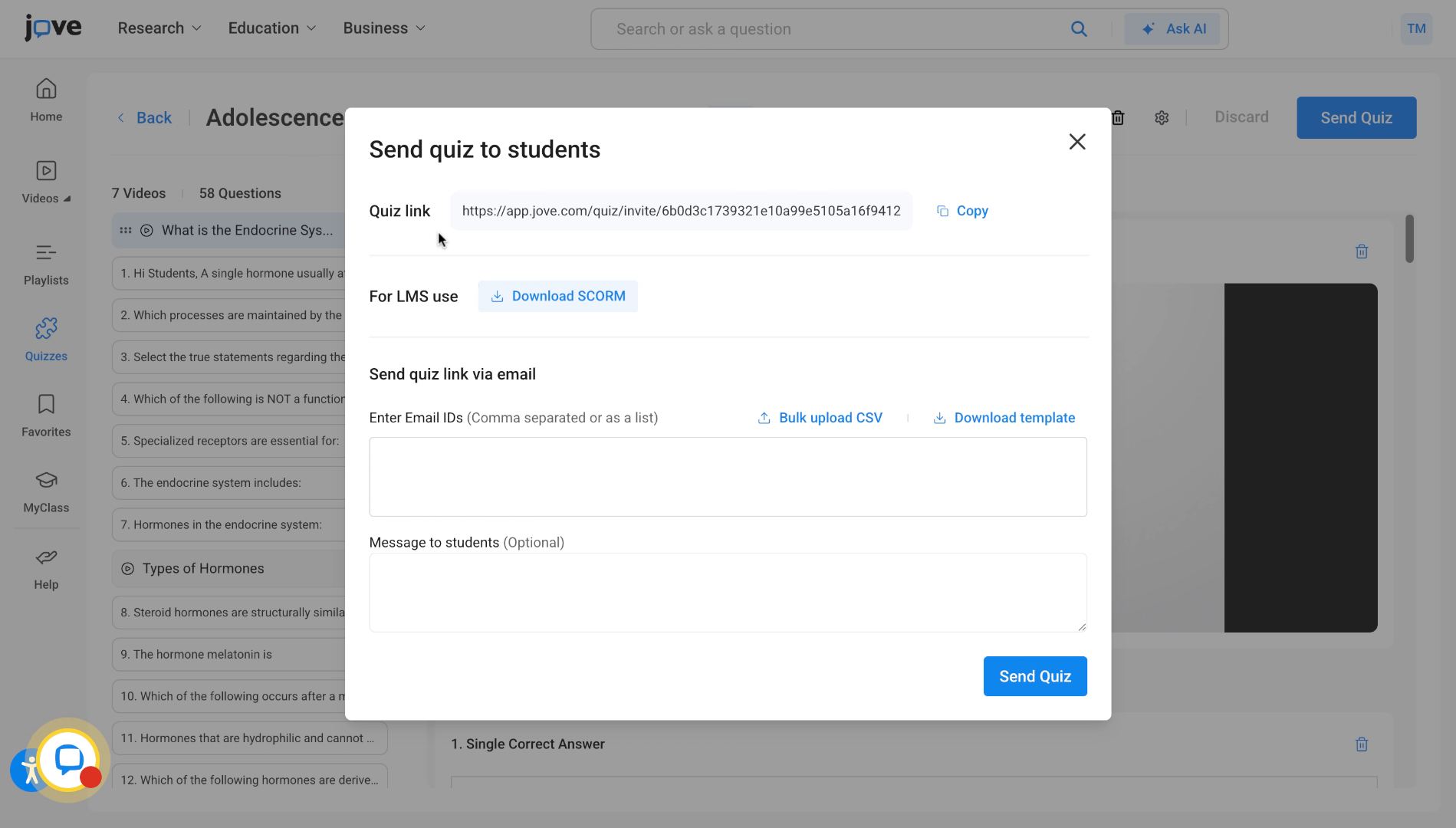
Once the user clicks on done, the quiz has been created. The user can then share this quiz with their students from here itself. They can download SCORM for use in their LMS. They can enter student email IDs to share this quiz or bulk upload a CSV containing all those email IDs. Then click on send quiz to send it to students. They can also directly share the quiz attempt link by copying this link and sending it to their students separately.
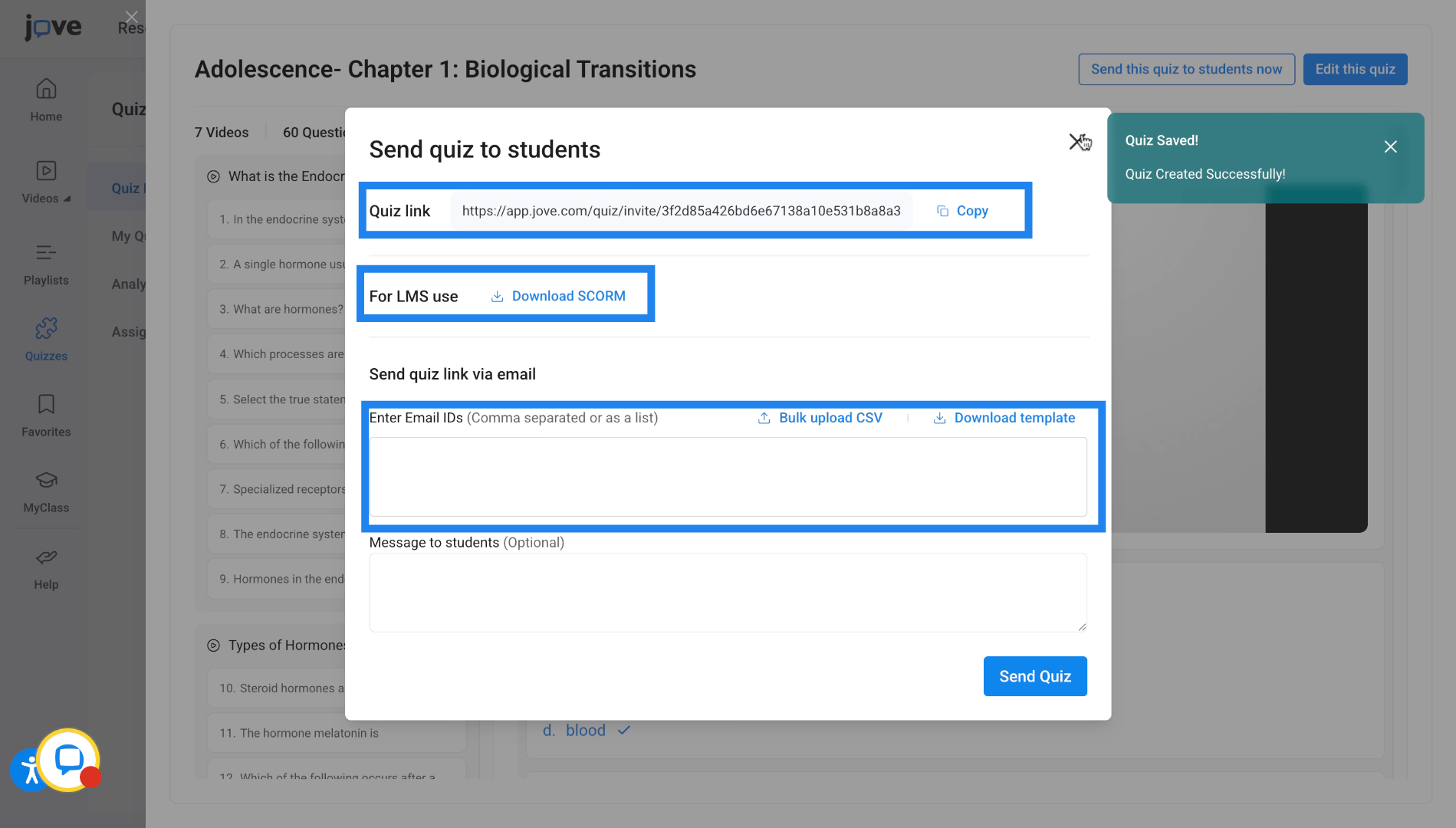
14. Quiz Builder
If the user wants to edit this quiz before actually saving it, They can edit this quiz, which will take the user to the quiz builder.
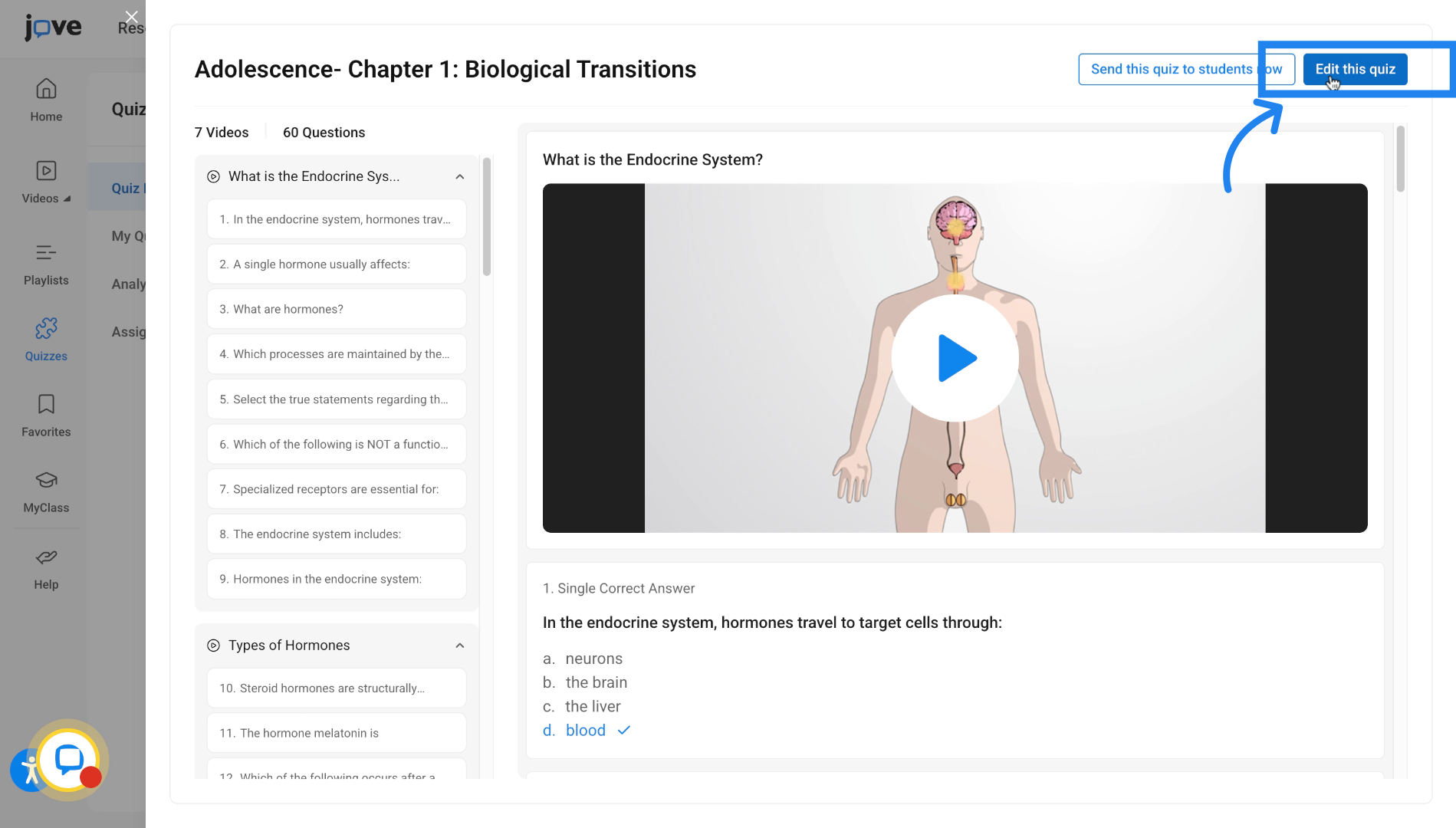
15. Edit and Remove Quiz Items
Here the user can remove quiz items, including questions and videos. They can even edit questions by clicking on the edit box.
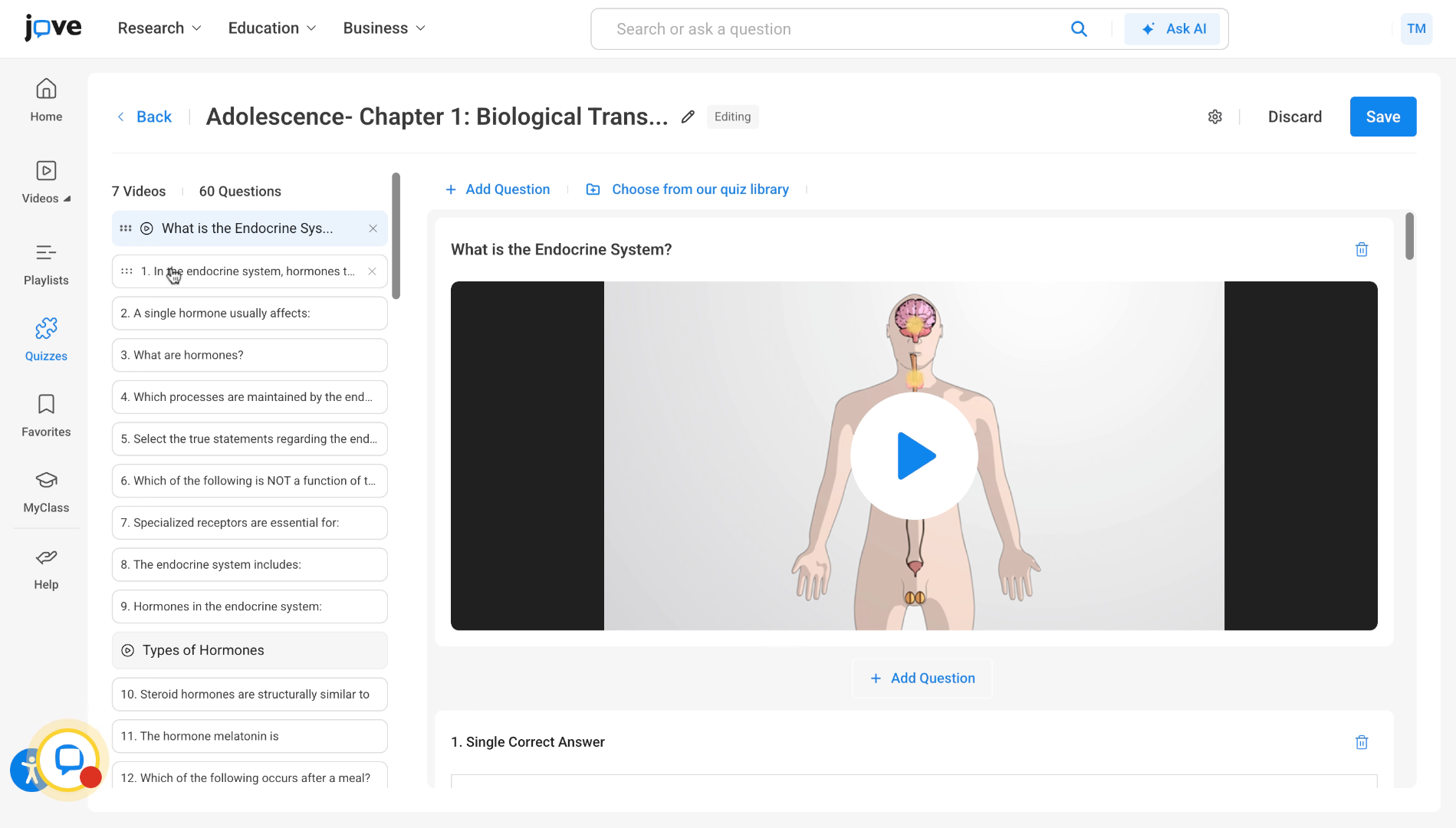
16. Add Questions to Quiz
The professor can also add a question by clicking this button, selecting the question type, or by clicking the button found at the end of every question card.
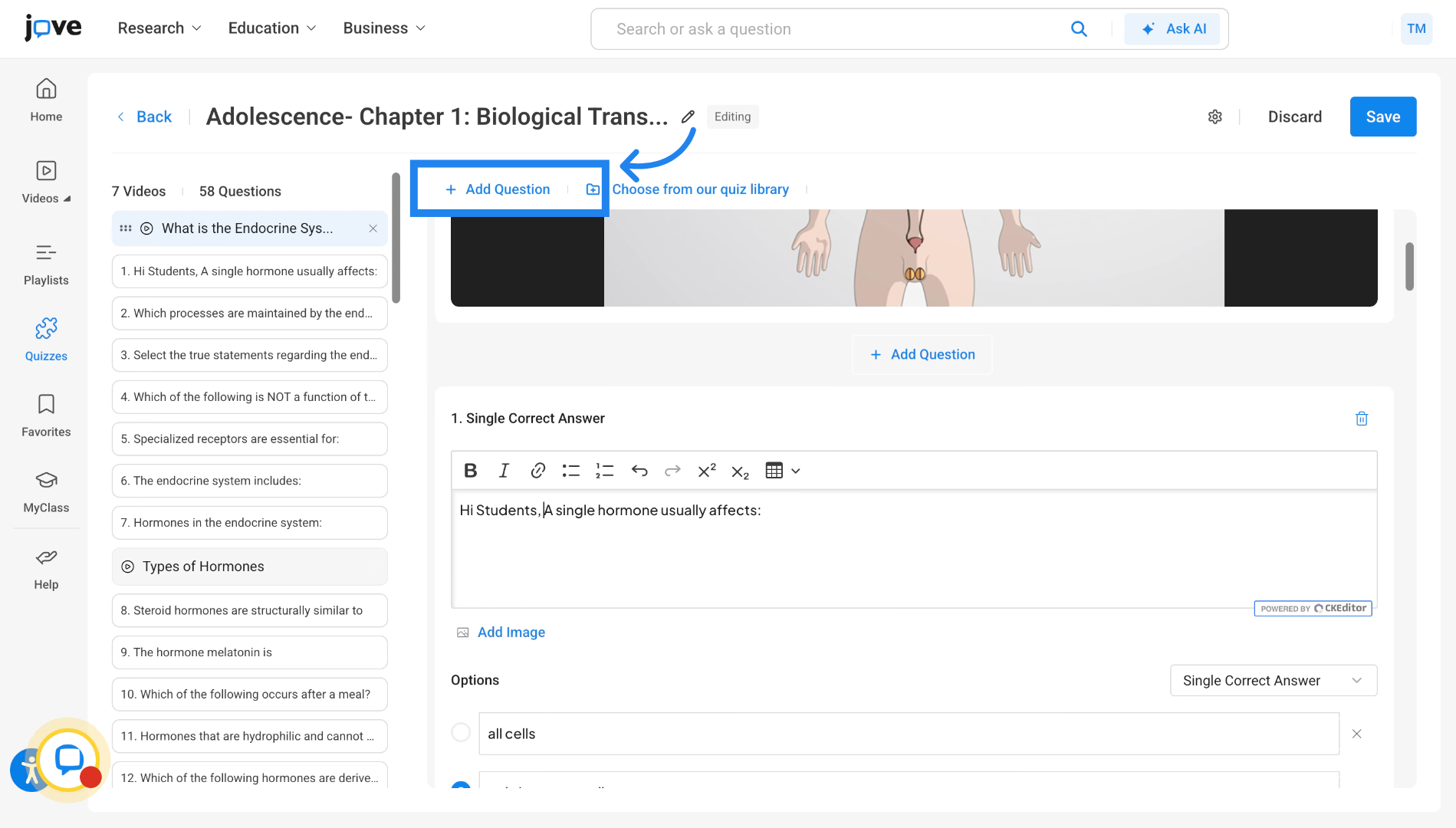
17. Add Videos from Library
The user can also choose a video to add in the quiz from the quiz library. This can be done by clicking on choose from a quiz library.
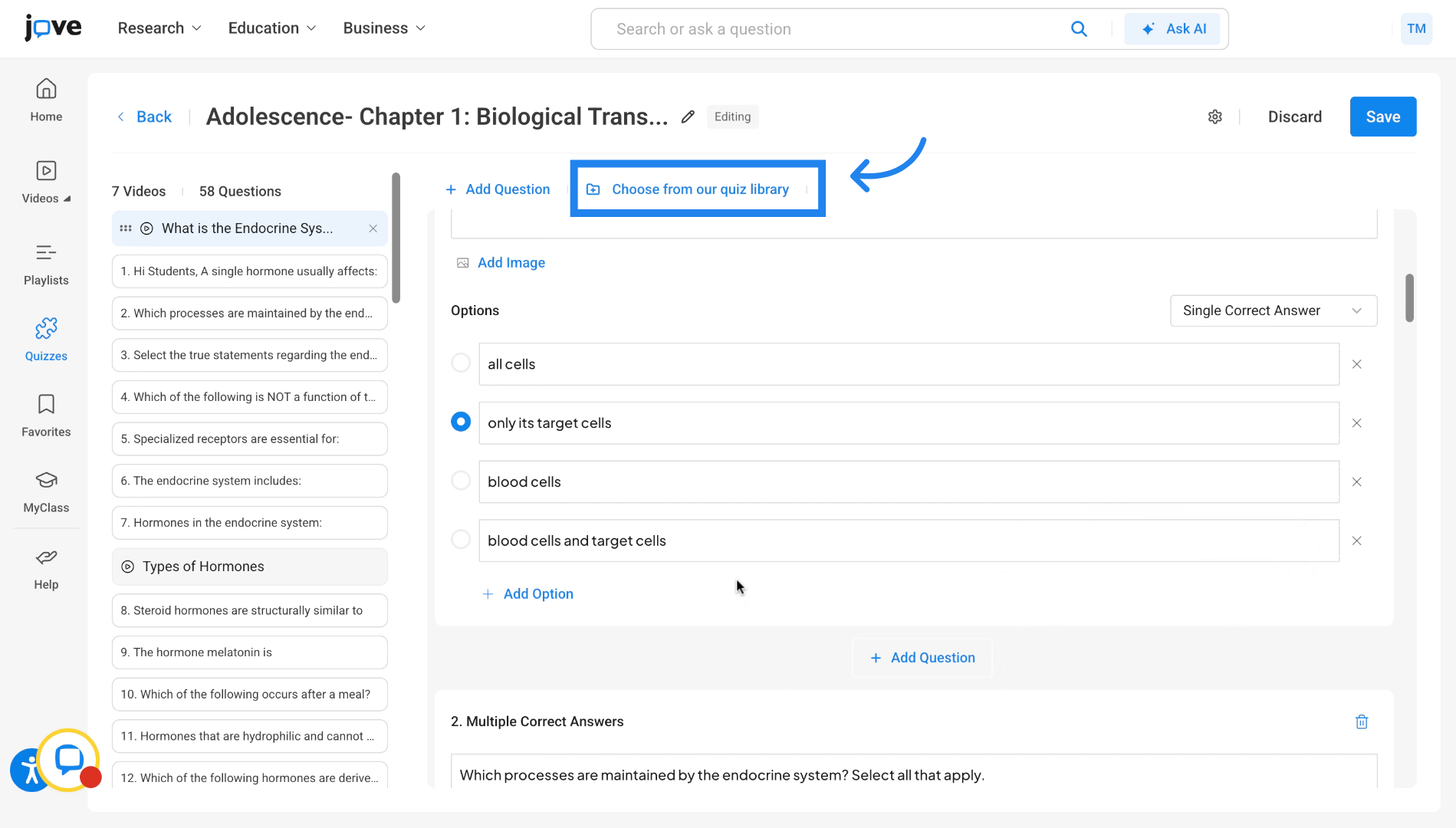
18. View Quiz Library Questions
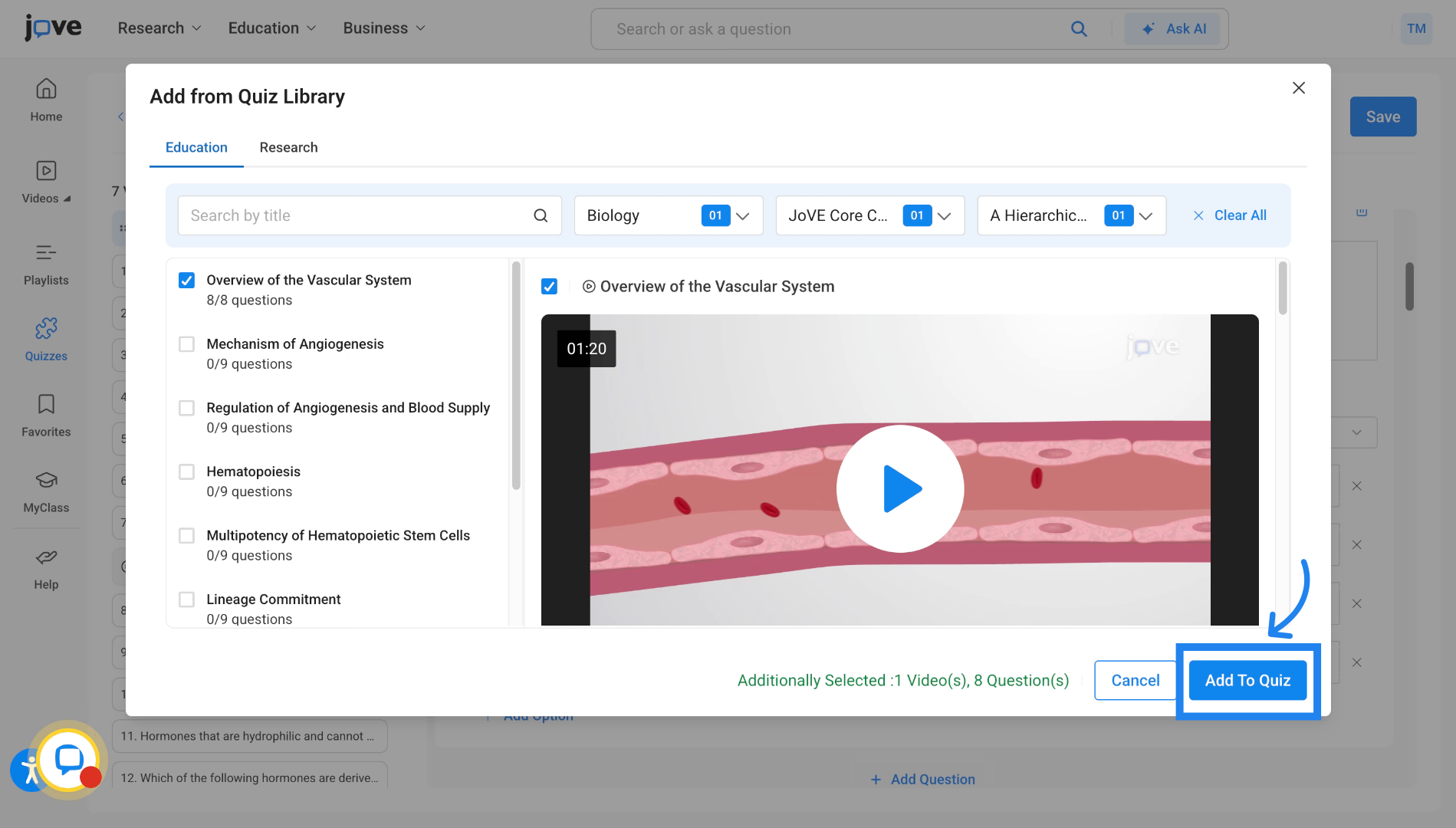
Here the user will be shown the quiz library with all of its questions attached. The user can then see all the question content we have here. Once they have selected what
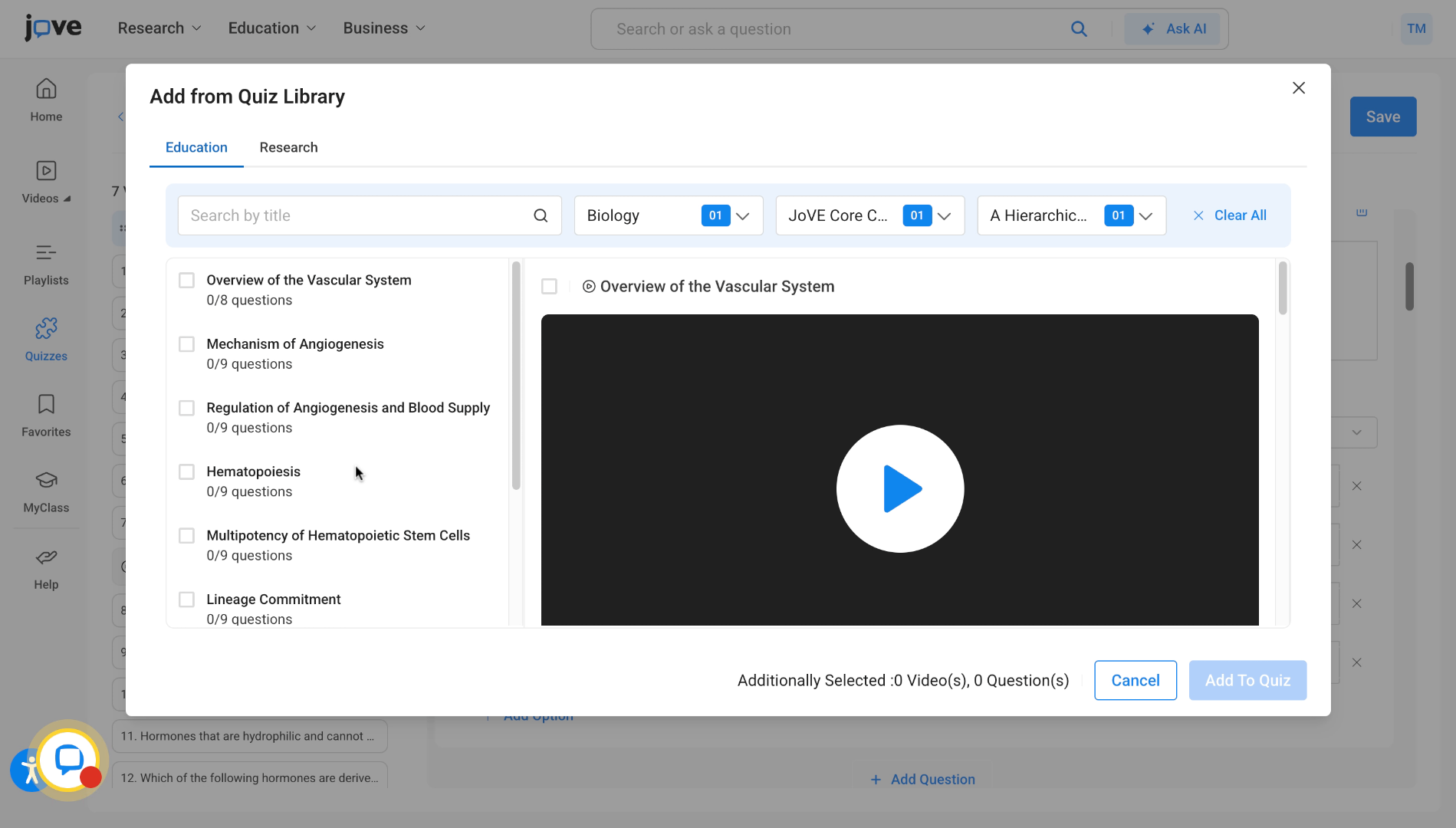
19. Add Selected Content to Quiz
Needs to be added, they can click on add to quiz to add the selected content.
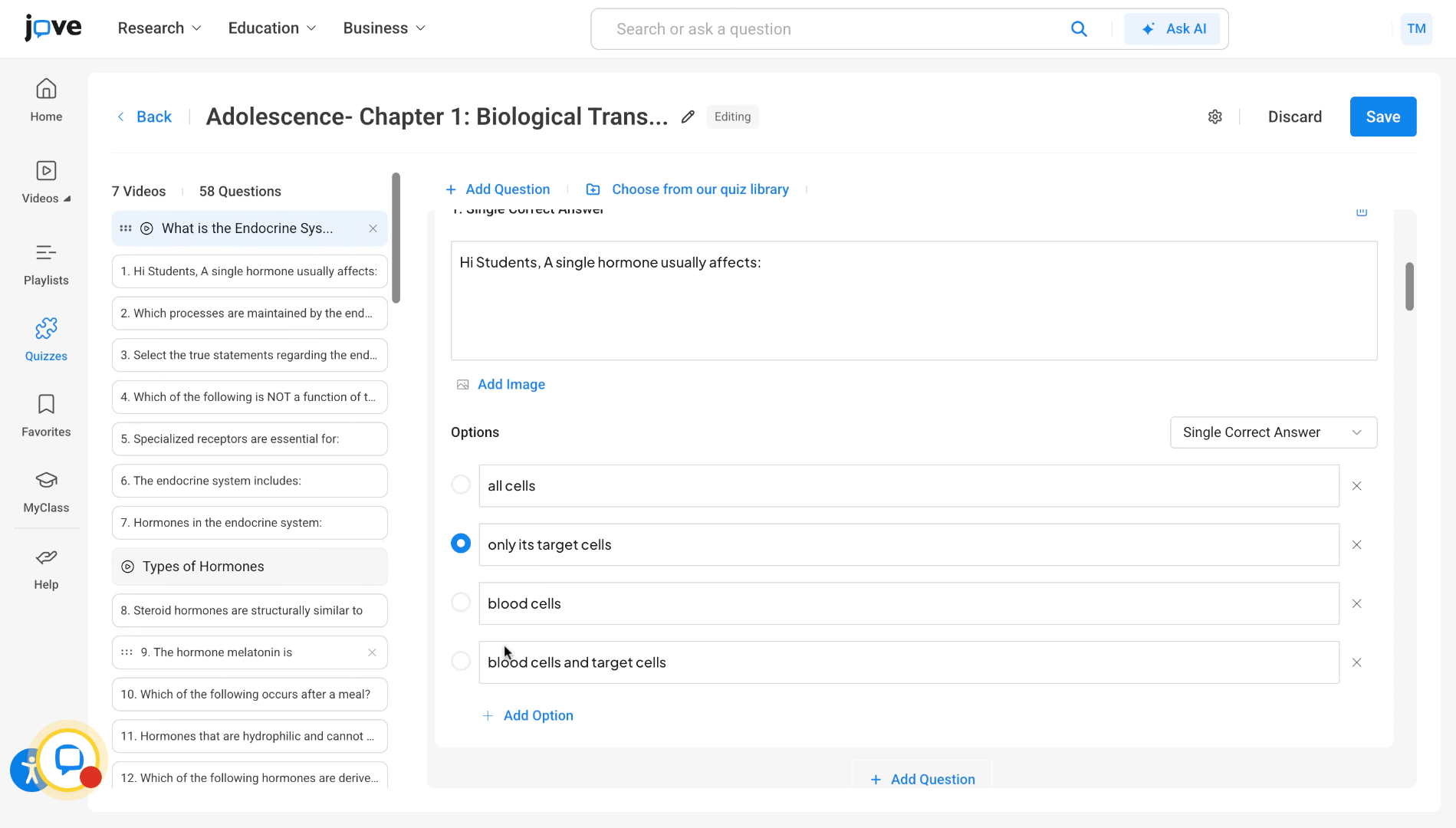
20. Save Quiz and Settings
Once the user has finalized the quiz content, they can click on save, which will then prompt them to save the quiz settings.
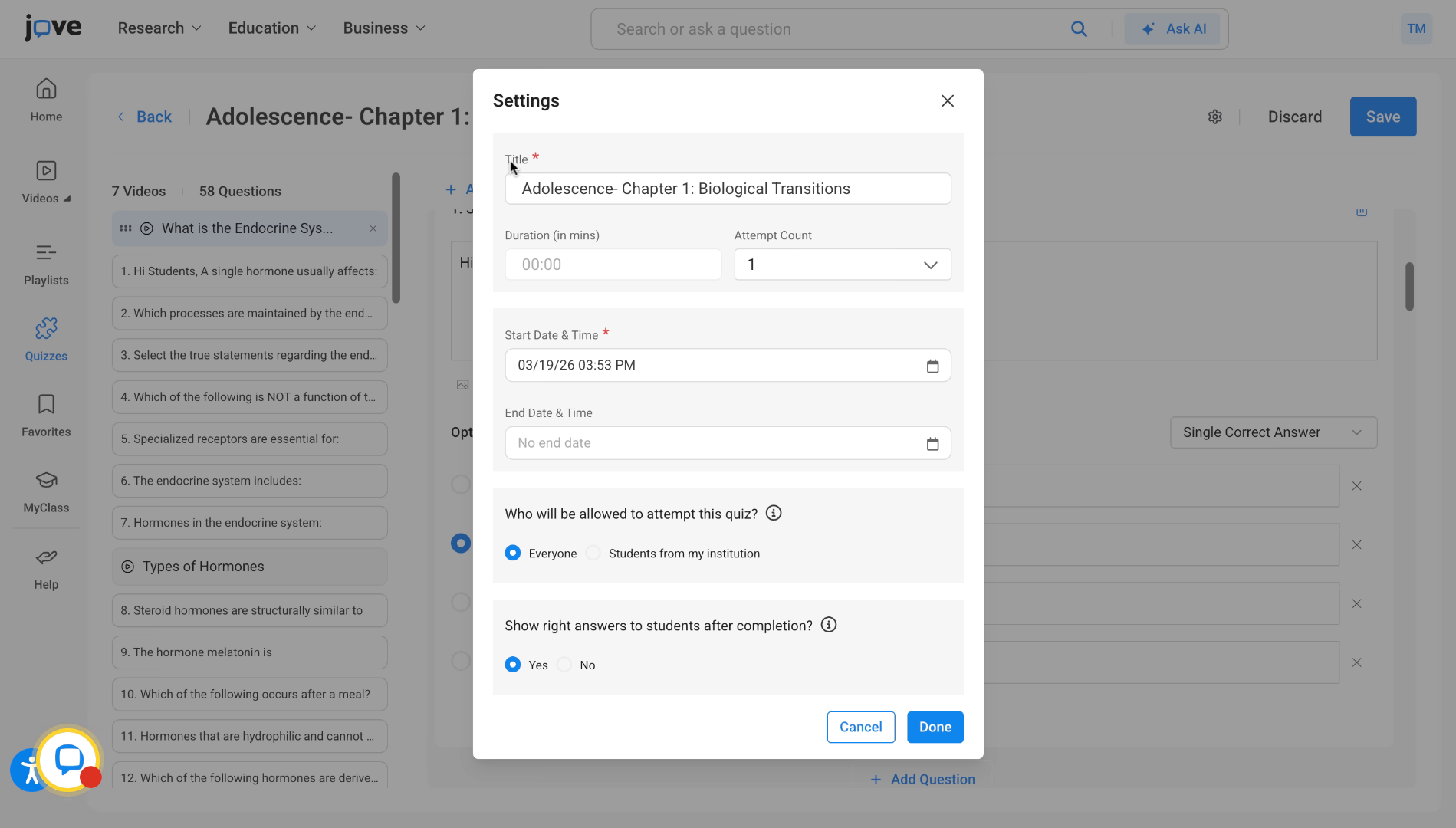
21. Set Quiz Title
The quiz title can be saved based on the user's requirement.
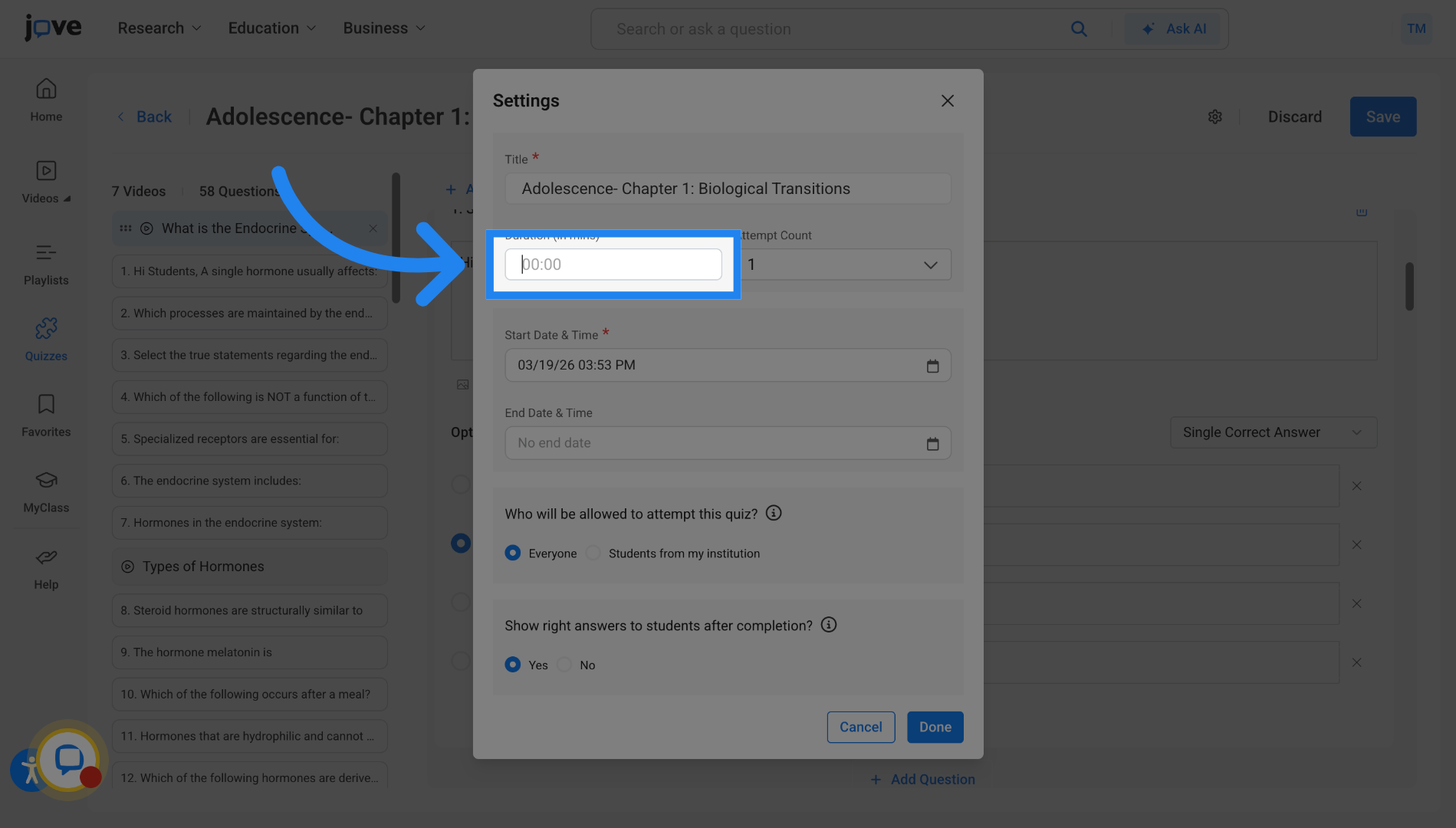
22. Set Quiz Duration
The user can also set duration here. This duration is in minutes. The user can set any duration for the quiz, and the student will be required to attempt the quiz within that time.
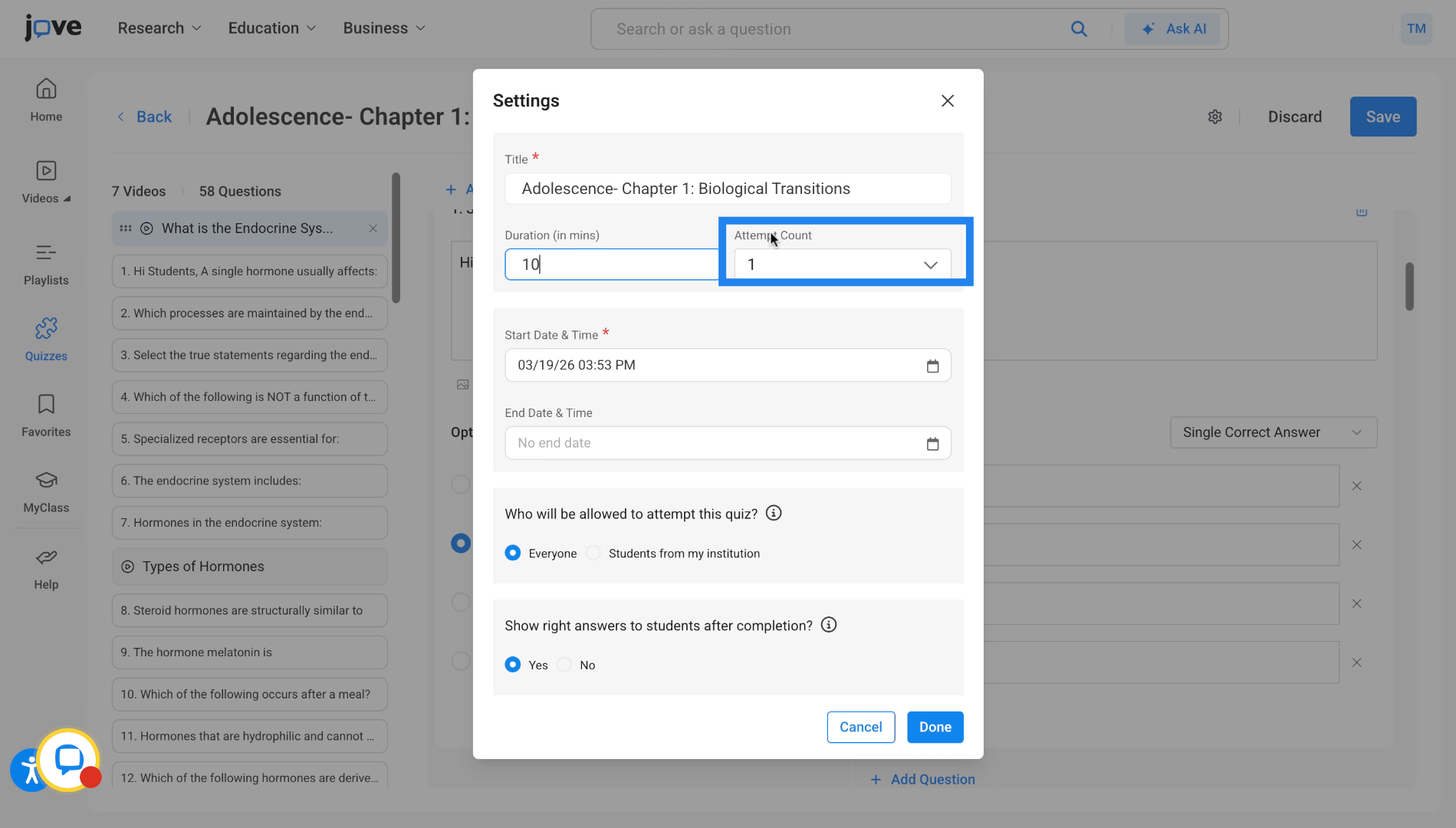
23. Set Attempt Count Limit
The user can also select the attempt count up to the max number three. Selecting three means each student can attempt this quiz at most three times.
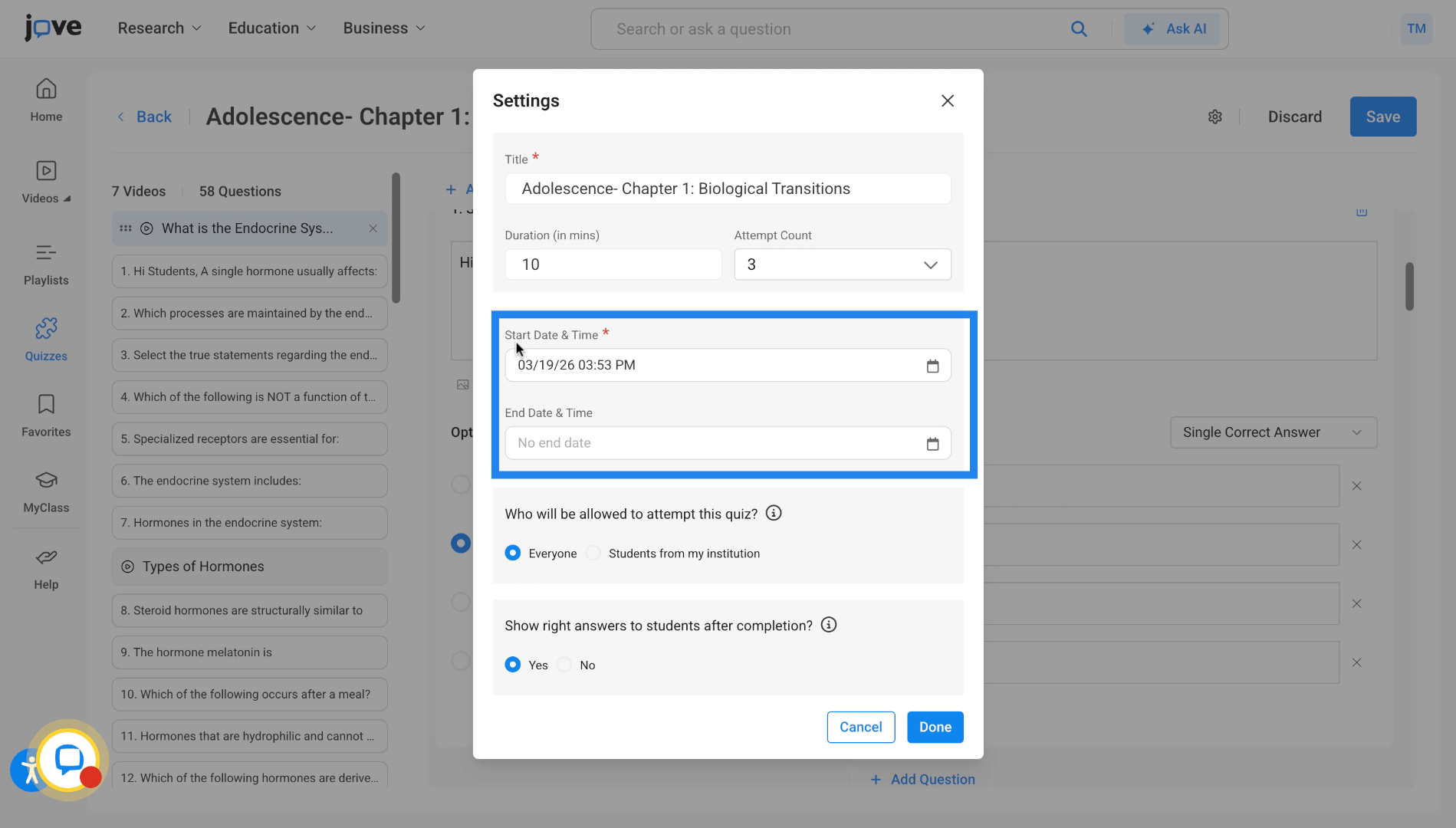
24. Set Quiz Start and End Dates
user can also set a start date and end date to the quiz. If there is no end date, that means the quiz is indefinite.
25. Configure Quiz Attempt Restrictions
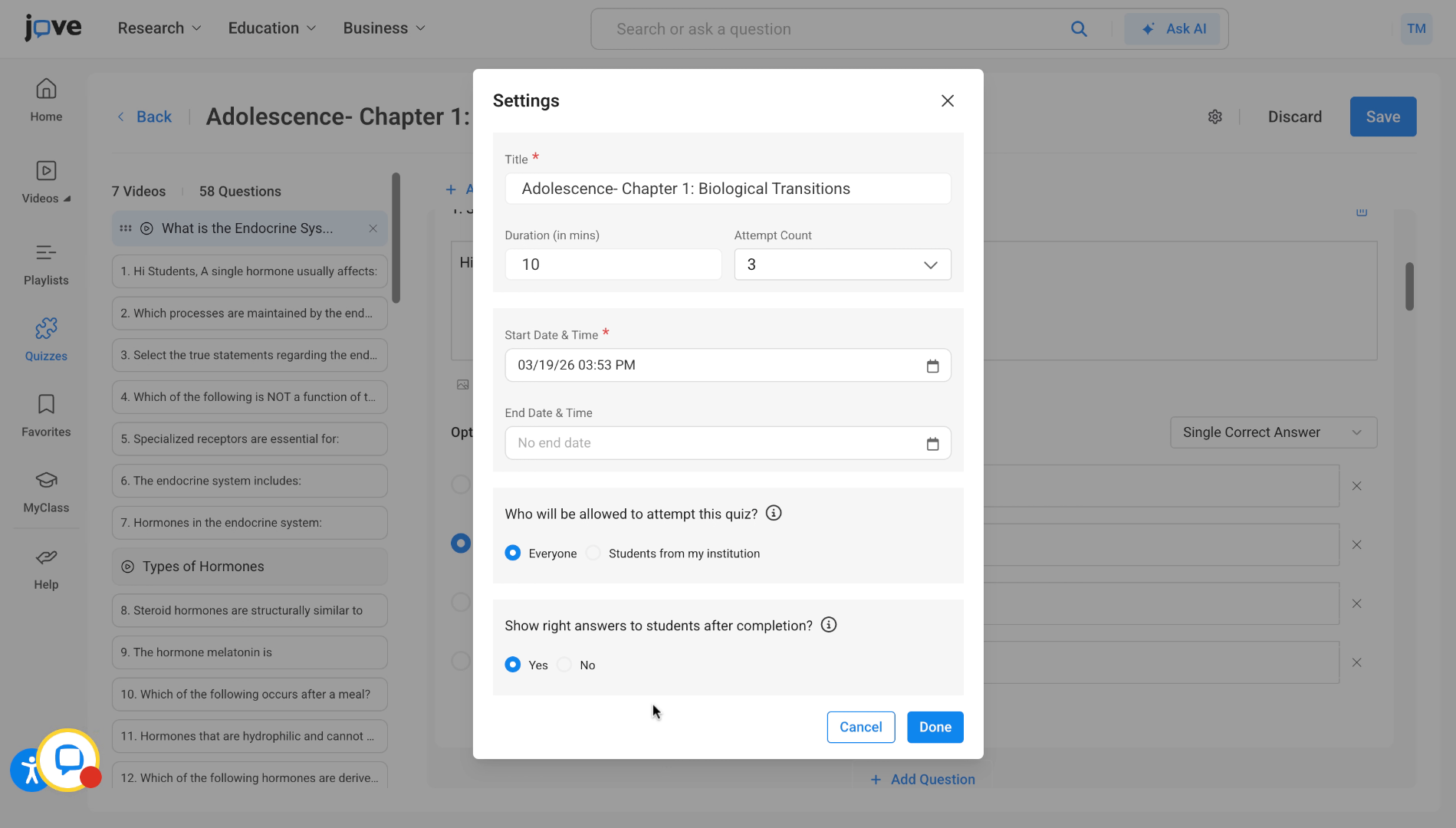
The user will also be able to set restrictions as to who will be able to attempt the quiz.
26. Select Access Restriction Option
If the user clicks on "everyone," anyone who has access to the quiz link will be able to access this quiz and attempt it.
27. Restrict Access by Institute
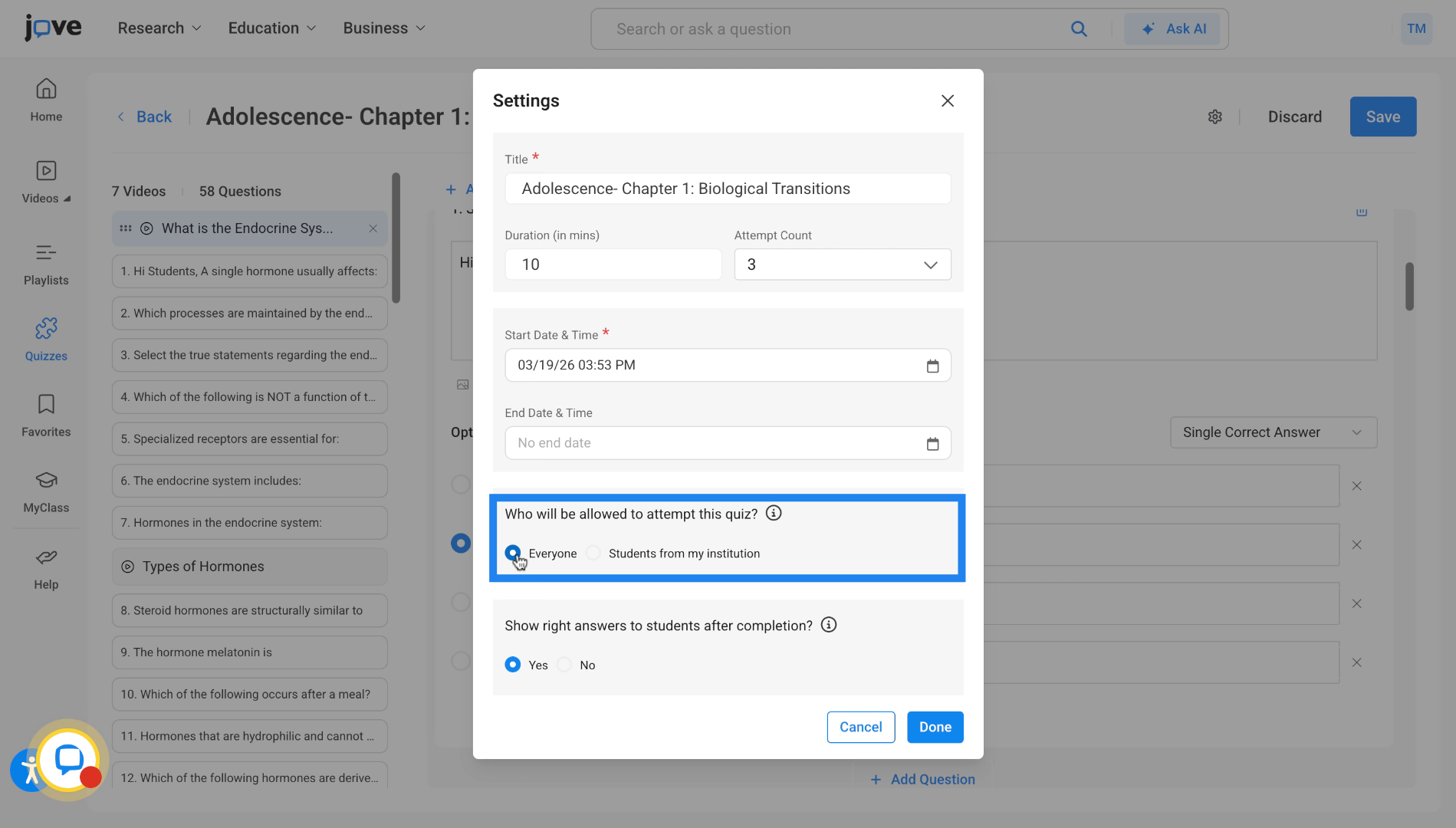
If the professor selects students from my institute here, then any student belonging to the professor's institute and email domain will be able to attempt the quiz.
28. Configure Correct Answers Visibility
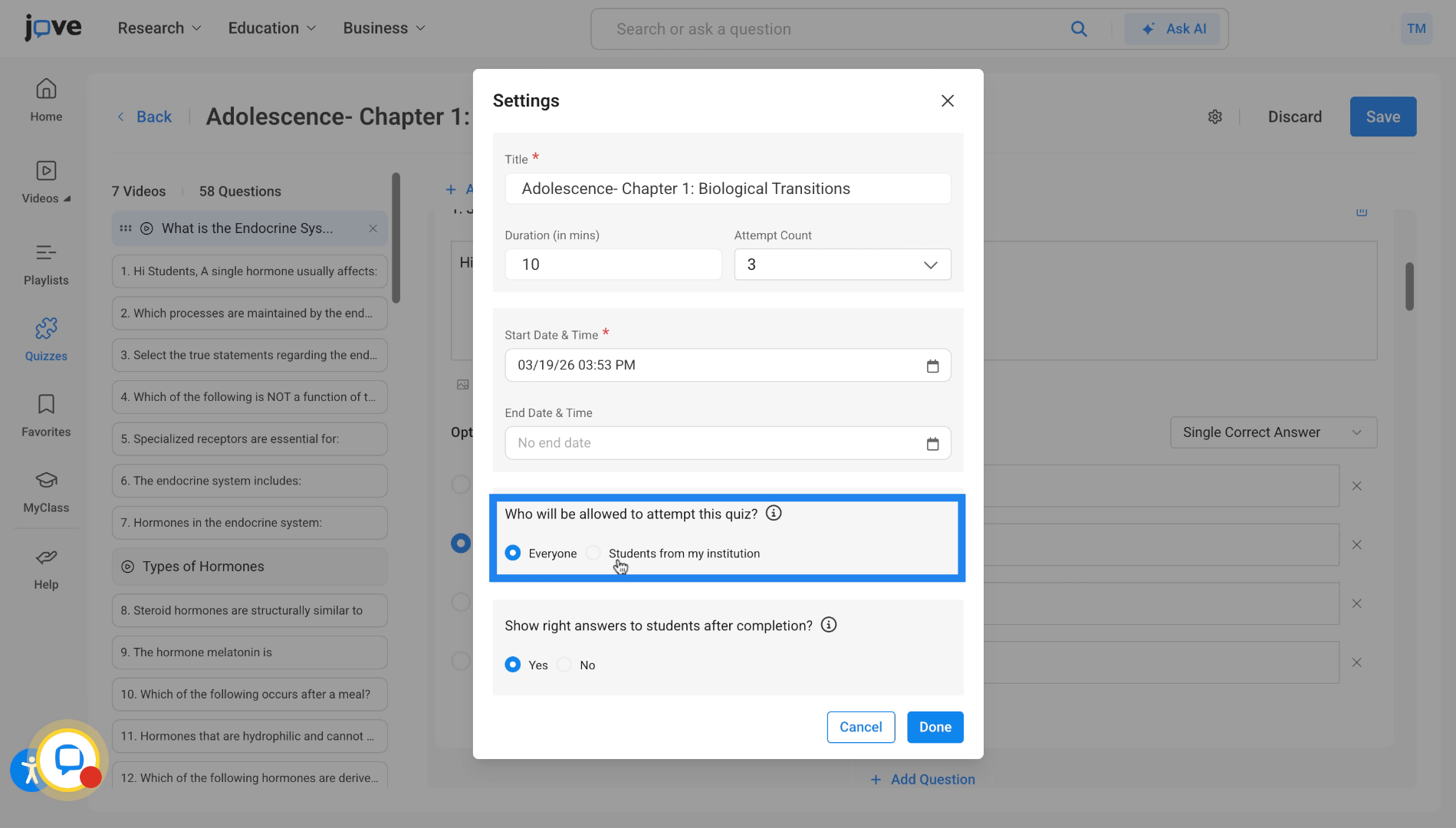
We have another quiz setting that allows the professor to decide whether the correct answers are shown to students after their attempt. The professor can choose yes or no.
29. Finalize and Save Quiz Settings
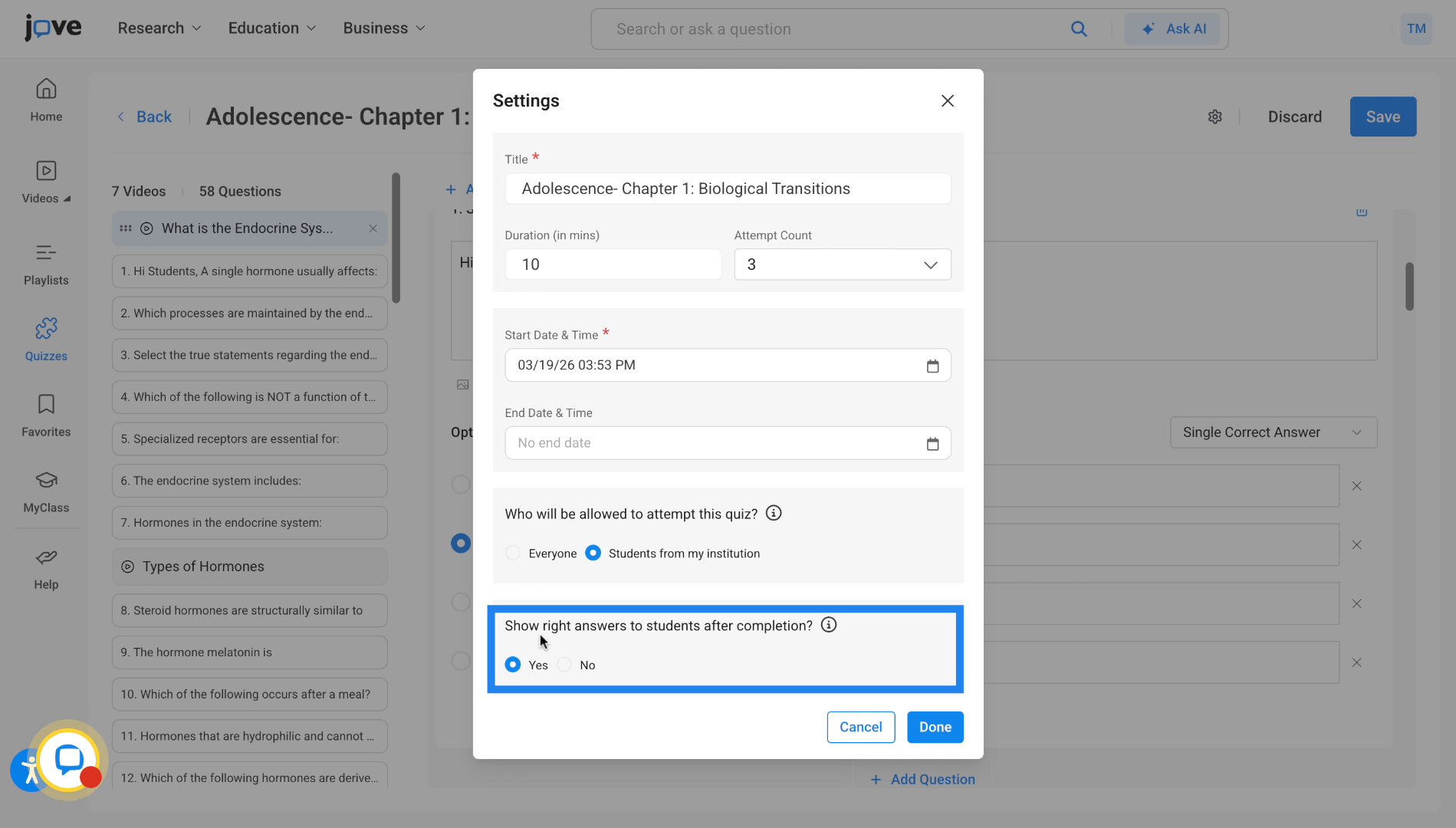
Once the professor has finalized all of these settings, he can click on done and the quiz will be saved.
30. Prompt to Share Quiz
He will then be prompted to share the quiz.
31. Translate Quiz to Other Languages
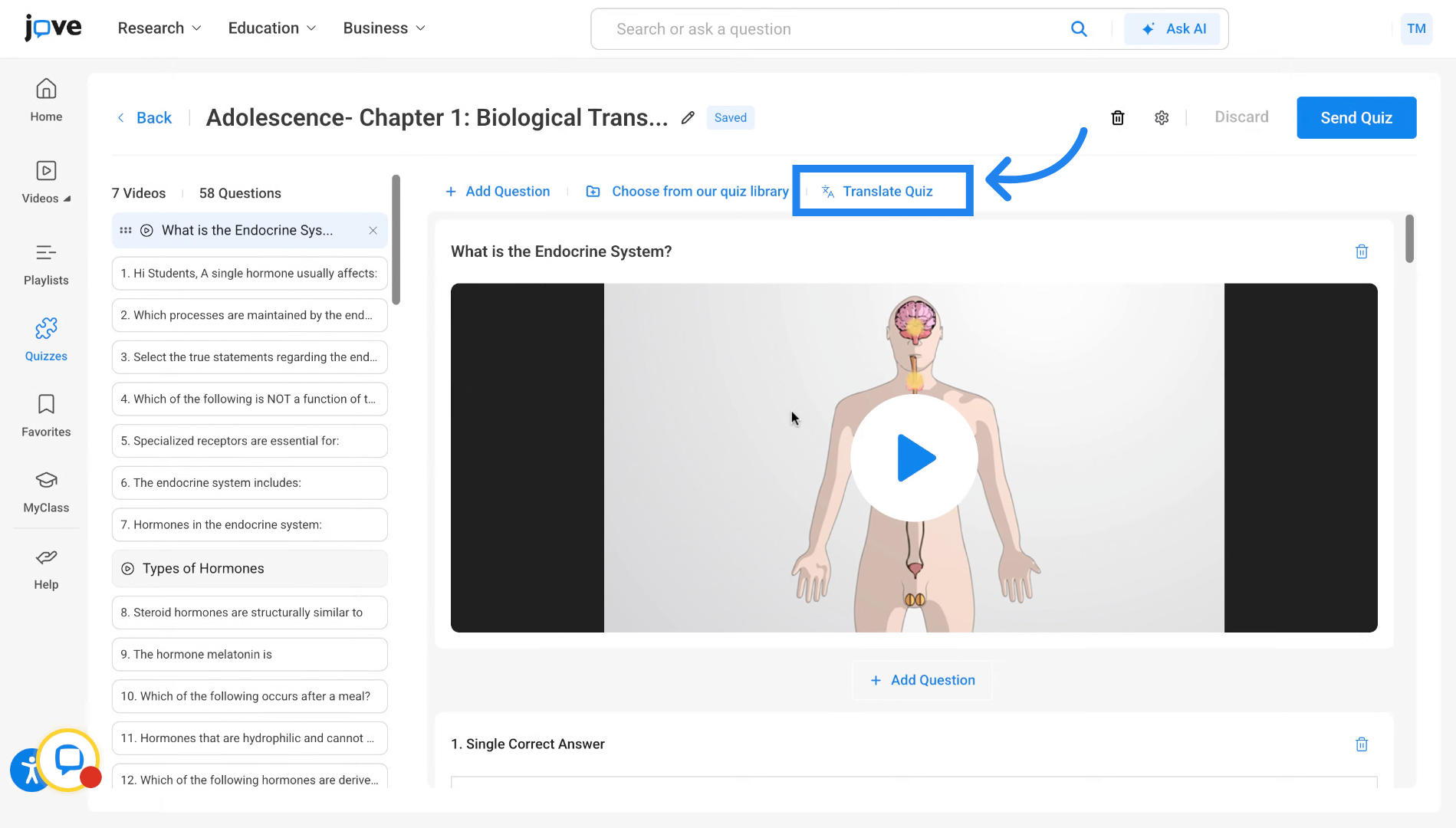
Once a quiz is in a saved state, the professor can also translate the quiz into several different languages. That can be done by clicking on this translate button, selecting any language of their choice and then clicking on translate quiz.
32. Save or Revert Translations
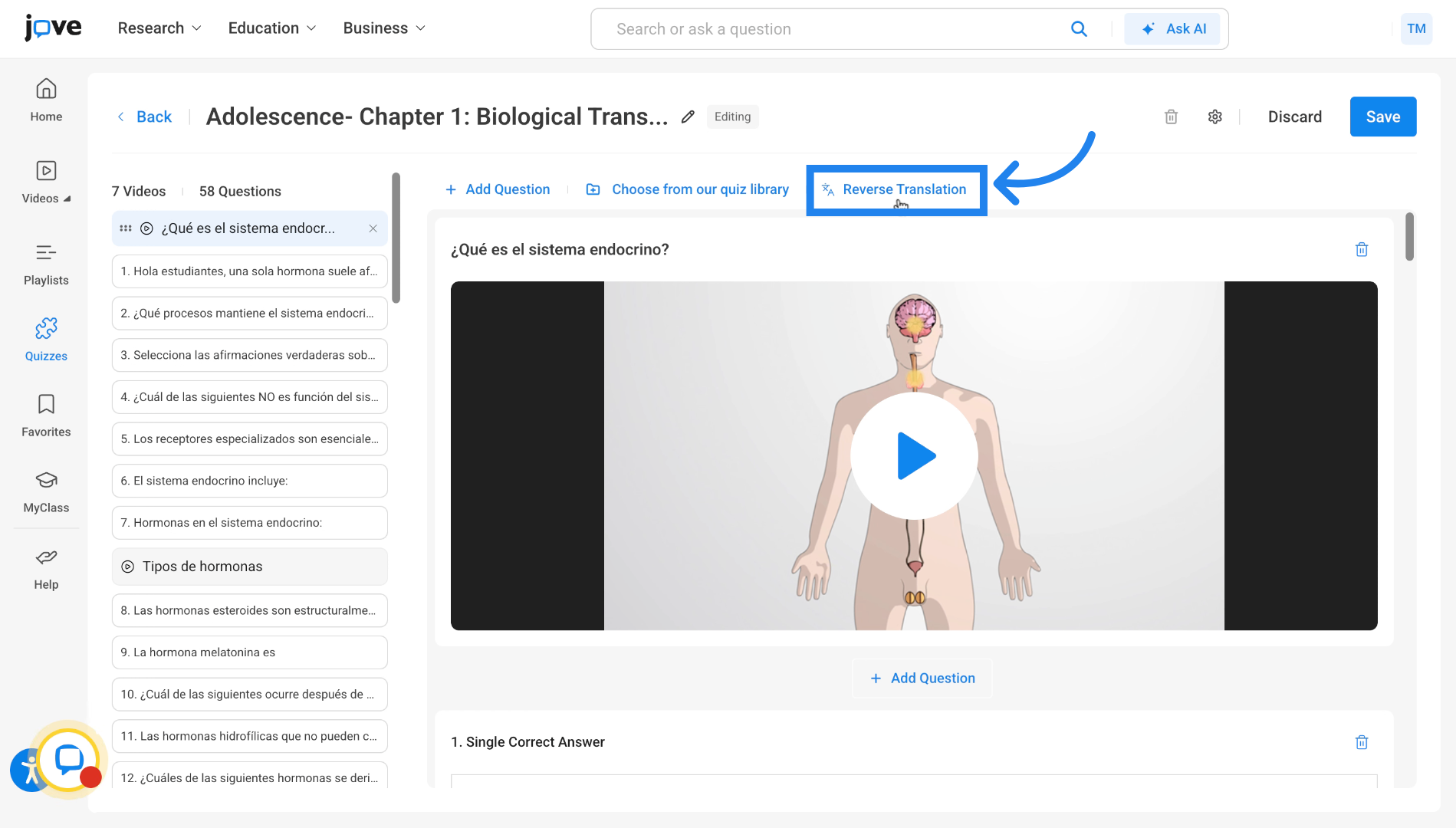
Once the translation is done, the professor can save the quiz or revert back to the last saved state by clicking on the reverse translation button.
This article has guided you through creating, editing, sharing, and managing quizzes effectively within the Jove platform. For more information, explore related articles on quiz analytics and student management.
Related to