Managing your Quiz - Translate, View Analytics, Share between Professors, Distributing to students
Go to www.jove.com
1. Introduction
This article explains how users can manage quizzes within the JoVE platform.
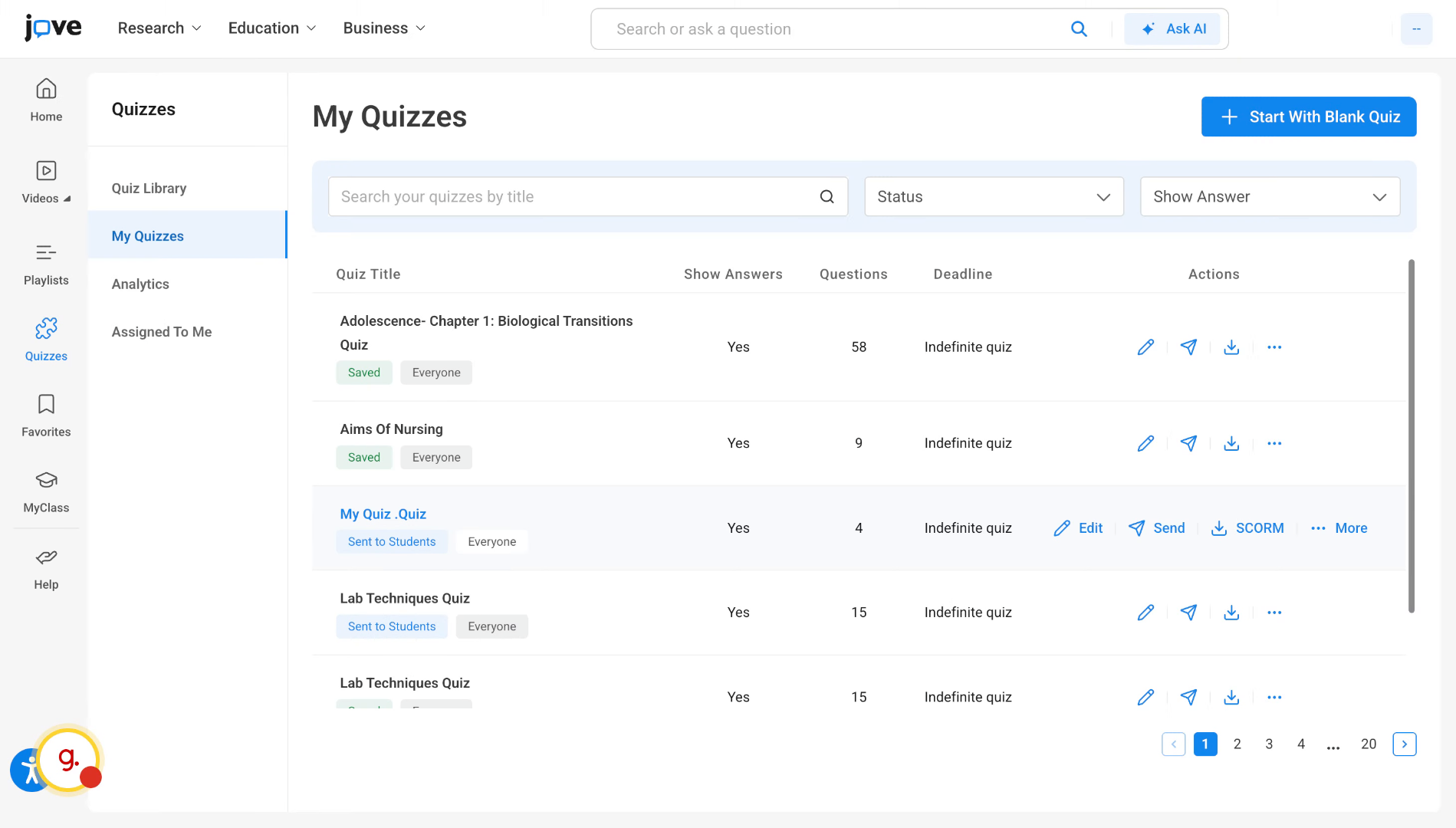
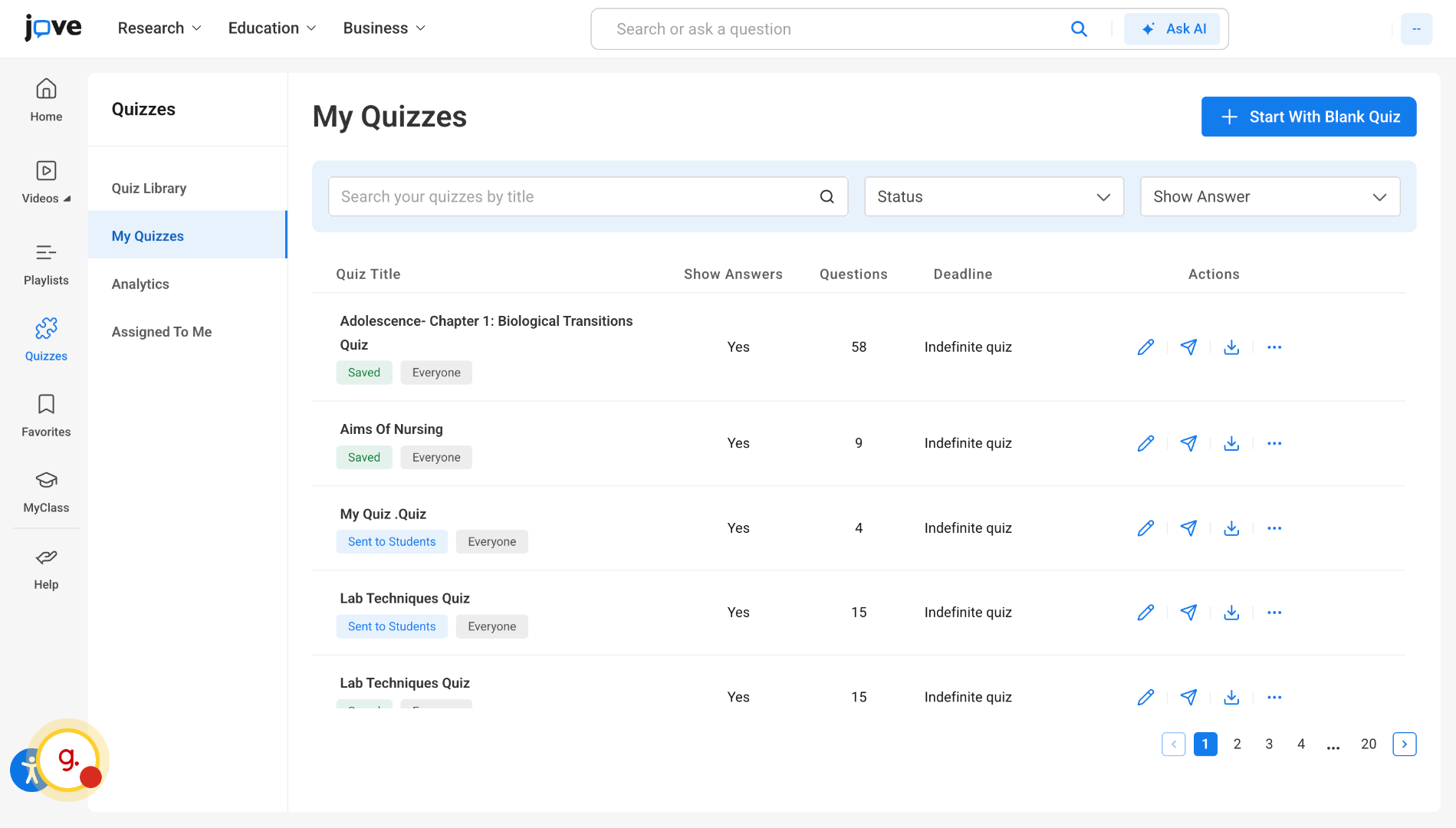
2. Access My Quizzes Tab
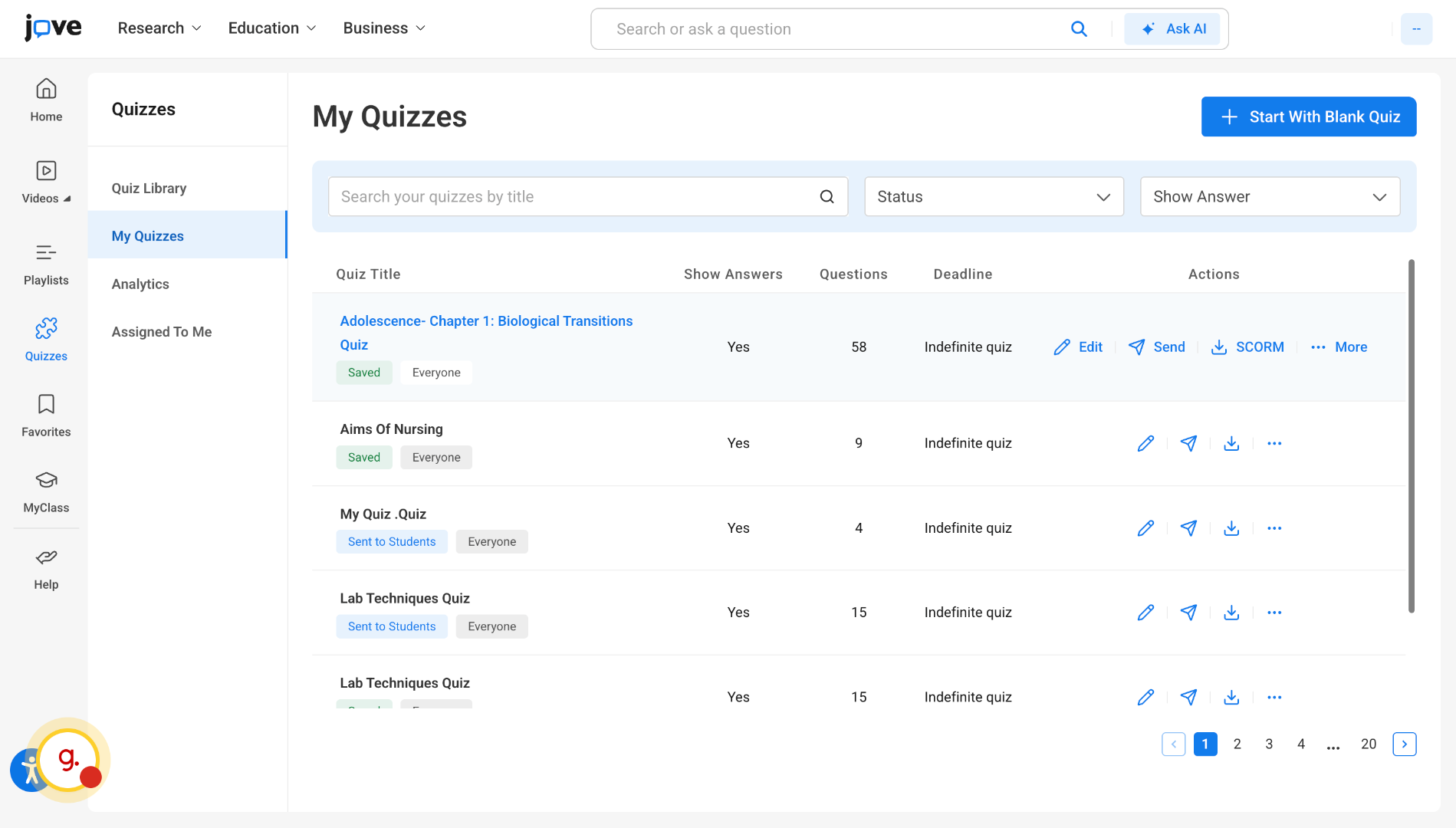
All the quizzes that the user creates can be found in the user's My Quizzes tab.
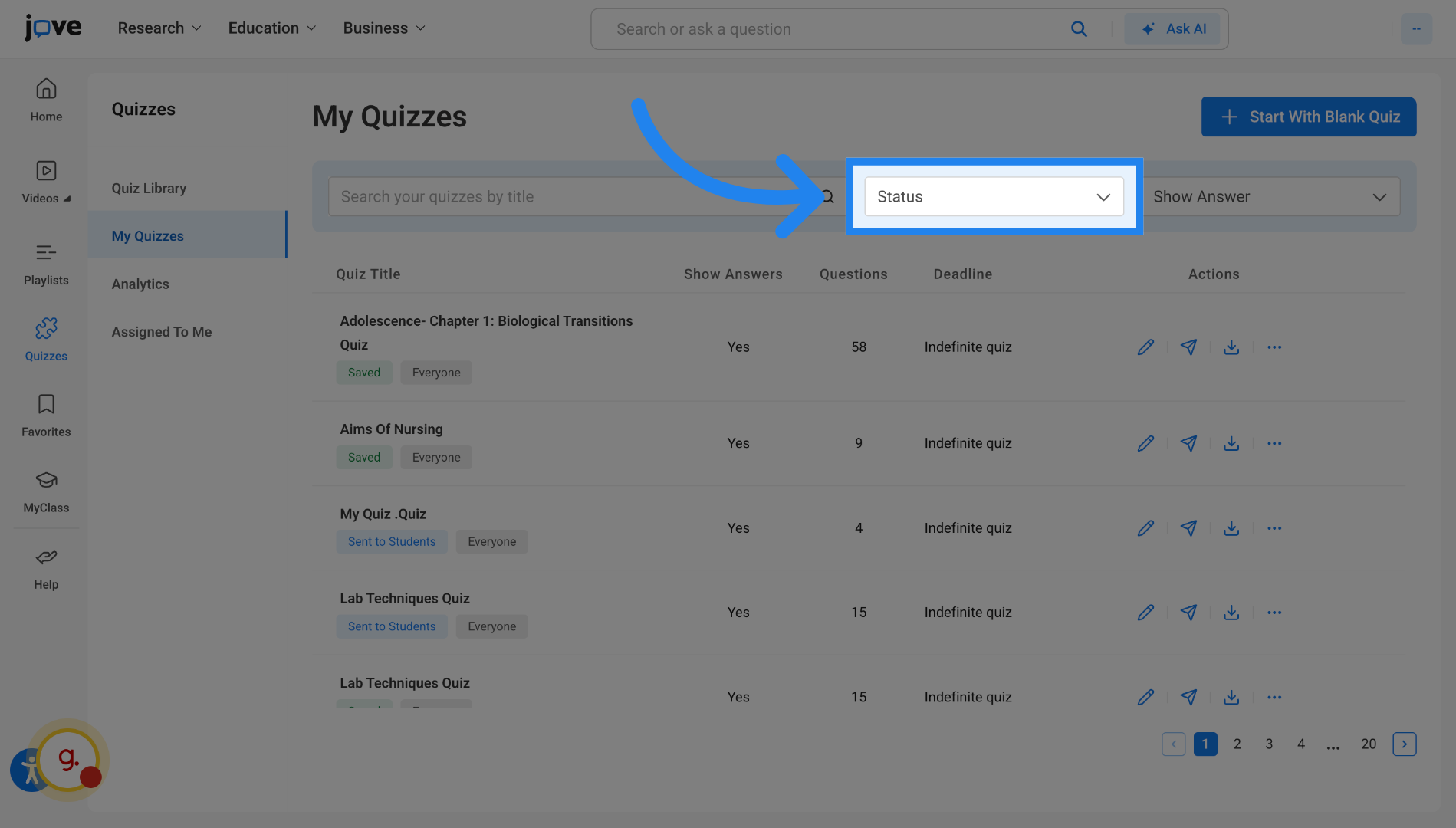
3. Filter Quizzes by Status
Each of the quizzes can be filtered based on the status of the quiz, which can be either that the quiz has been sent to students for attempting, or that the quiz has been saved but not sent to students yet.
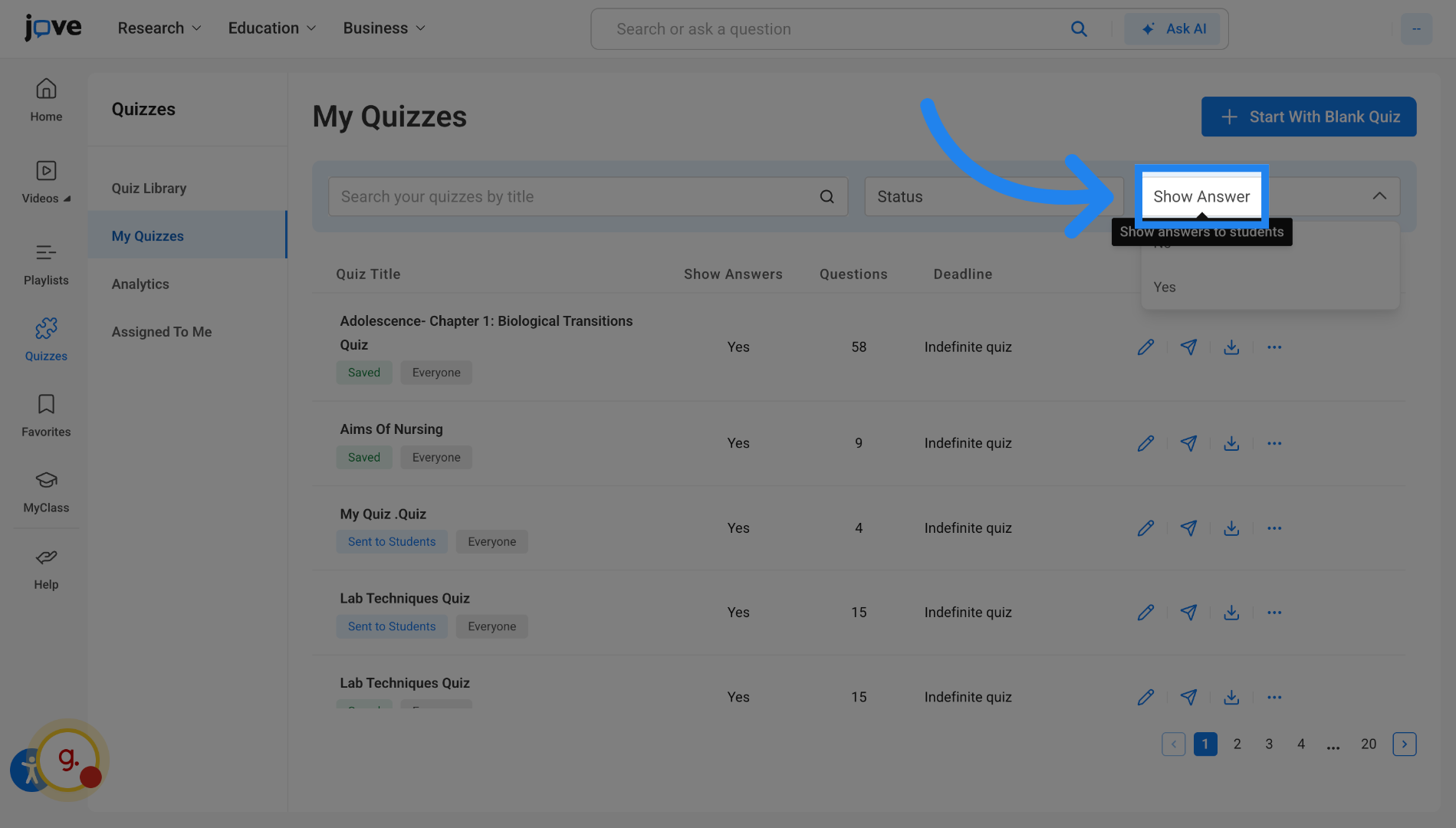
4. Adjust Answer Visibility
The quizzes can be filtered based on whether students receive answers after attempting the quiz or if they do not receive answers after their attempt.
5. Distribute Quiz to Students
The user can perform certain actions on each of the quizzes that they have created. They can edit the quiz content if they have not distributed it to their students yet. They can also distribute quizzes from here by clicking on the send action.
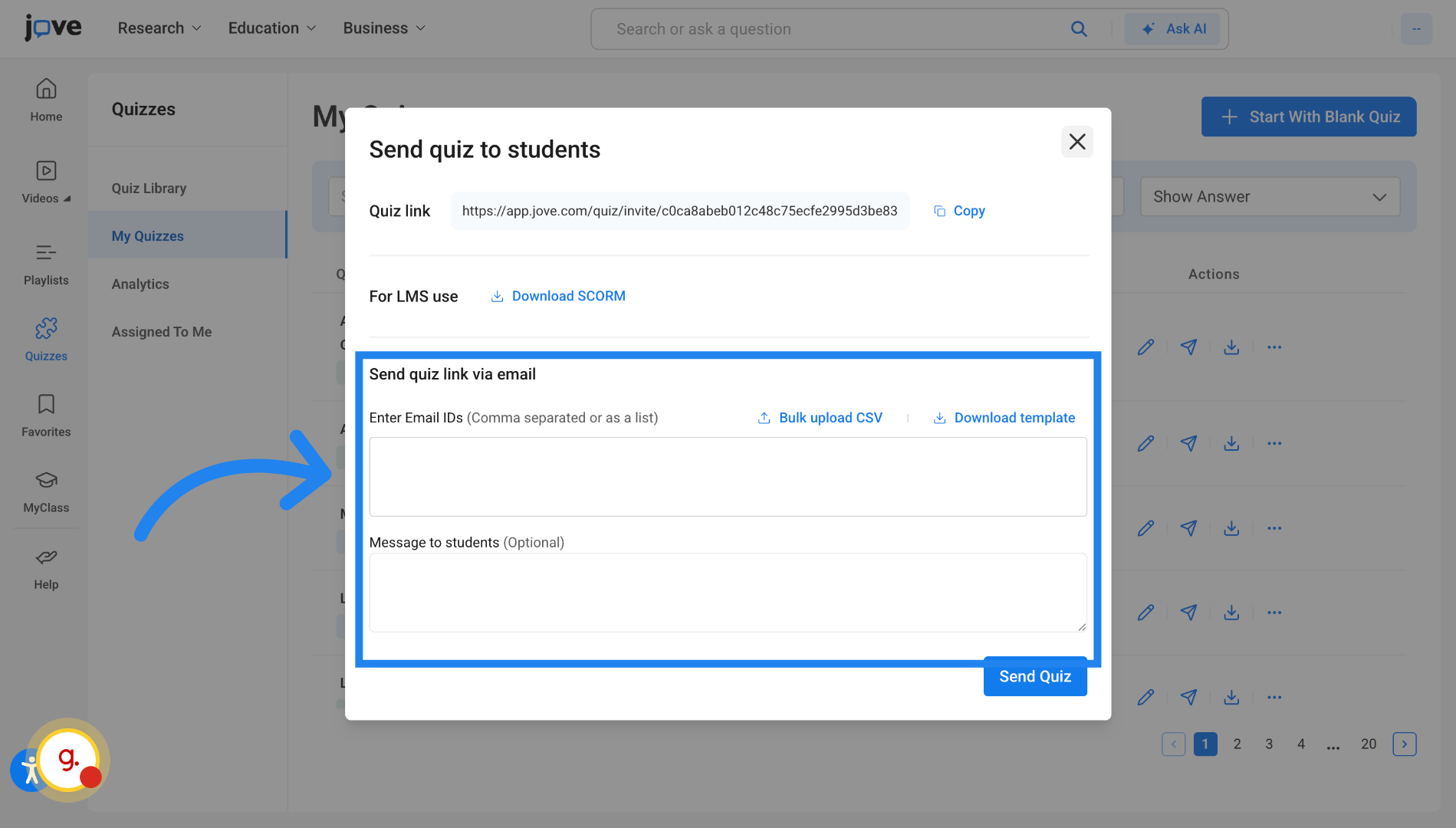
6. Distribute Quiz to students - via Mail
Users can send the quiz to their students by entering the their mail or uploading the CSV containing their mails in the box here and even add instructions for the student.
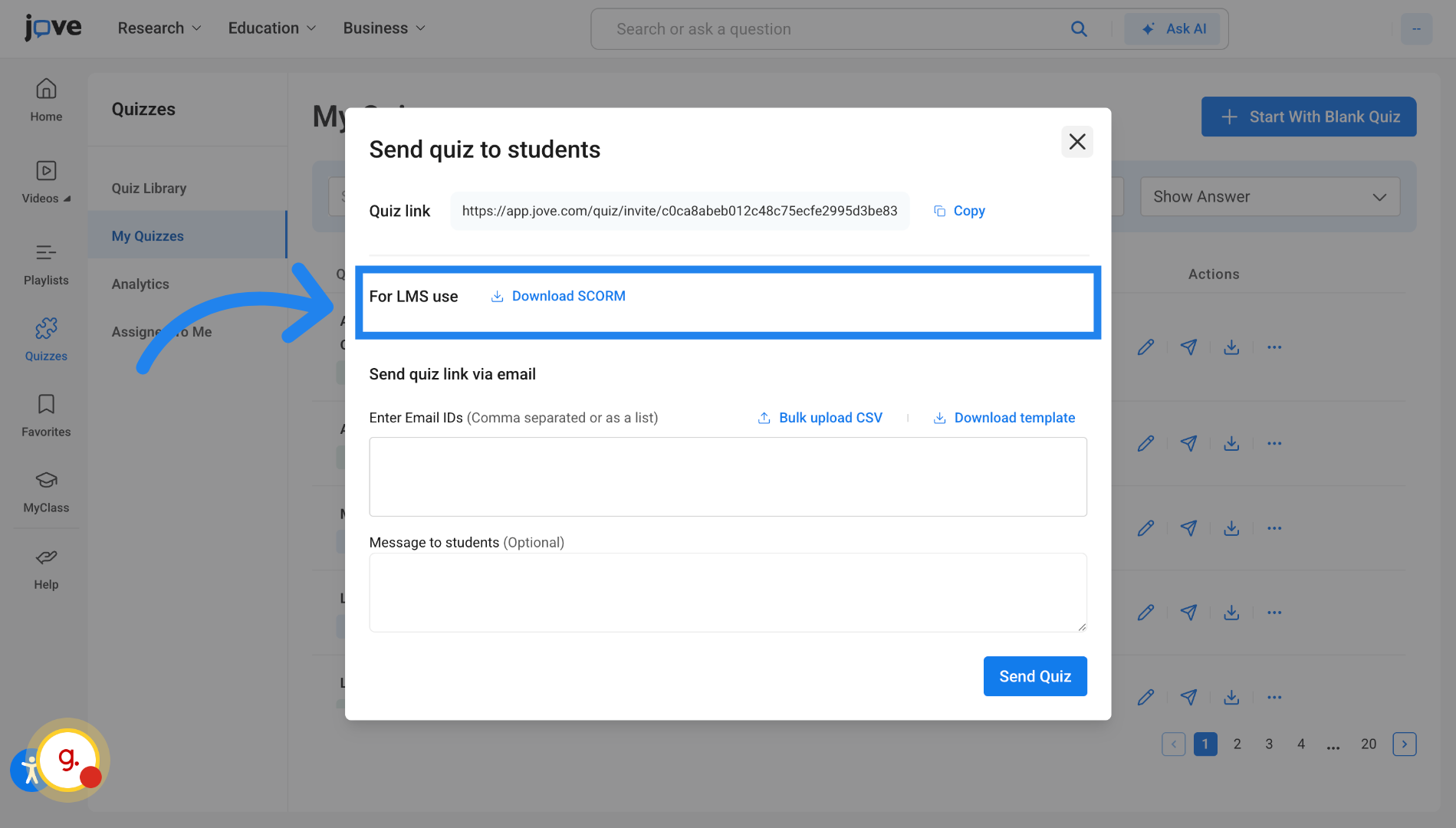
7. Distribute Quiz to students - via SCORM
Users can also download the quiz in the SCORM format from here and use it in their LMS.
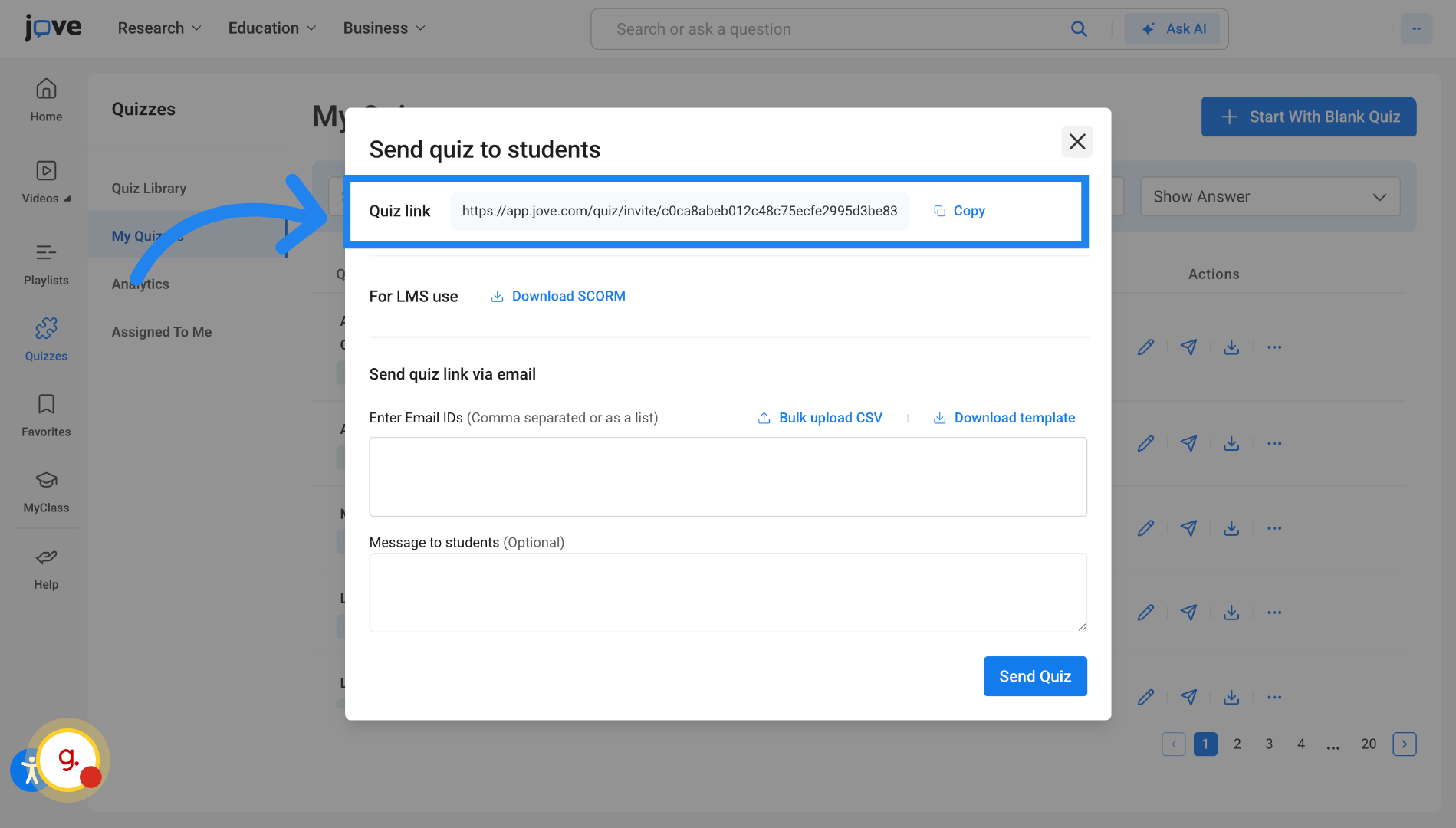
8. Distribute Quiz to students - via Link
or send the quiz to students by sharing this attempt link.
9. Initiate Quiz Translation
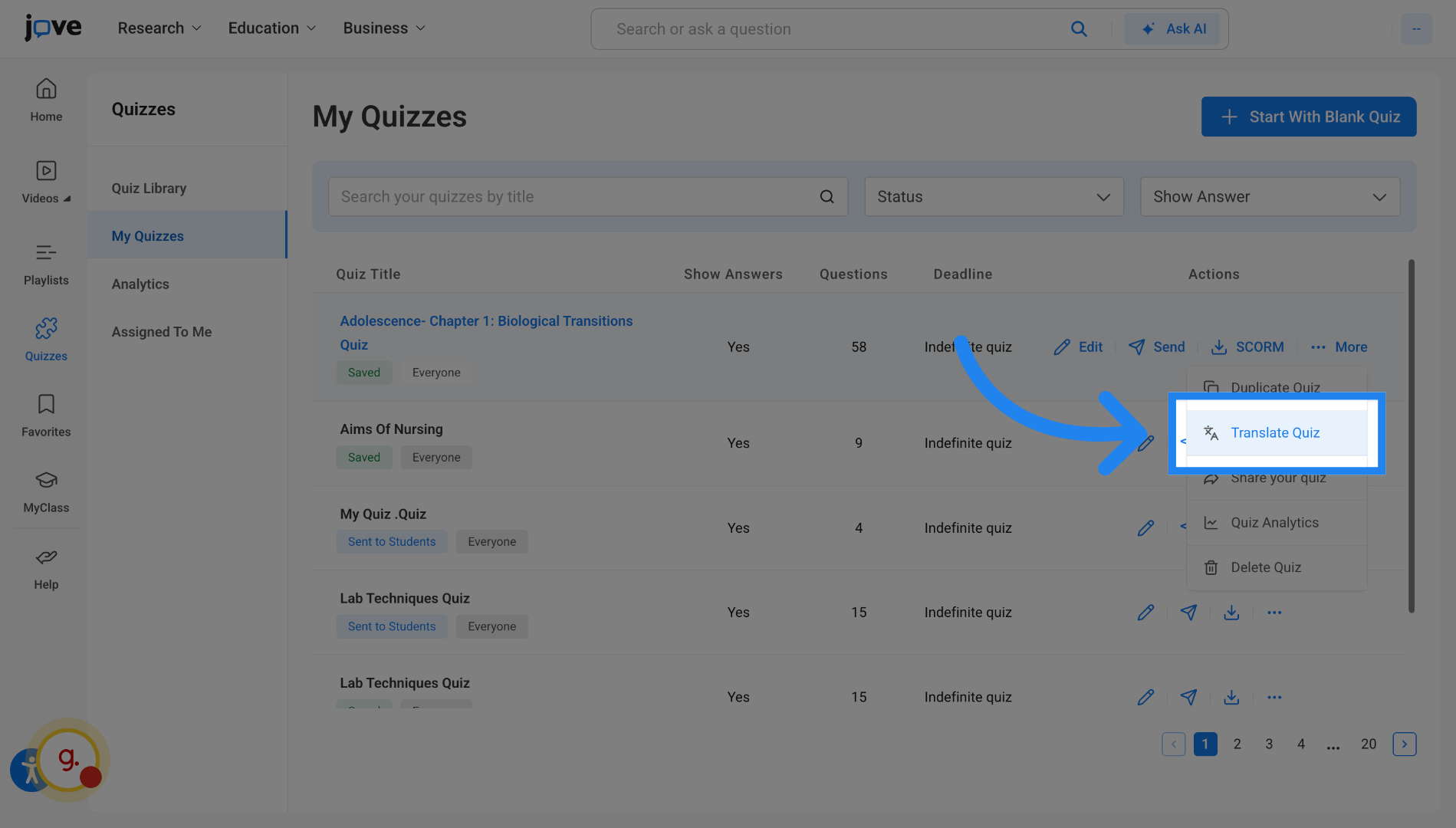
If a user translates the quiz from the My Quizzes page, a quiz will be created, which would be a duplicate of the original quiz, but in the language of choice of the user.
10. Share Quiz to professors
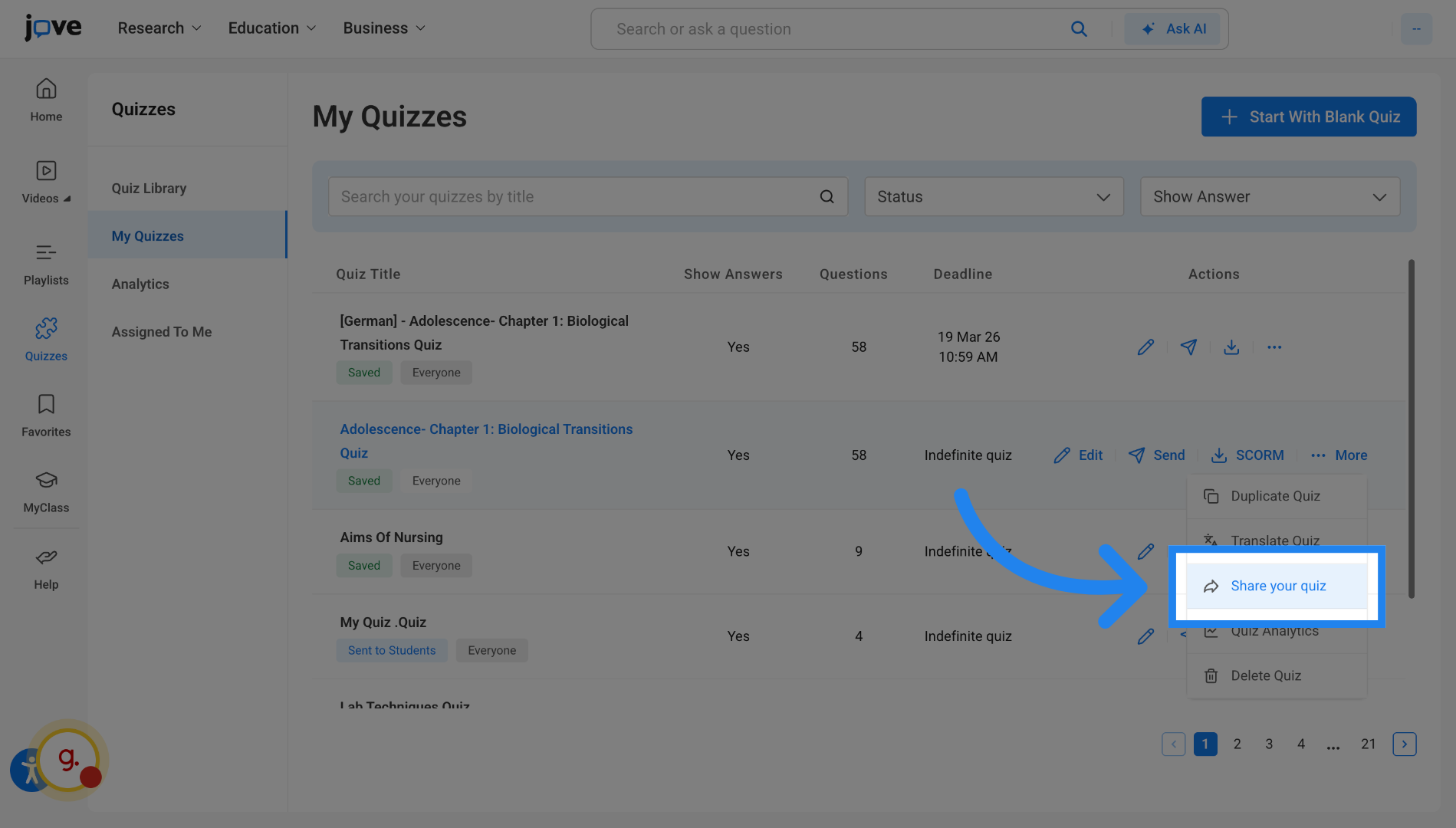
The user can also share these quiz to other professors so that they can reuse the quiz. They can do so by clicking on the share button and entering the professor's mail and then clicking on share quiz.
11. Access Quiz Analytics
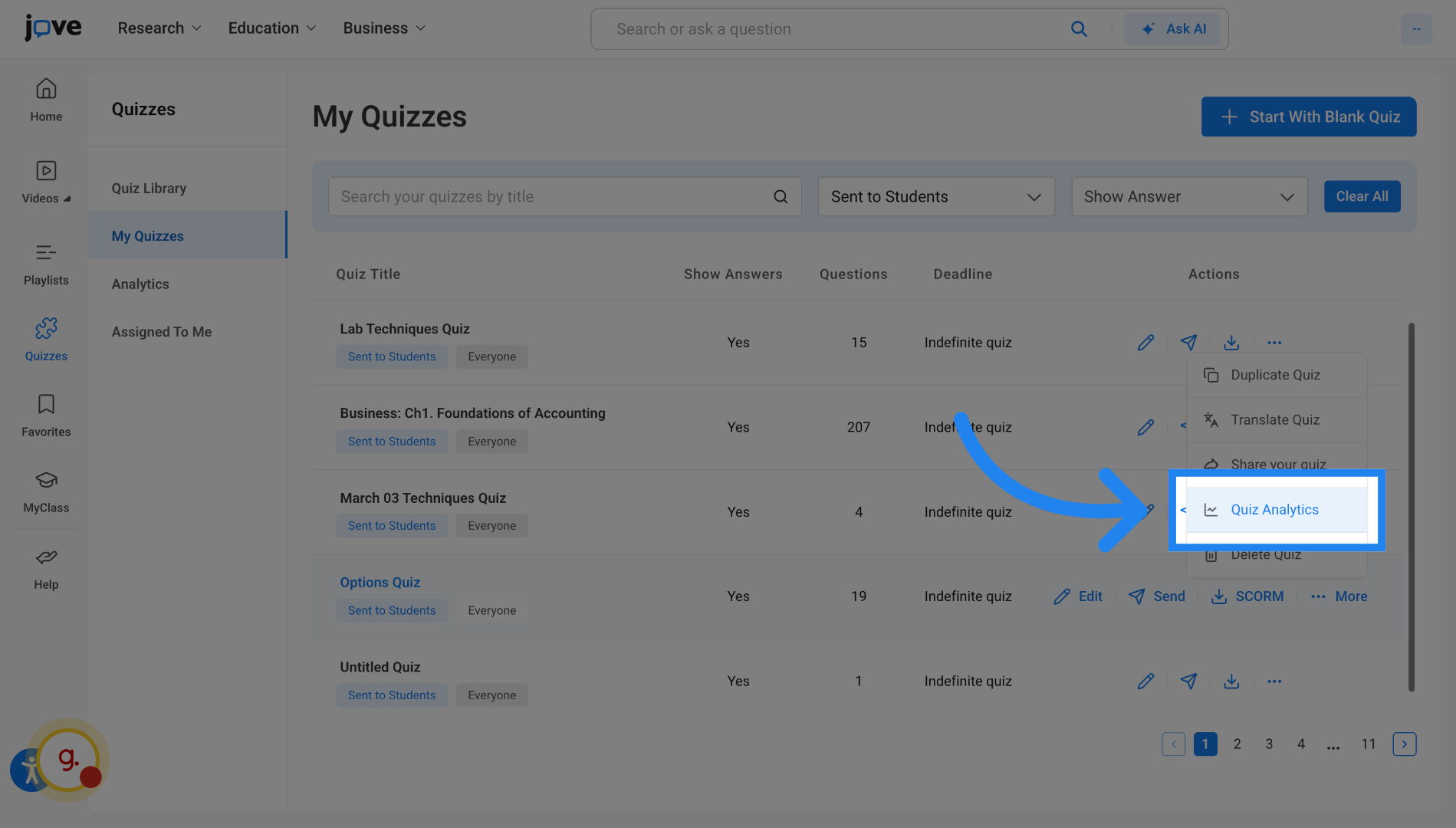
Users can also view student attempts and student results for the quiz that they have shared to students by clicking on quiz analytics for the required quiz. This will take the user to the analytics tab.
12. Quiz Analytics
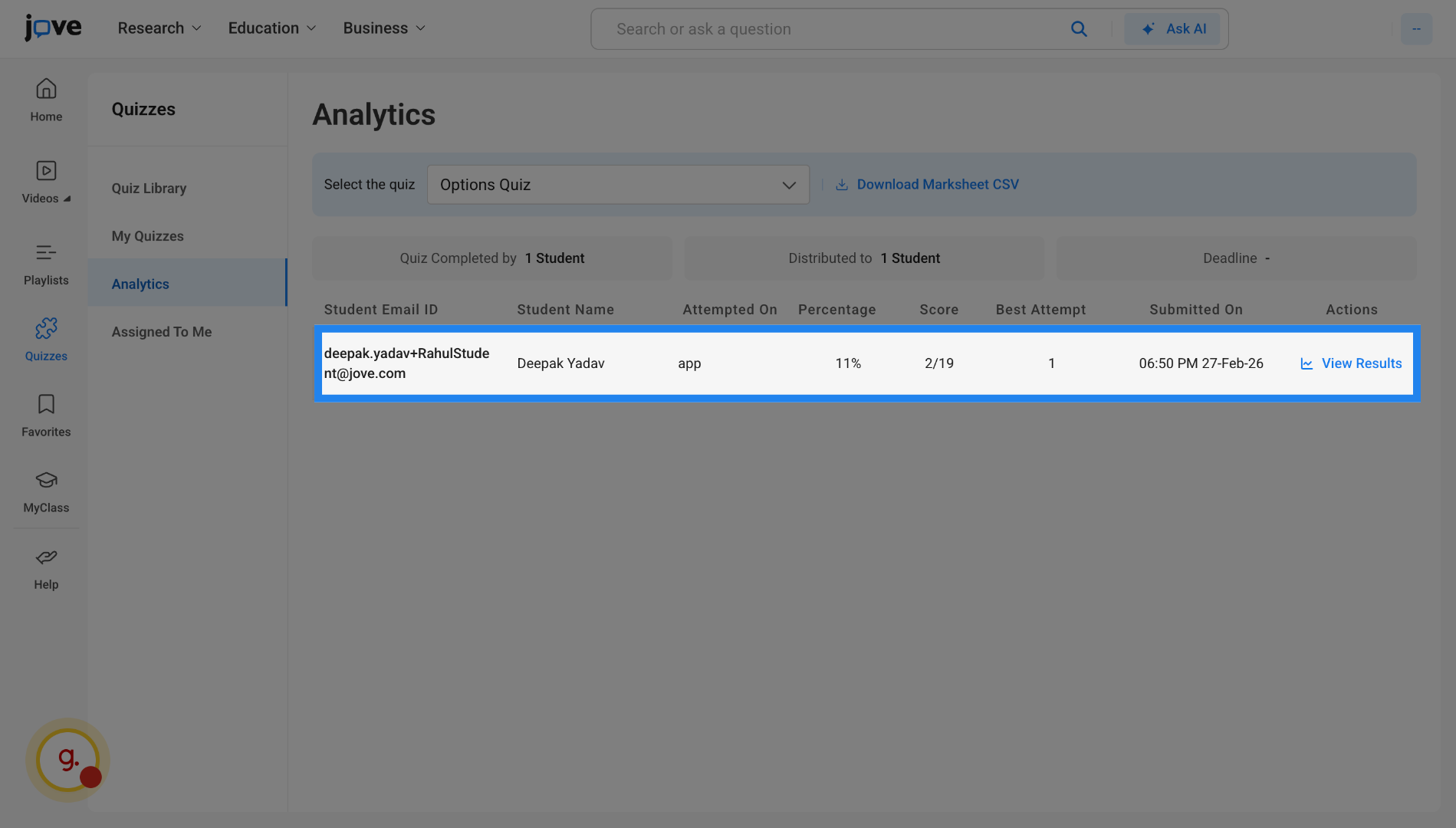
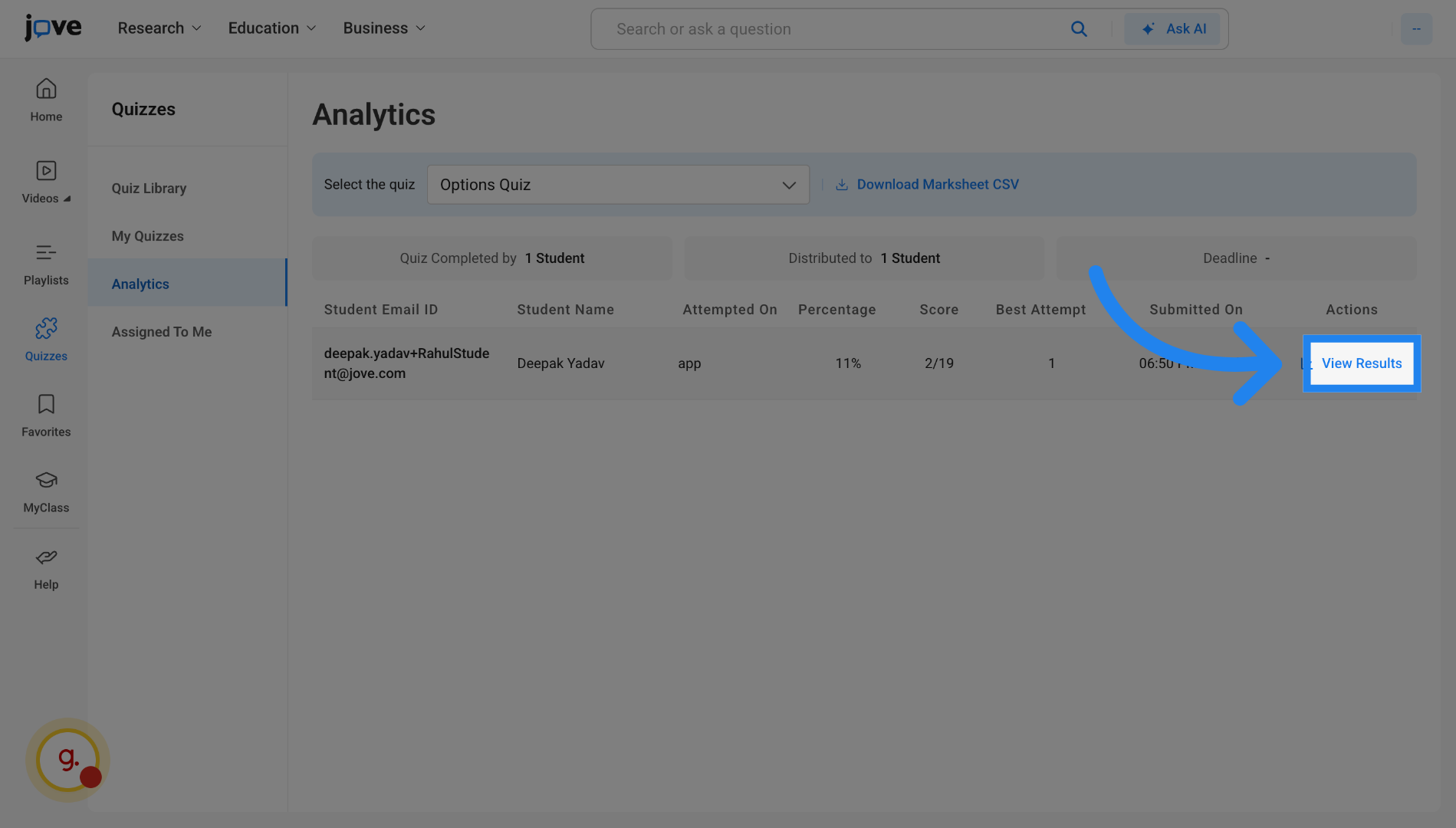
This Enlist all the student attempts and their score and percentage.
13. Quiz Analytics - View Student Results
The professor can view the student's attempt at an individual level by clicking on "view results".
14. Quiz Analytics - View Student Results (2)
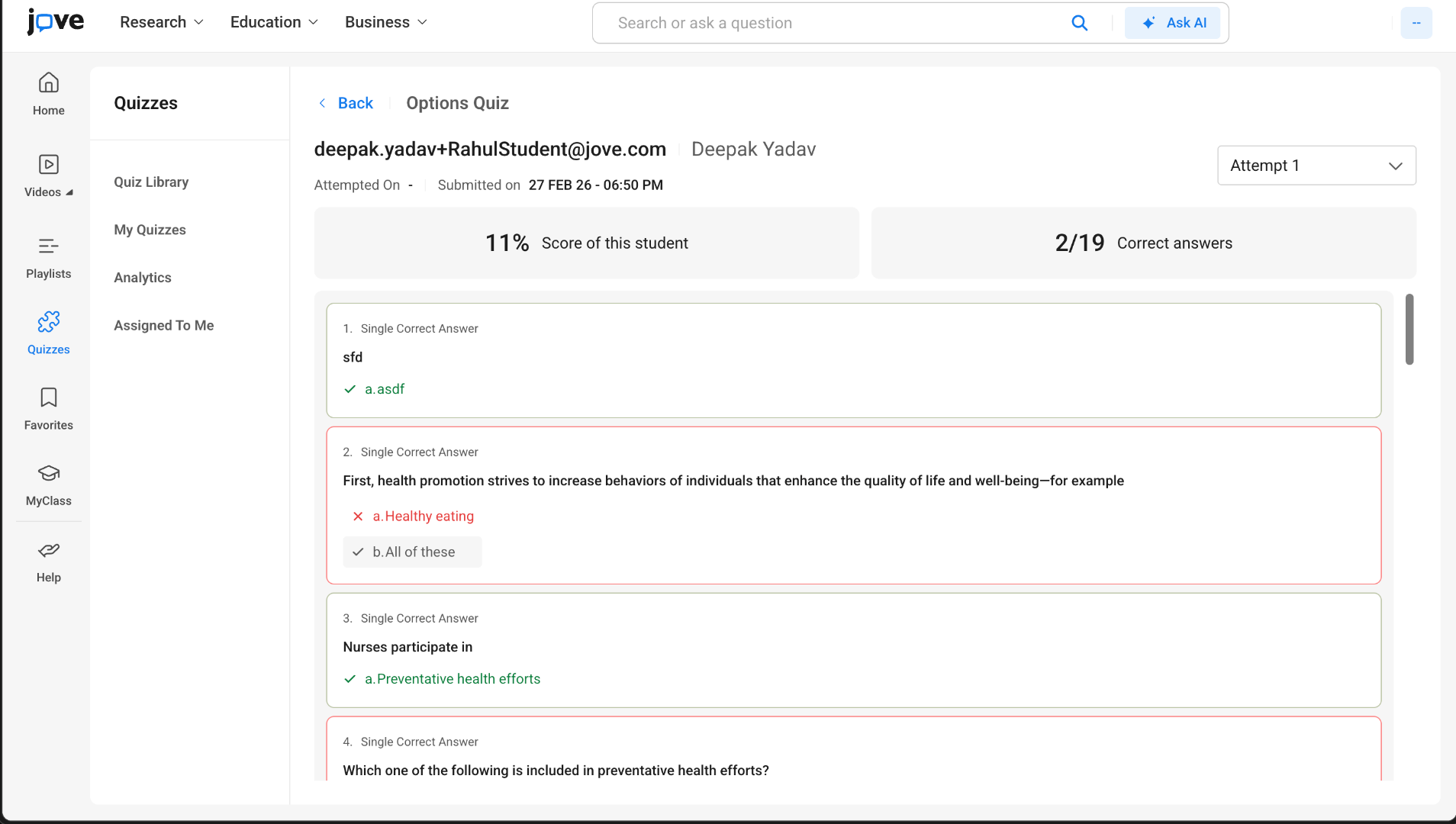
Here, he will find the student's score, the number of correct answers provided, and the correct and incorrect answers marked at the question level.
Related to