Primary Courses for Professor
We have recently launched Jove Primary Courses to enhance your learning experience. This demo explores how to access, adopt, and utilize these courses effectively. Primary Courses are video courses bundled with extra resources such as Quizzes, Chapter Readings and Presentations. In order to get access to these courses, professors must adopt the ISBN of the said course.
Go to jove.instructure.com
1. Open Course Module
Once the professor has adopted the ISBN of the primary course, they must access the Course module in their LMS and in any of the module, click on the plus sign
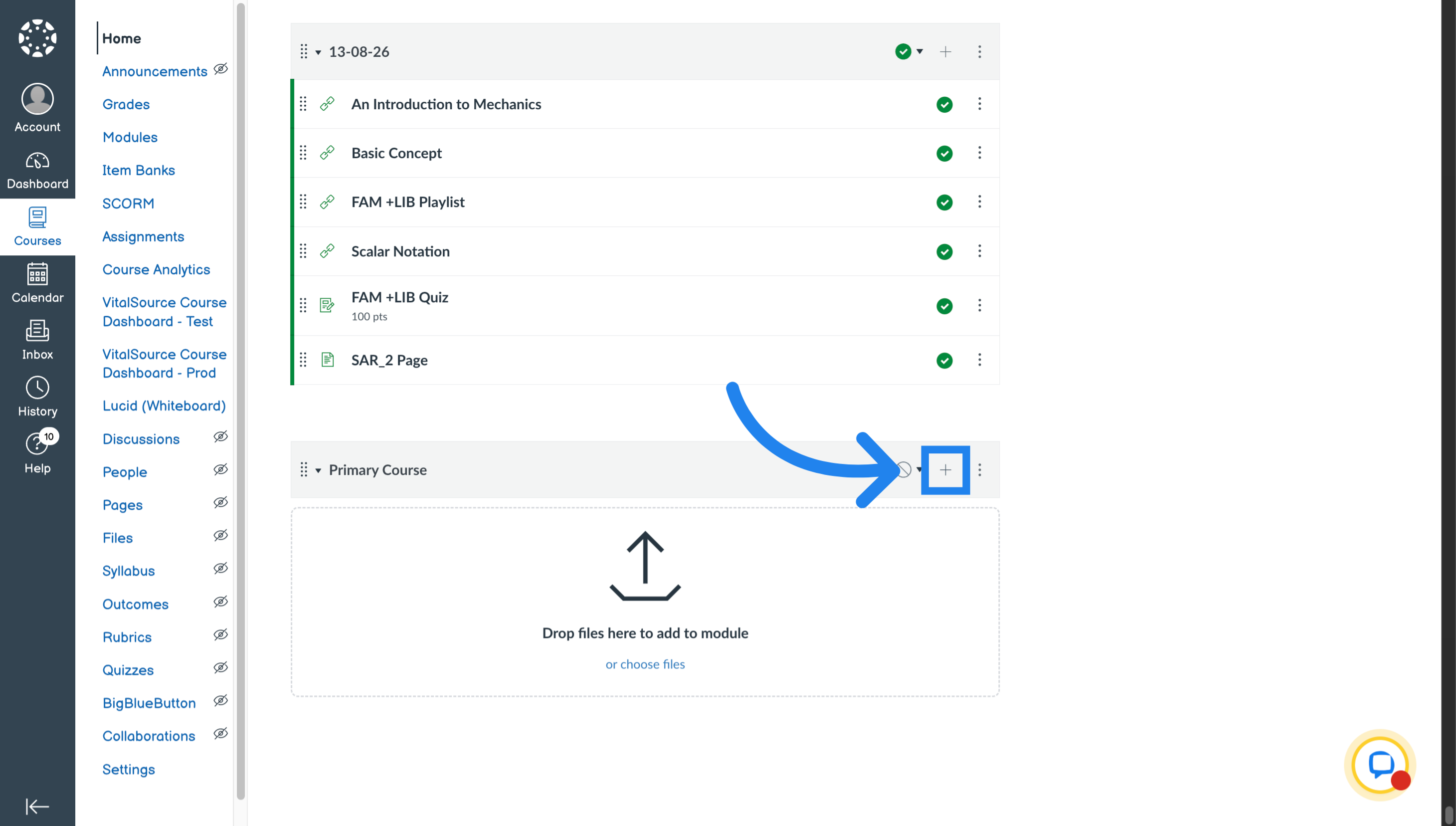
2. Select External Tool as content type
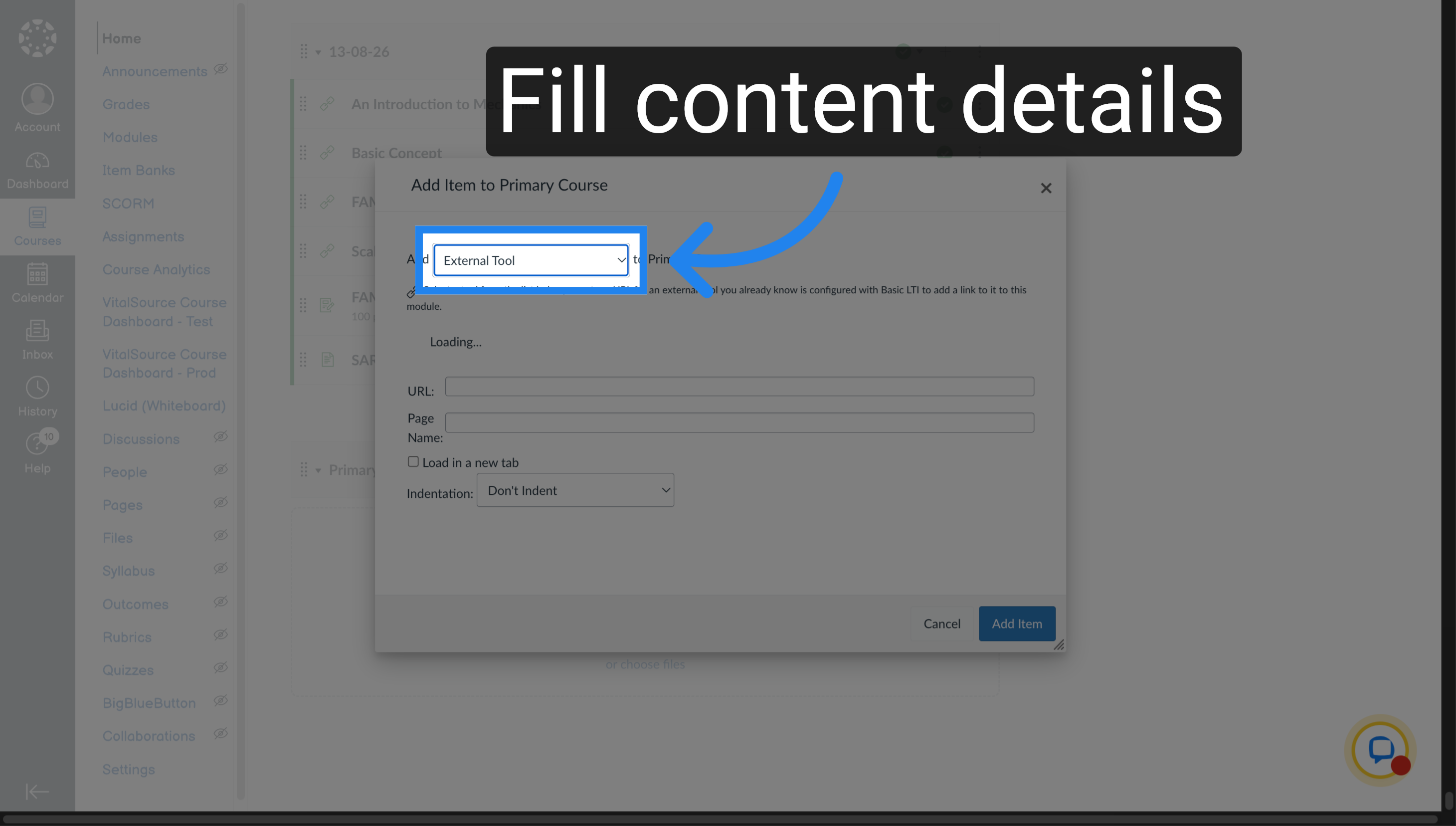
Select "External Tool" as the content to be added.
3. Launch Jove Videos
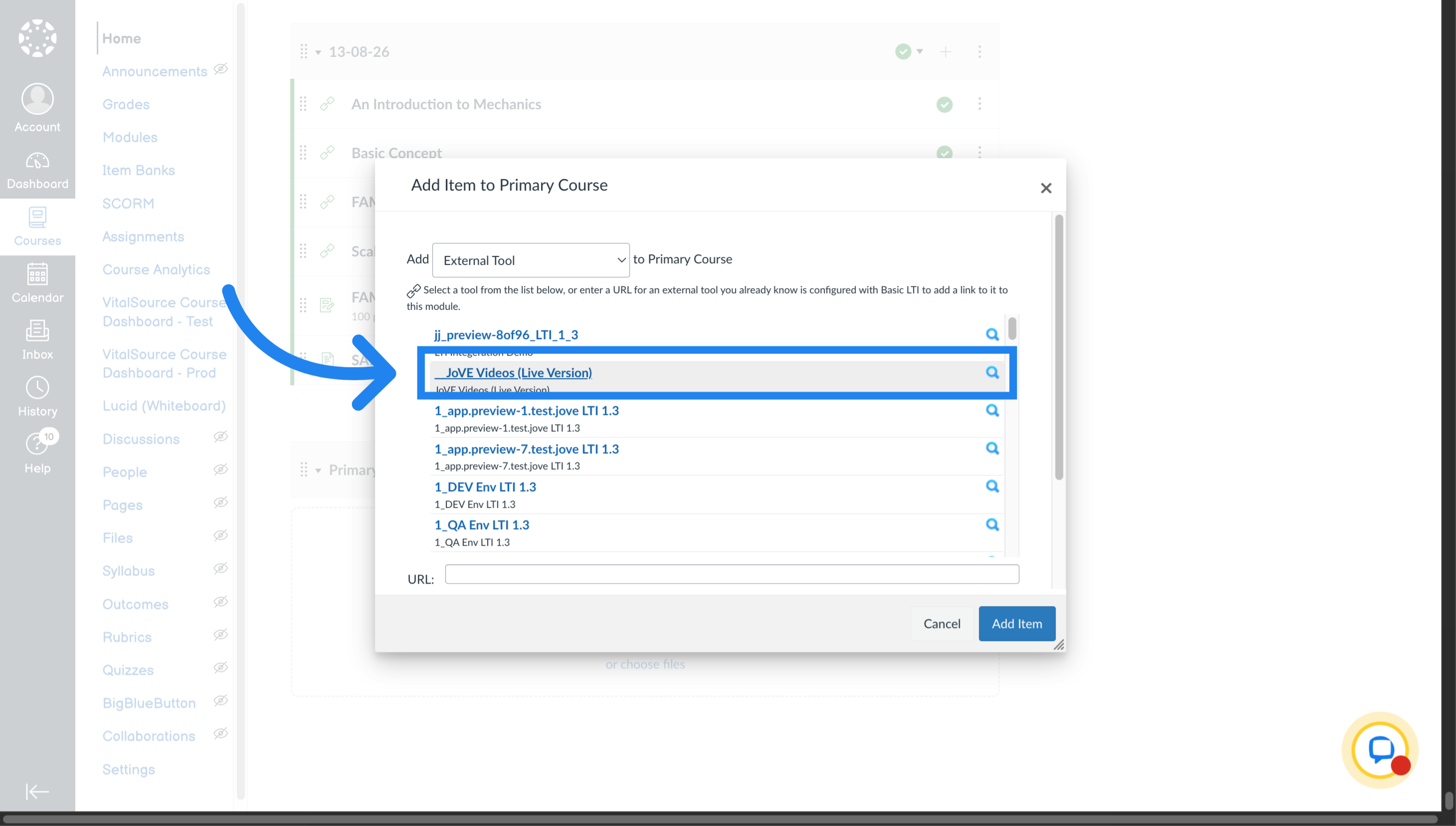
Then click on the Jove Videos entry to launch Jove in their LMS.
4. Open Jove in LTI
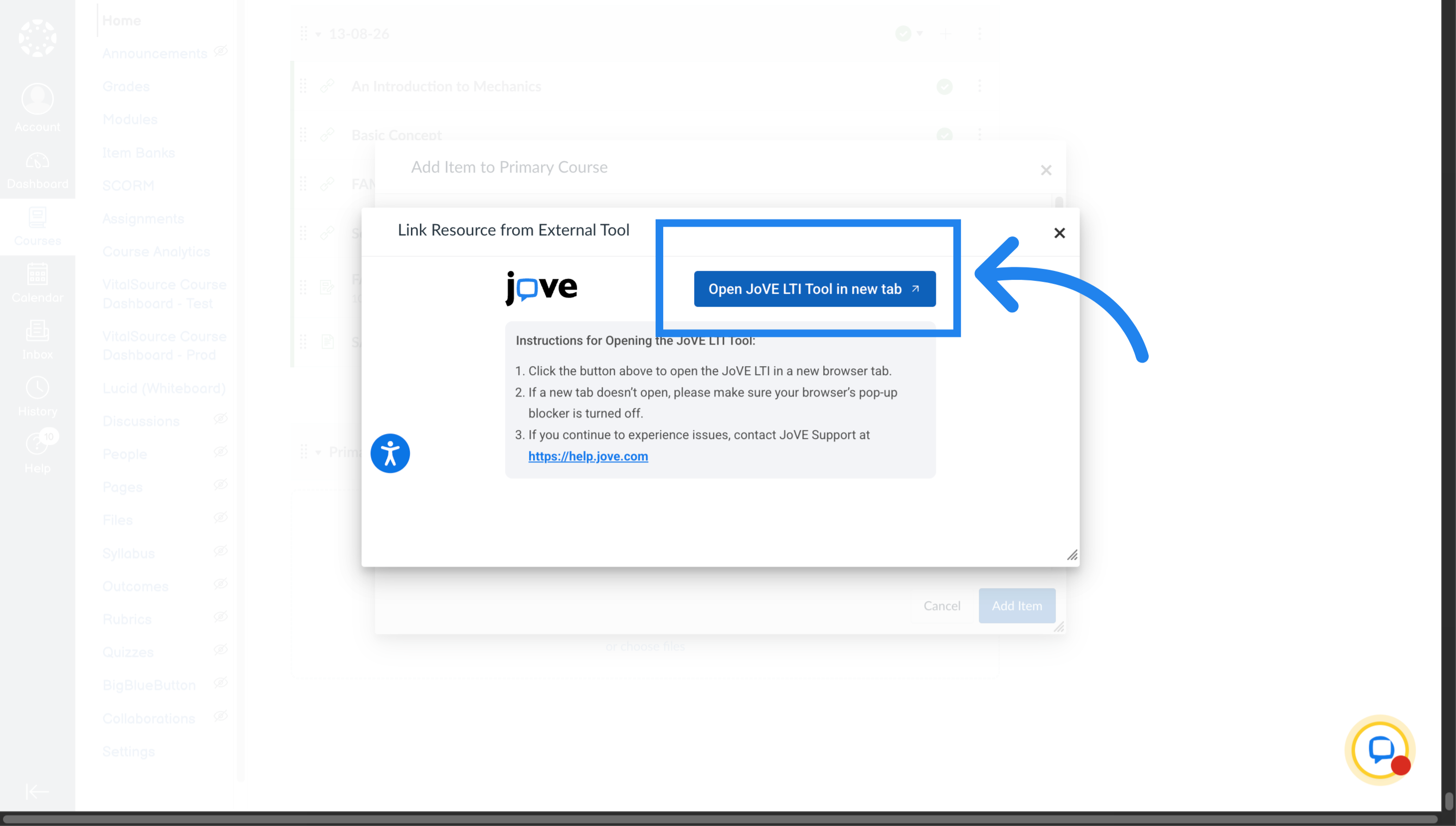
Launch Jove in new tab by clicking on this button.
5. Access My Courses
The professor can access their adopted courses through "My Courses"
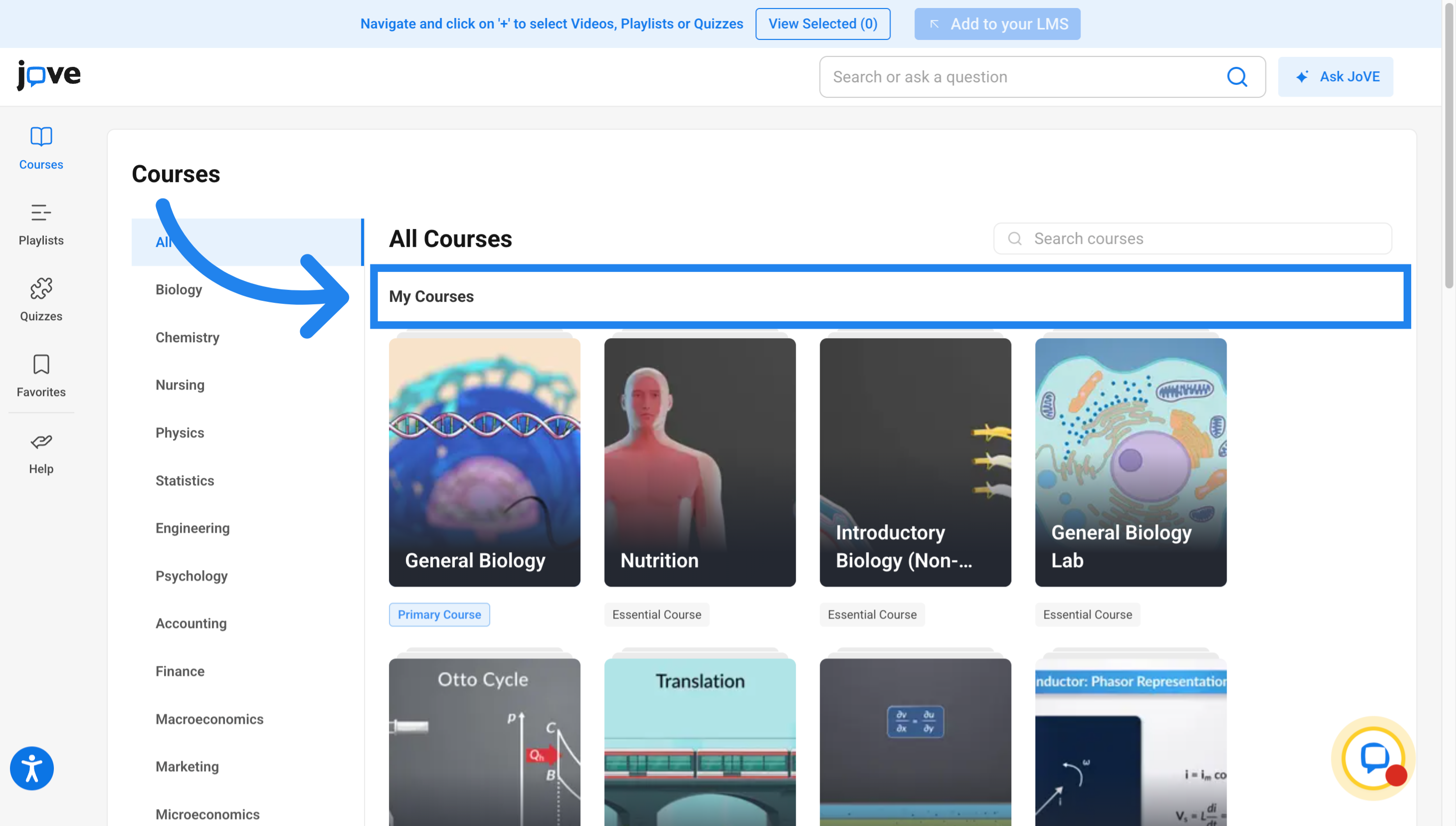
6. Select Primary Course
They can access the adopted primary courses by clicking on the specific course tile.
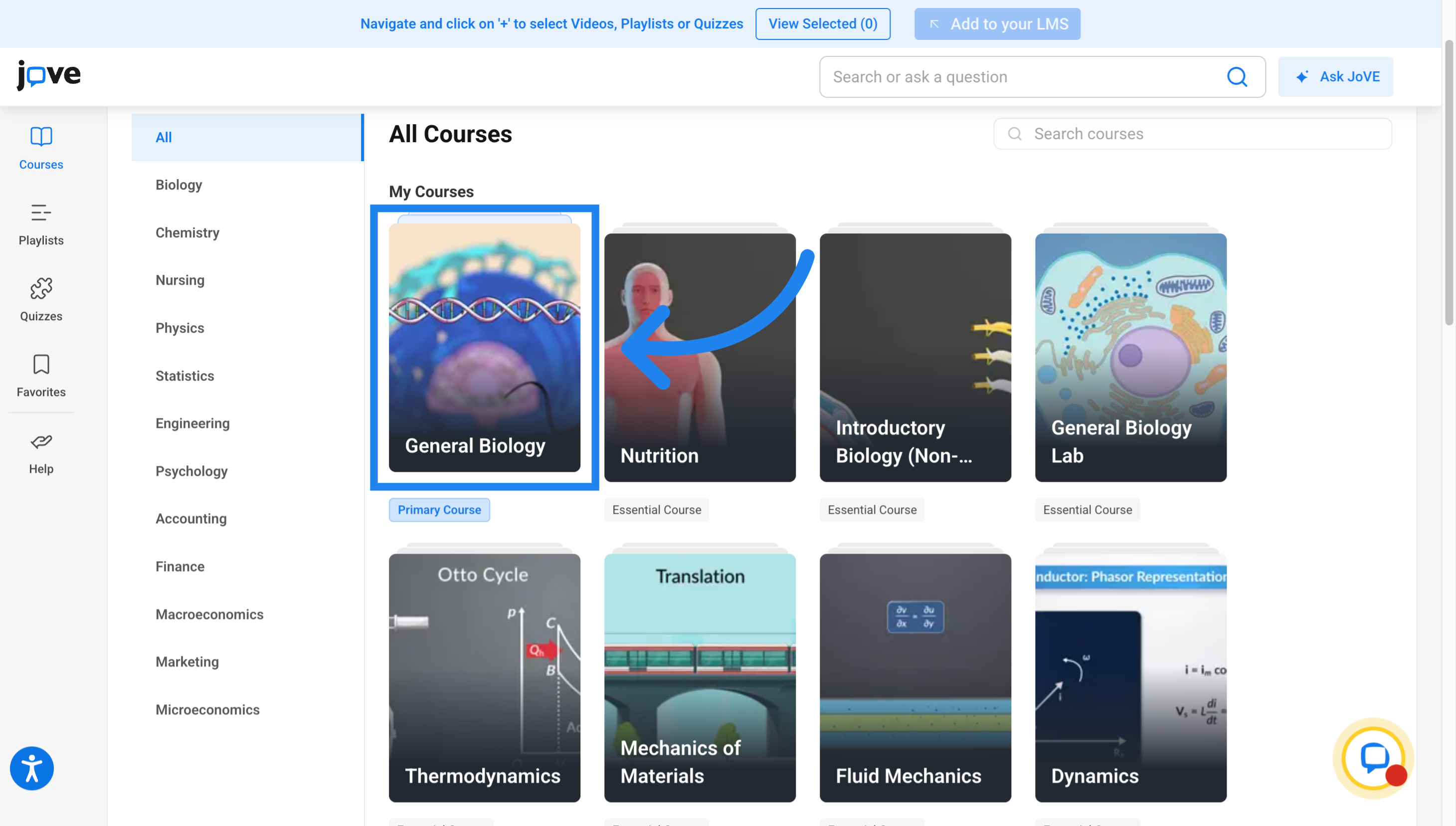
7. Chapter Listing Page
They will land on the chapter listing page of the course. The professor can then click on any of the chapter tile to access the said chapter's resources.
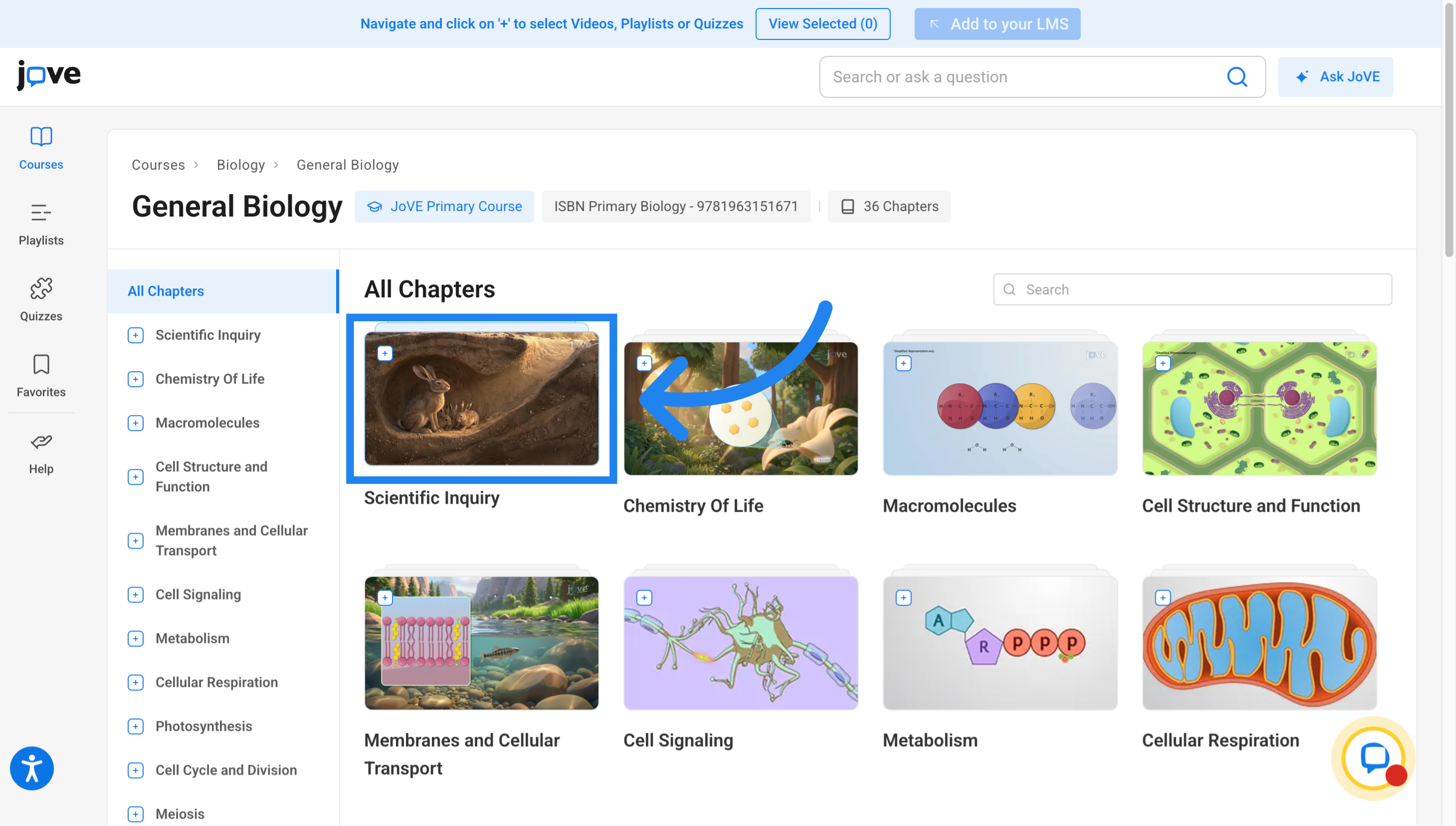
8. Review Course Materials
This will land them on the chapter page where he/she can review the entire chapter's material. This include, videos, quizzes, presentation and chapter readings.
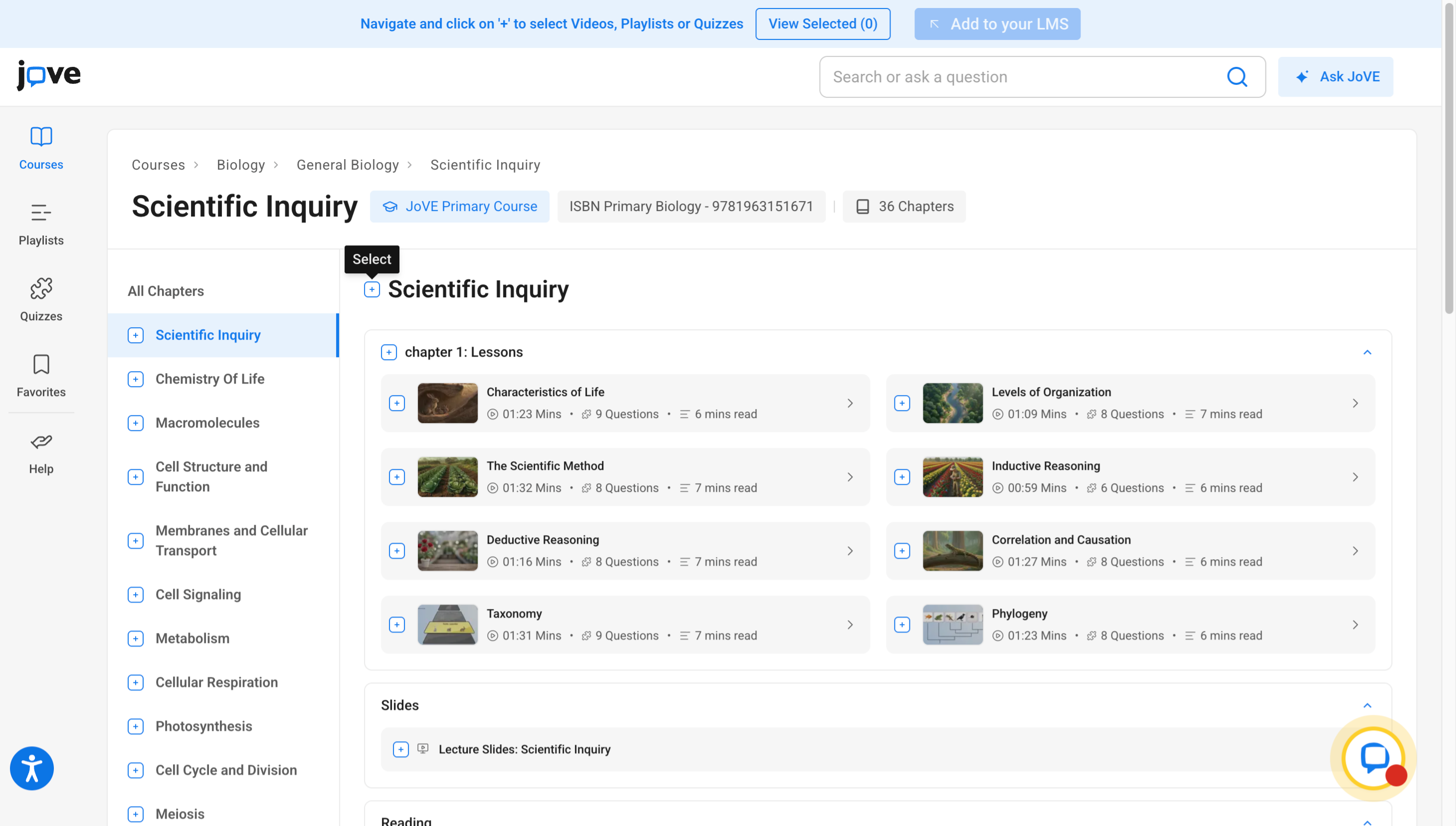
9. Access More Content
They can thenadd the videos by individually selecting videos or add the entire set as a single playlist by using the highlighted button.
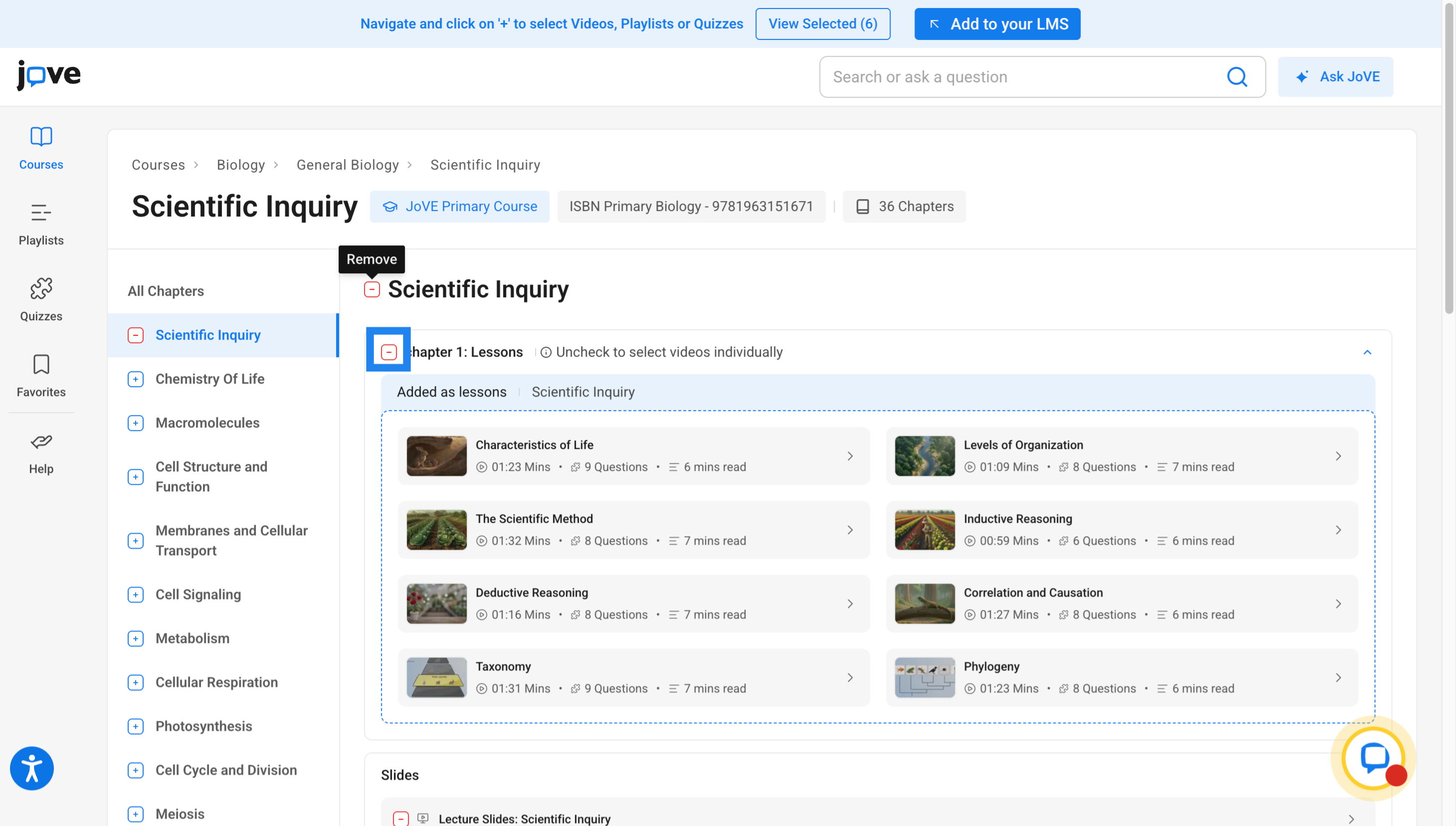
10. Preview Course content
They can alsopreview the content by clicking on the resource. The side preview opens up where the professor can view the material.
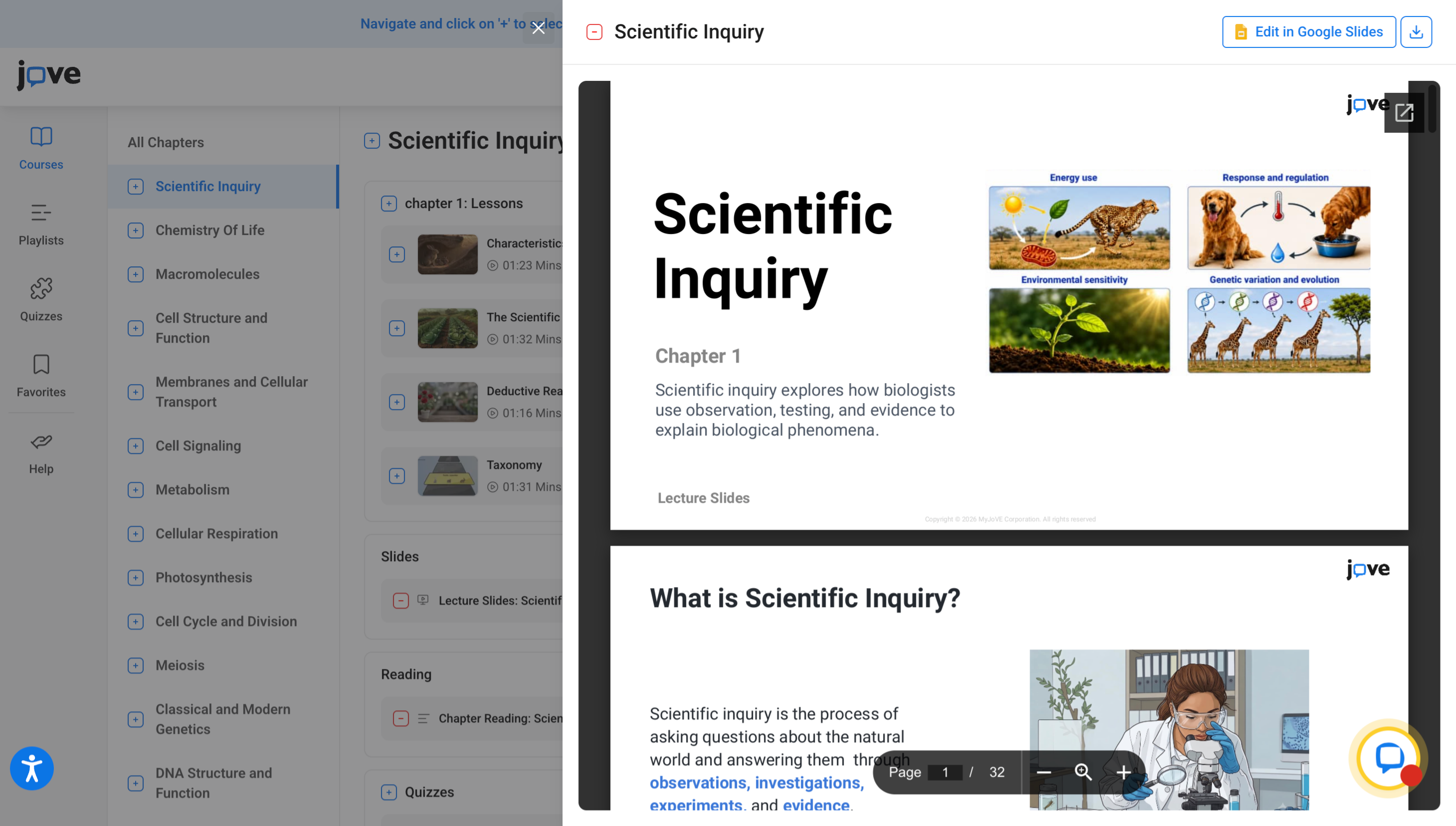
11. Edit Quiz Content
Quizzes can be edited by clicking on this button.
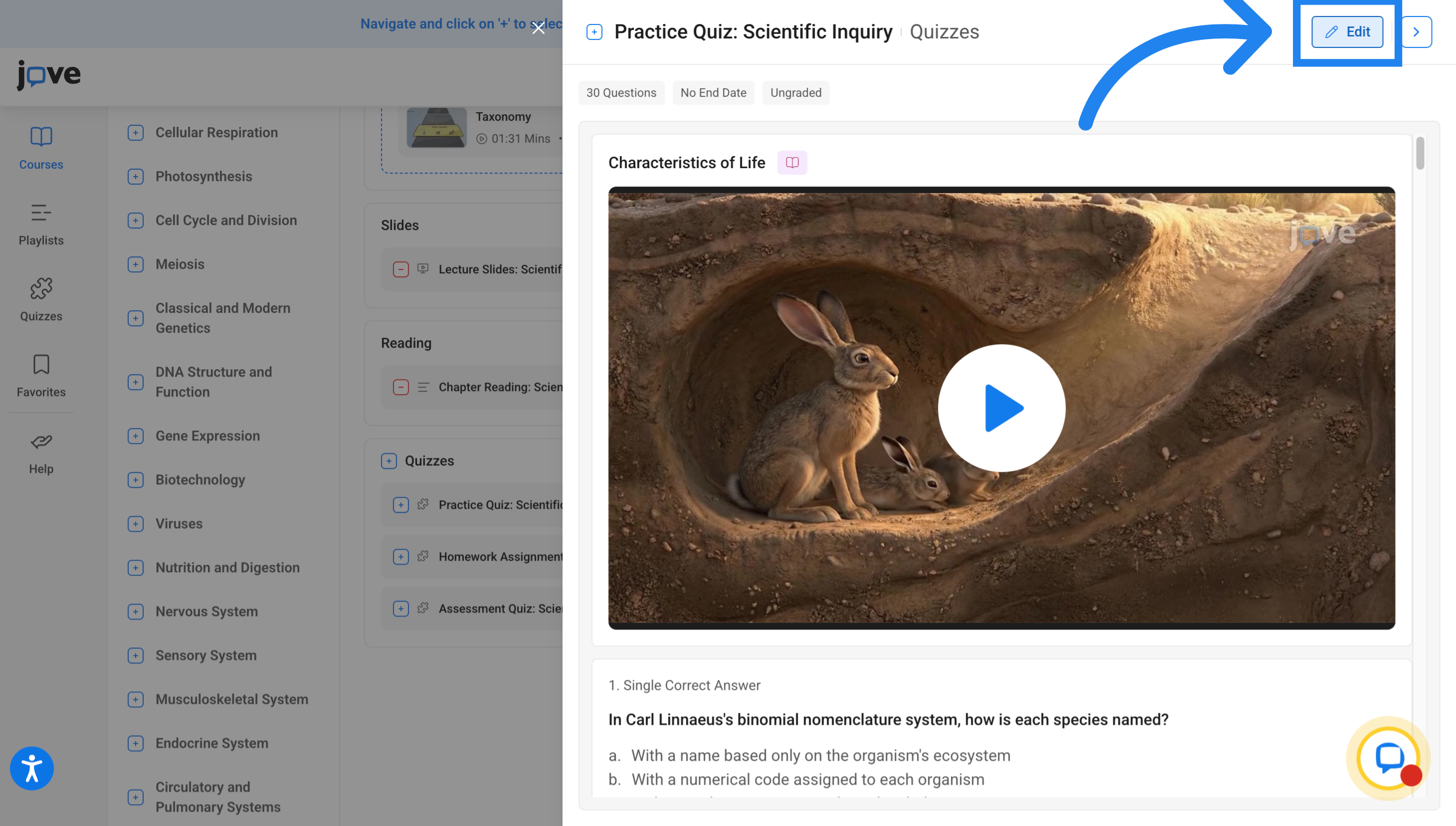
12. Edit Quiz
This will direct the professor to quiz builder where they can make their edits.
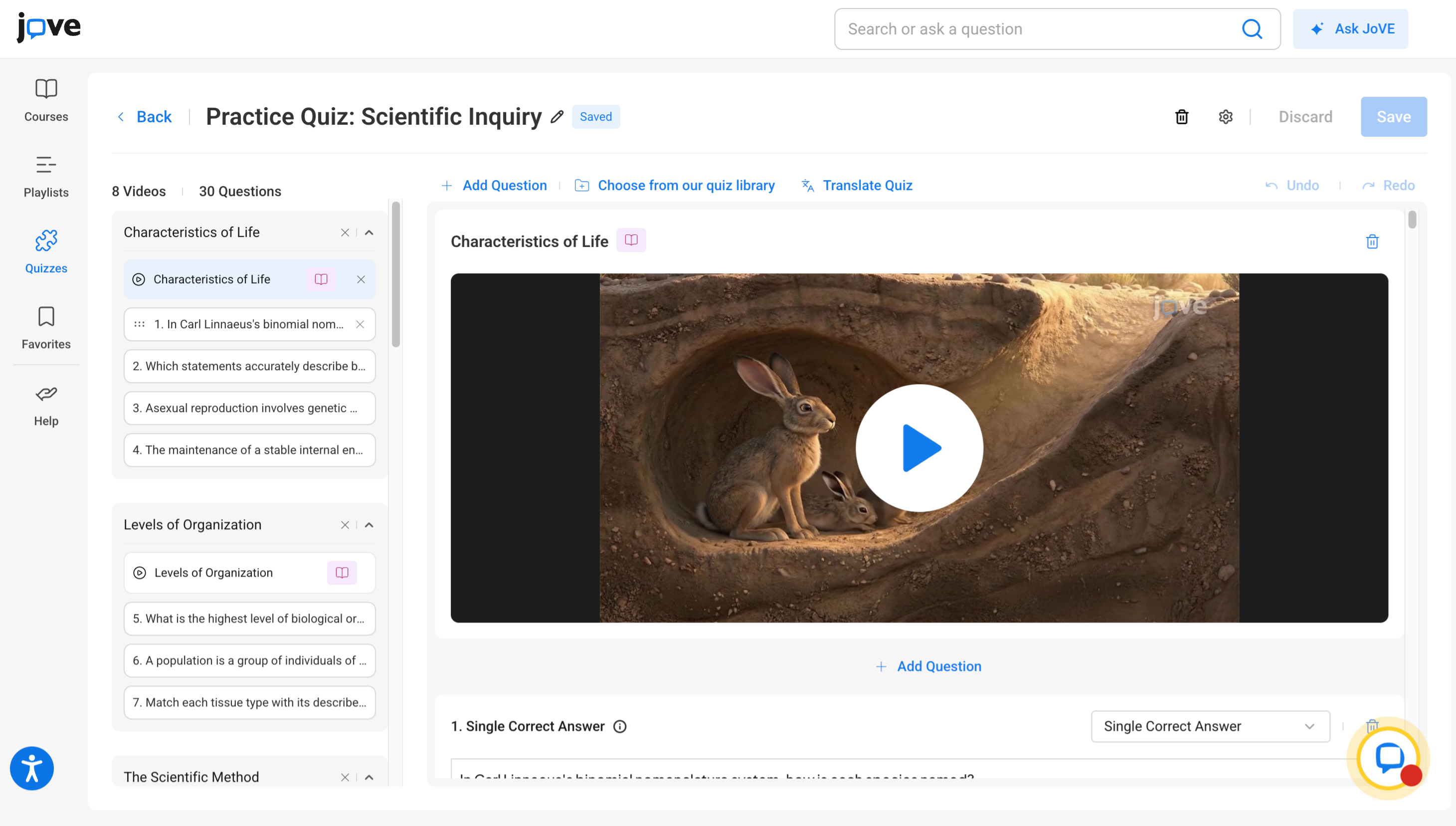
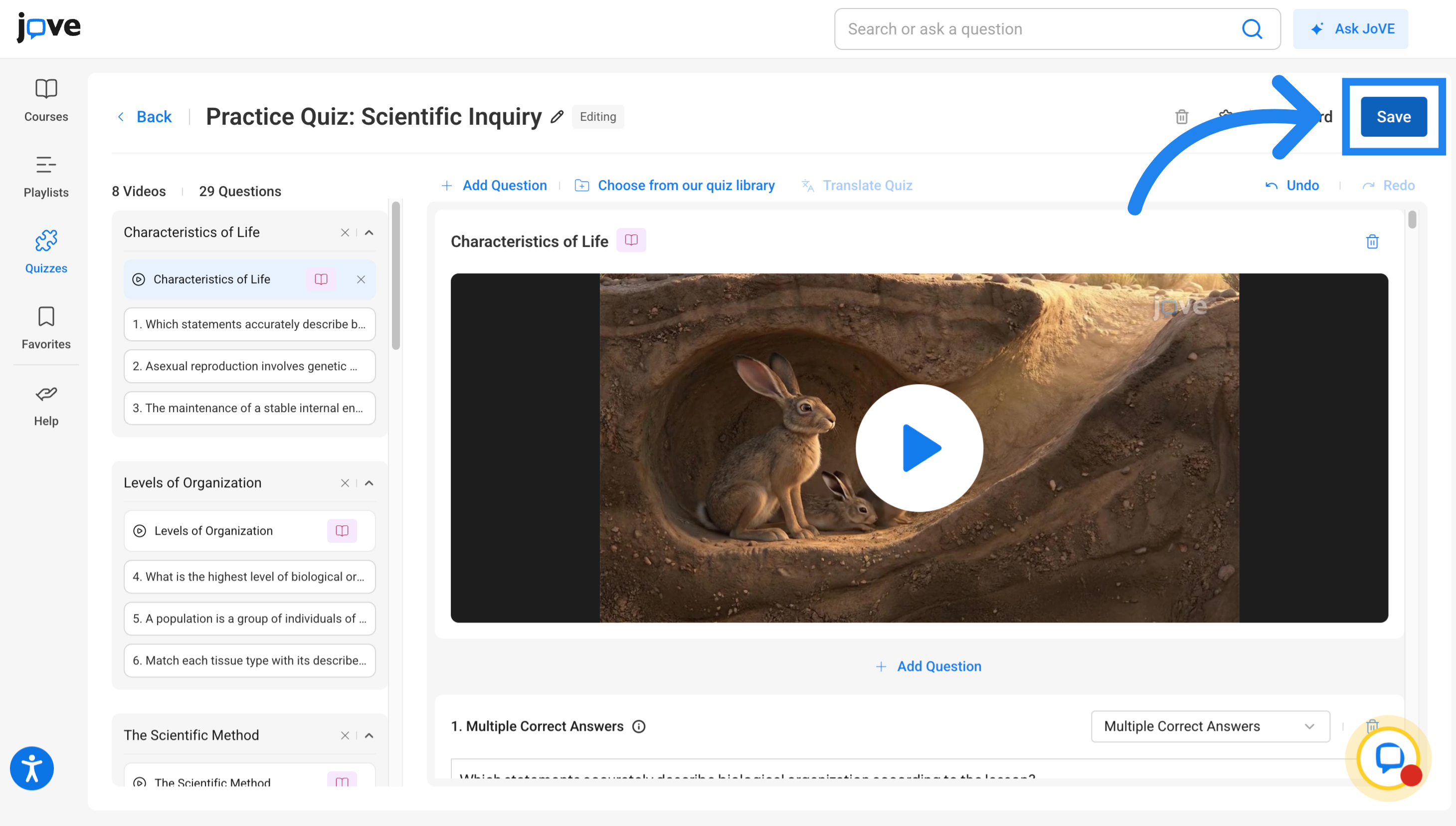
13. Save Quiz Changes
Once finalised, They click "Save" to apply changes made to the quiz.
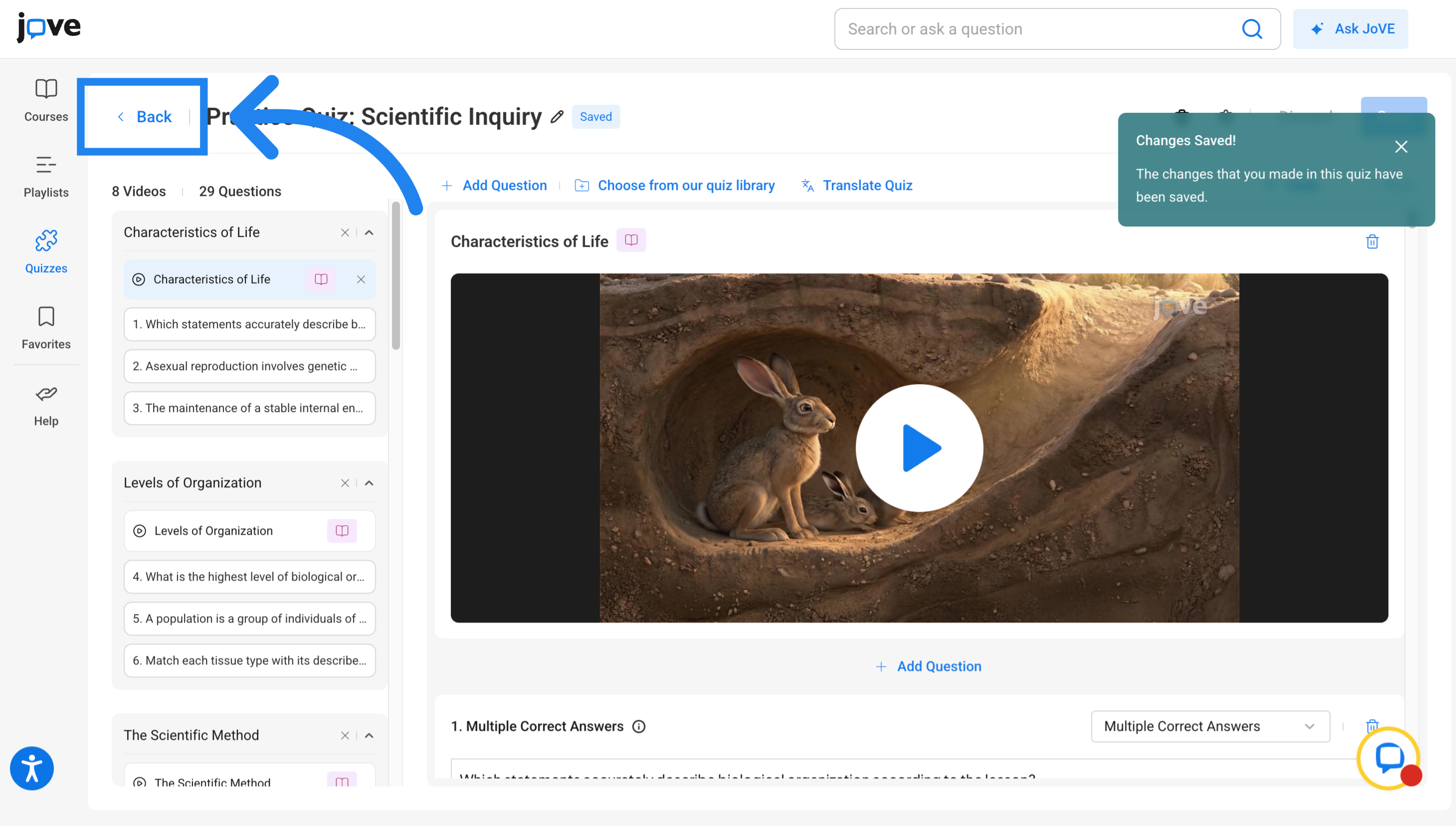
14. Return to Course
The professor can then click "Back" to return to the main course page.
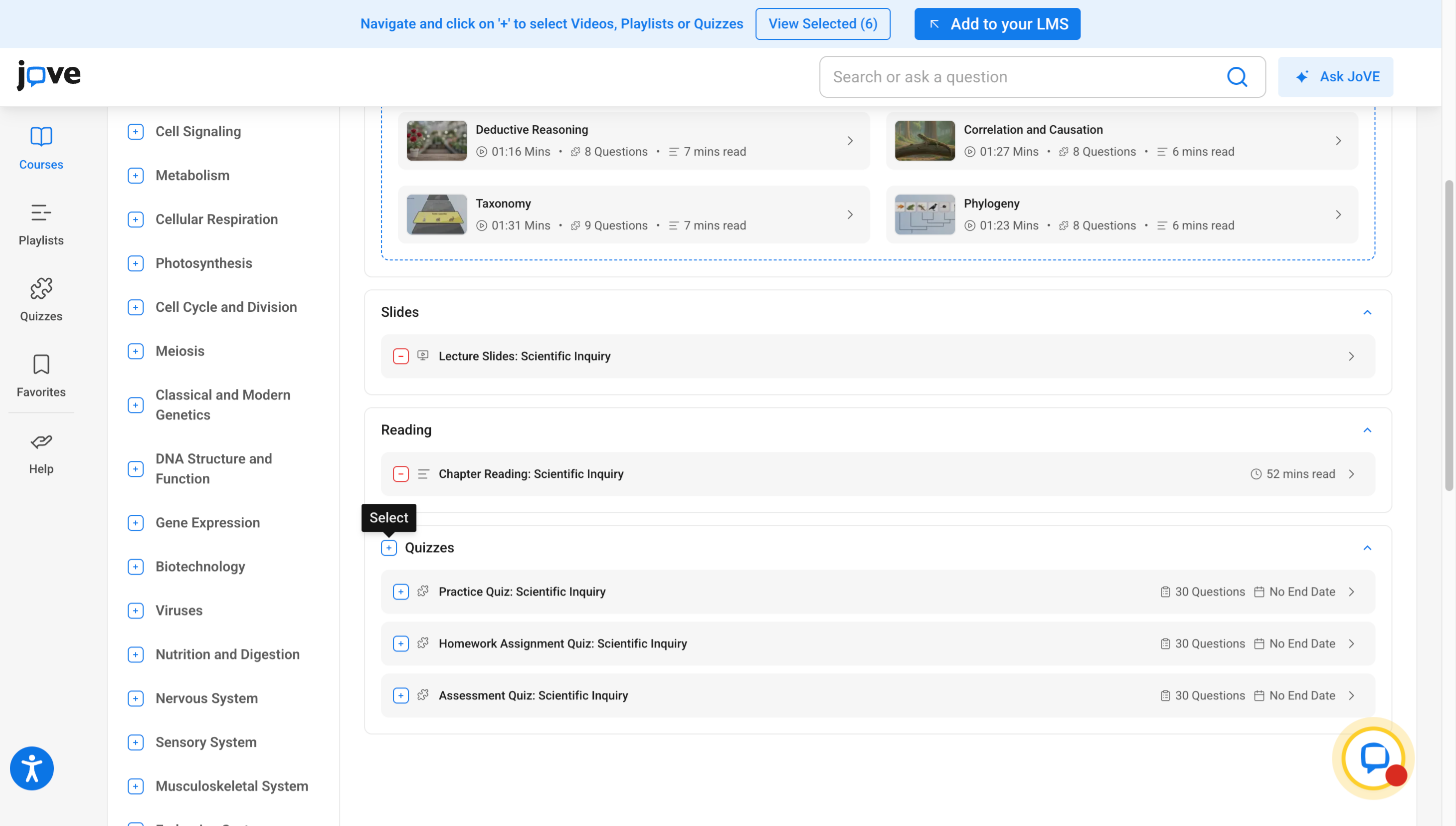
15. Types of Quizzes
Note that the first 2 quizzes, Practice and Homework quizzes contain videos. Assessment Quiz on the other hand do not have any videos. All of these quizzes will pass grade to LMS grade book upon a student attempt.
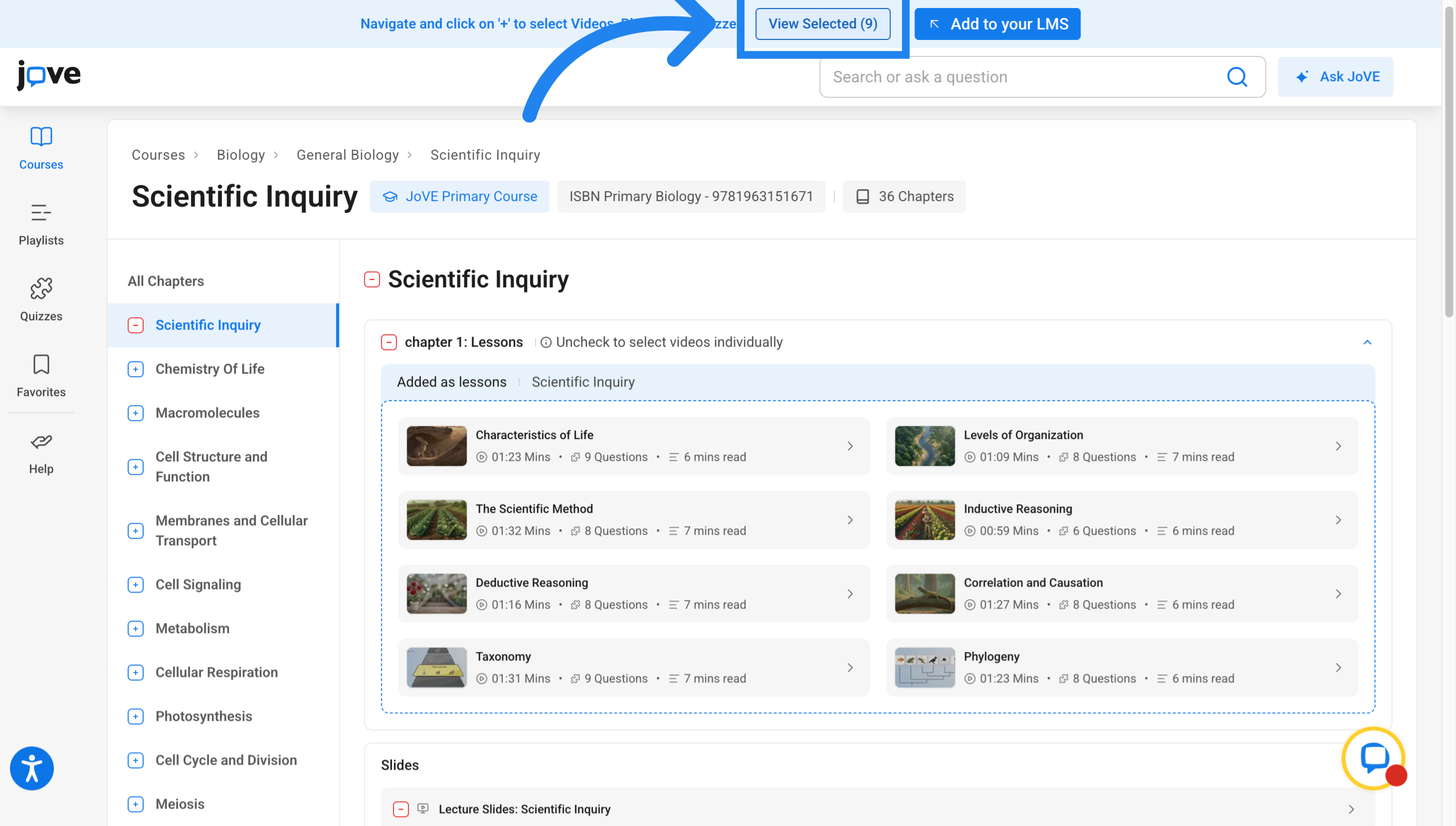
16. View Selected Items
Professor can view the items on their cart by clicking on this button
17. Add Resources to LMS
And then click "Add to your LMS" to import all selected resources into the learning management system.
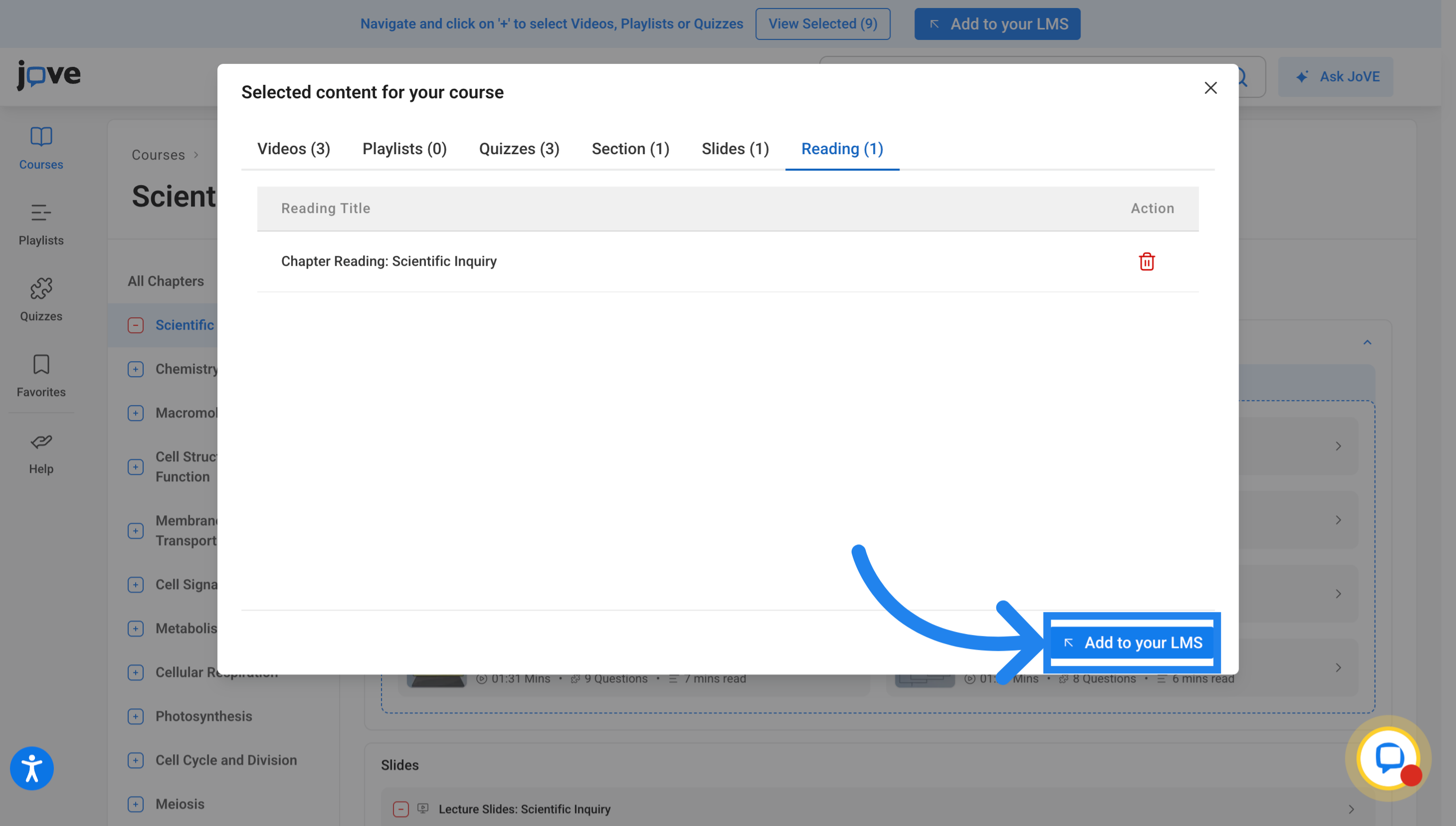
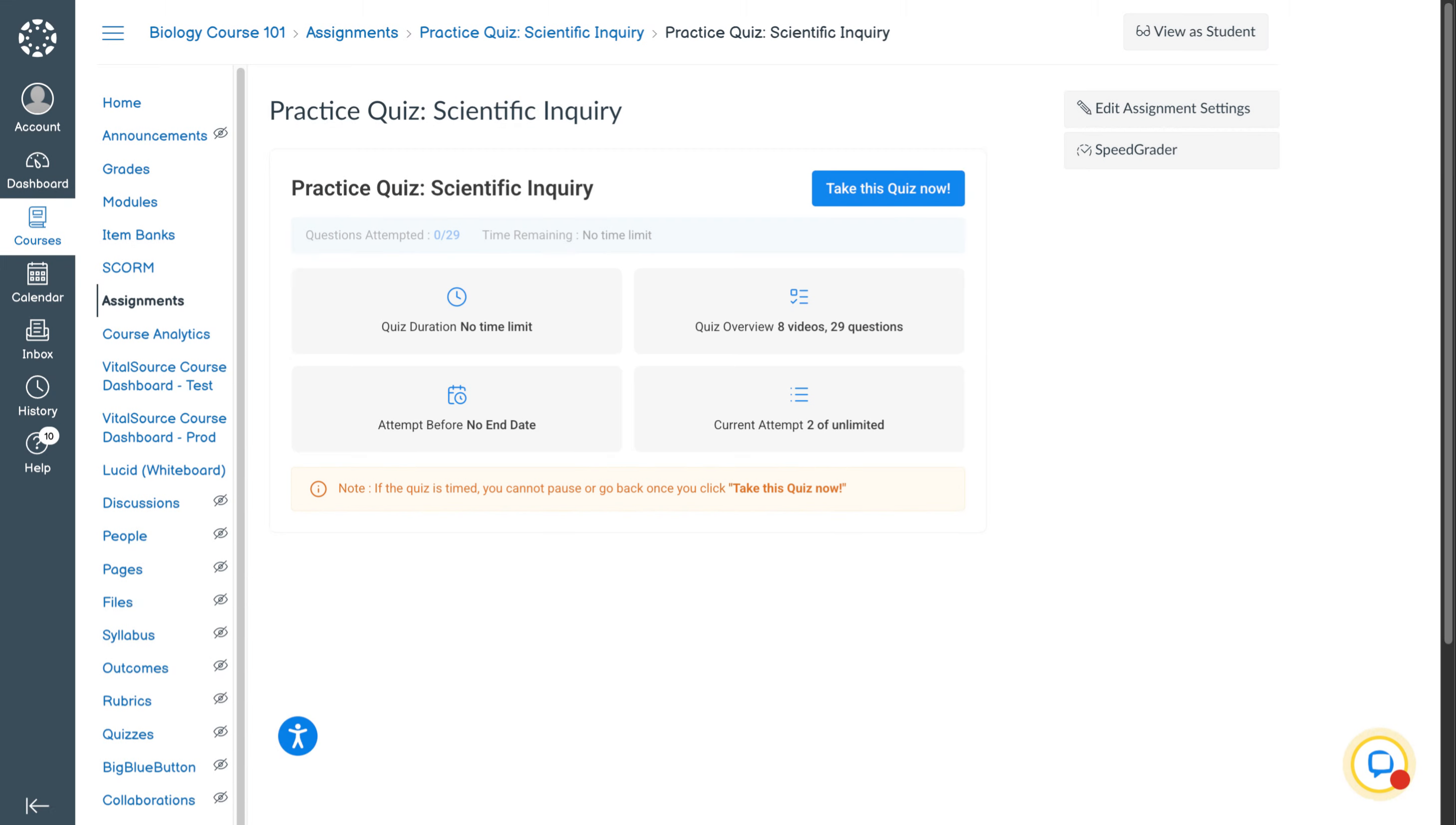
18. Accessing Quiz Settings
The professor can change the grade pass back setting of a quiz by going inside the quiz in their LMS.
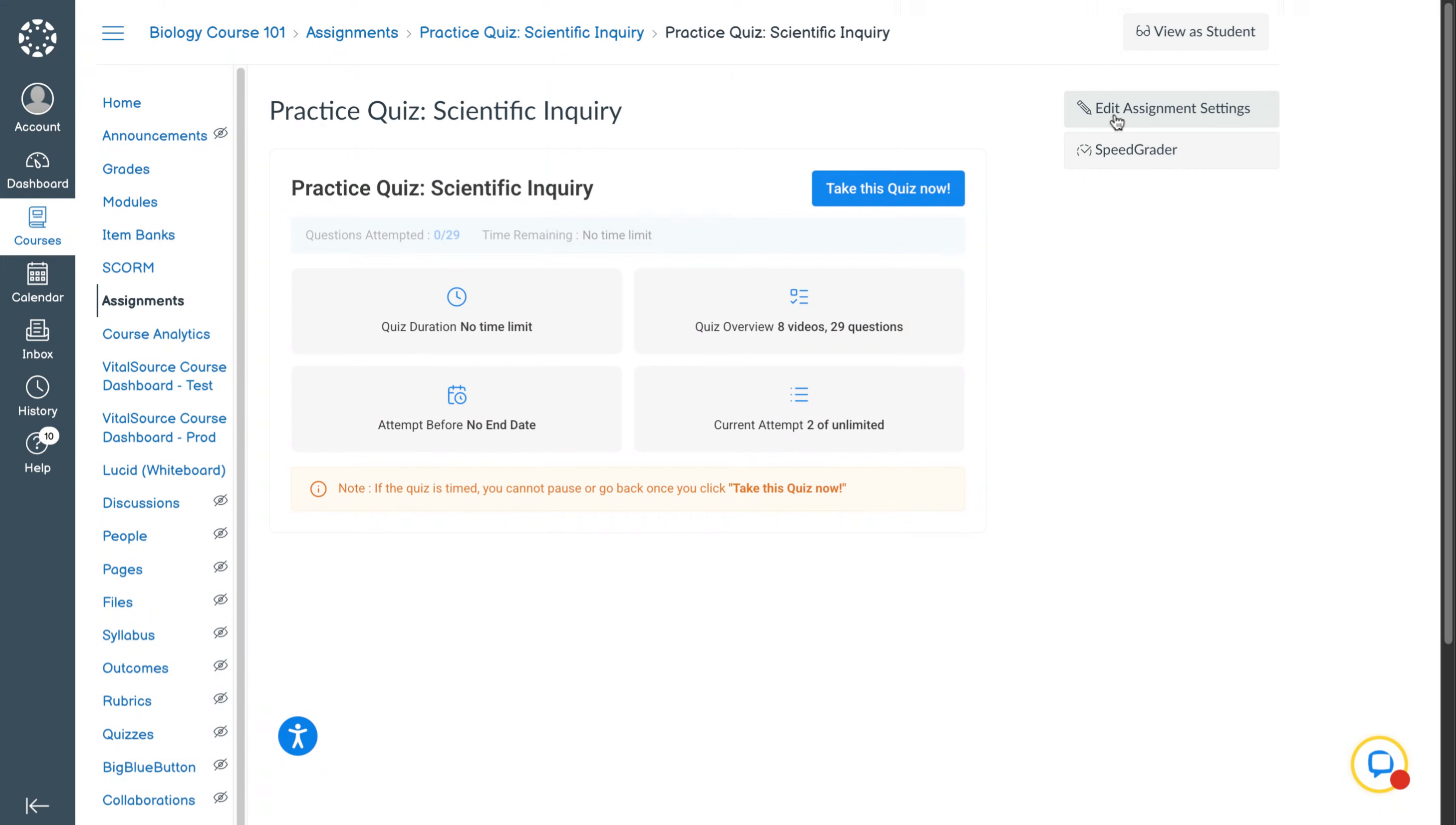
19. Editing Grade Pass Back Options
Click on the edit assignment setting option and scrolling below to display grade as. Here you can select not graded and the quiz marks scored by the student will not pass to the LMS gradebook.
Related to