How to Embed Chapters Into Canvas
This article explains how to embed entire chapters into your learning management system (LMS).
Go to www.jove.com
1. Introduction (1)
To do so. Go to the chapter that you want to embed.
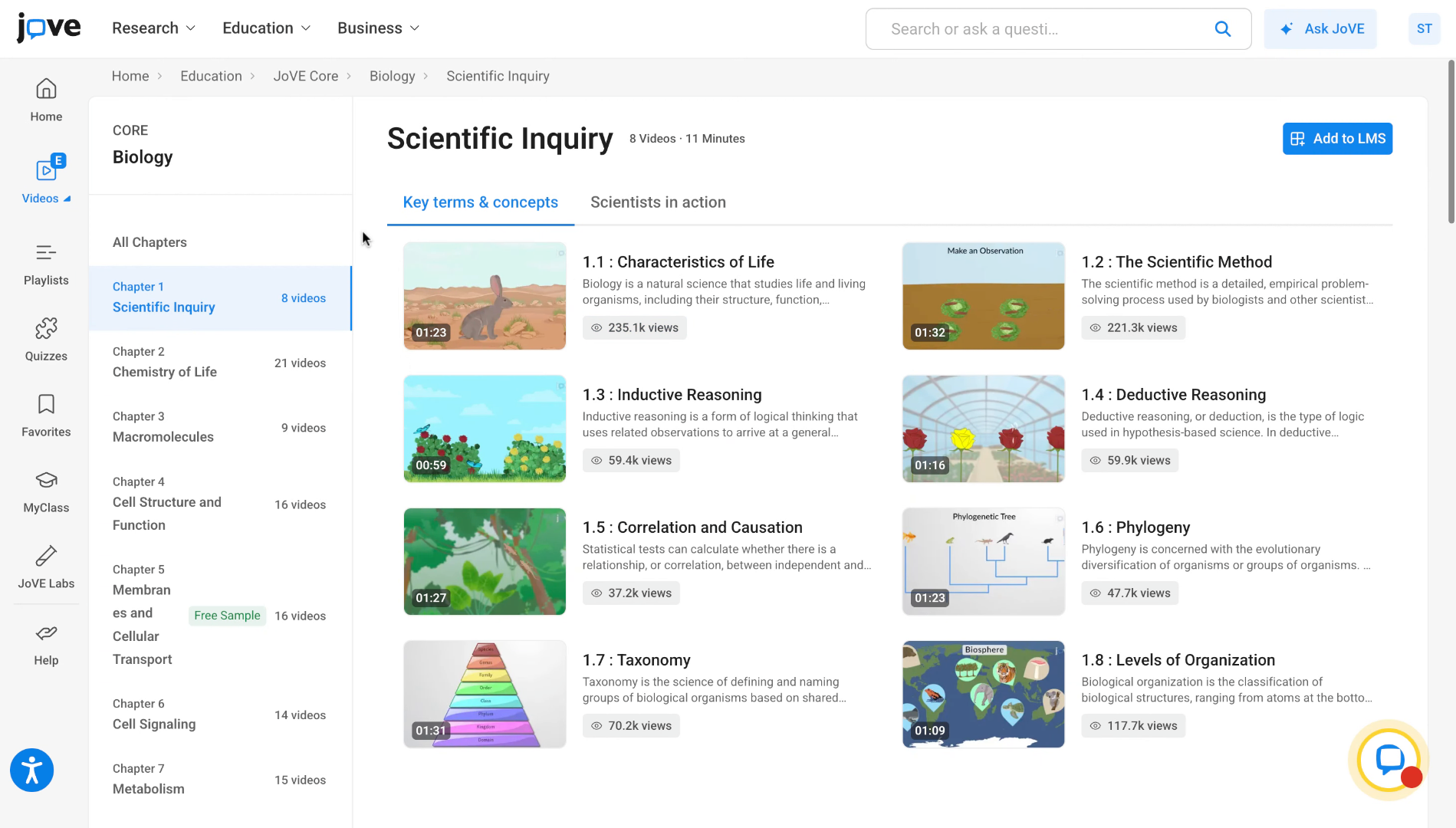
2. Access Add to LMS Button
Click on the Add to LMS button in the embed section.
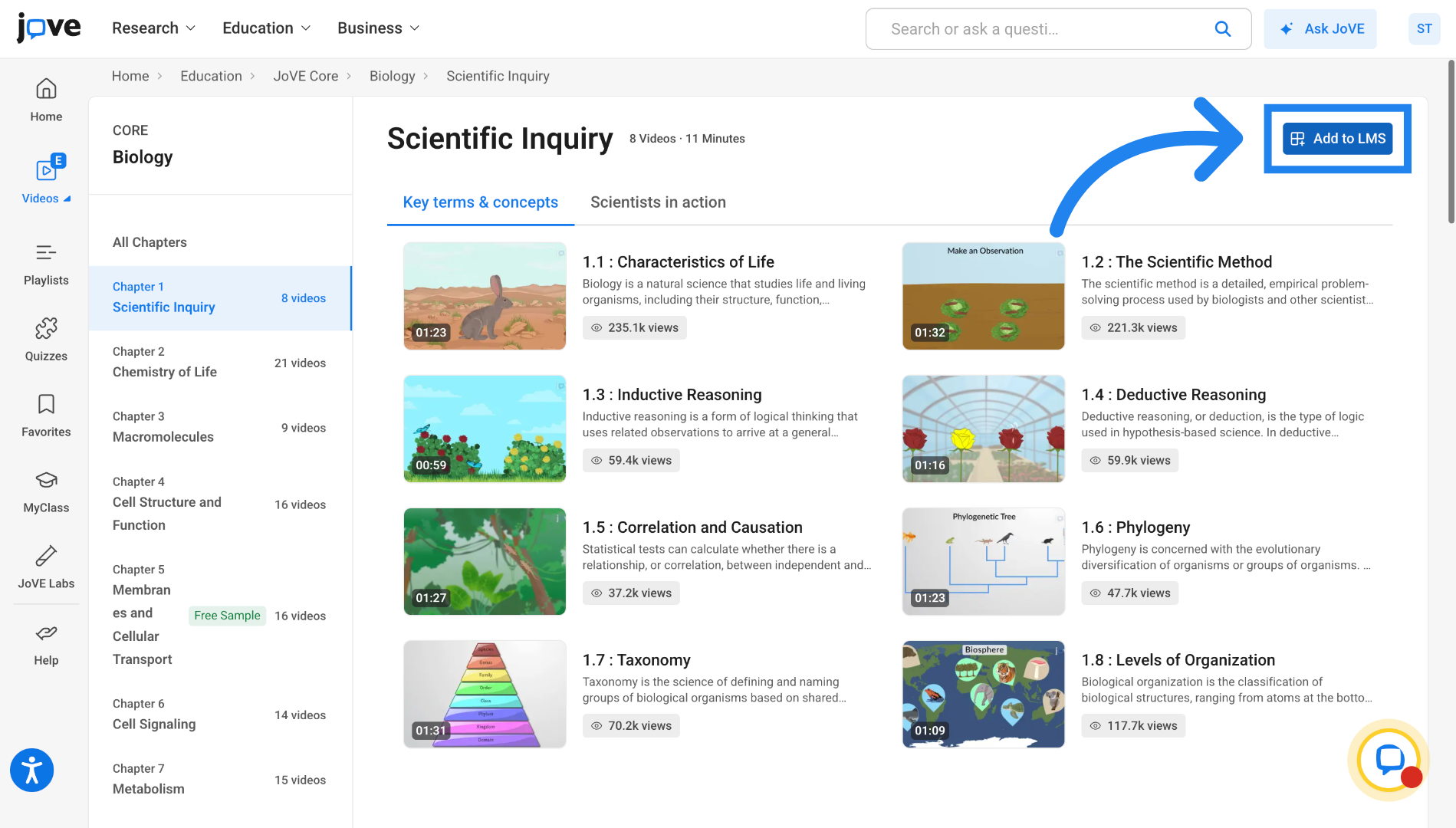
3. Copy Embed Code
In the embed tab, click on Copy Embed Code to copy the chapter embed code.
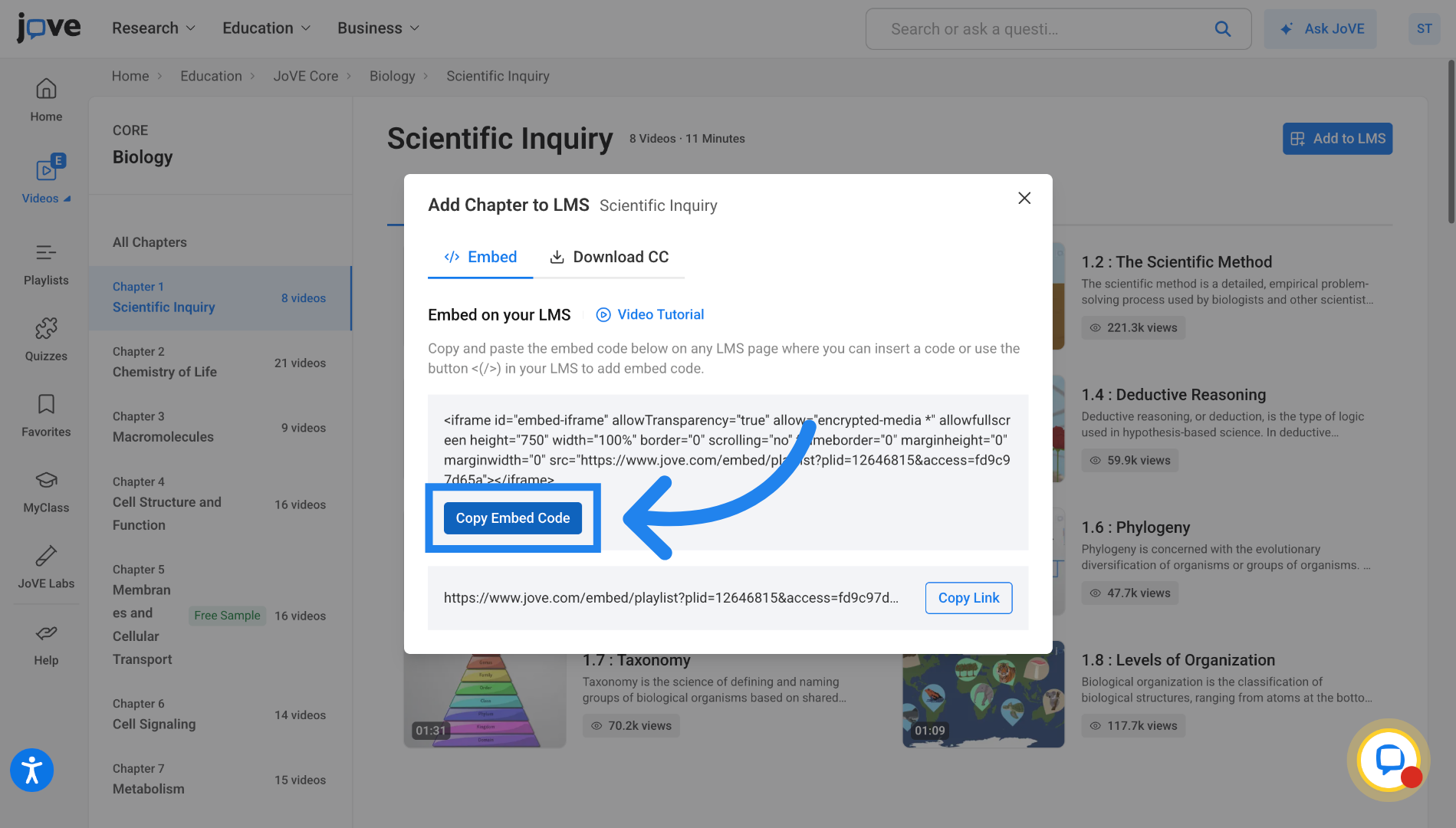
4. Switch to Canvas Course
Now lets see how to embed this chapter into your canvas course. Go to your canvas course and
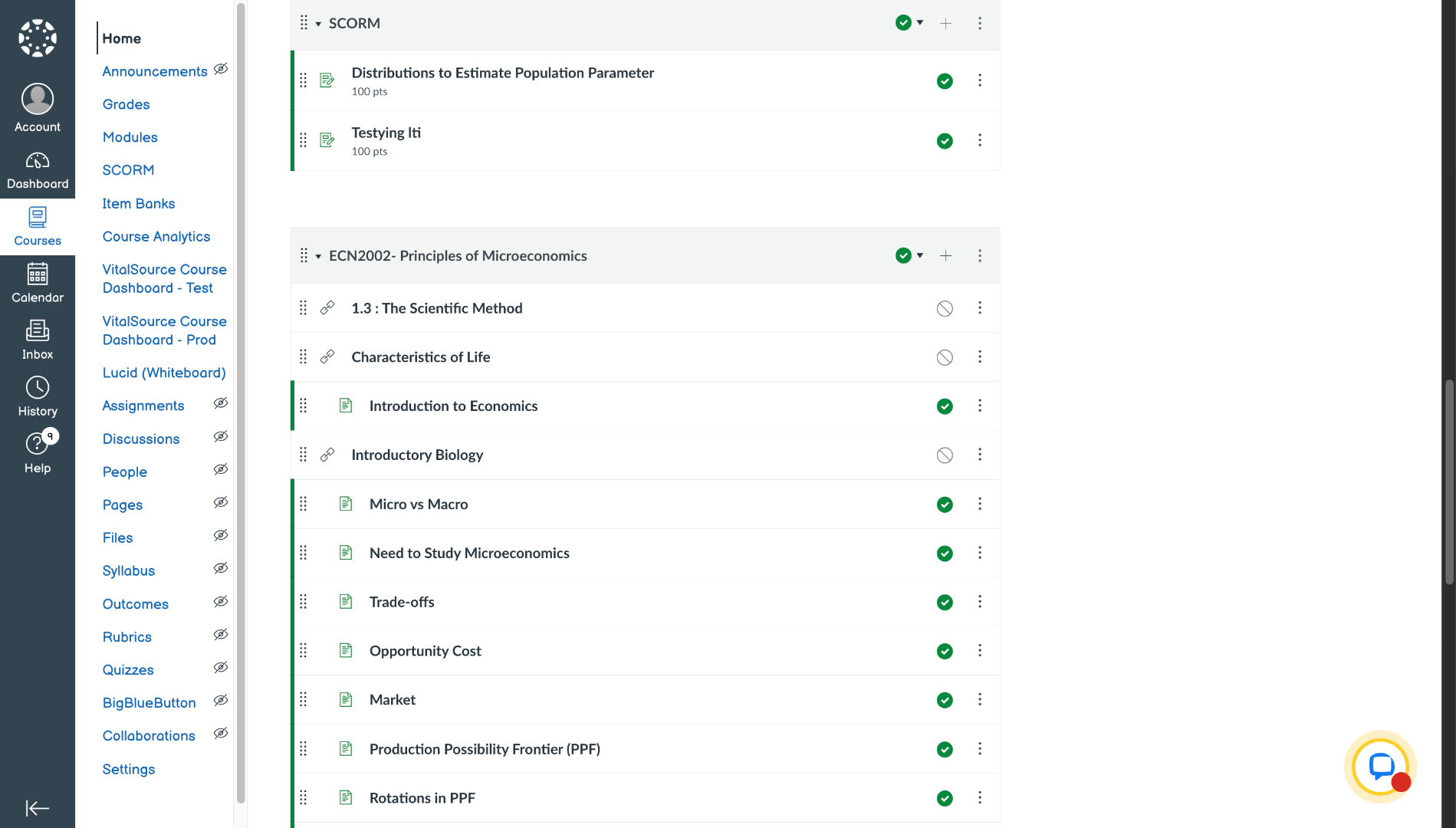
5. Open Add Content Menu
Click on the plus sign to add new content to your course.
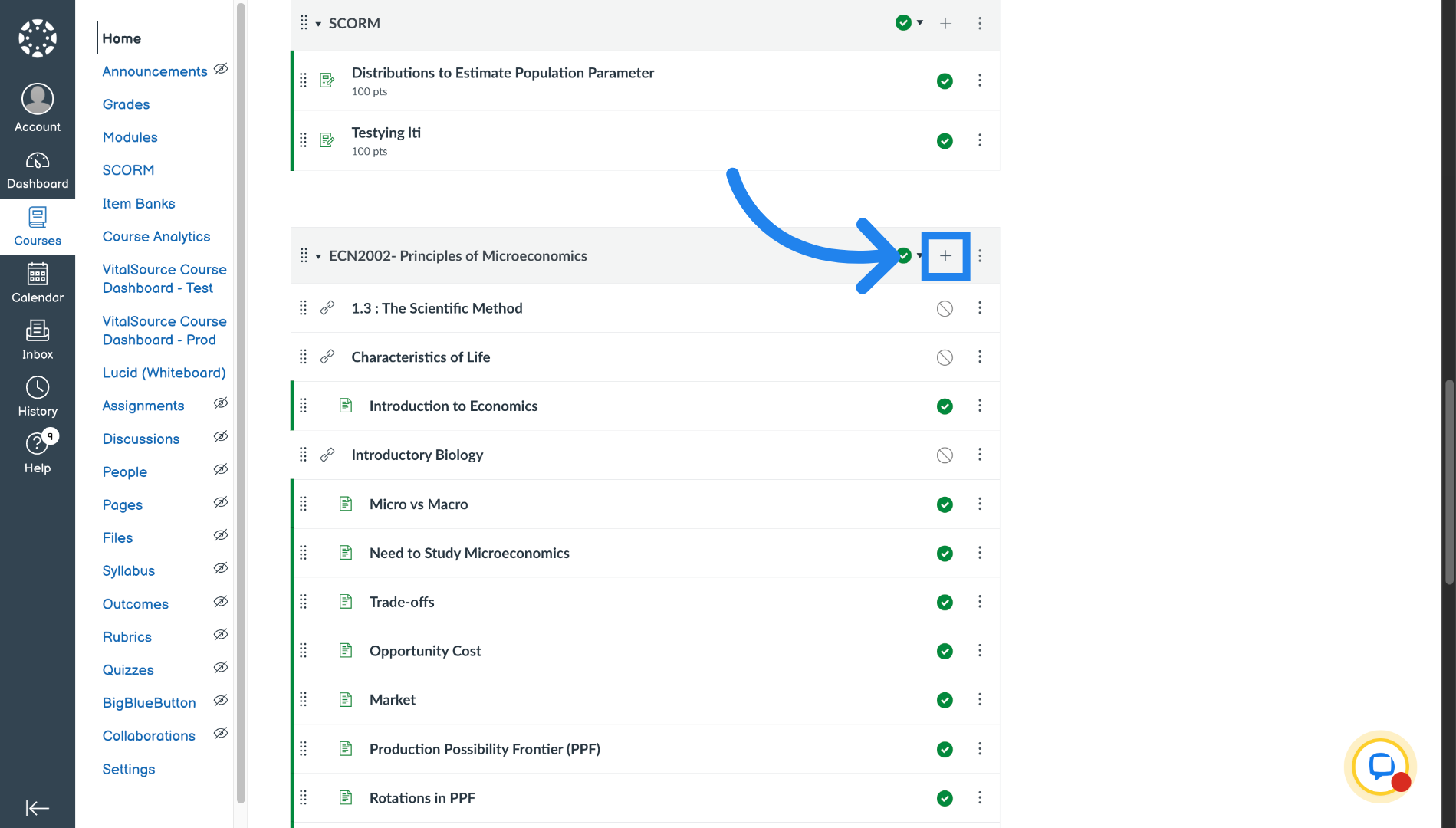
6. Create New Page
Create a new page for embedding the chapter content.
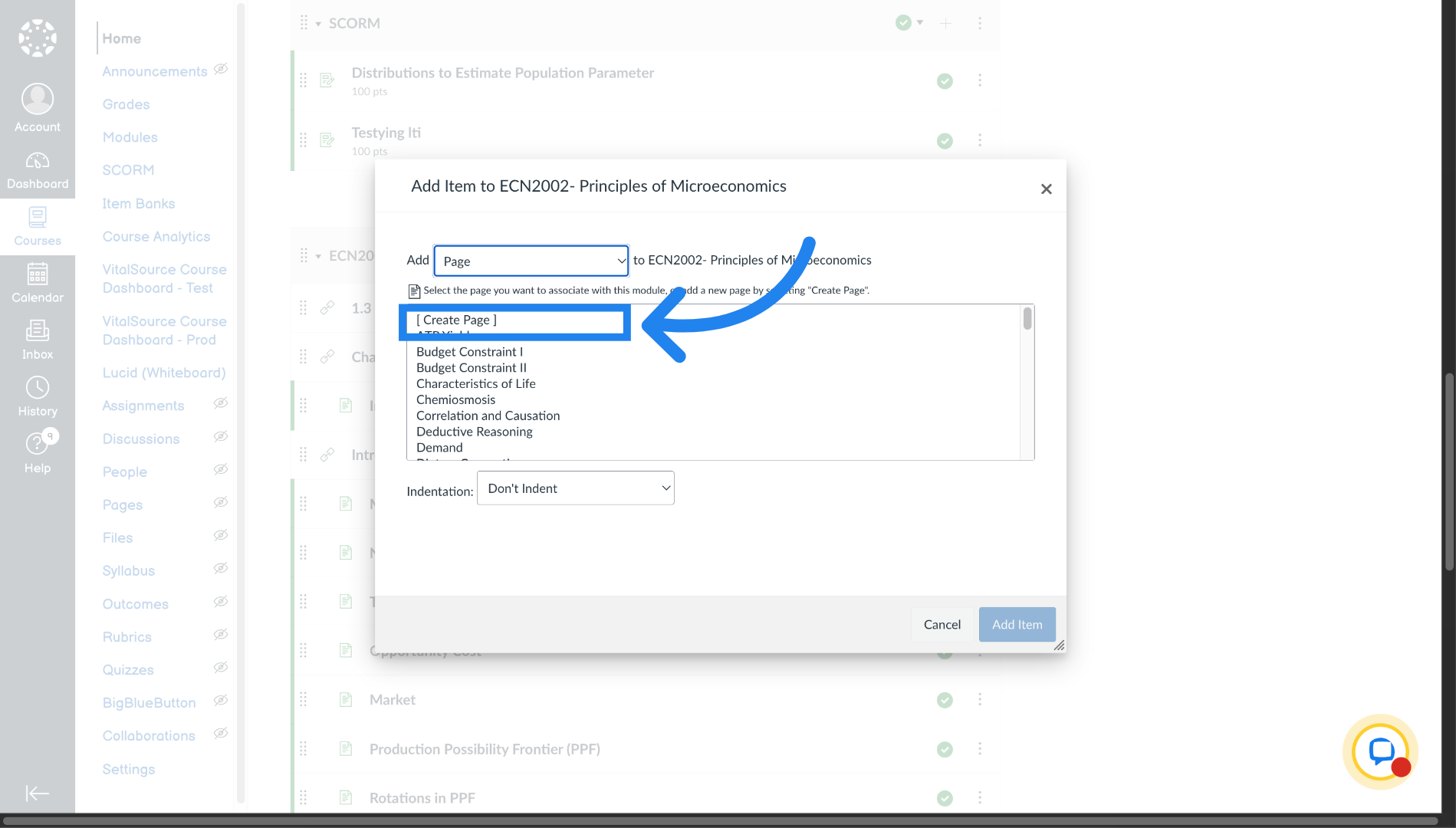
7. Name the Page
Click on the Page Name field to enter a title.
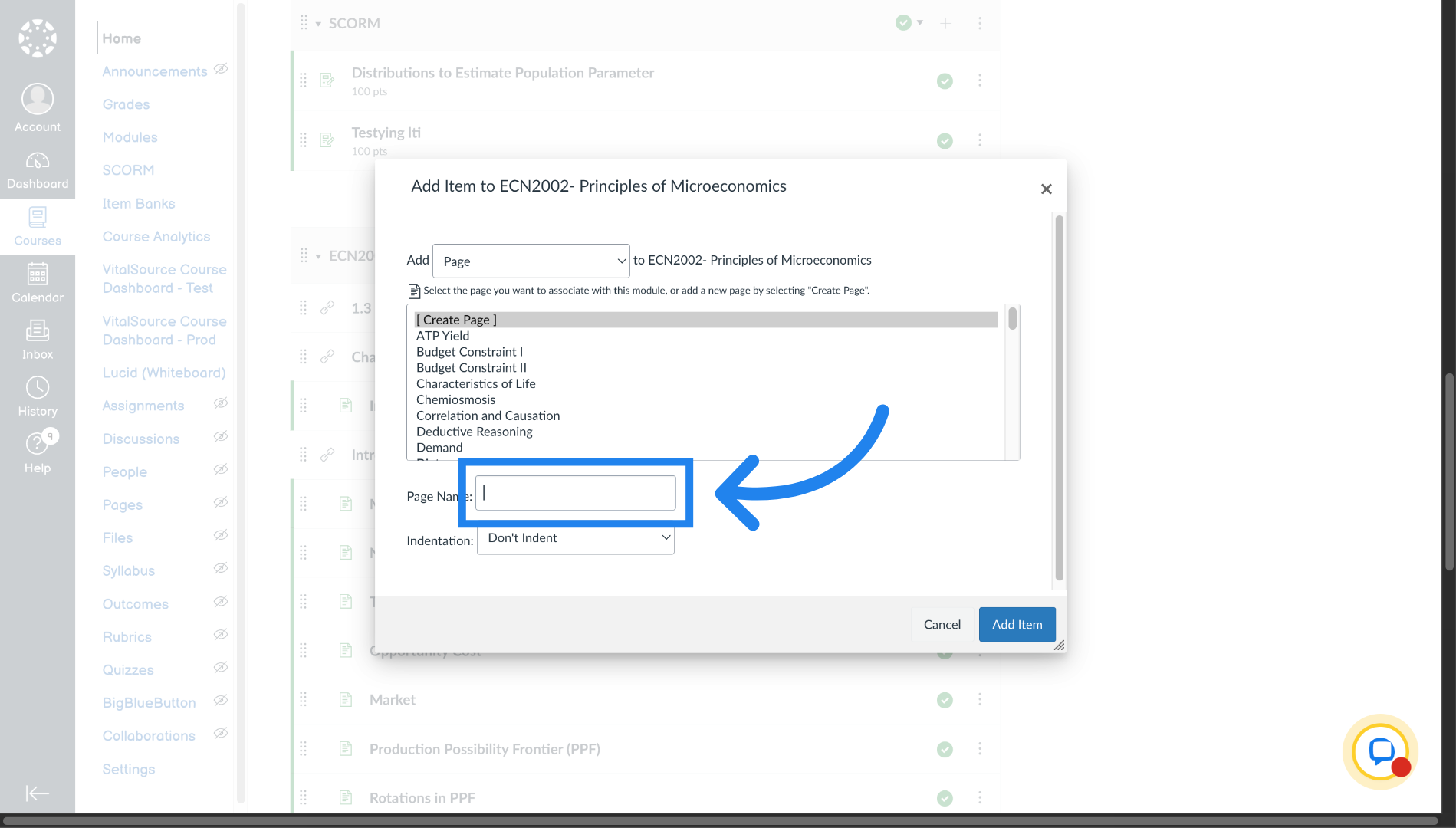
8. Add Page Item
Click Add Item to include the new page in your course content.
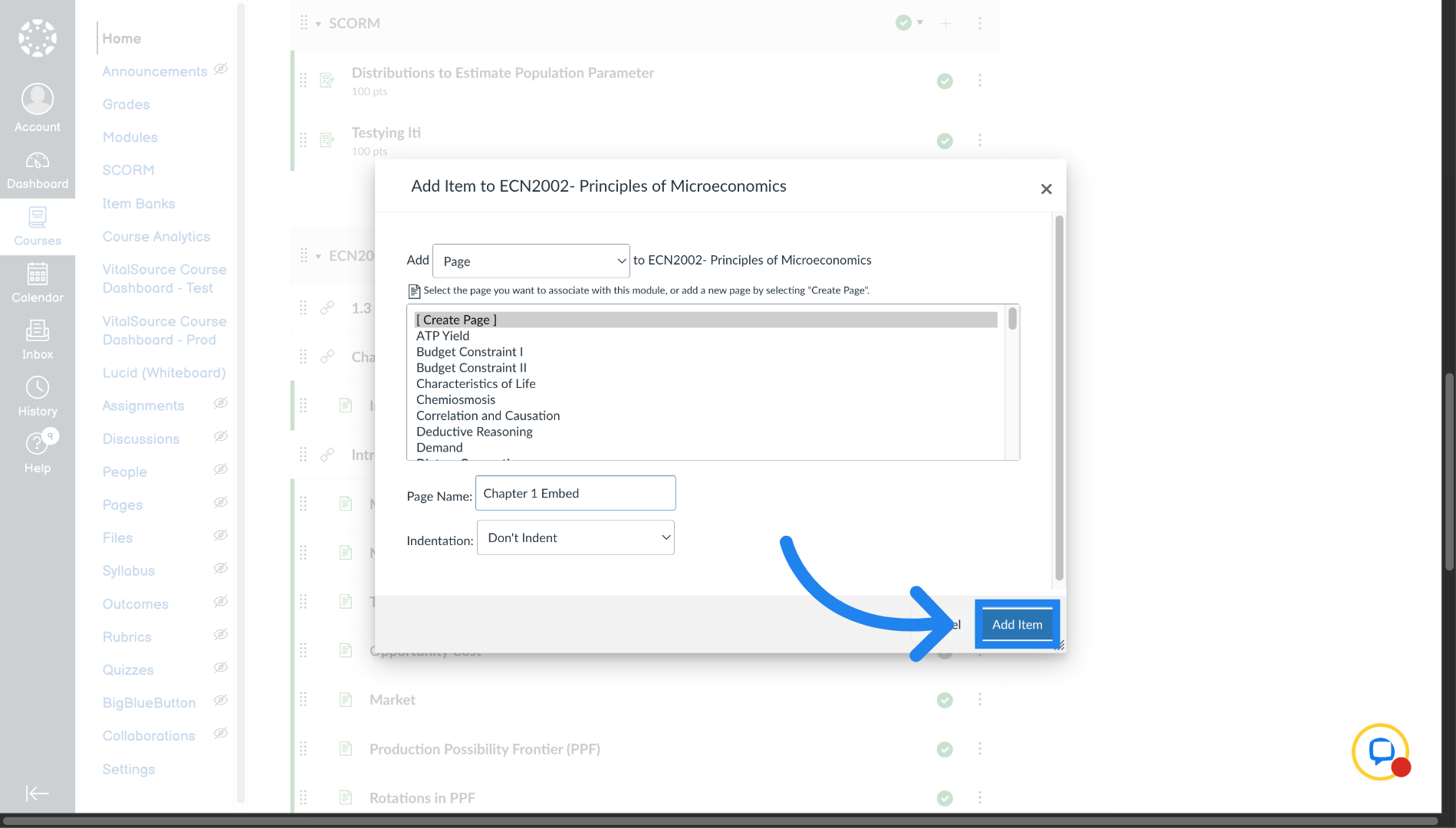
9. Open Page
Open the newly added page
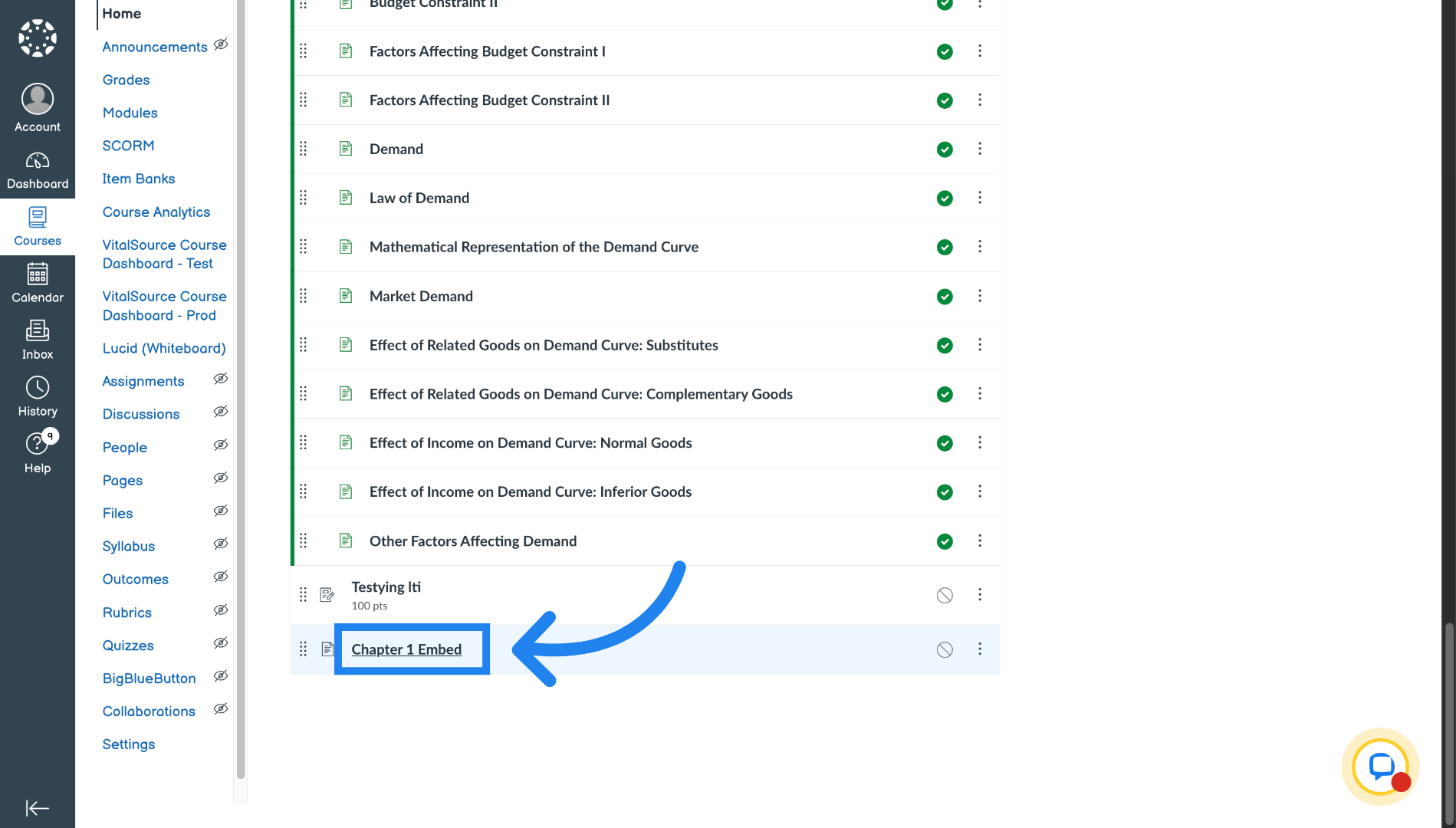
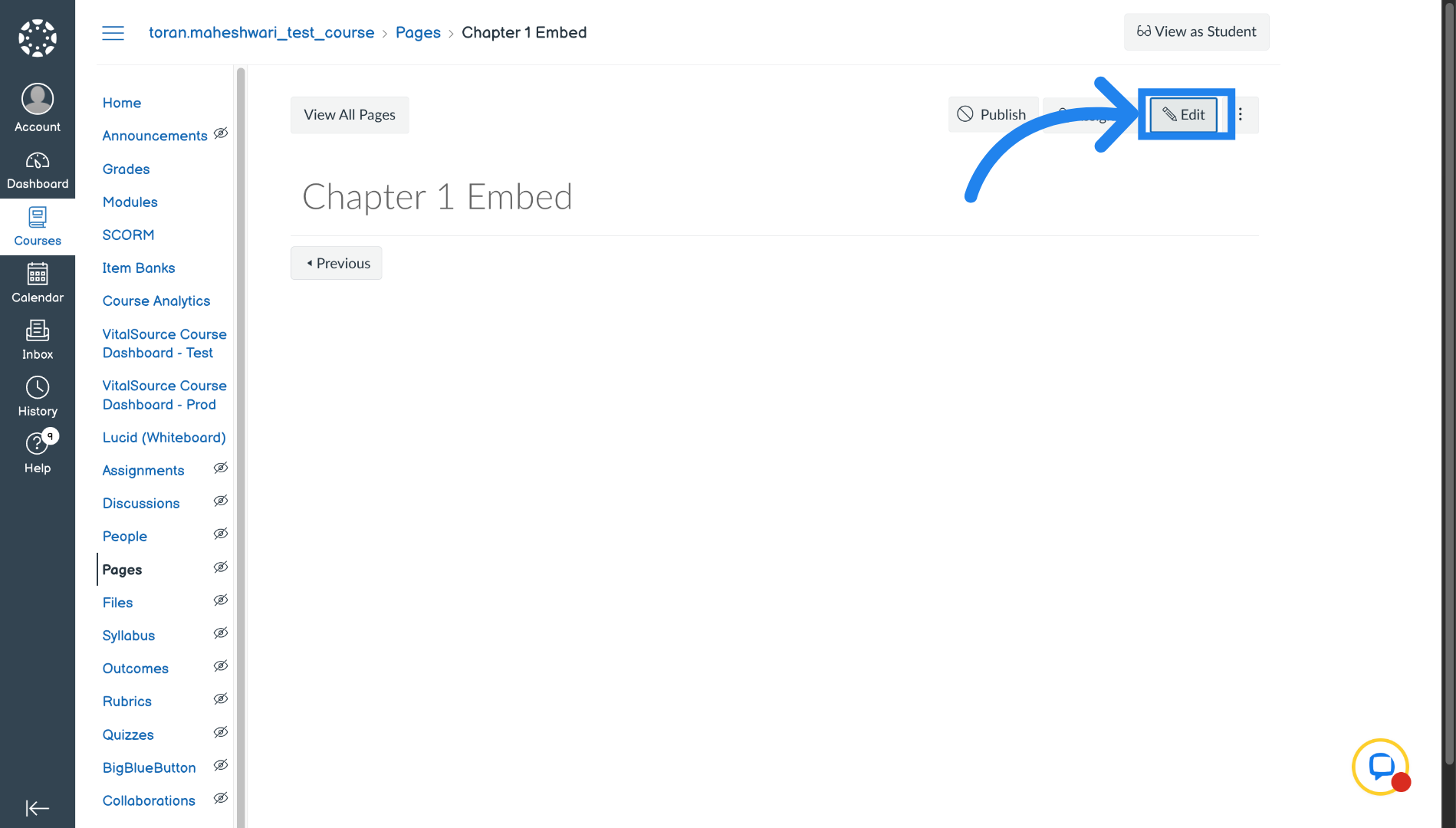
10. Edit Page Content
Click Edit to modify the page content.
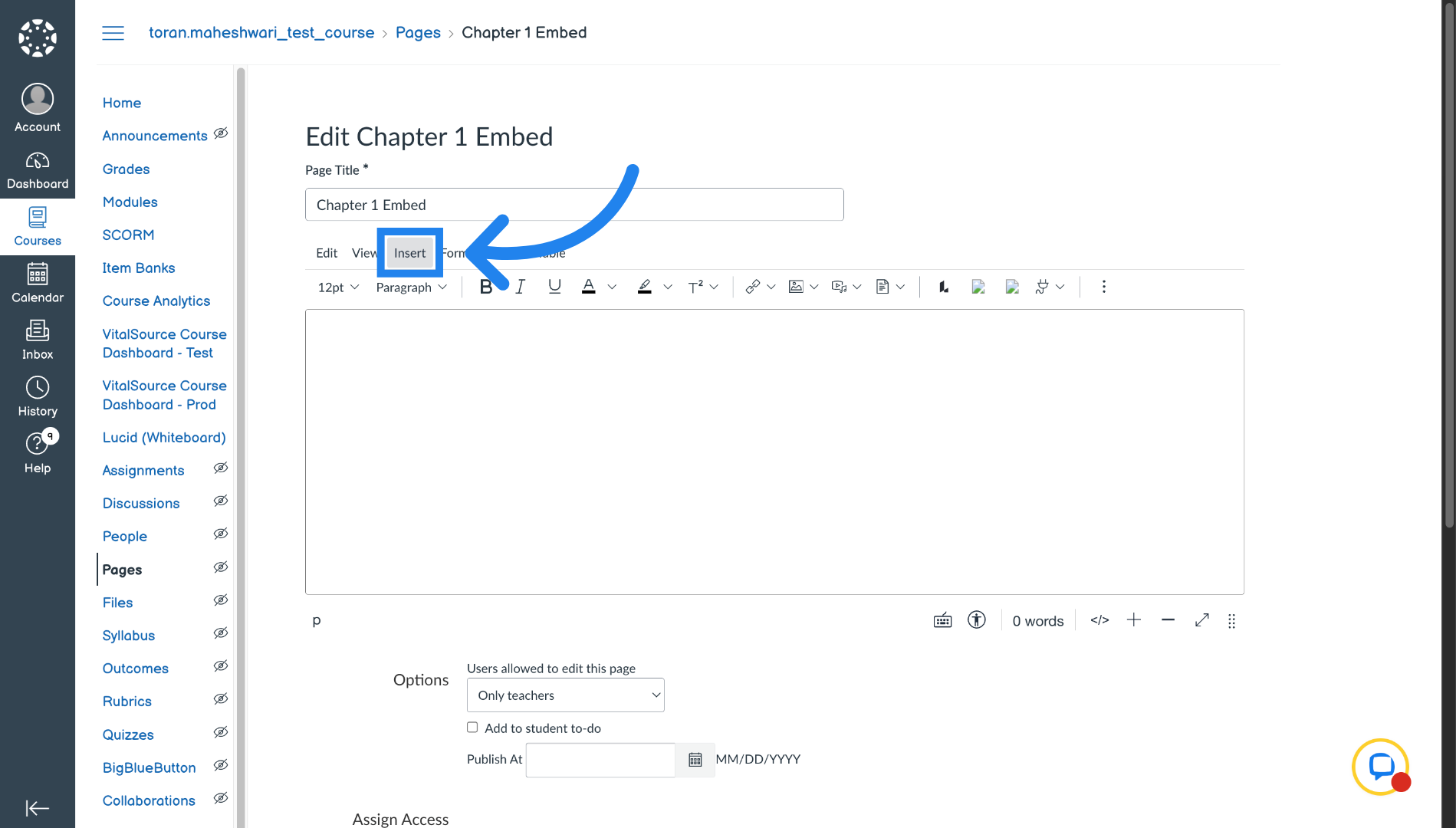
11. Insert Content
Go to Insert tab.
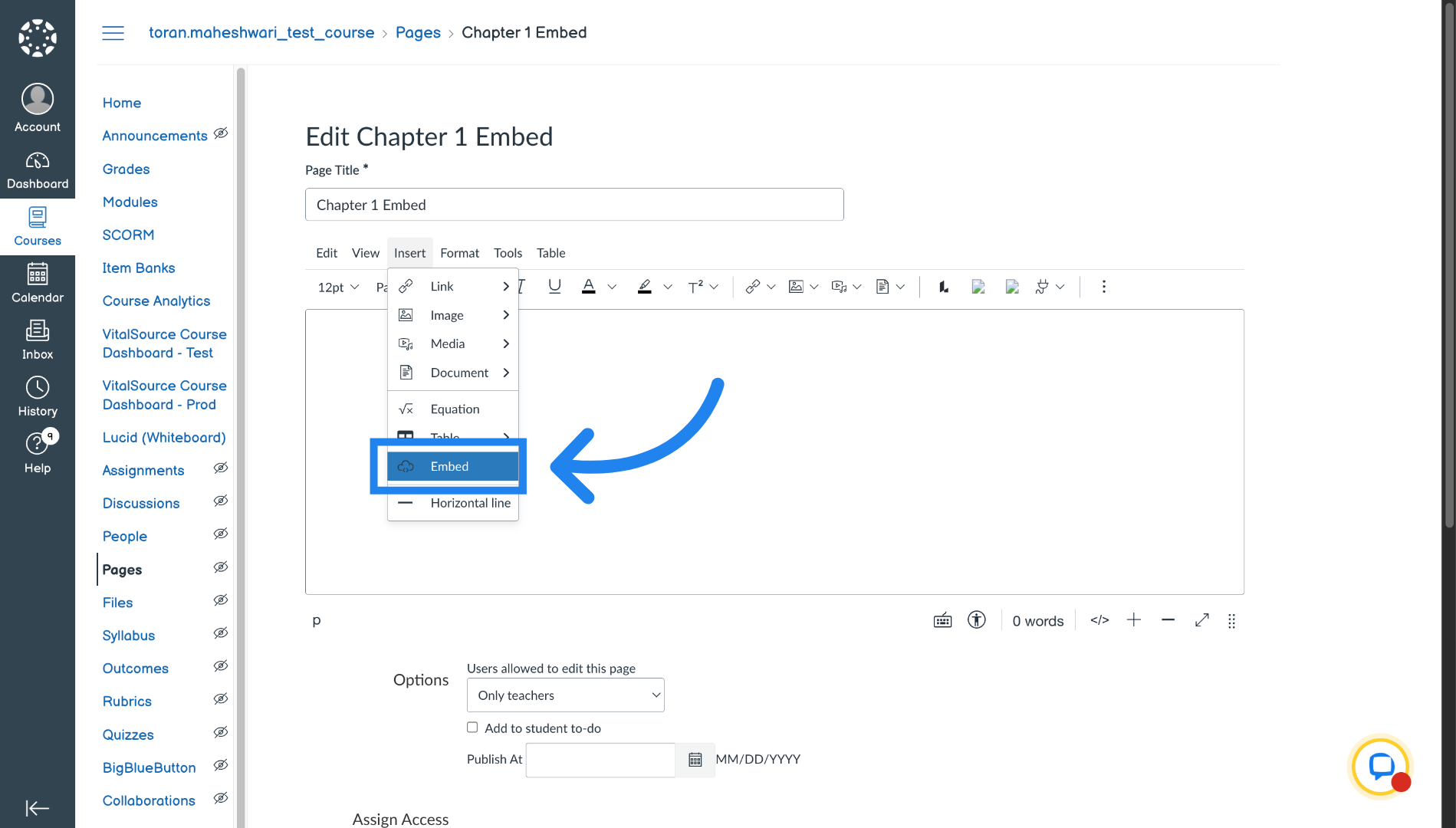
12. Select Embed Option
Click Embed to insert embedded content.
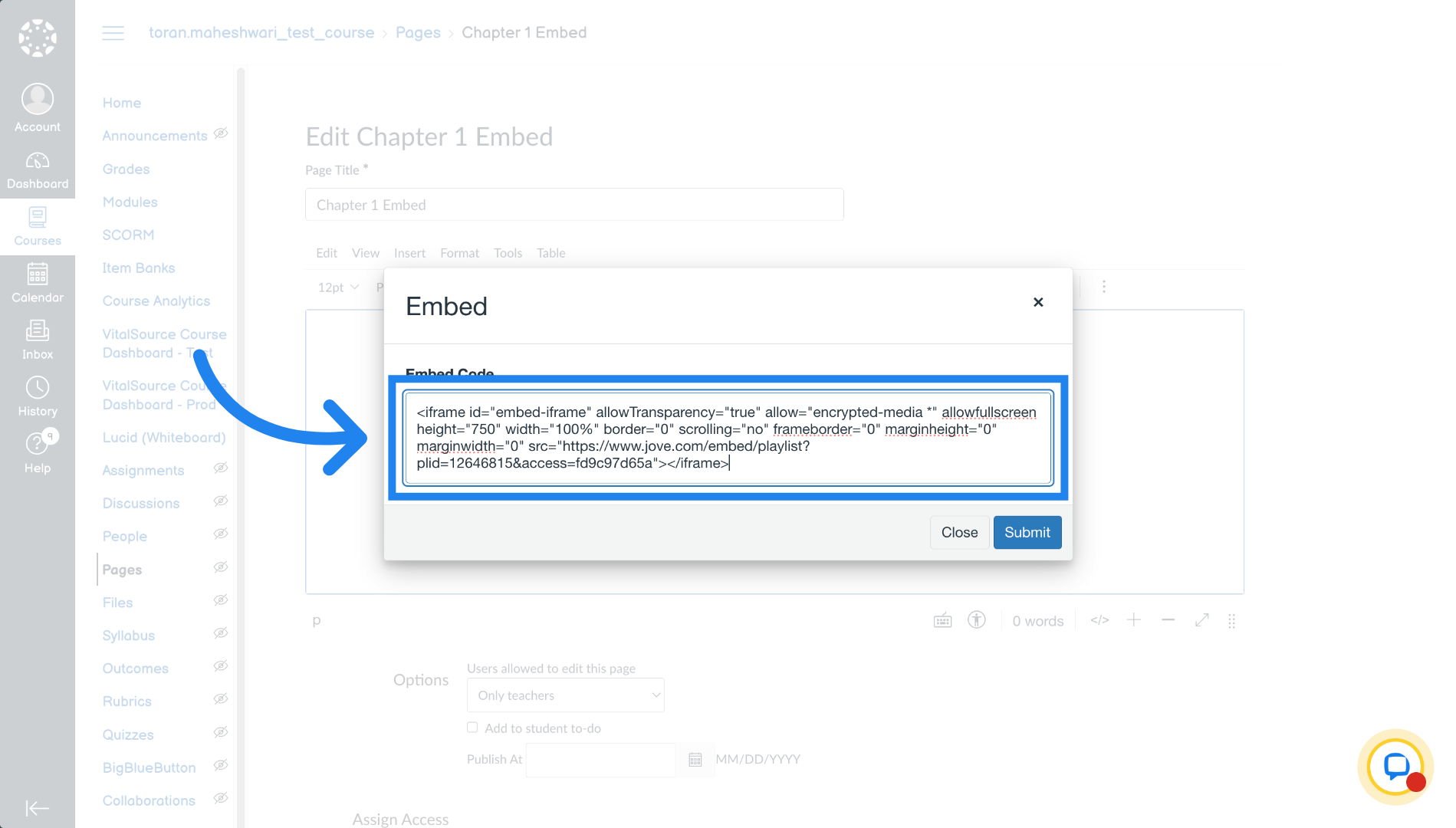
13. Paste Embed Code
Fill the embed code field with the copied iframe embed code.
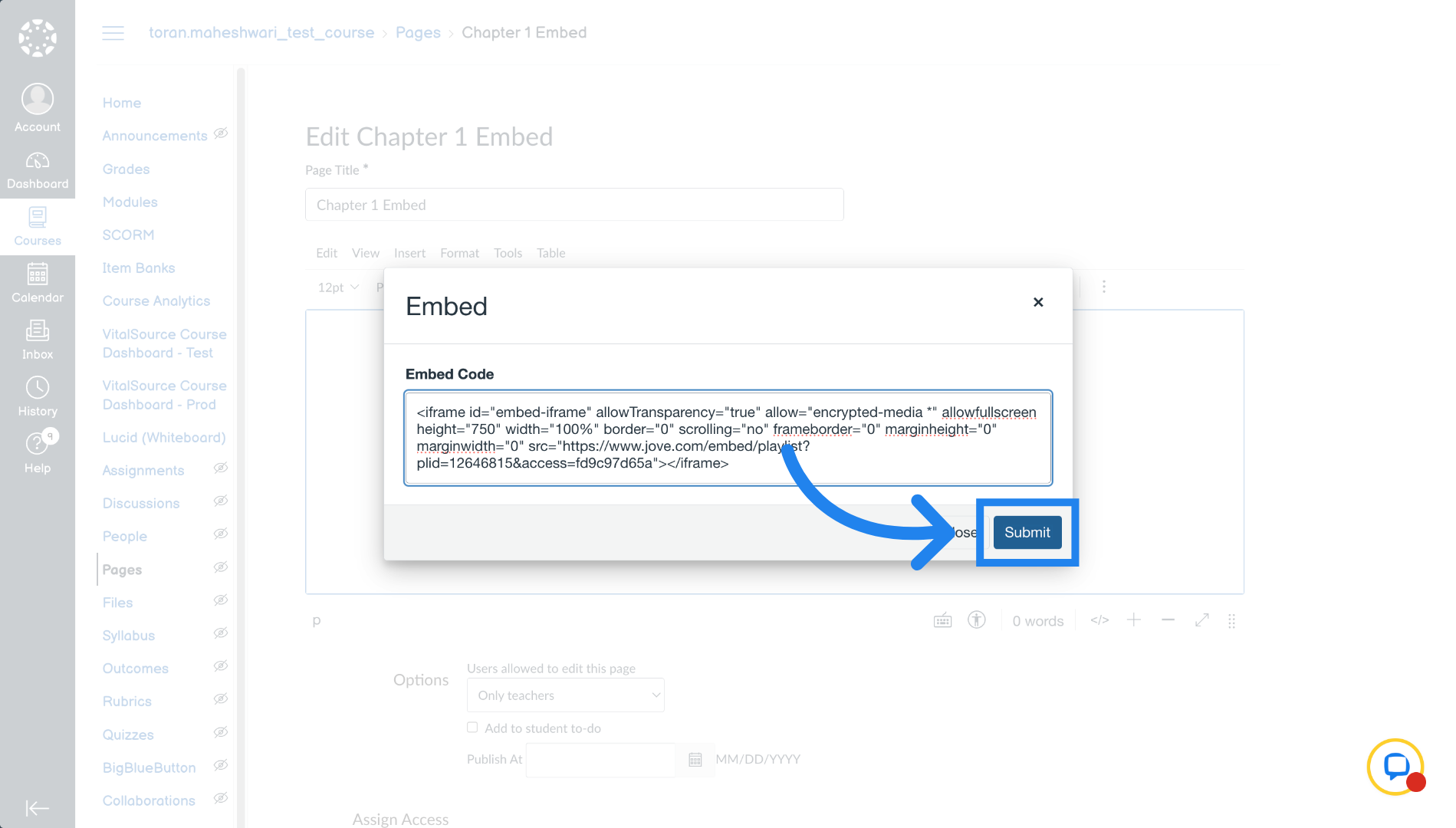
14. Submit Embed Code
Click Submit to apply the embed code to the page.
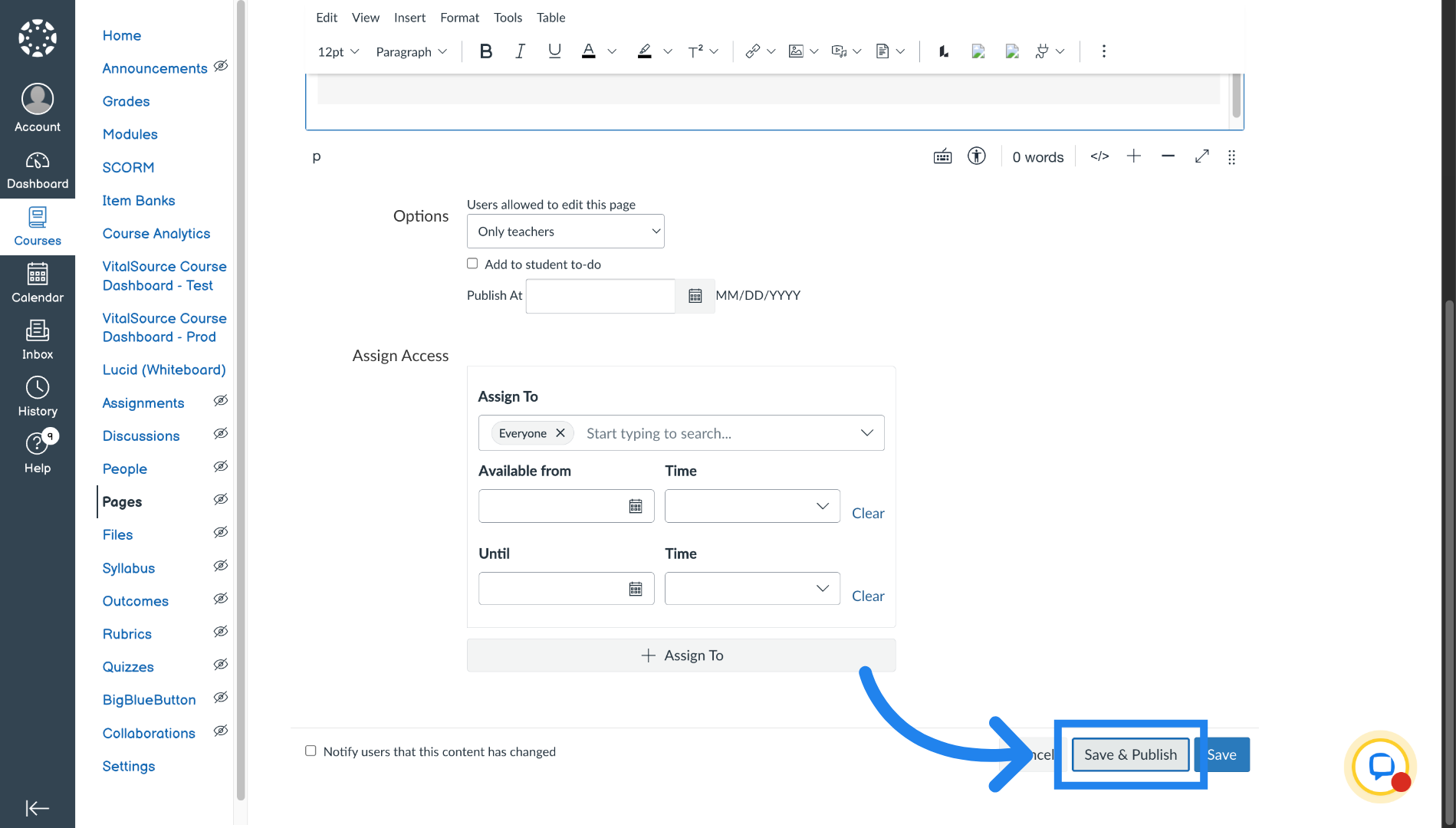
15. Save and Publish Page
Click Save & Publish to make the embedded chapter visible to students.
Related to