Upload JoVE Content Using LTI Integration in Brightspace
This article explains how to access JoVE videos through the Brightspace platform.
Go to jove.d2l-partners.brightspace.com
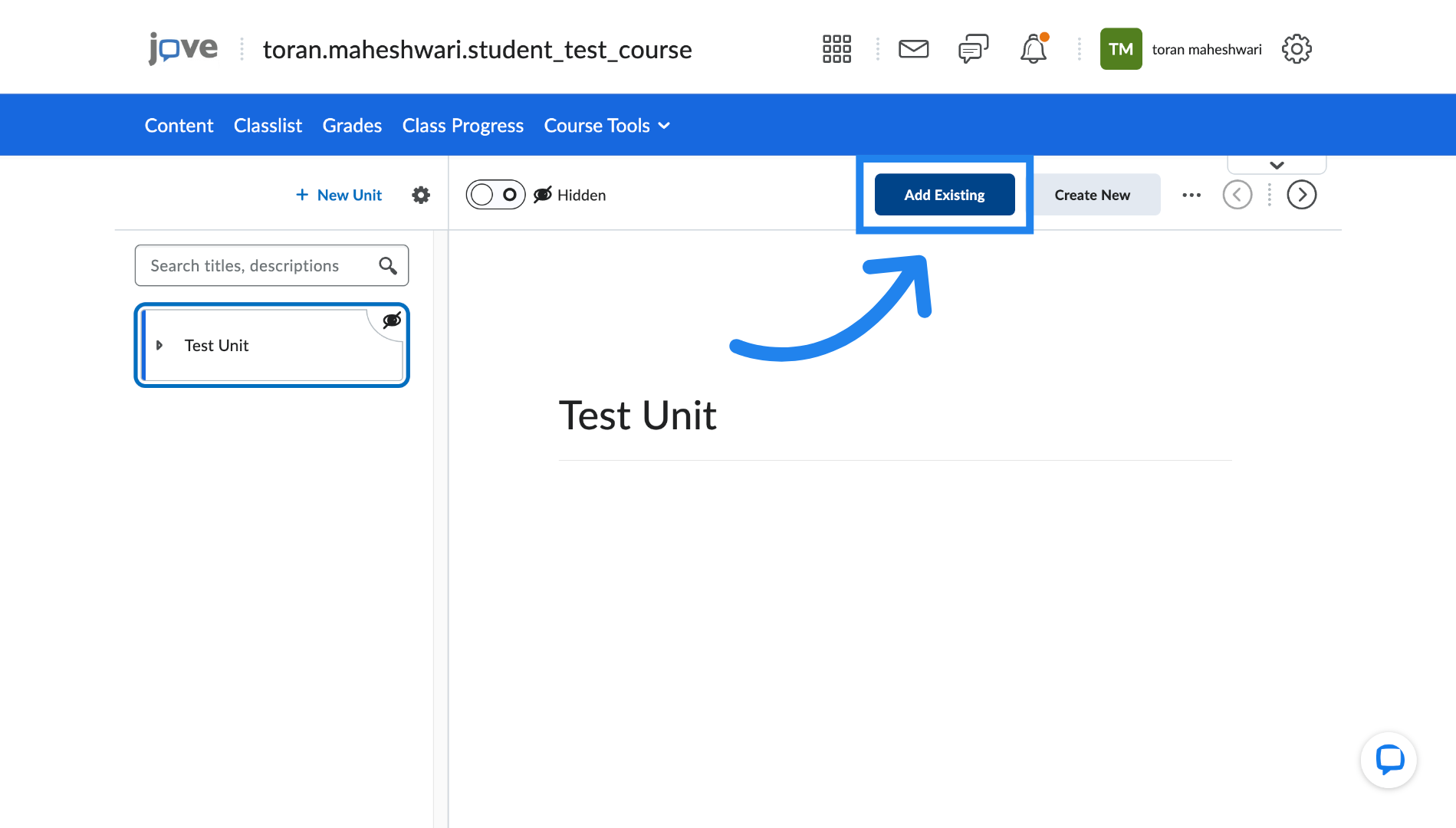
1. Add Existing Content
Click "Add Existing" to begin adding content to your course in Brightspace.
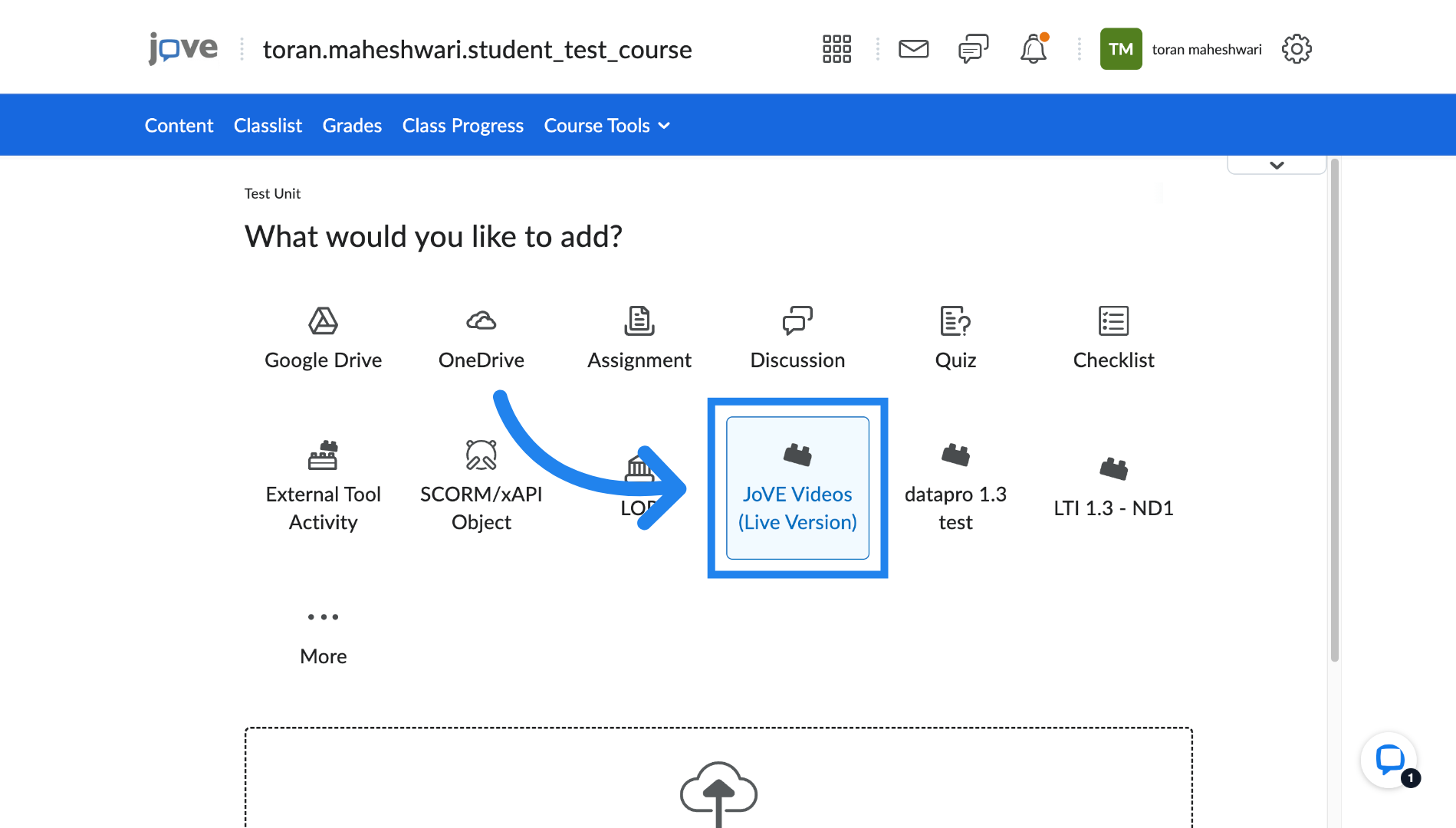
2. Select JoVE Videos
Click "JoVE Videos (Live Version)" to choose the video content you want to include.
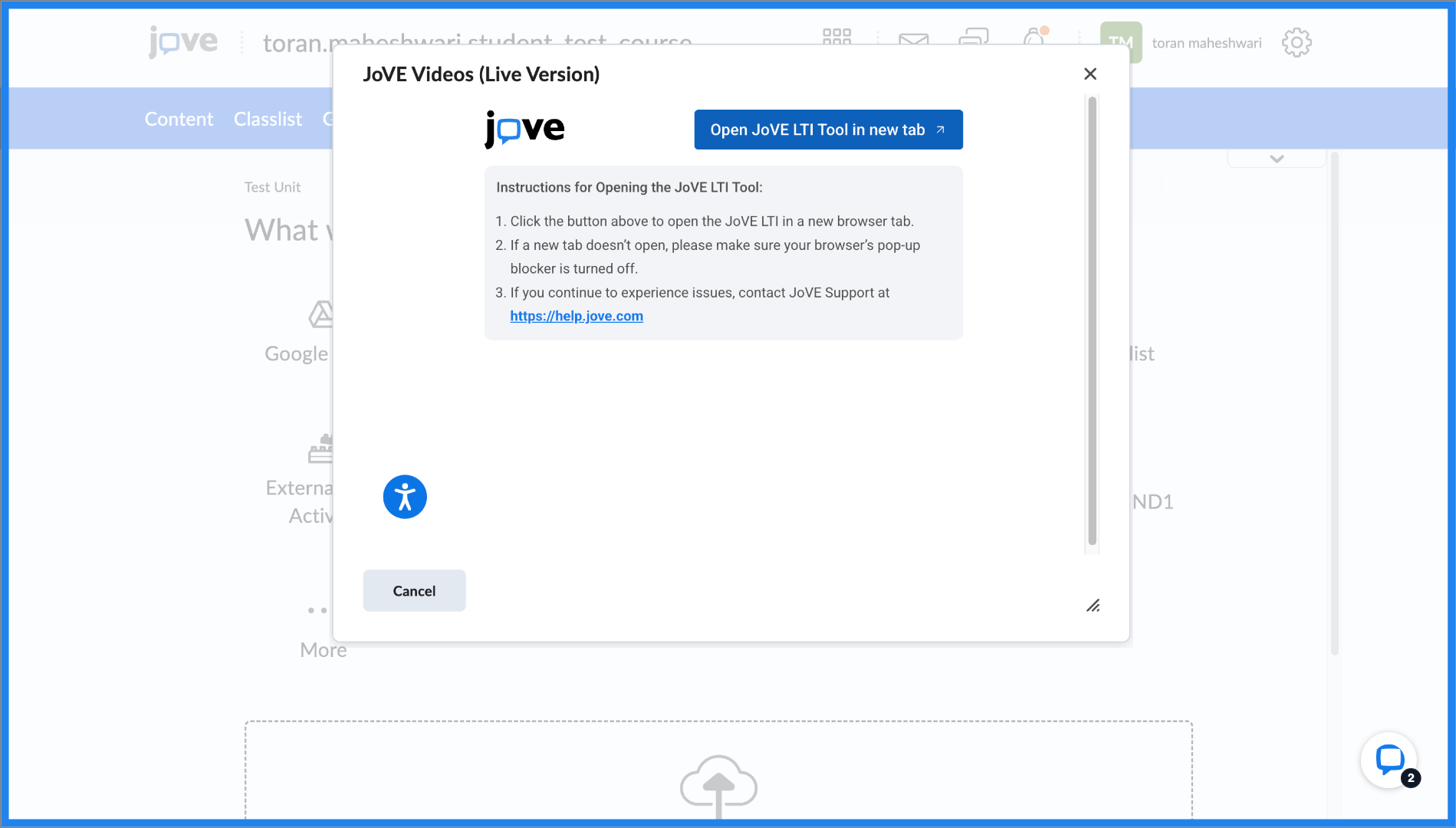
3. Open JoVE Tool in New Tab
Click "Open JoVE LTI Tool in new tab" to launch the video player in a separate browser tab.
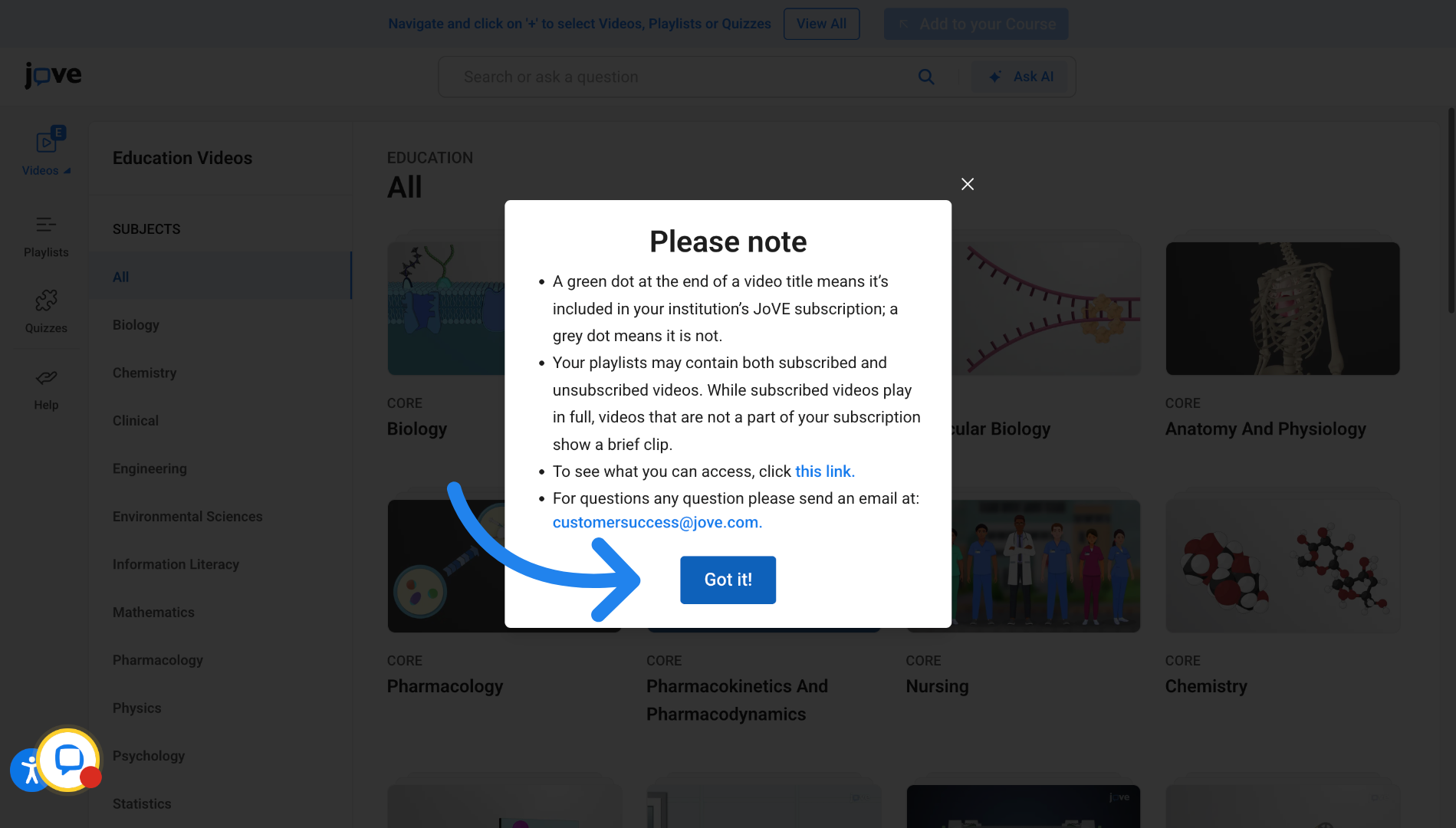
4. Acknowledge JoVE Notice in Canvas
Click "Got it!"
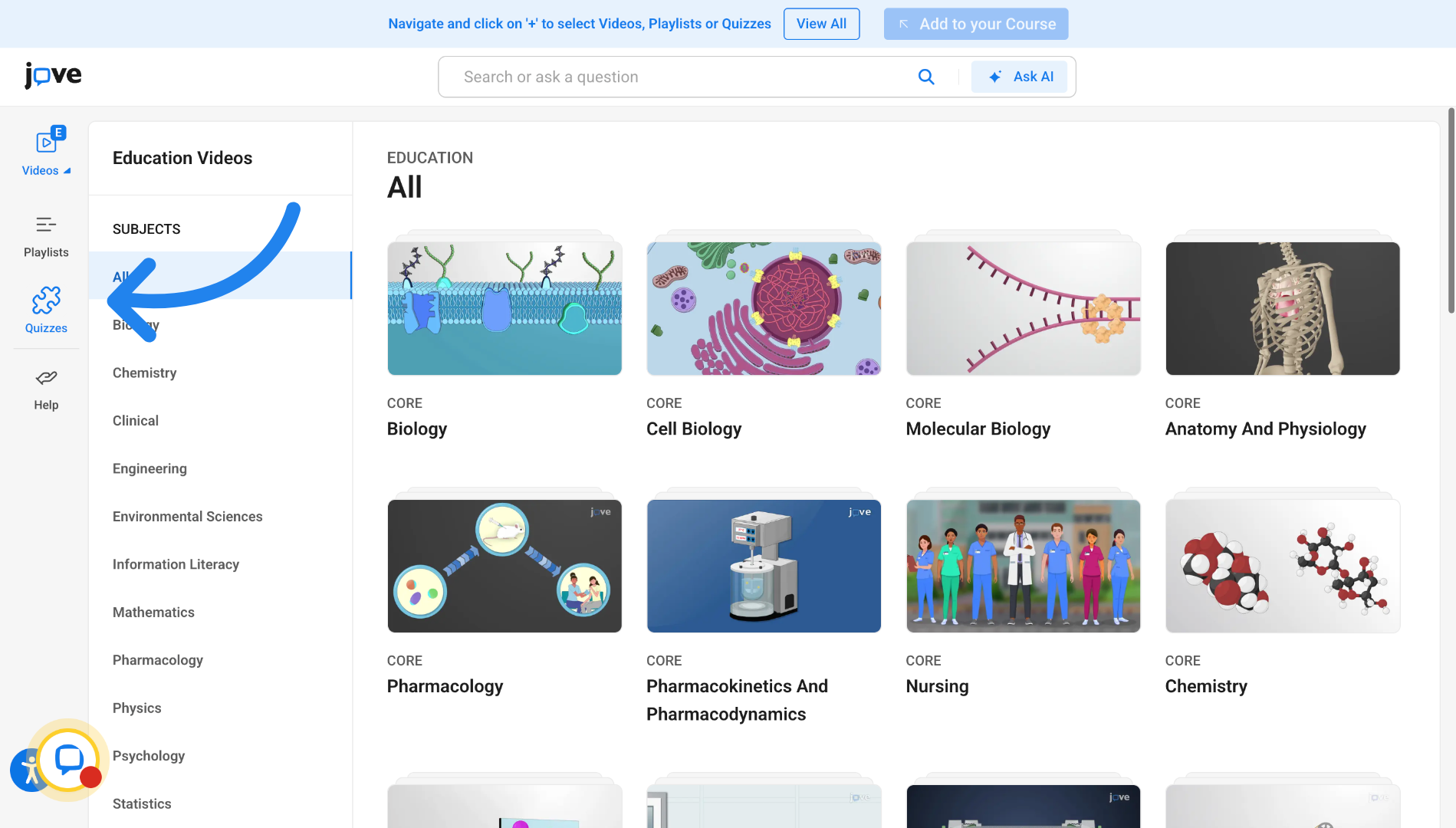
5. Access Quizzes Section in LTI
To add quizzes, Click "Quizzes" to navigate to the quizzes section within JoVE.
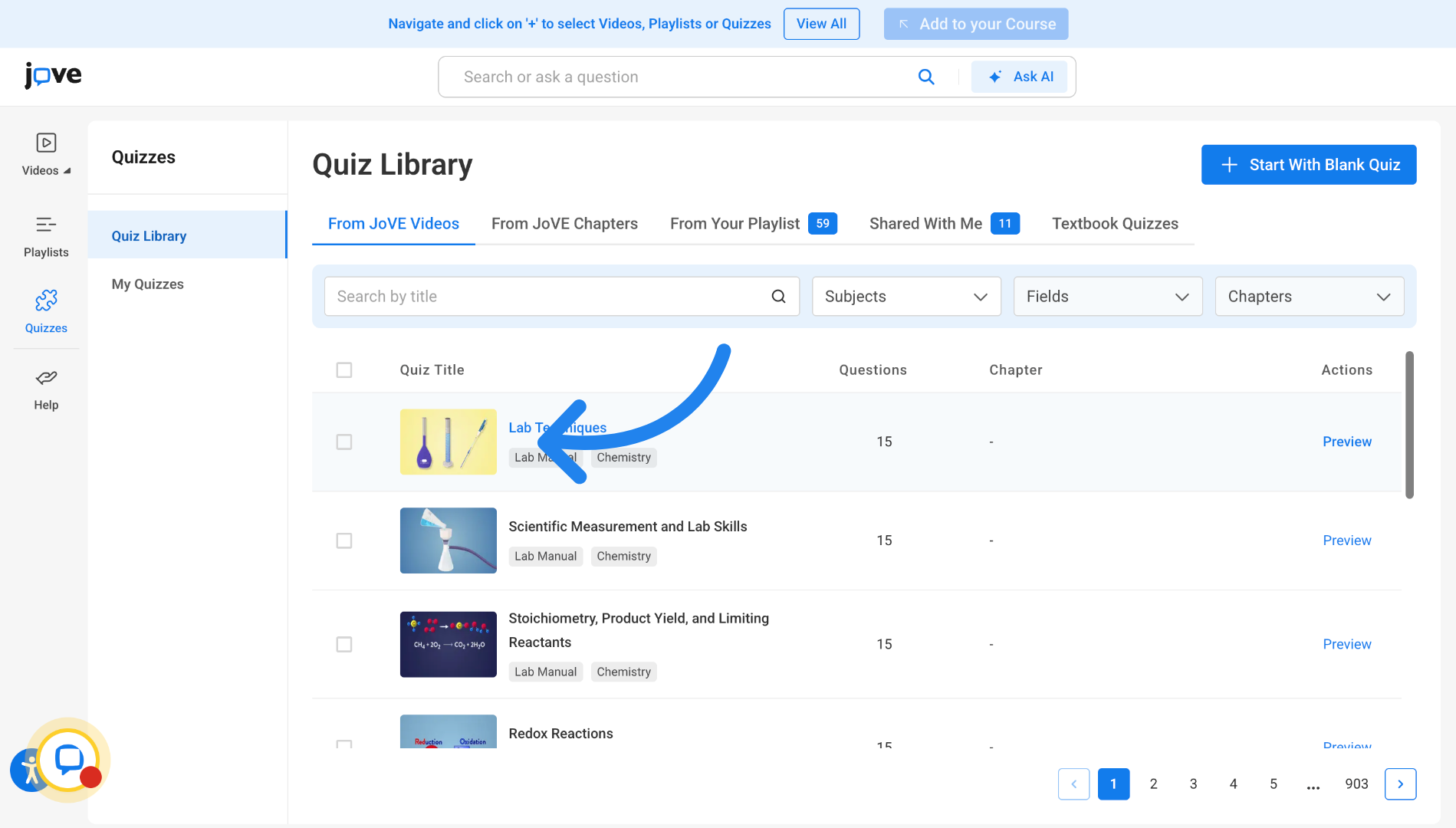
6. Select Quiz to Add in LTI
Click here to select a quiz from the JoVE Quiz Library.
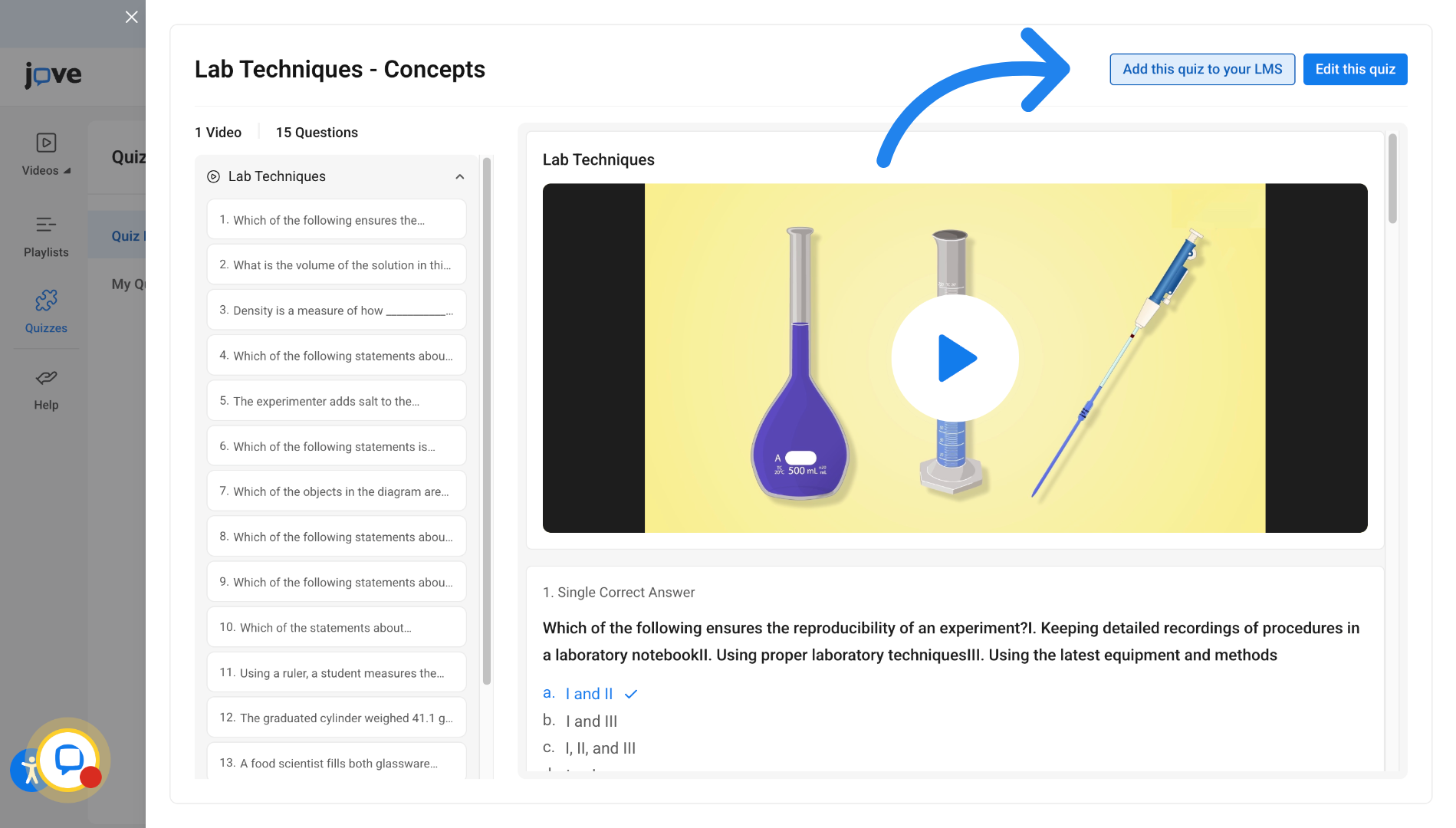
7. Add Quiz to LMS in LTI
Click "Add this quiz to your LMS"
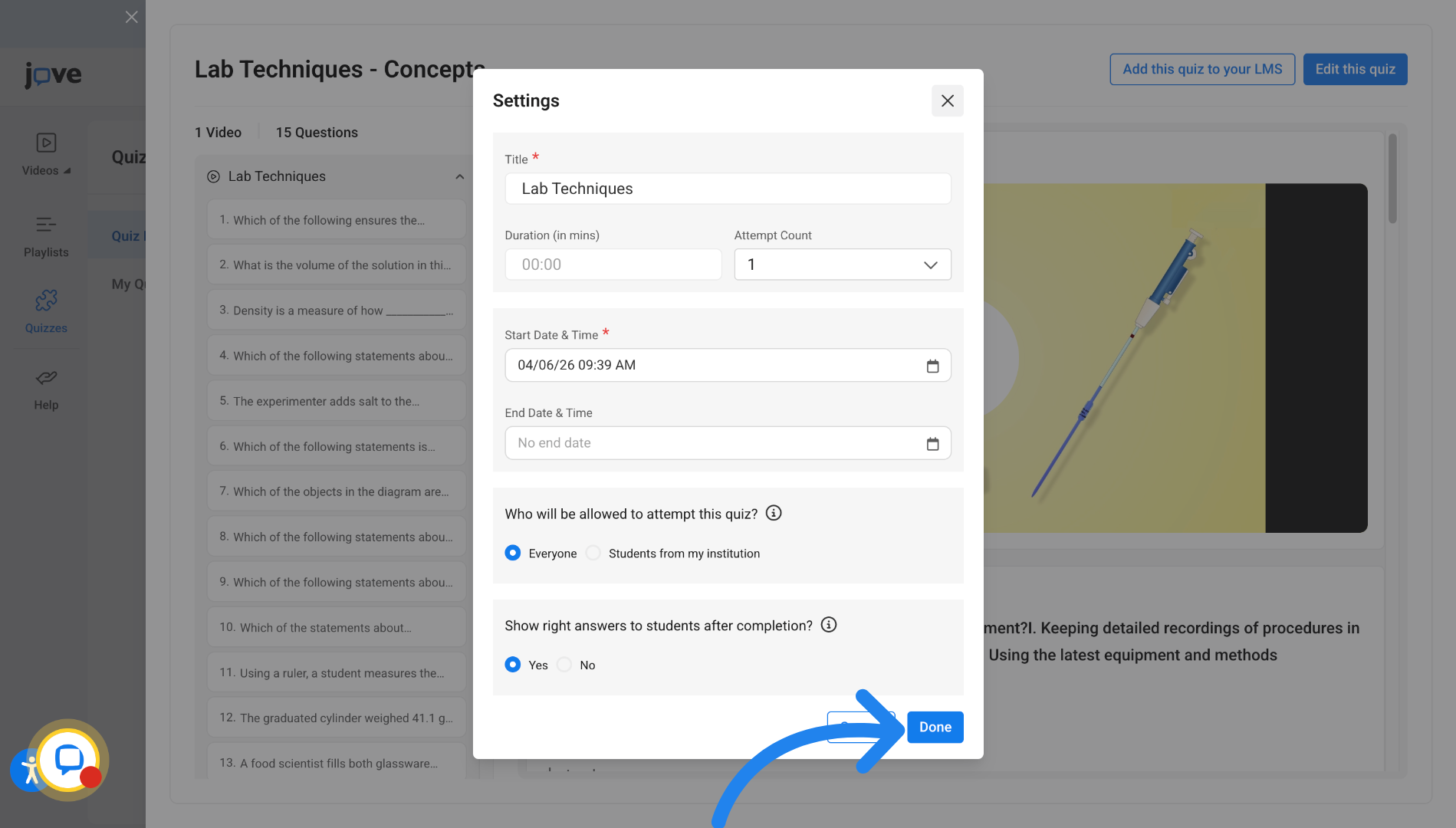
8. Saving a Quiz from Library and adding it in cart in LTI
Set quiz settings and click on Done to add this quiz into your LMS cart
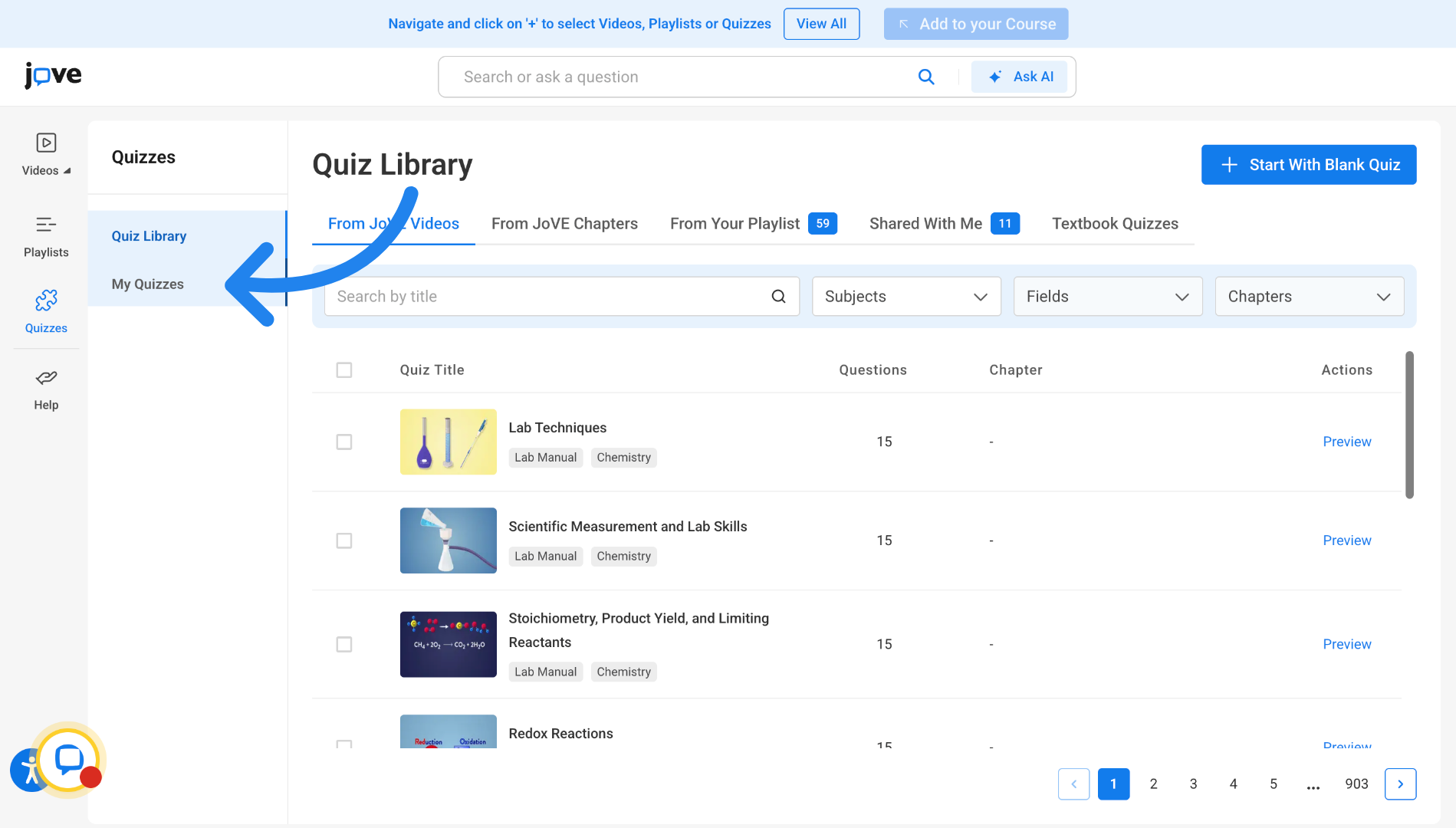
9. Open My Quizzes in LTI
Click "My Quizzes" to view quizzes you have created previously
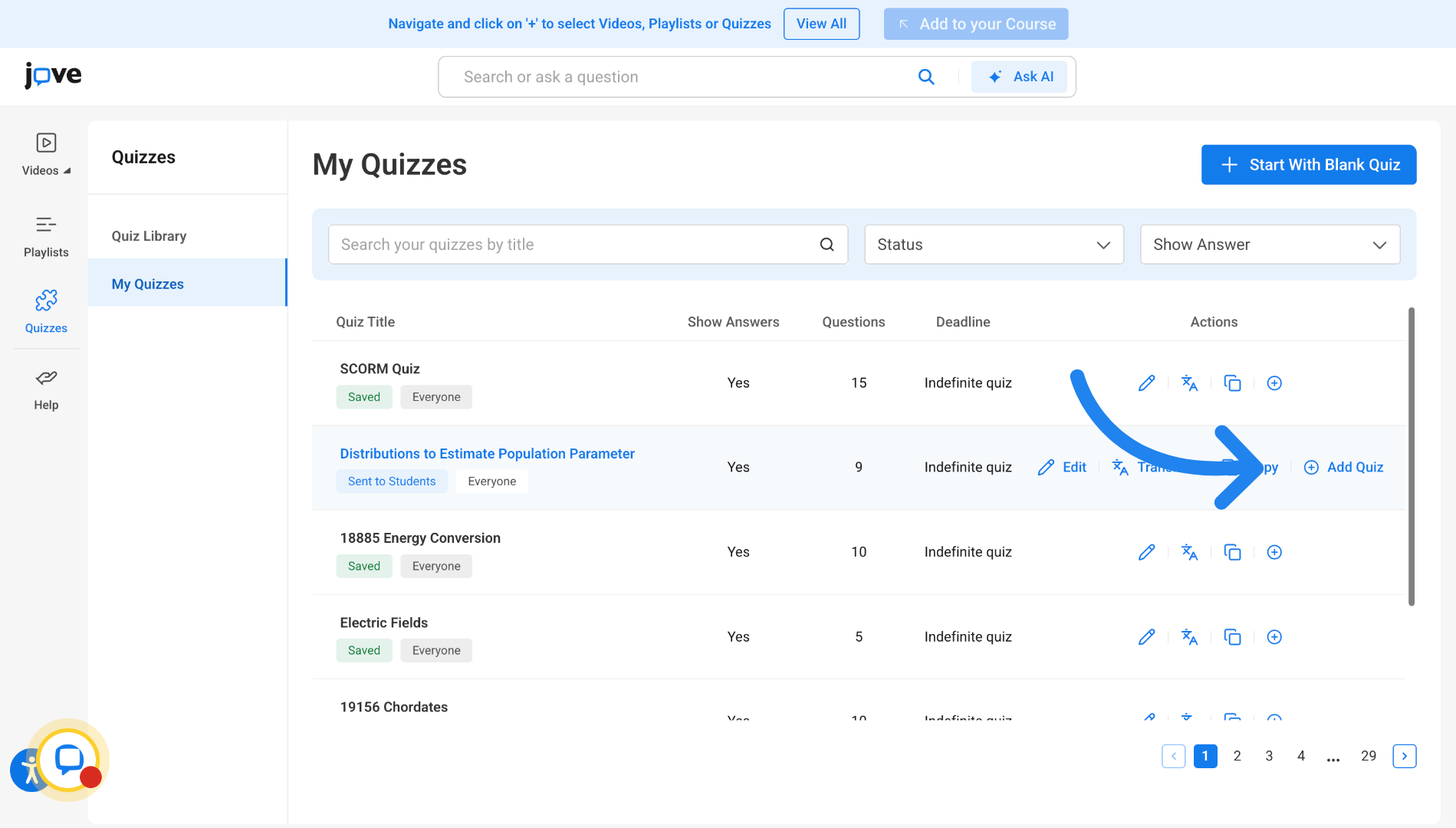
10. Select Quiz in My Quizzes in LTI
Click here to select a quiz from your personal quiz collection.
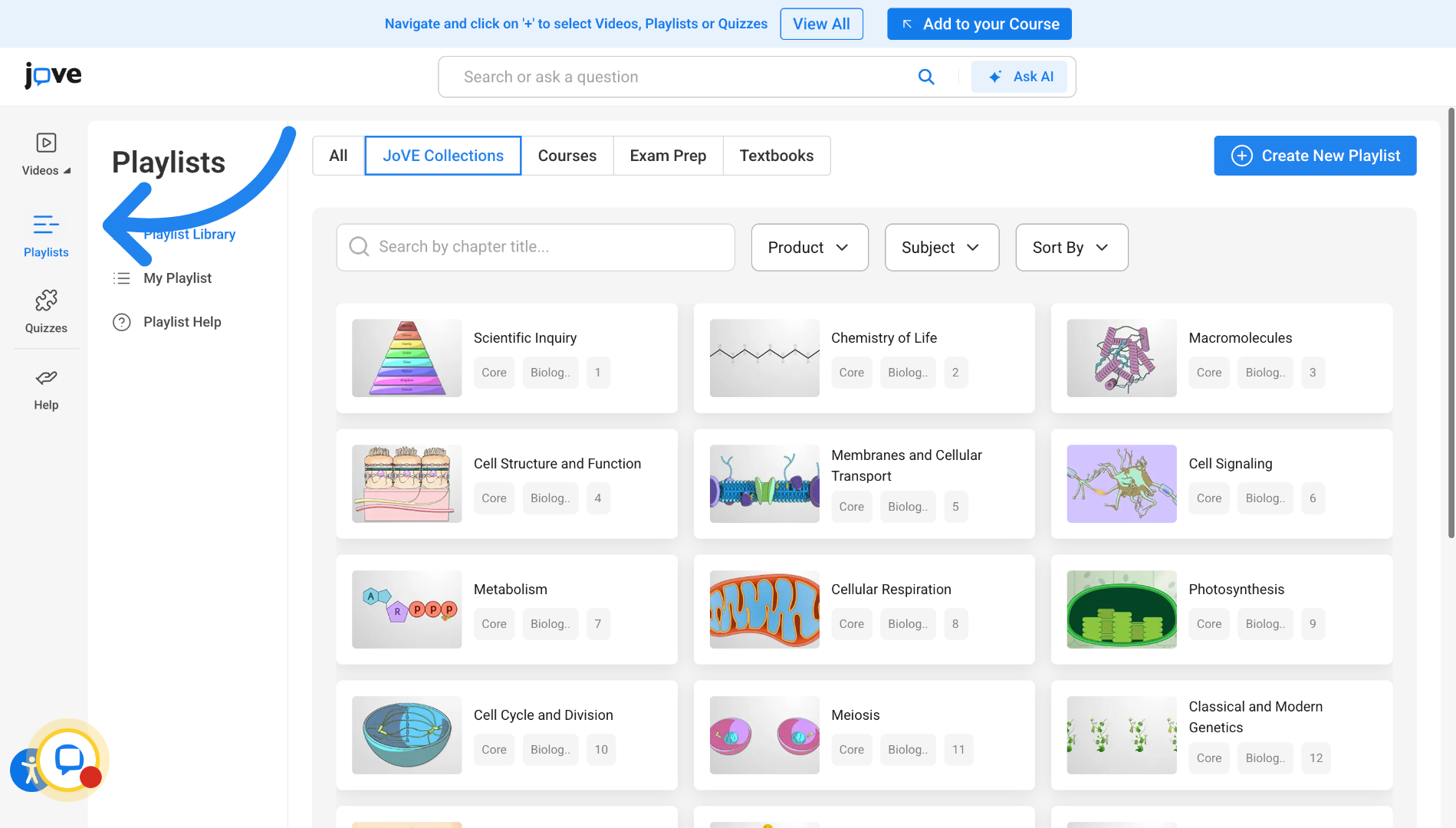
11. Access Playlist in LTI
In order to add a playlist, go to Playlists.
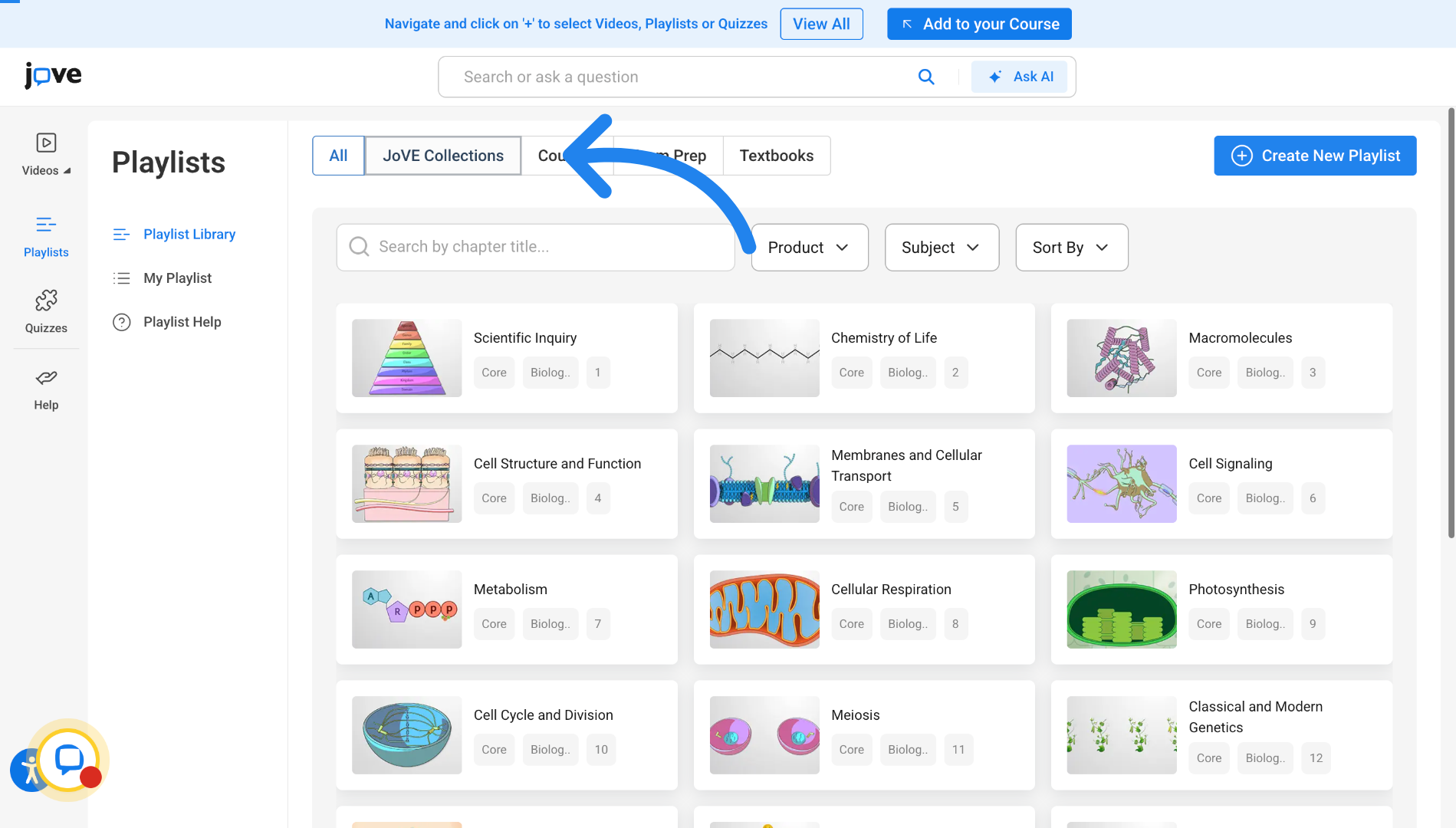
12. Access JoVE Collections in LTI
Click "JoVE Collections" to view template playlists in Playlist Library.
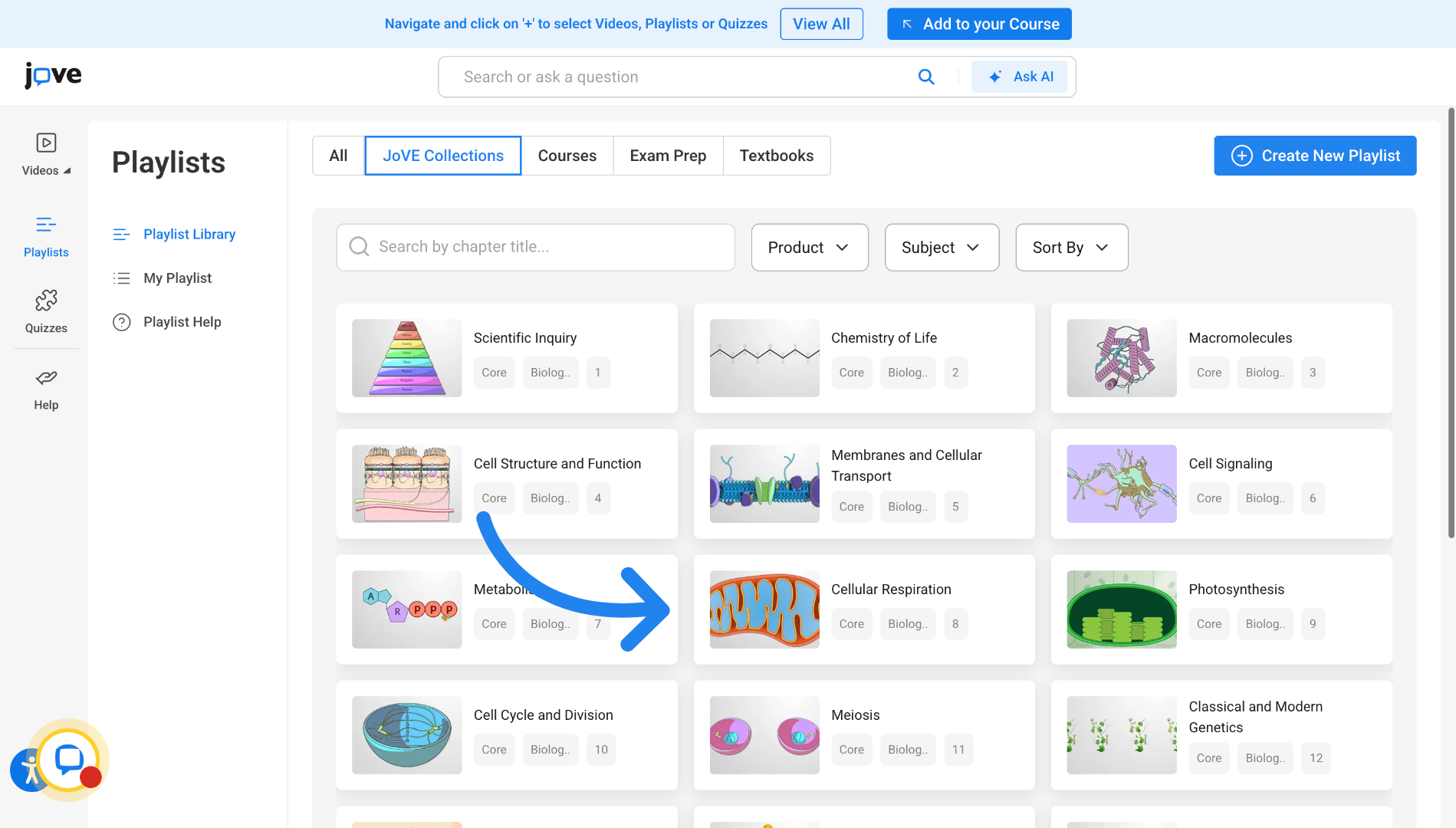
13. Select Playlist from Playlist Library in LTI
Click here to select an item within the JoVE Collections that you want to add to your course
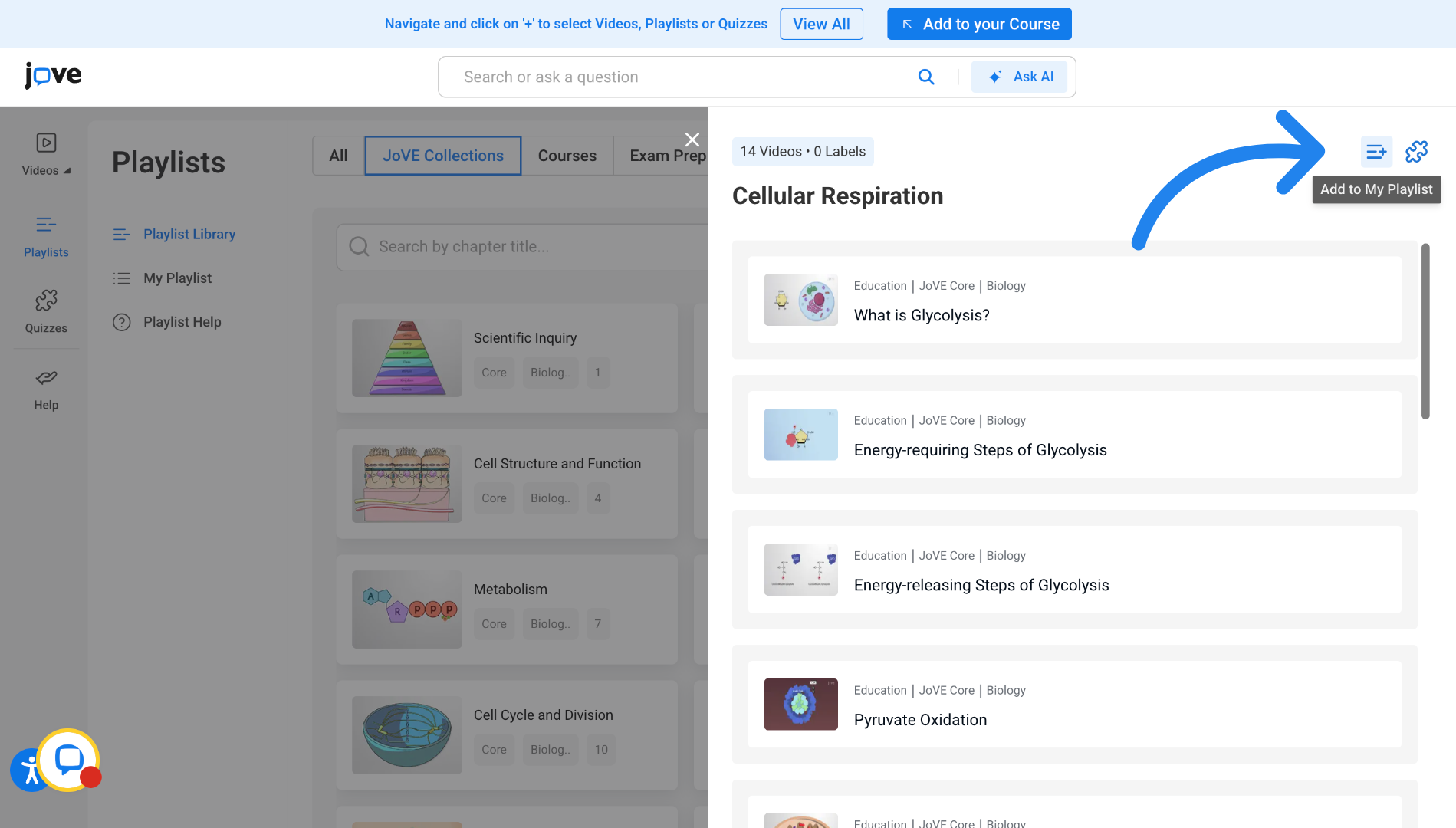
14. Create a Playlist in LTI
Click here to duplicate the selected playlist from the collection.
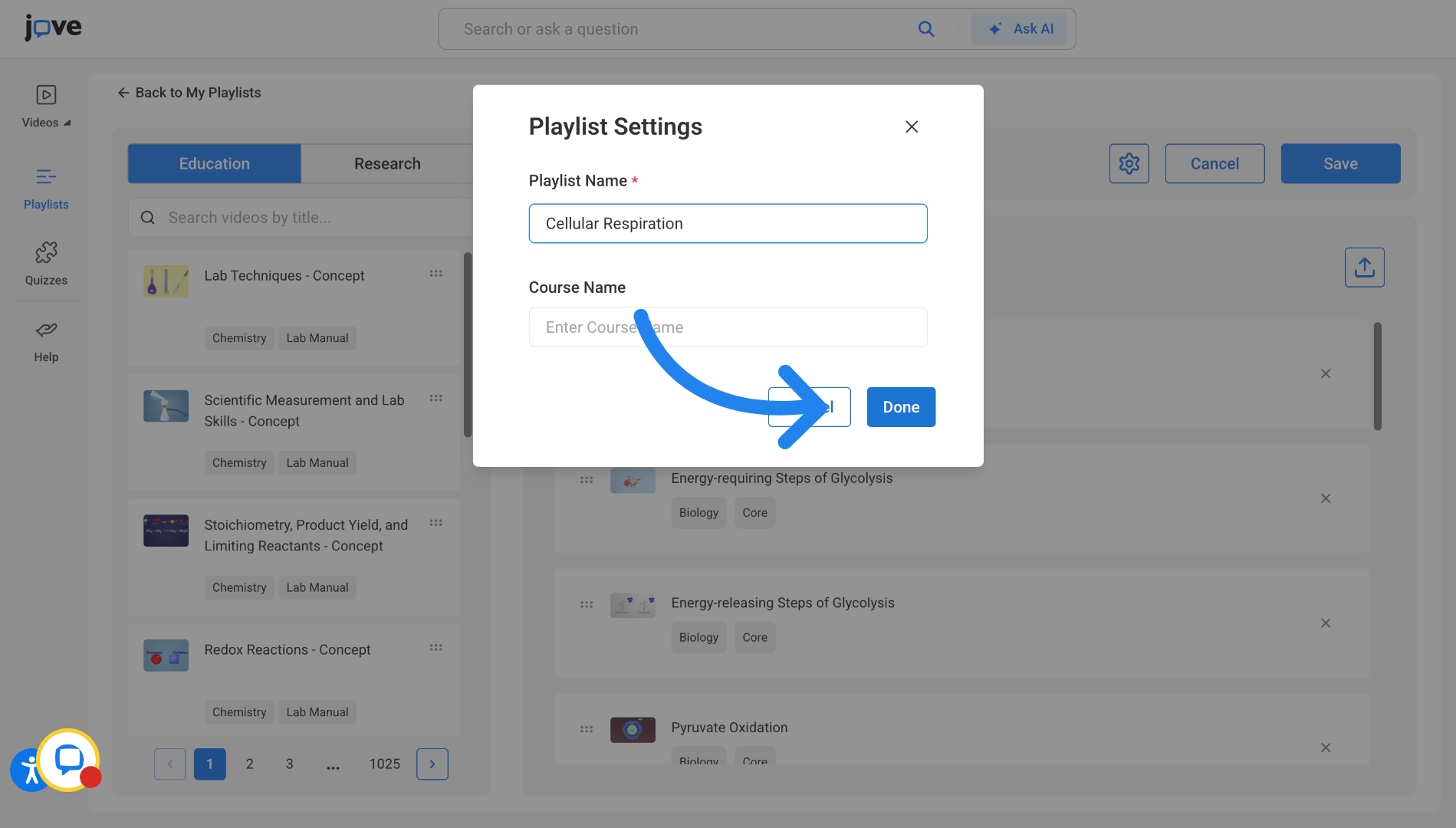
15. Set Playlist settings in LTI
Click "Done" to confirm your playlist settings and proceed.
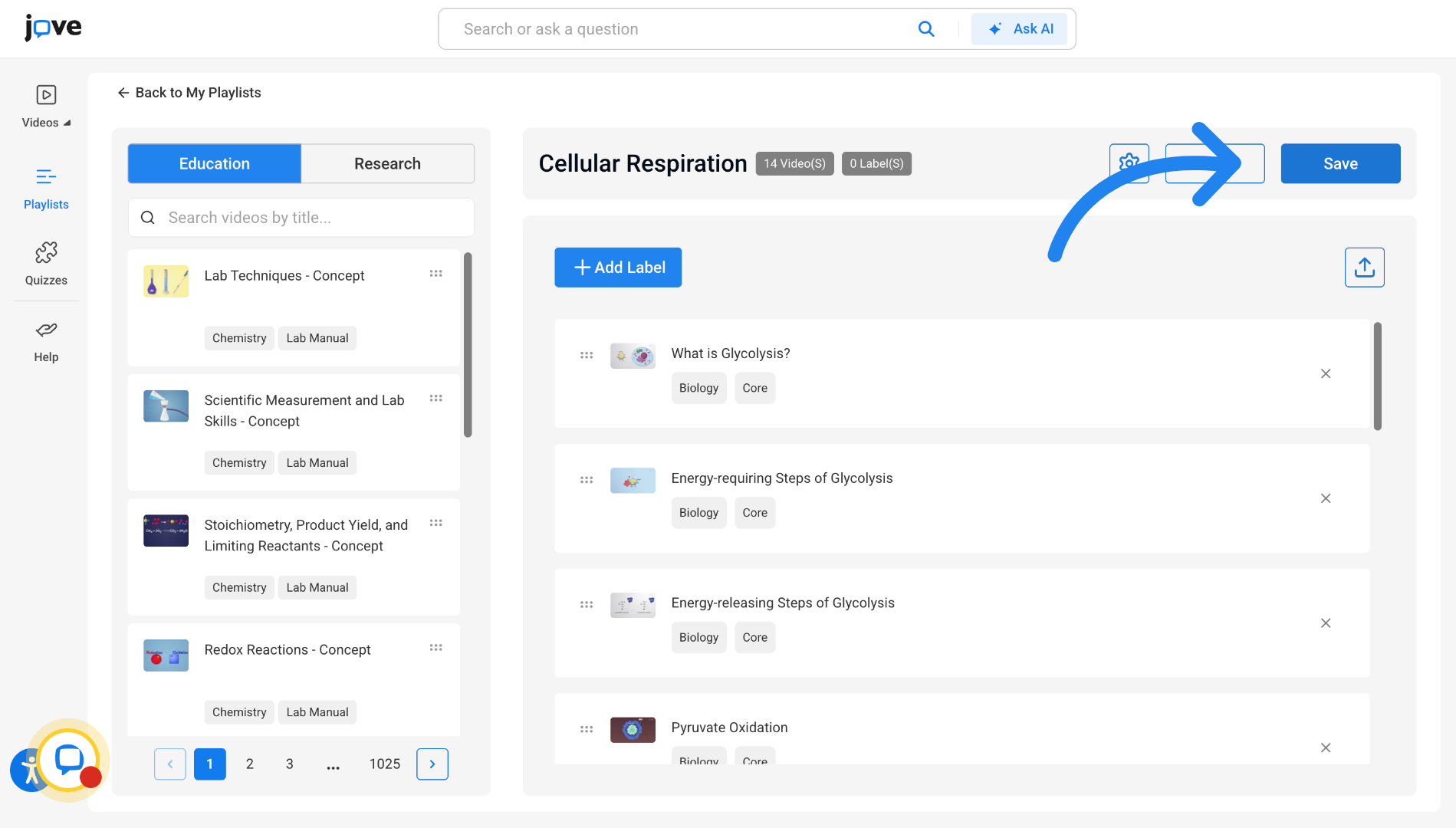
16. Save Playlist in LTI
Click "Save" to save the selected playlist to your My Playlist section.
17. Going to My Playlists in LTI
Click here to visit the My Playlist section
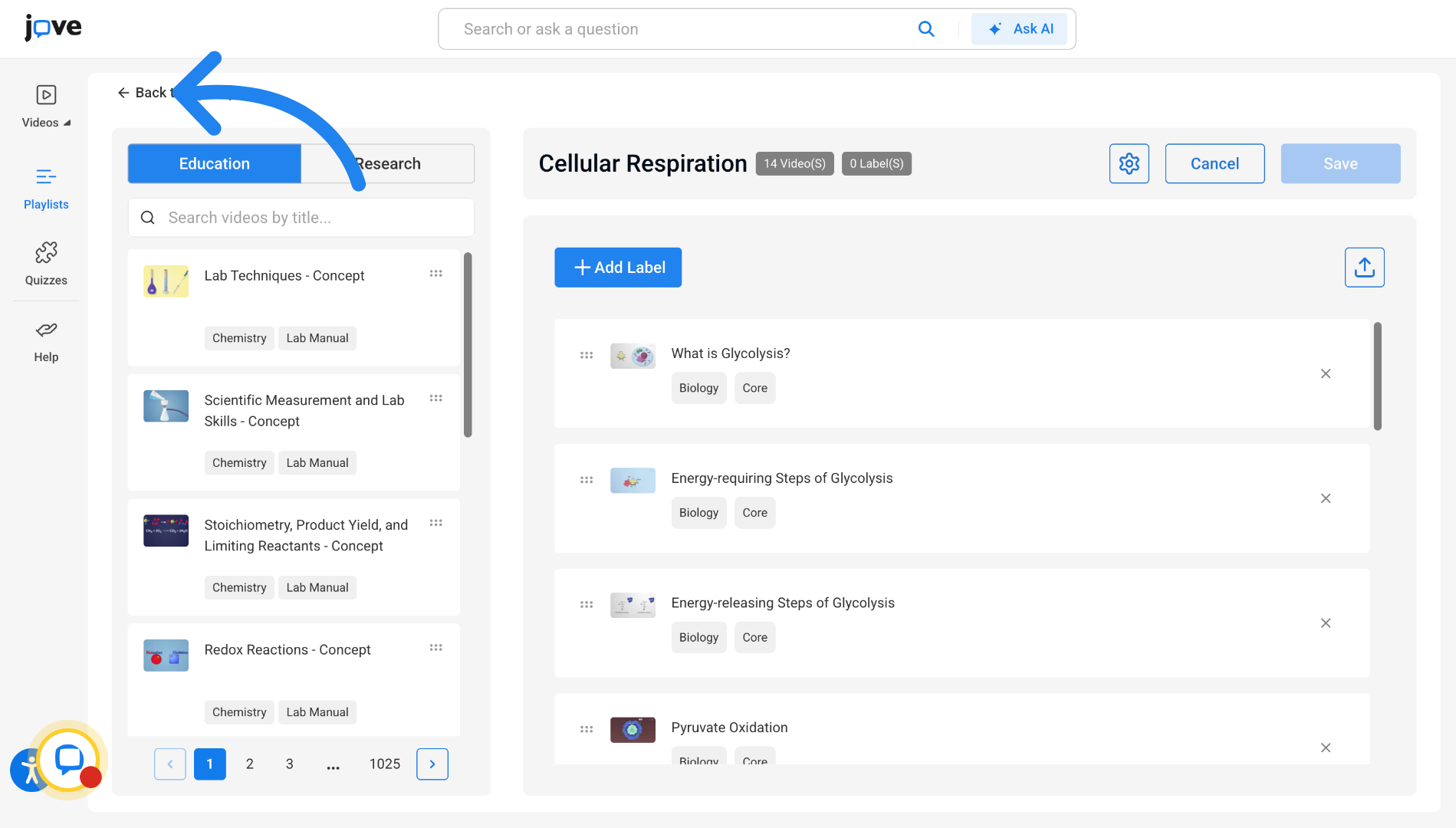
18. Select Playlists from My Playlist in LTI
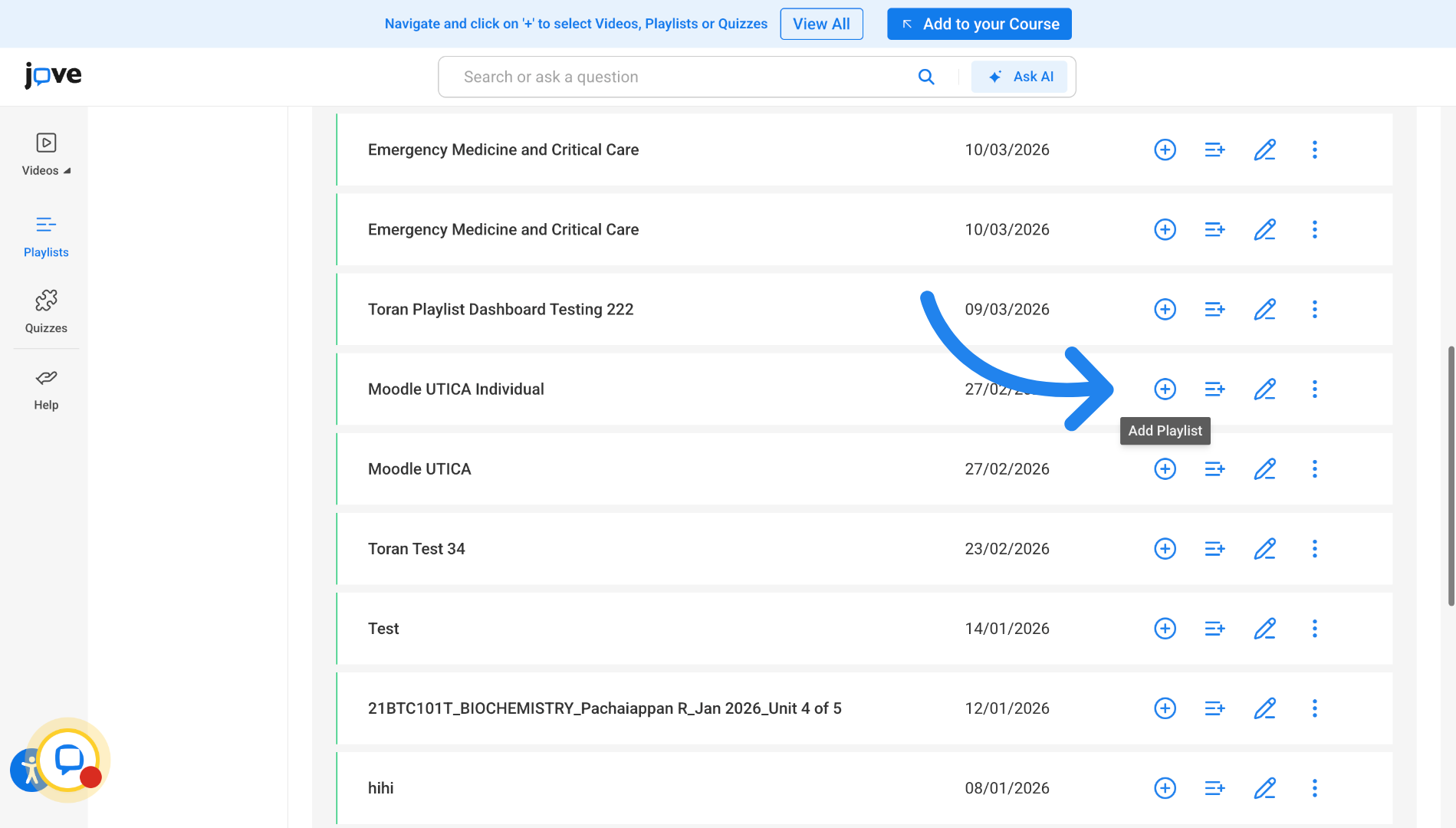
You can find all your previously created playlists here. You can choose the playlist you want to add in your LMS cart using this button.
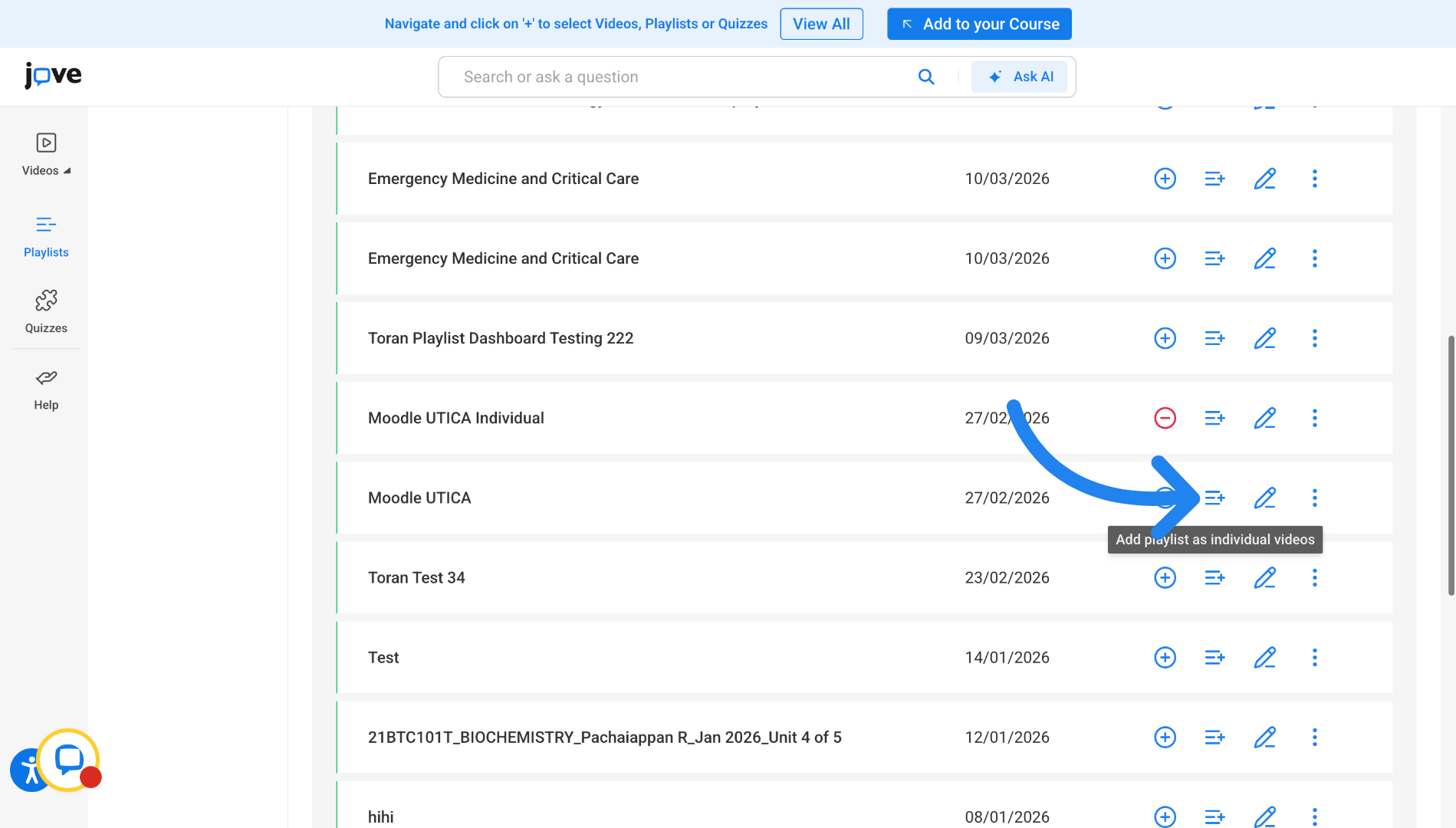
19. Adding Playlist as individual videos in LTI
You can also add the playlist using this button. This will add all the videos that are a part of that playlist as individual entries in the course module in LMS
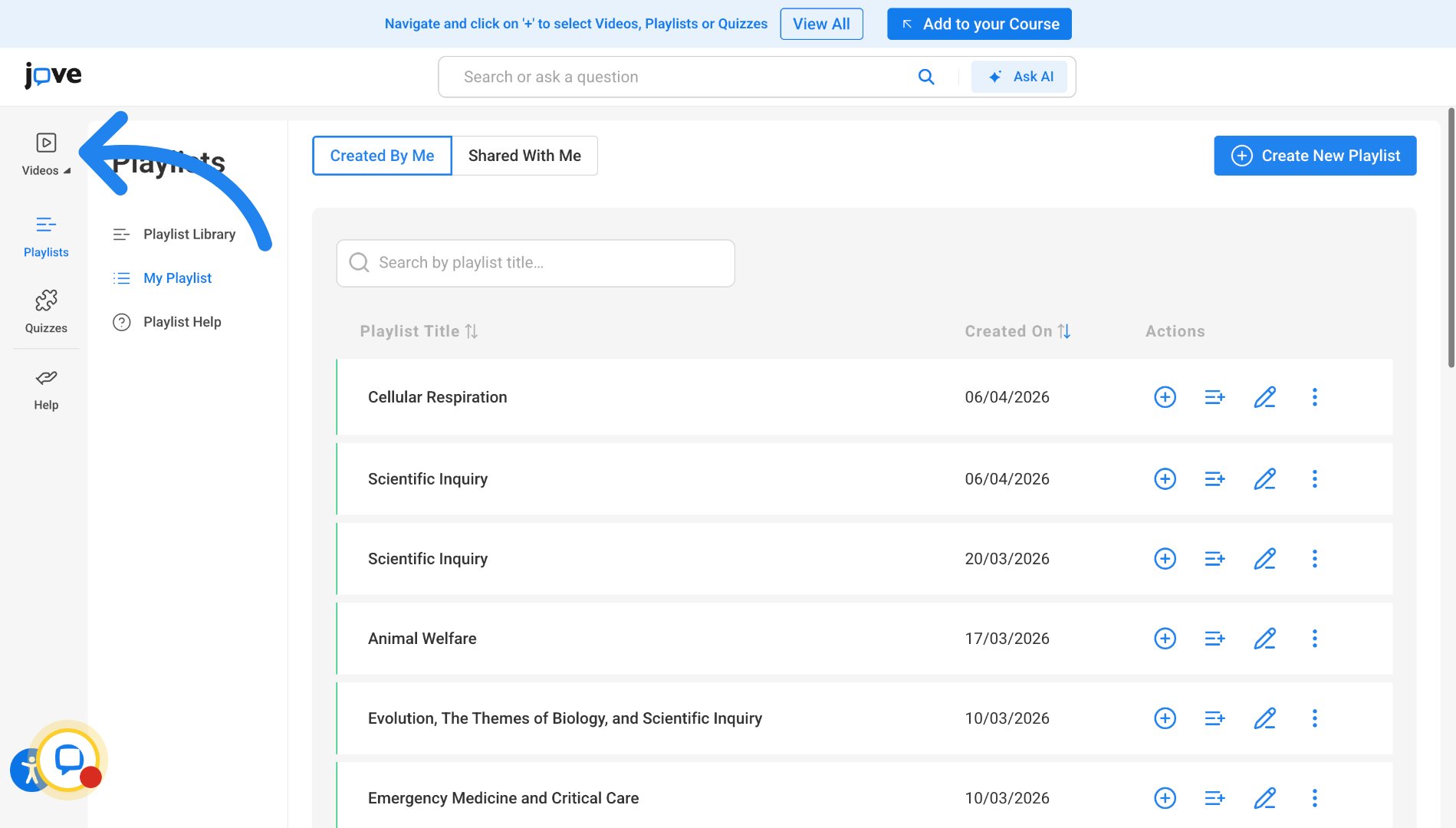
20. Access Videos Section in LTI
Click "Videos" to browse available video content.
21. Select Subject Category in LTI videos
Select the required collection from which you want to add a video
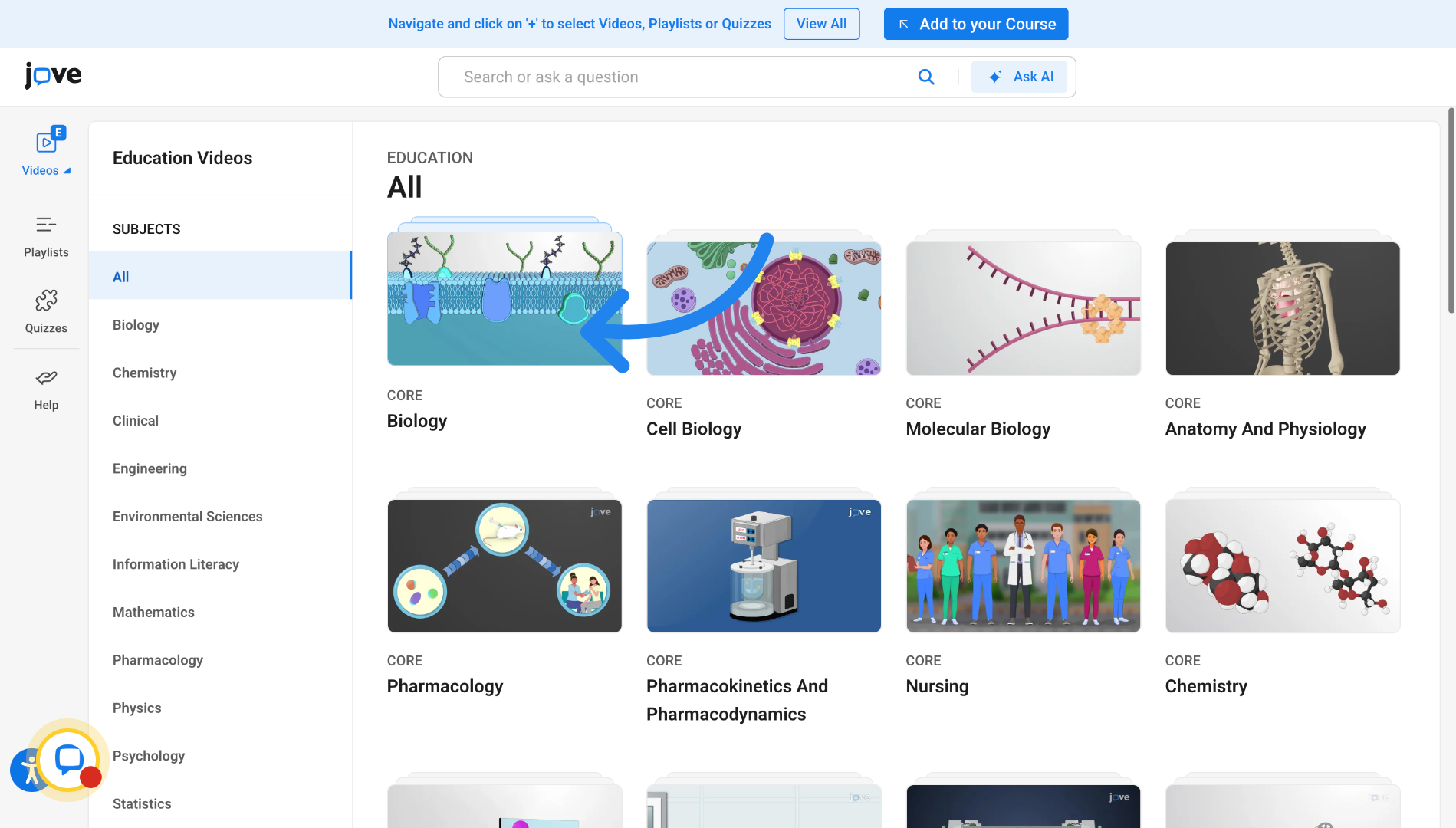
22. Select Chapter in LTI videos
Select the required chapter from which you want to add a video
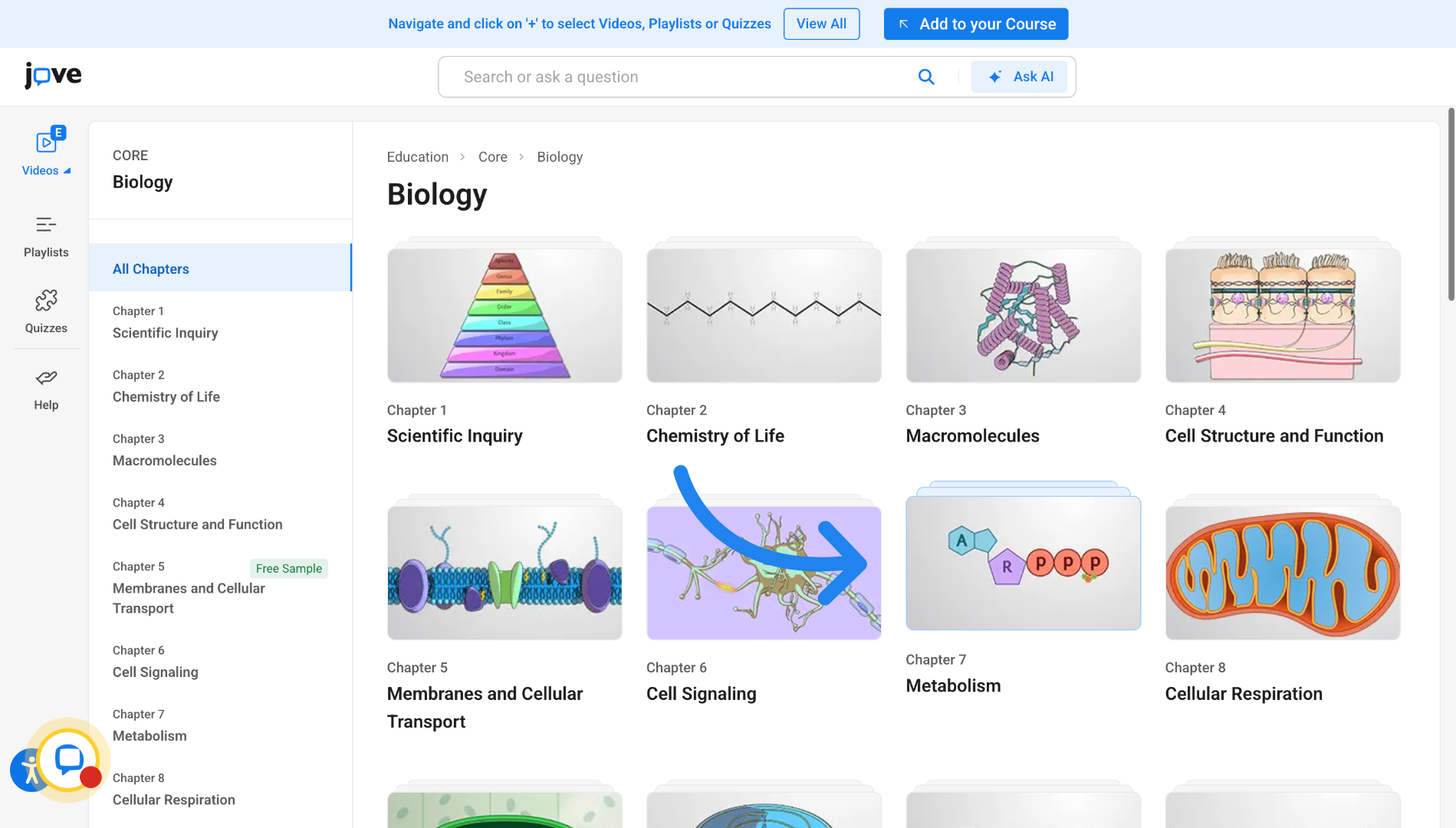
23. Select Video in LTI
Click here to add the video in your LMS cart
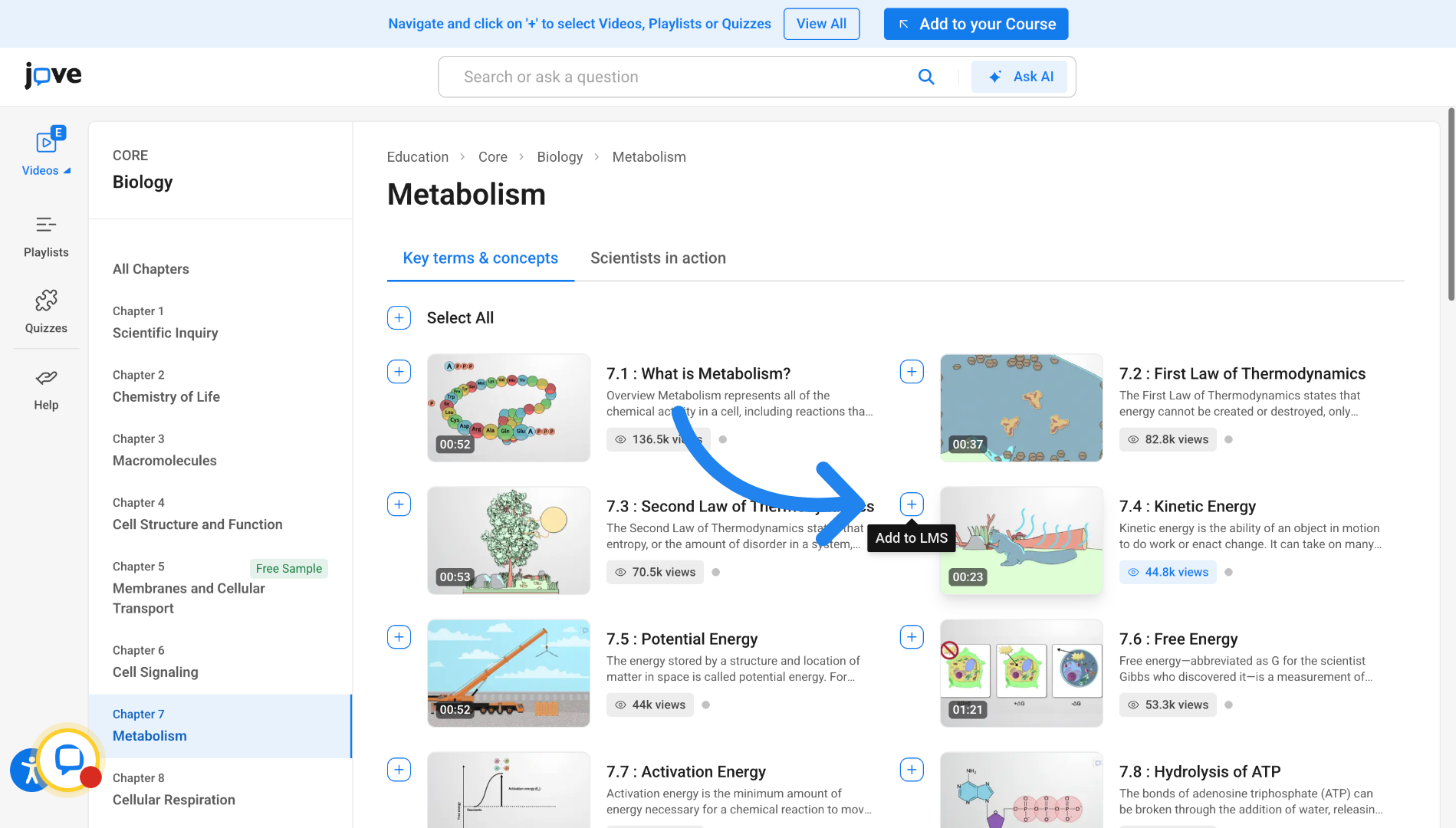
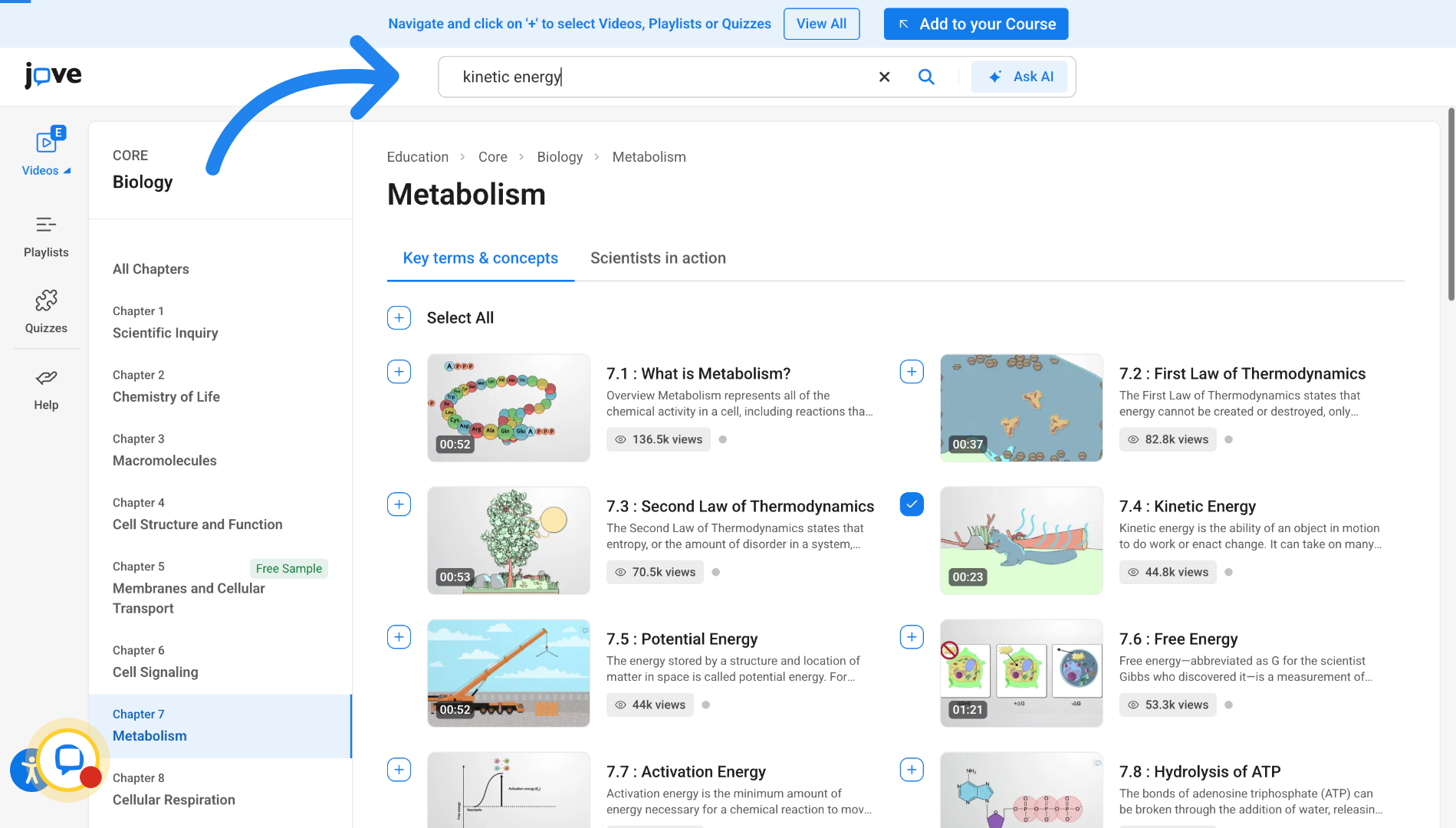
24. Searching video in JoVE LTI
Click "Search or ask a question" to activate the search input.
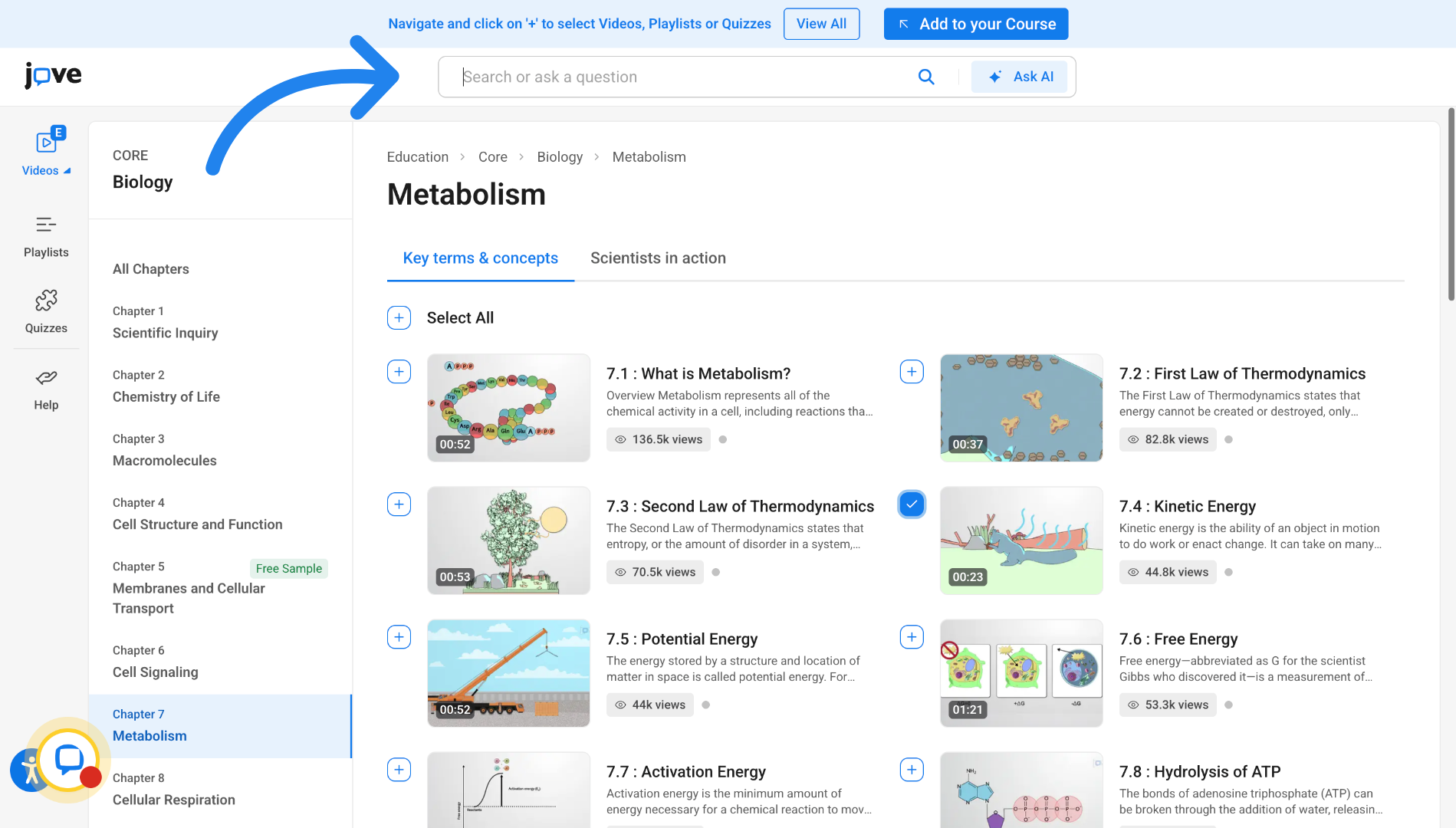
25. Searching video in JoVE LTI (2)
Fill the required search query to search for related content.
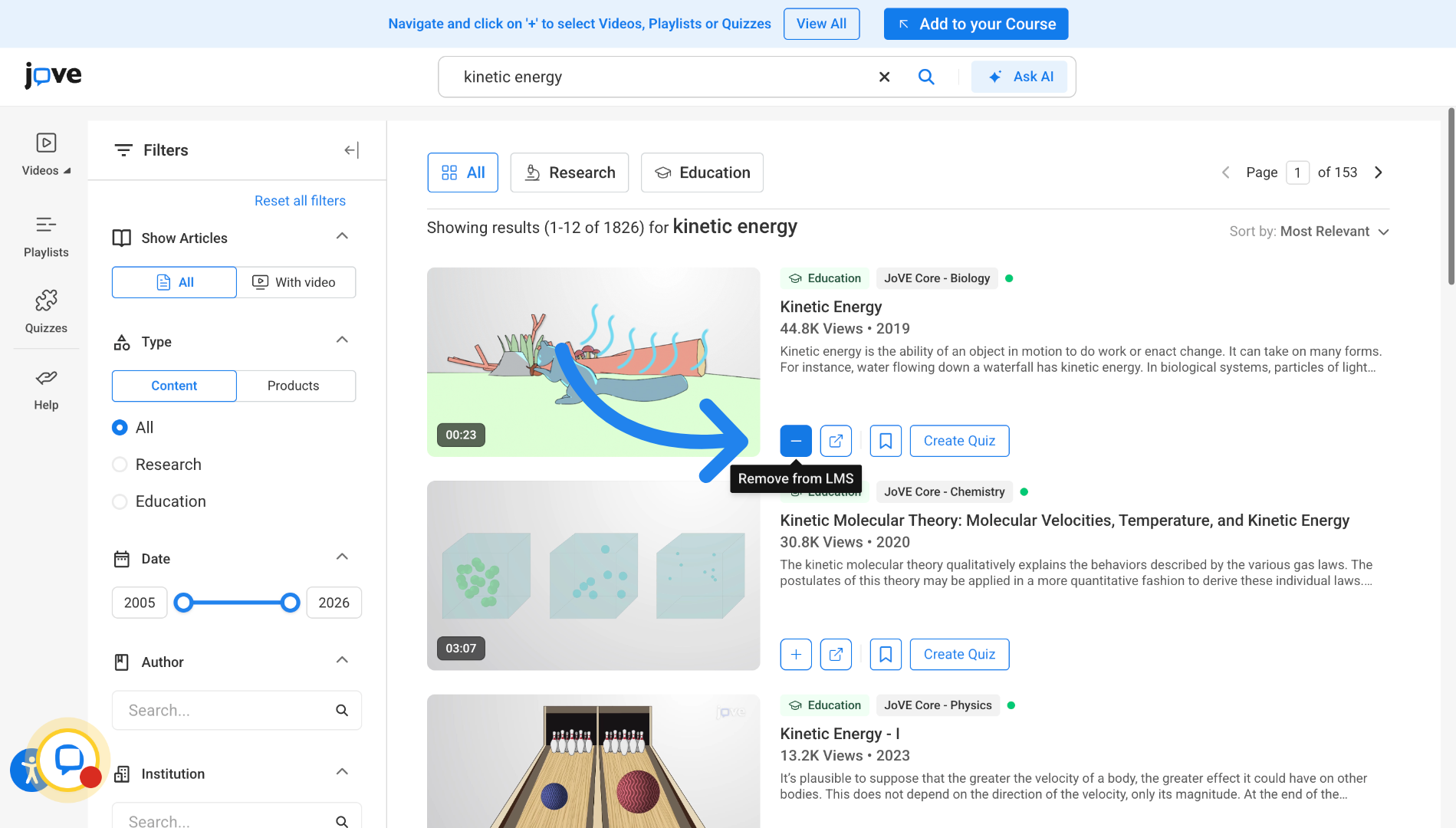
26. Select video in LTI from search page
Click here to add video to your LMS cart
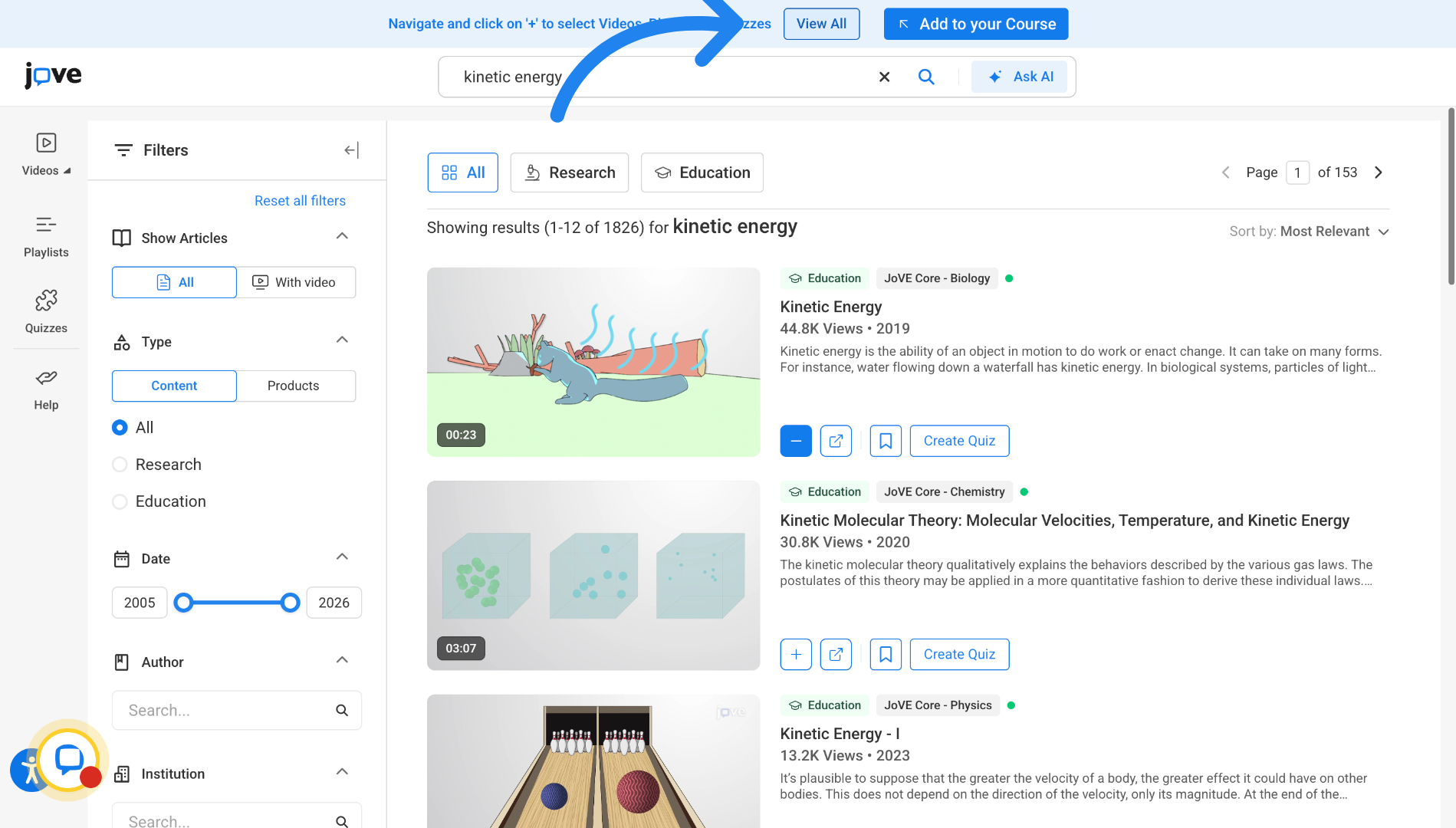
27. Viewing Cart in LTI
Click "View All" to display all items in your LMS cart
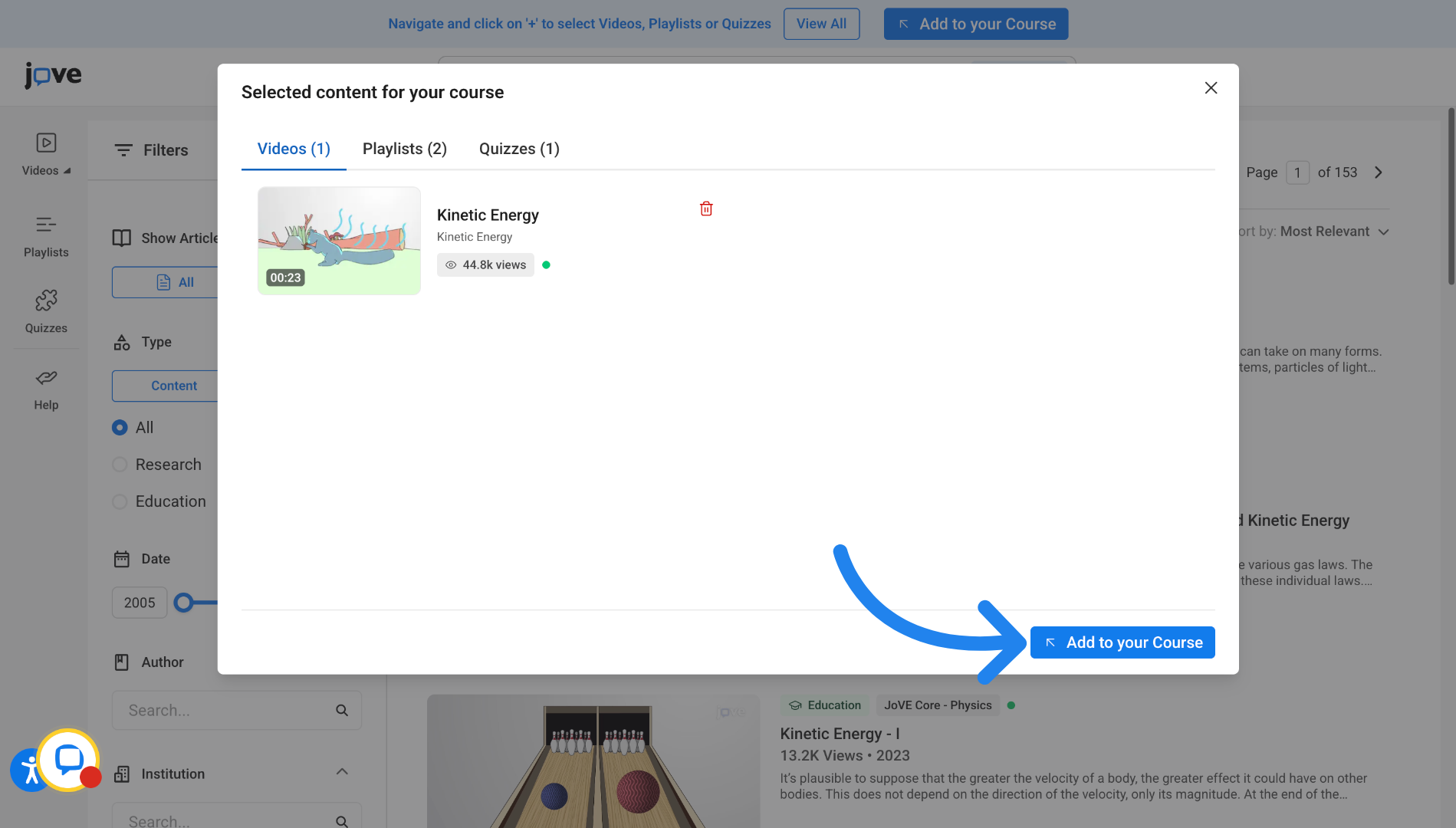
28. Add Content to Course through LTI
Click "Add to your Course" to add selected content to your course module.
Related to