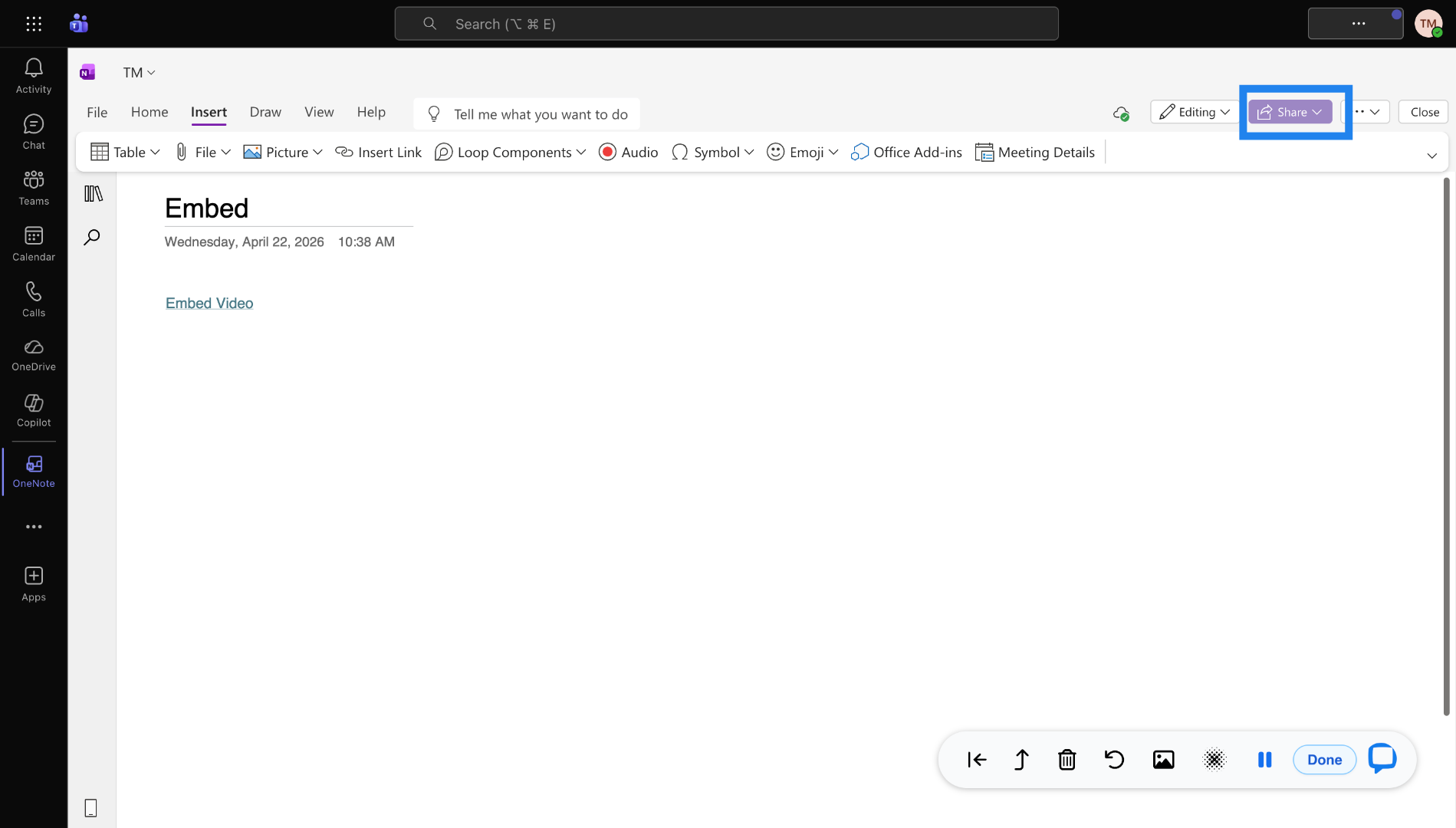
How to embed JoVE videos in MS Teams
This article explains how to embed a JoVE video into Microsoft Teams
Go to www.jove.com
1. Access Embed Video Option
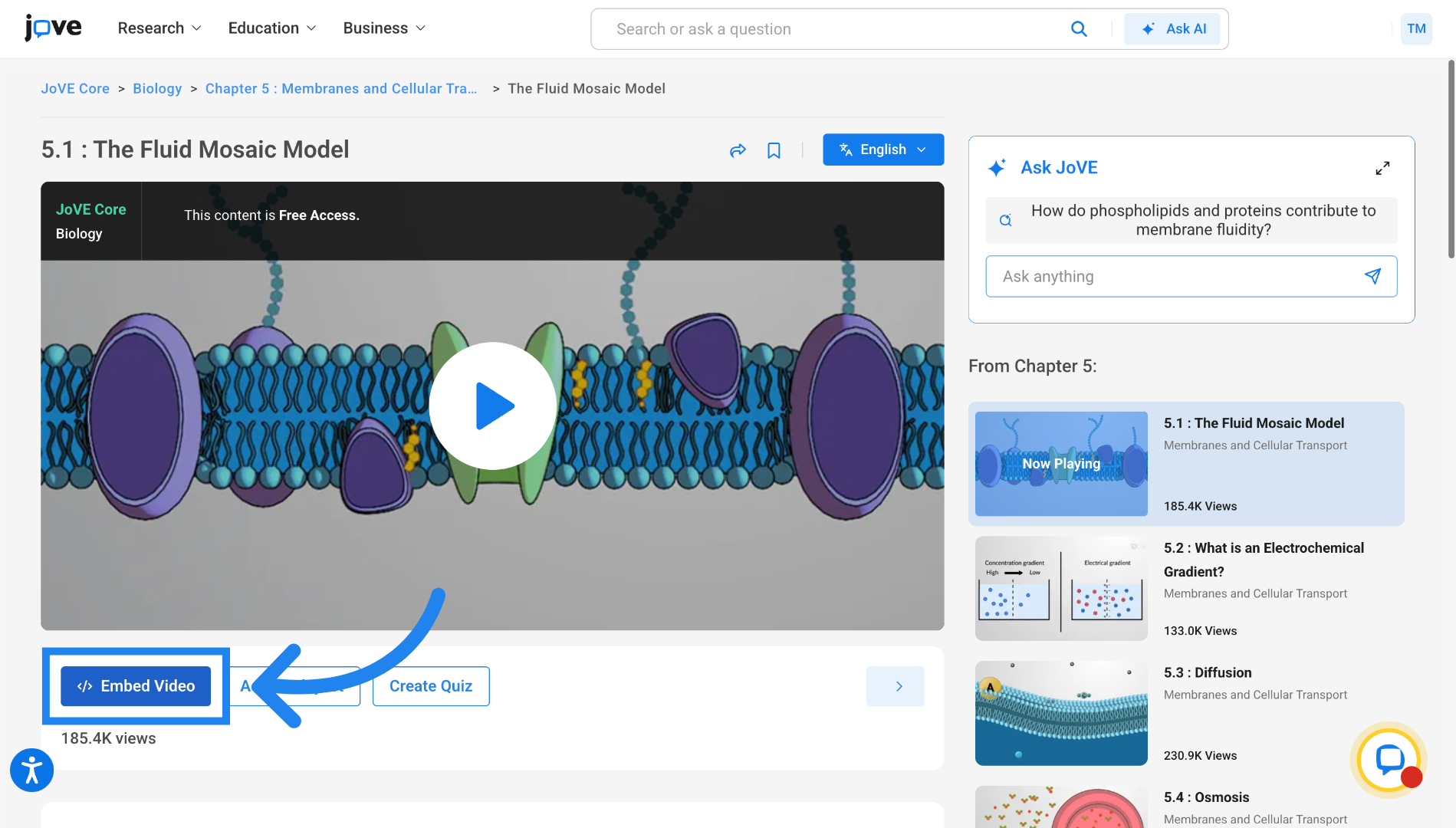
Locate and click the "Embed Video" button on the video page to access the embed code for the required Jove video.
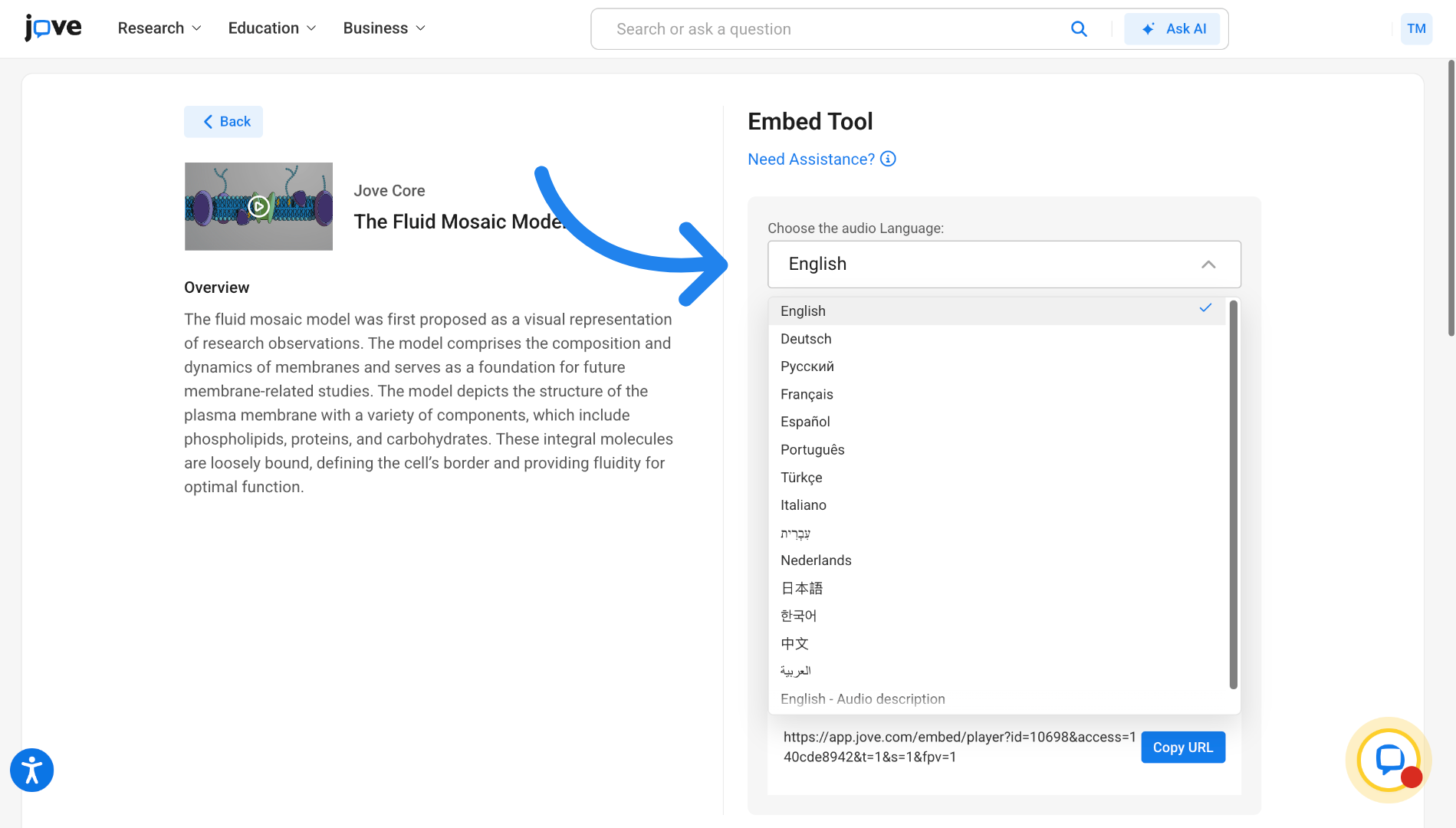
2. Confirm Language Selection
You can change the audio language of the video through this dropdown. We'll choose English in this case.
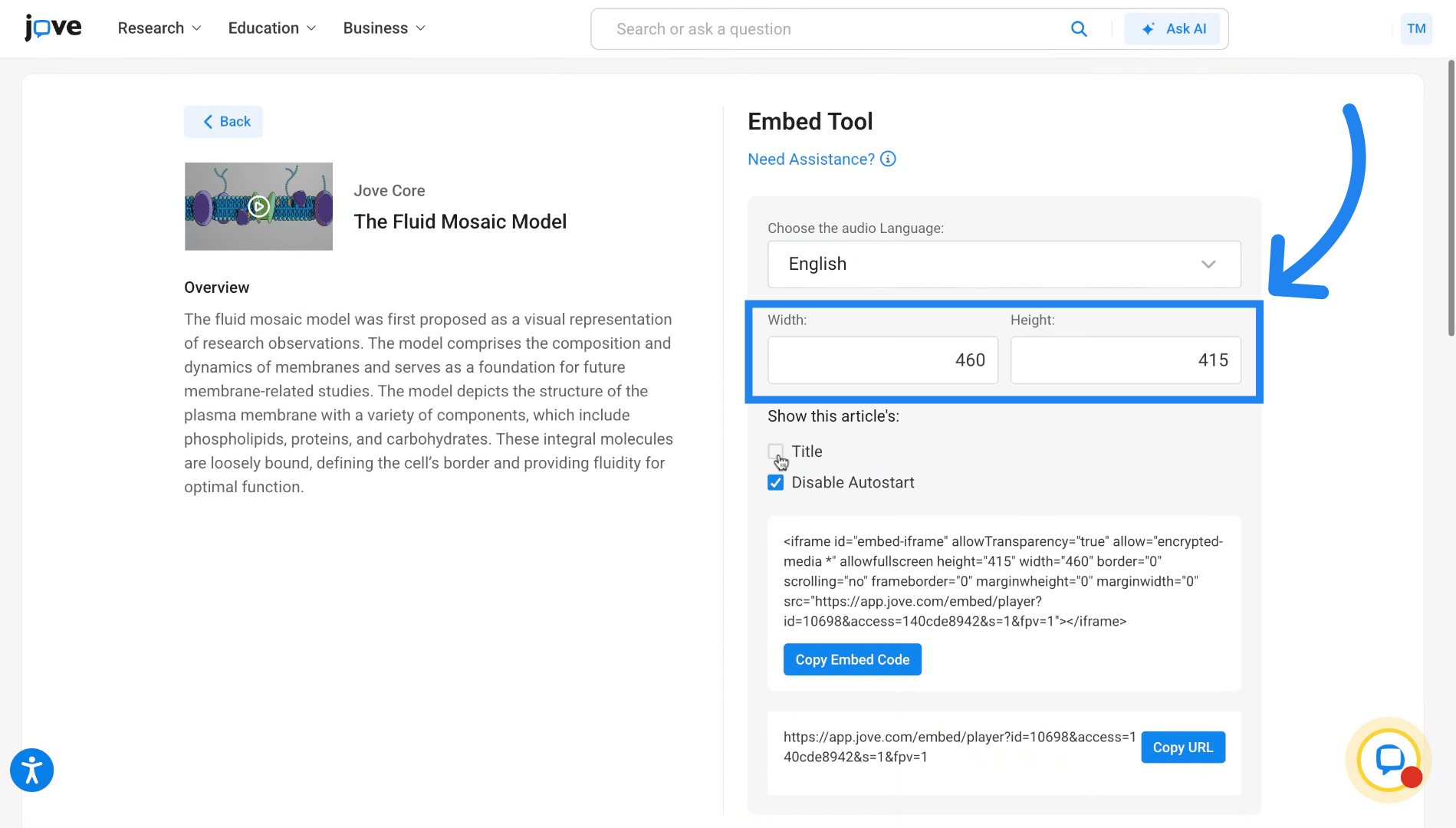
3. Enter Video Dimensions
You can change the dimensions of embedded video by using these fields.
4. Configure Video Title
You can use this checkbox to decide whether the evideo should display a title when embedded.
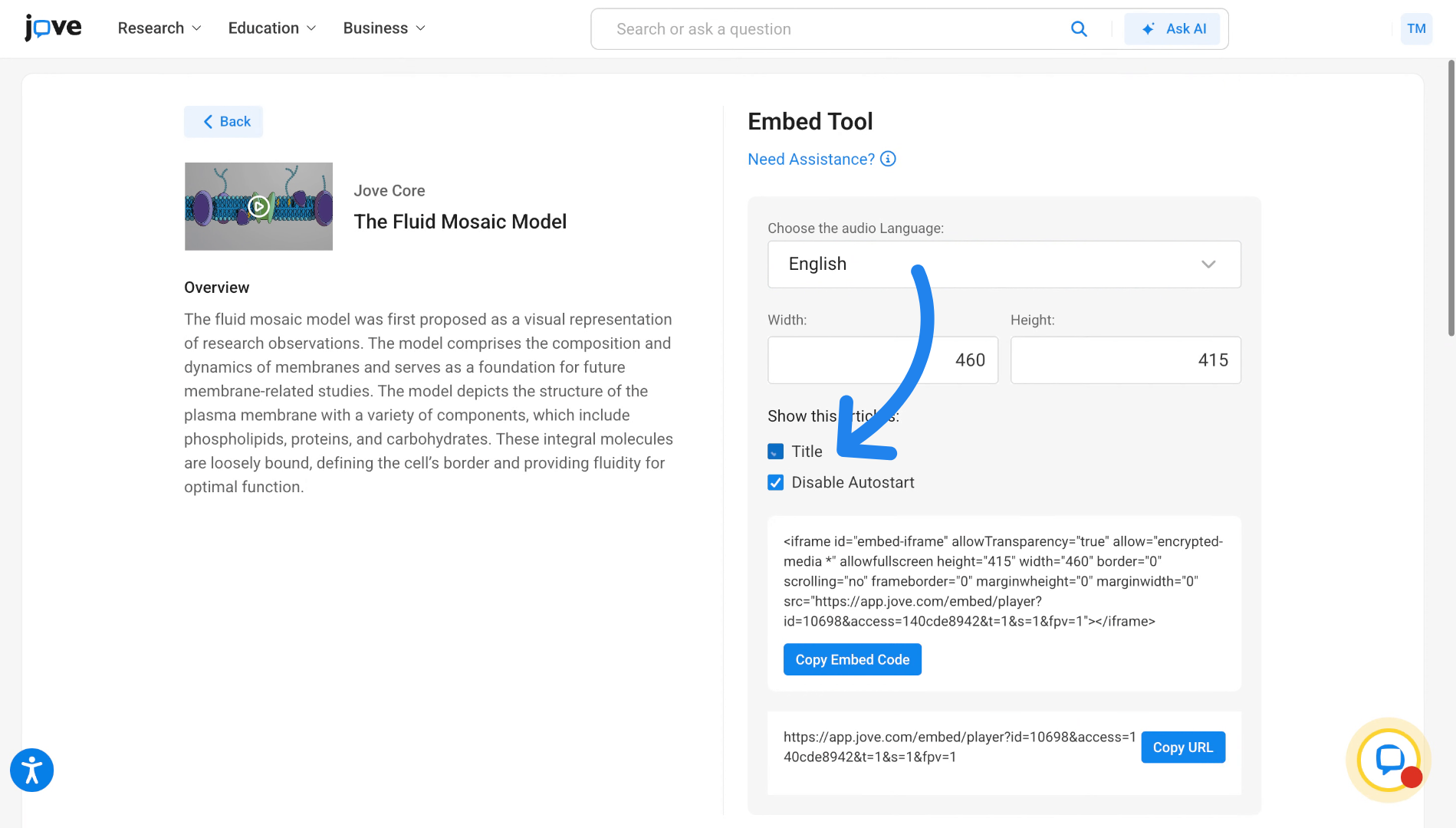
5. Access Auto-Start Setting
Click here to configure whether the video should start playing automatically upon loading. You can uncheck this if you want the video to start autoplay upon loading.
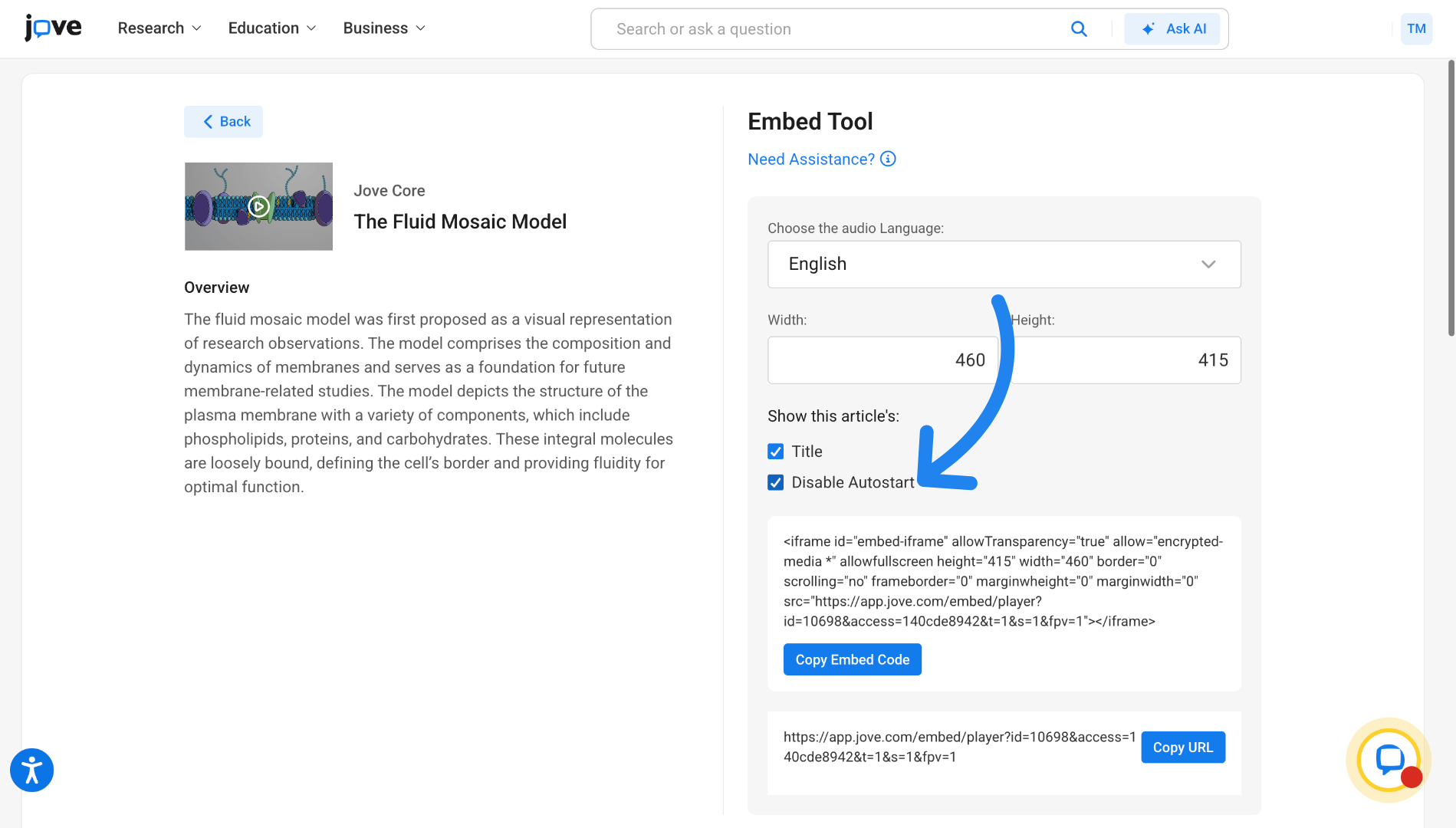
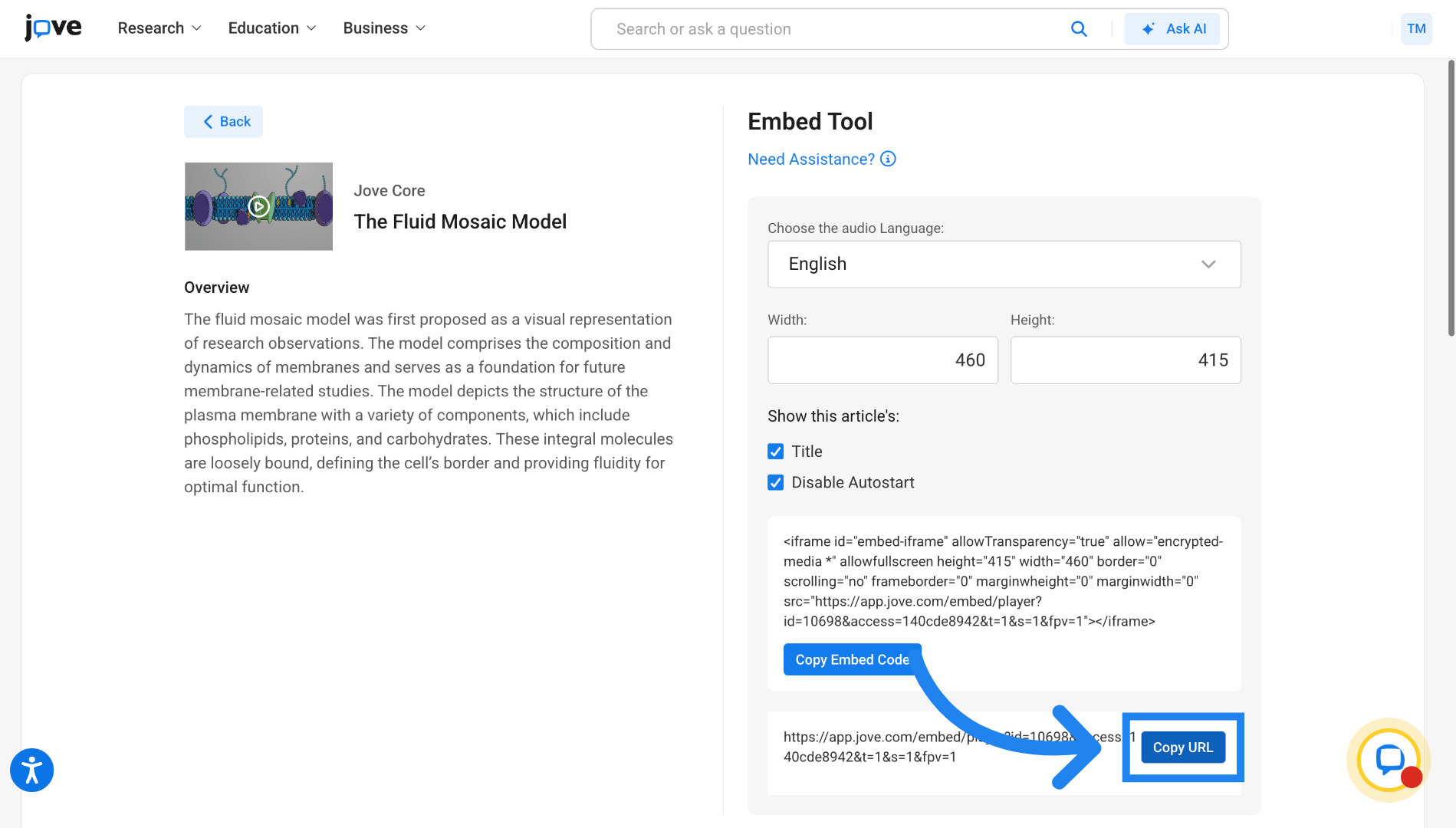
6. Copy JoVE Video URL
Once you have finalized on the embed settings, click on copy URL.
7. Open Microsoft Teams Cloud
And now let's see how to embed this video into Microsoft Teams.
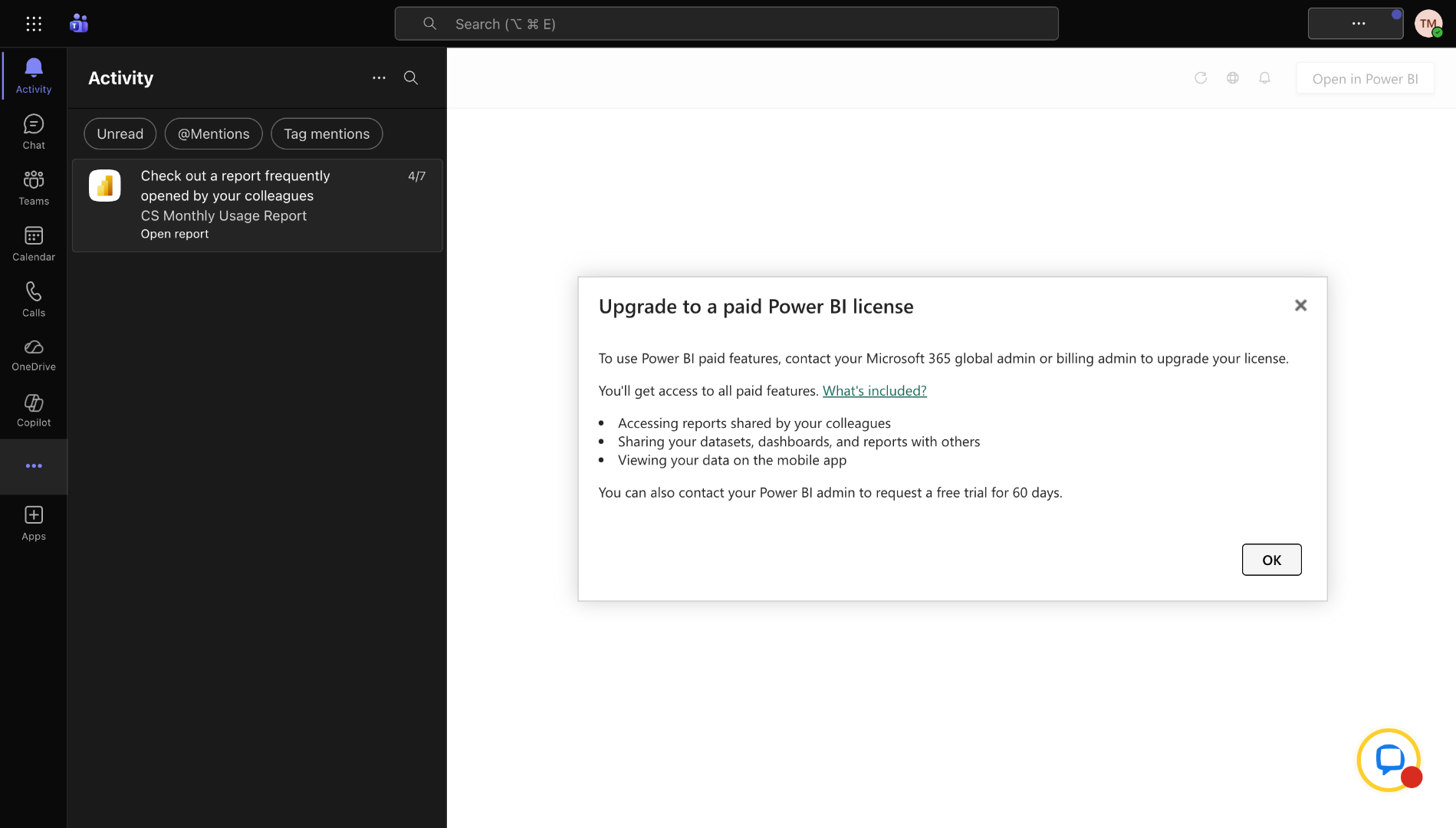
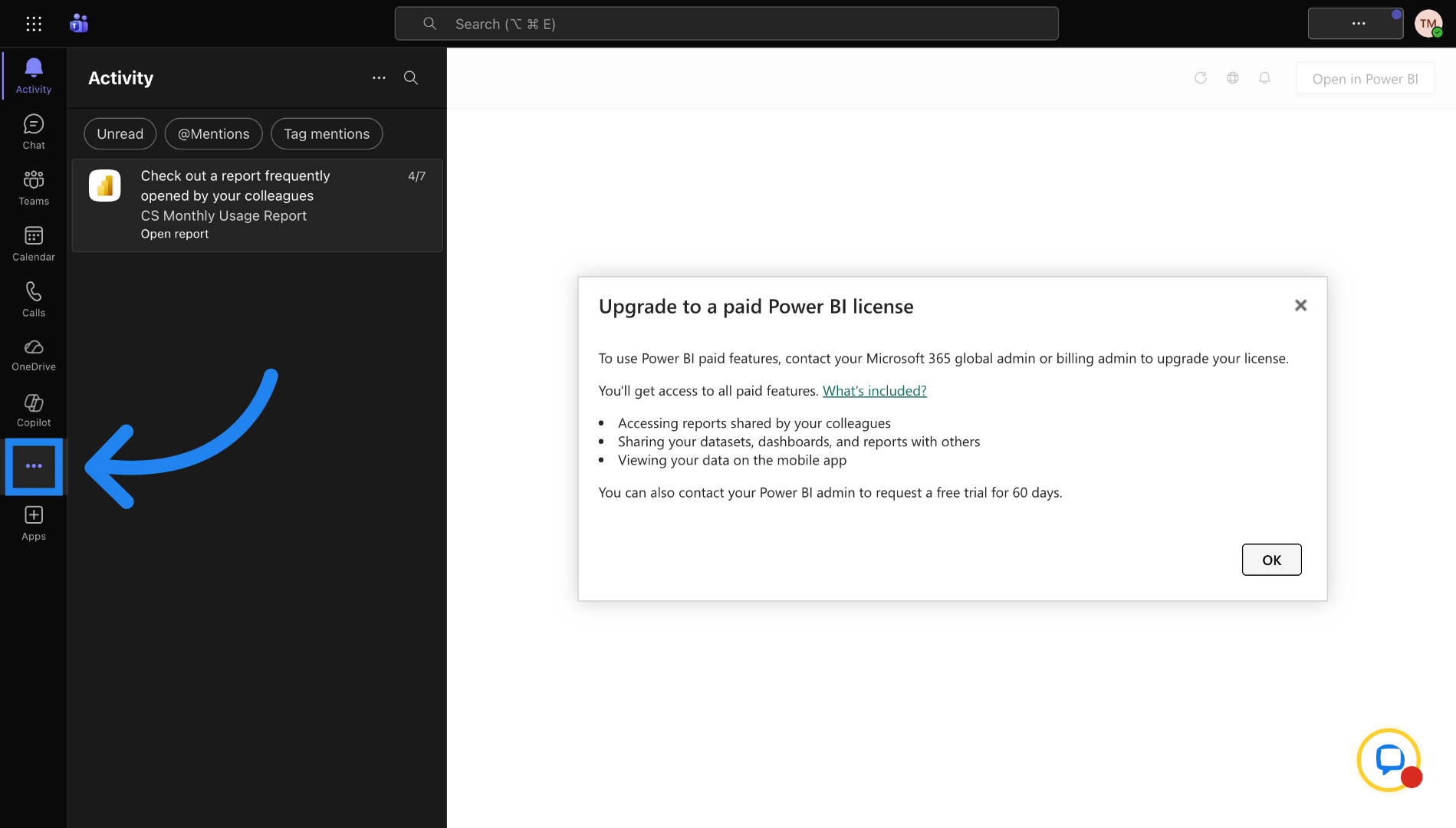
8. Access OneNote in Teams
once you have copied the URL, you can go to Microsoft Teams, go to OneNote here.
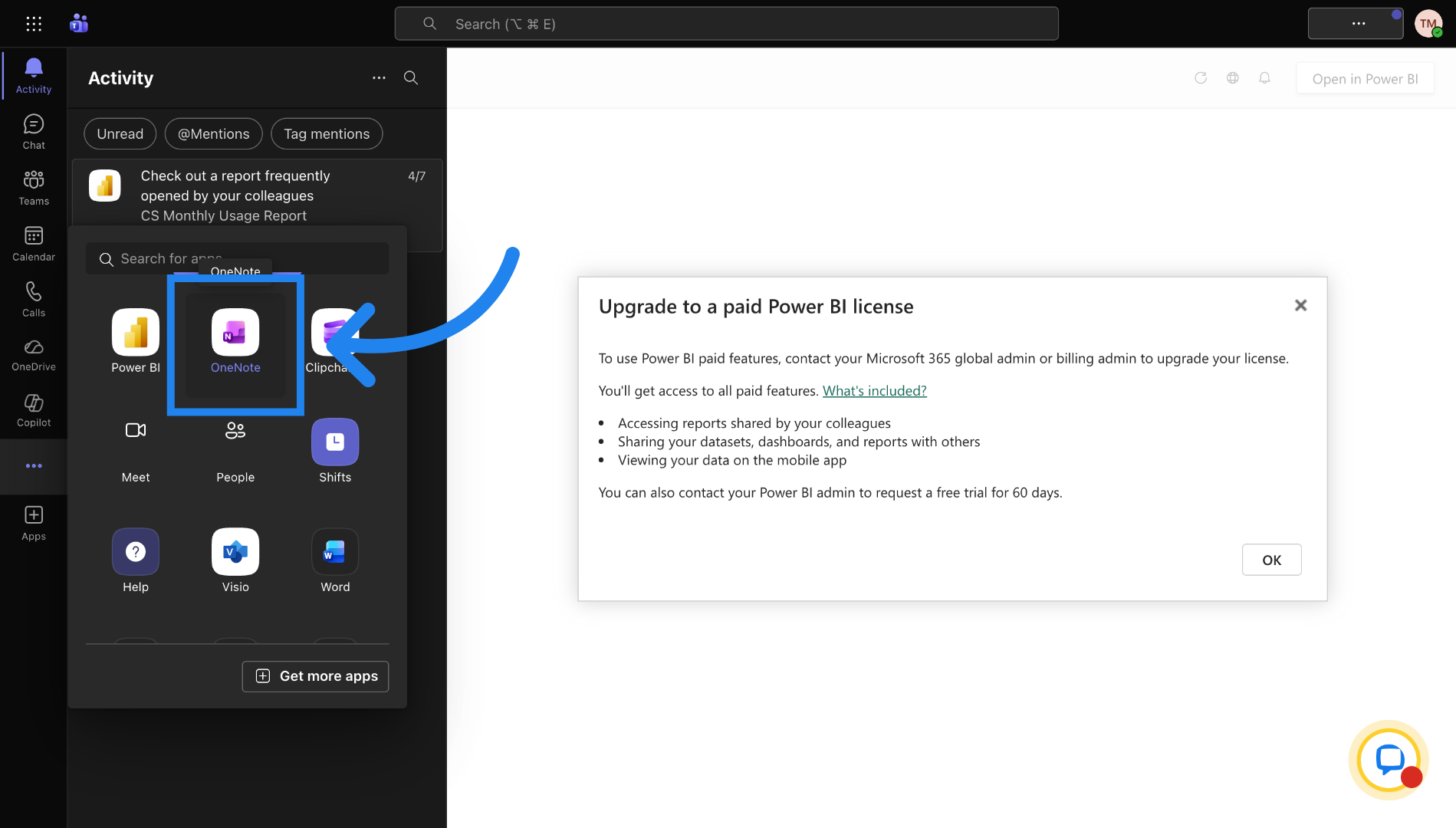
9. Open OneNote Application
Open the notebook where you want to embed the video.
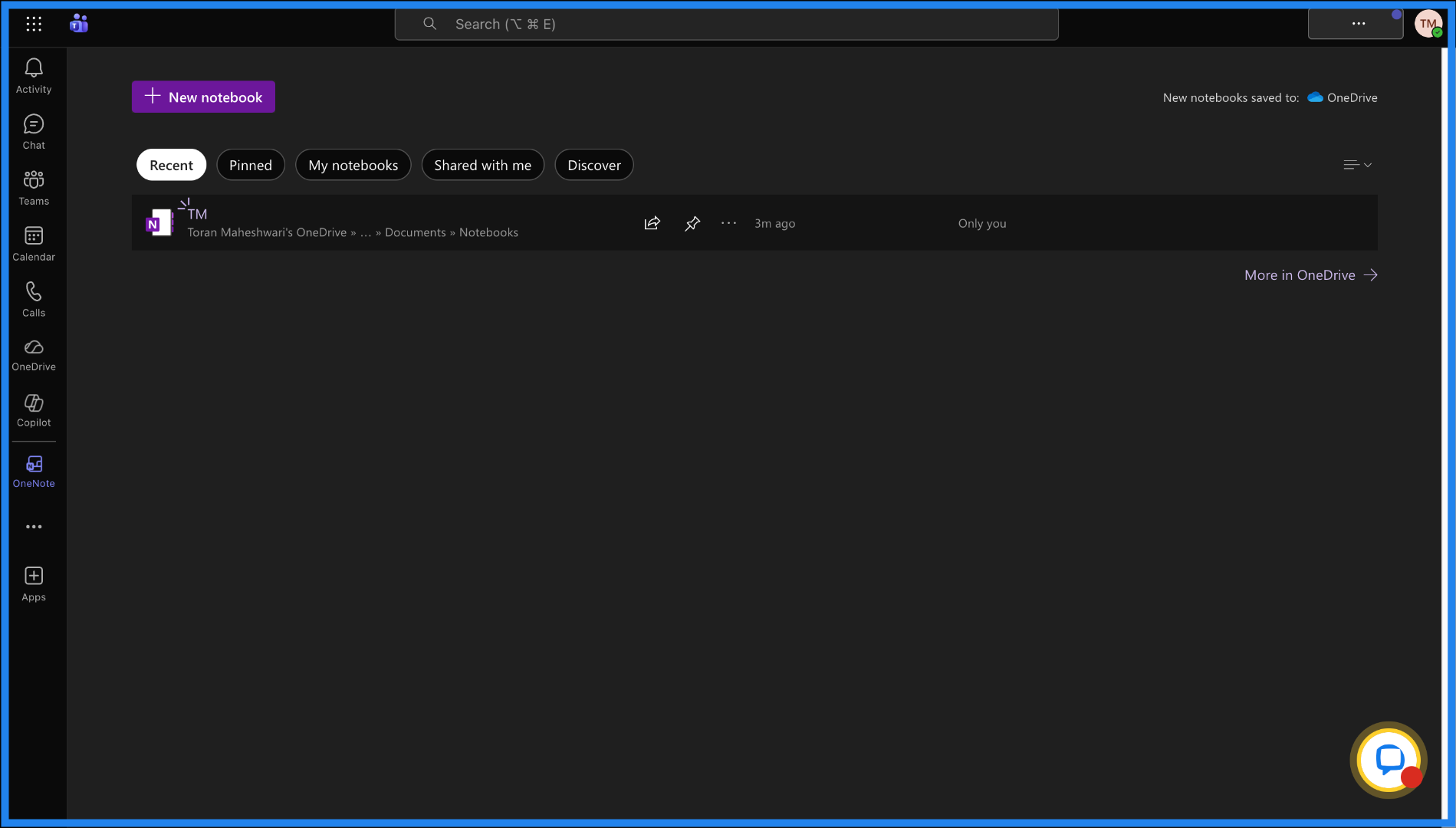
10. Select Notebook in OneNote
Open the notebook where you want to embed the video.
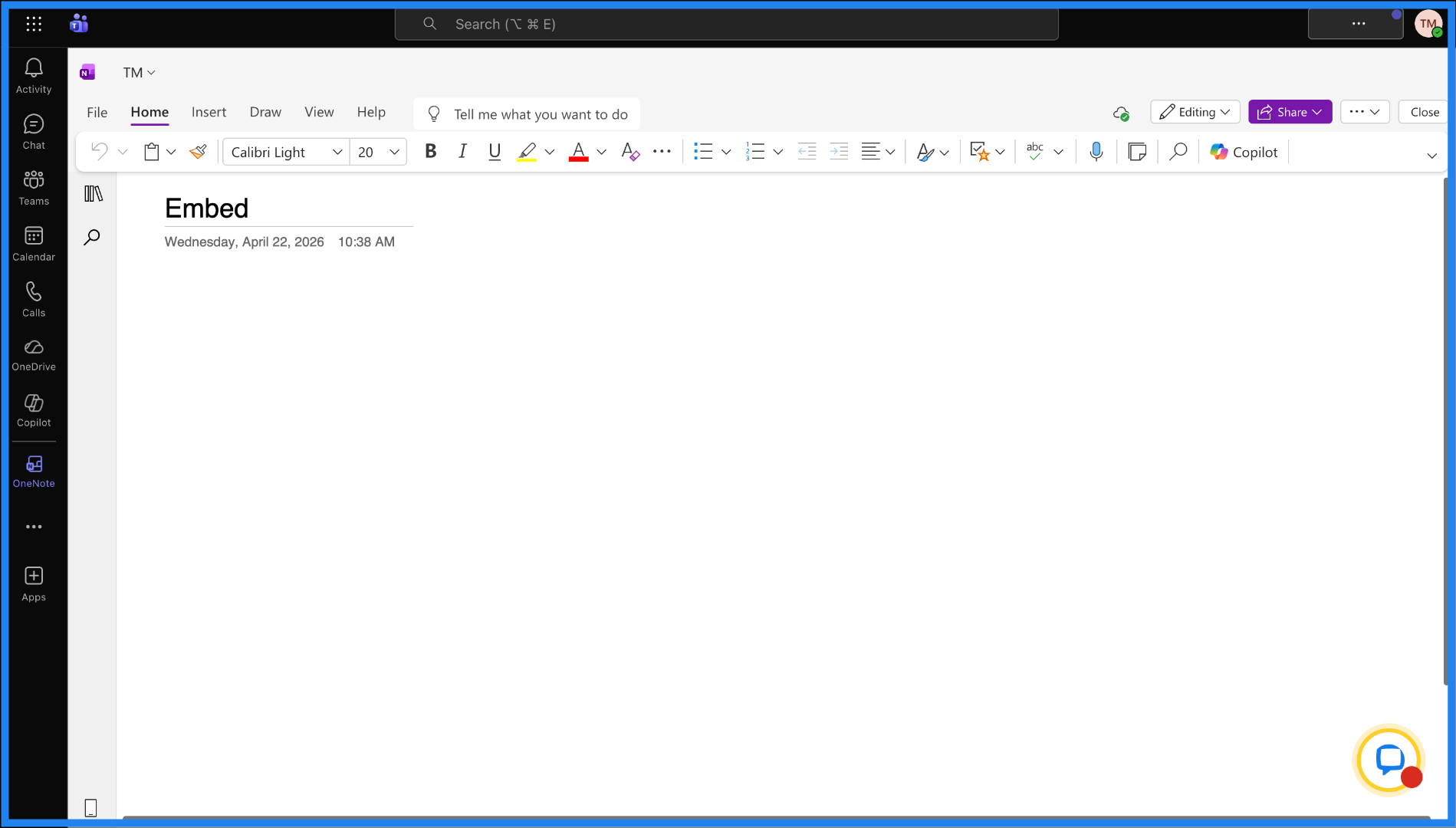
11. Select Page Contents
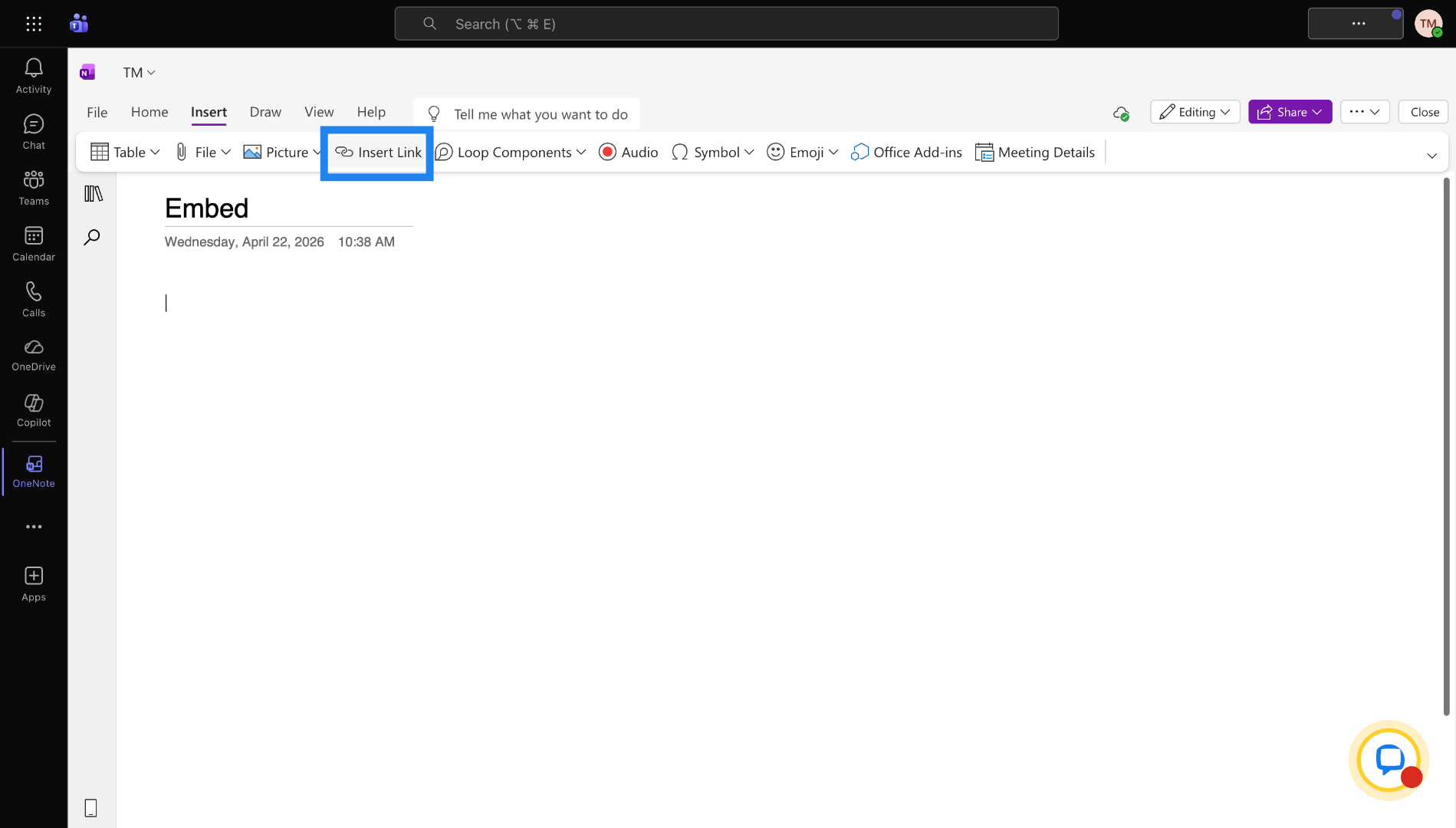
Click on the the location where you want to embed the video and then click on insert tab.
12. Choose Insert Link
Then click on insert link.
13. Paste Video URL
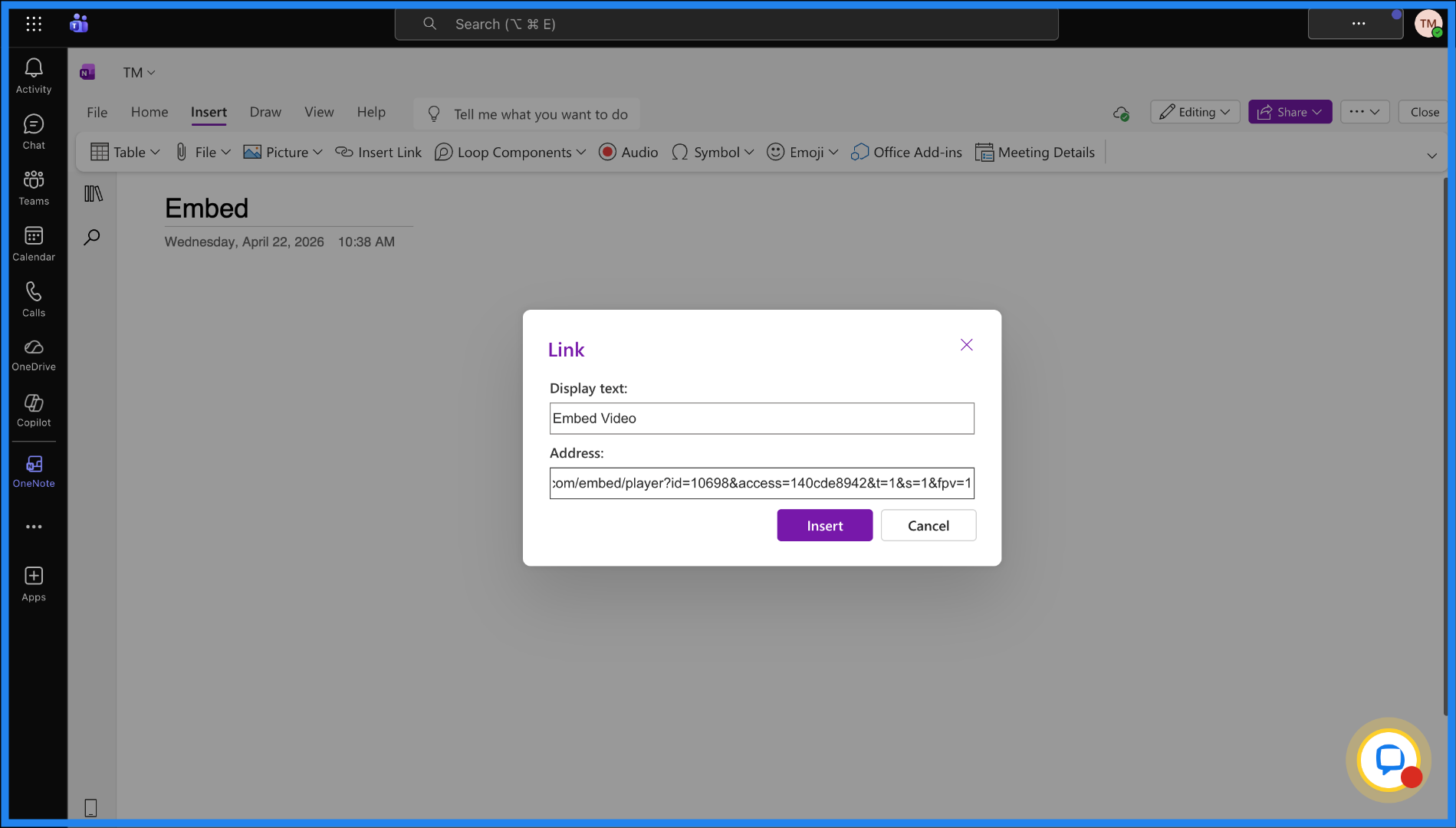
Add a description text and then place the copied URL here.
14. Insert Link
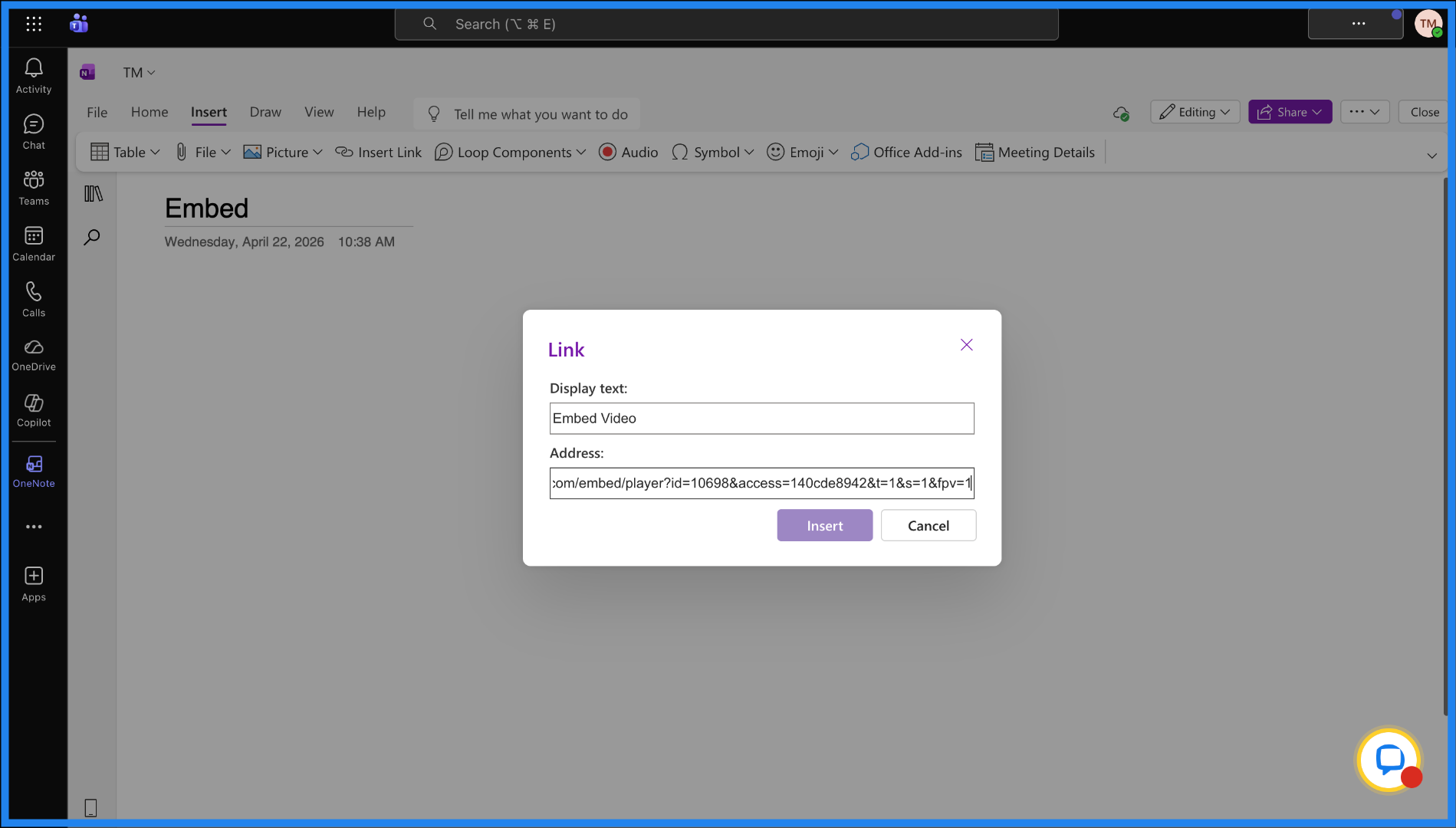
And click on insert.
15. Share Embedded File
Once you have embedded this video then you can share this file with your students and they will be able to access this video.