How to Embed JoVE videos in Canvas
This article explains how to embed Jove videos into Canvas
Go to app.jove.com
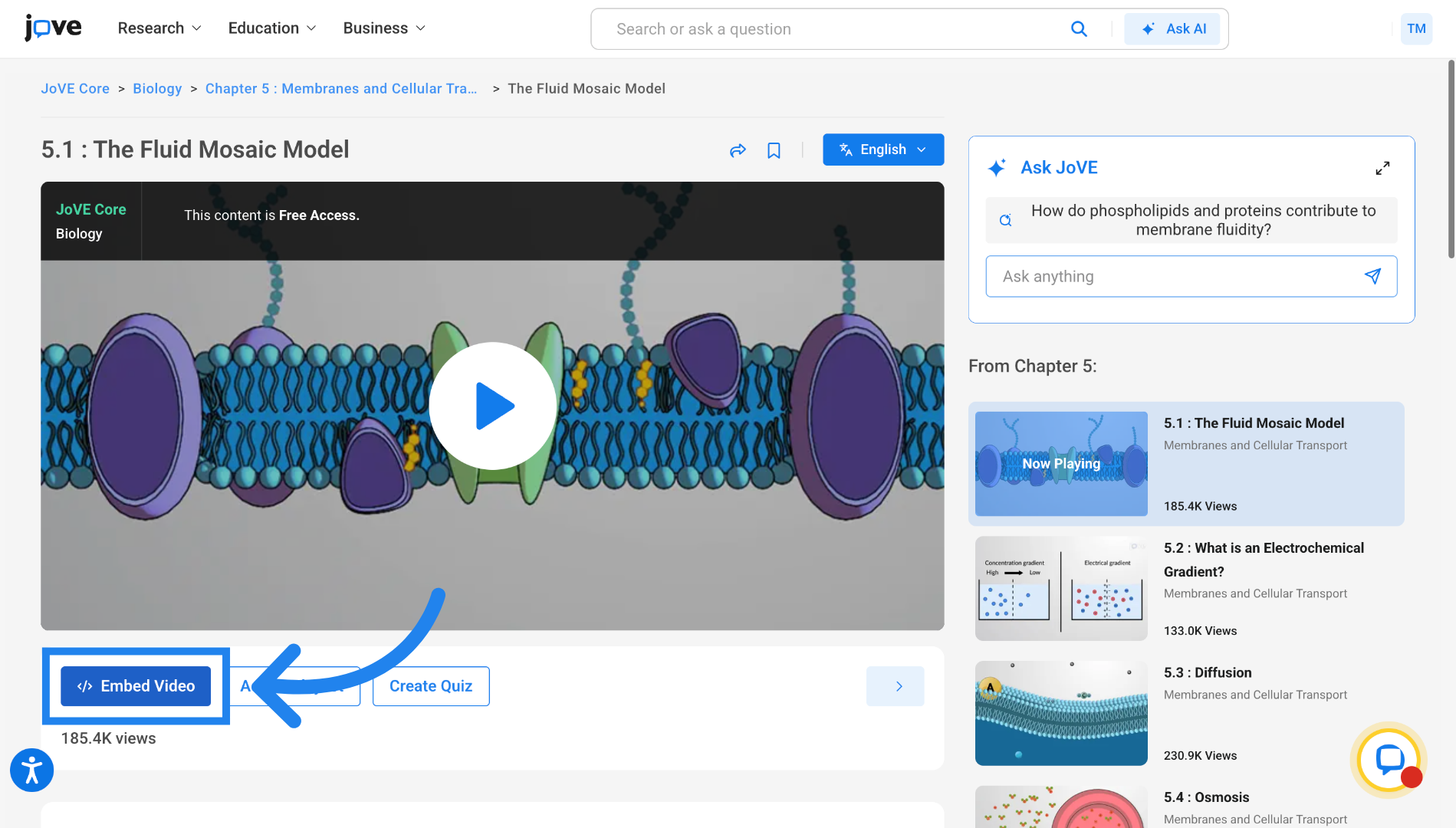
1. Access Embed Video Option
Locate and click the "Embed Video" button on the video page to access the embed code for the required Jove video.
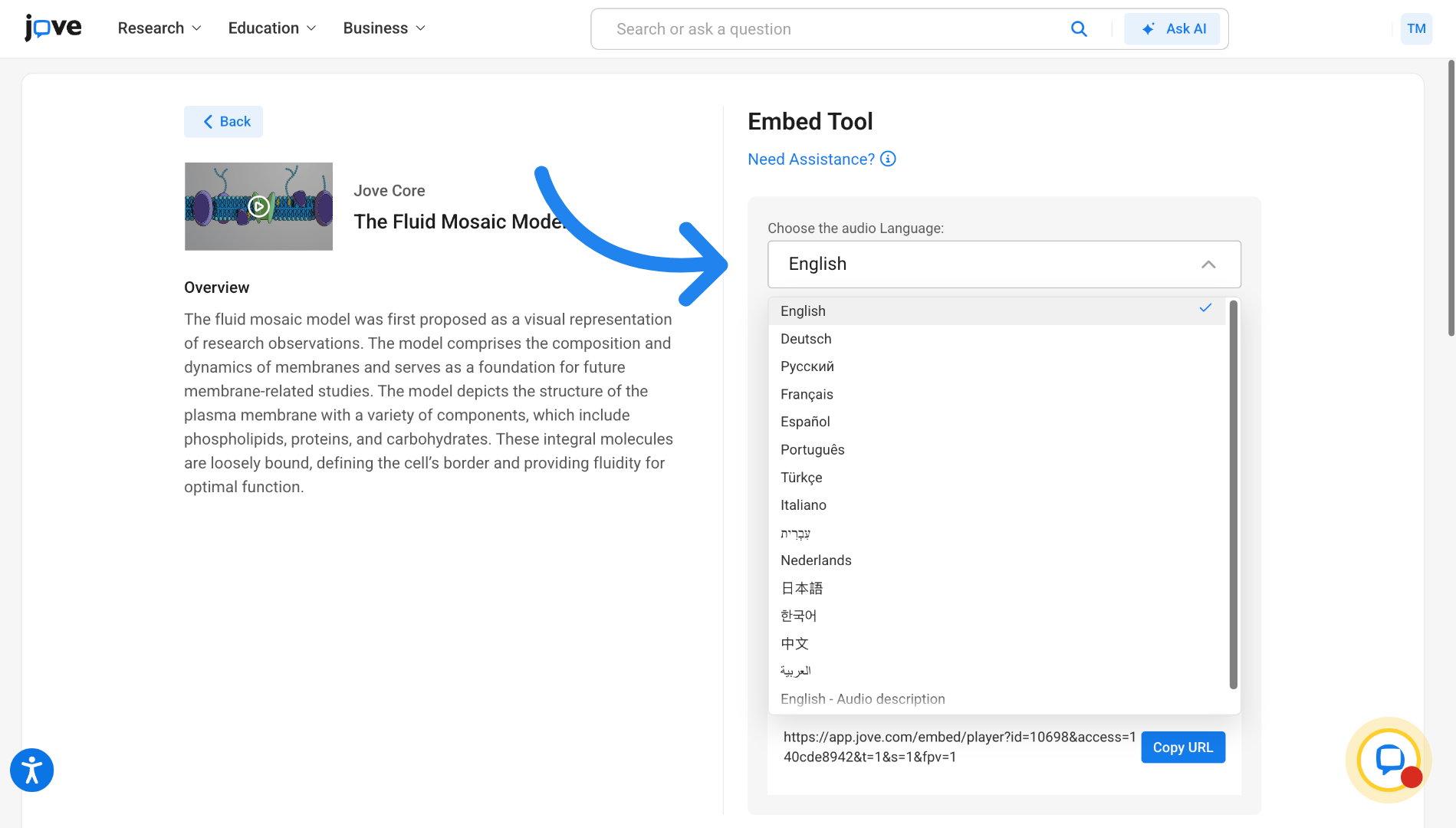
2. Confirm Language Selection
You can change the audio language of the video through this dropdown. We'll choose English in this case.
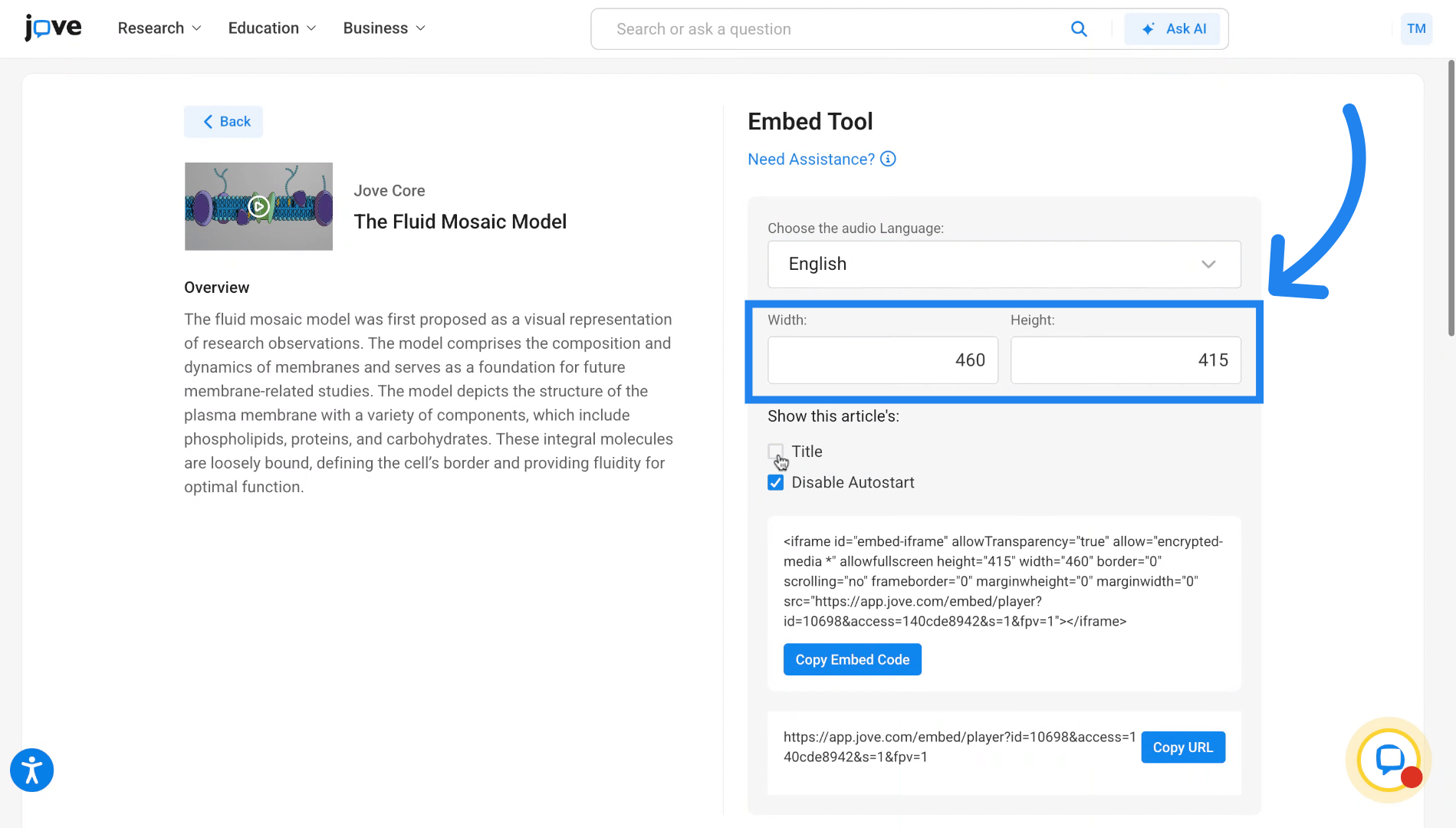
3. Enter Video Dimensions
You can change the dimensions of embedded video by using these fields.
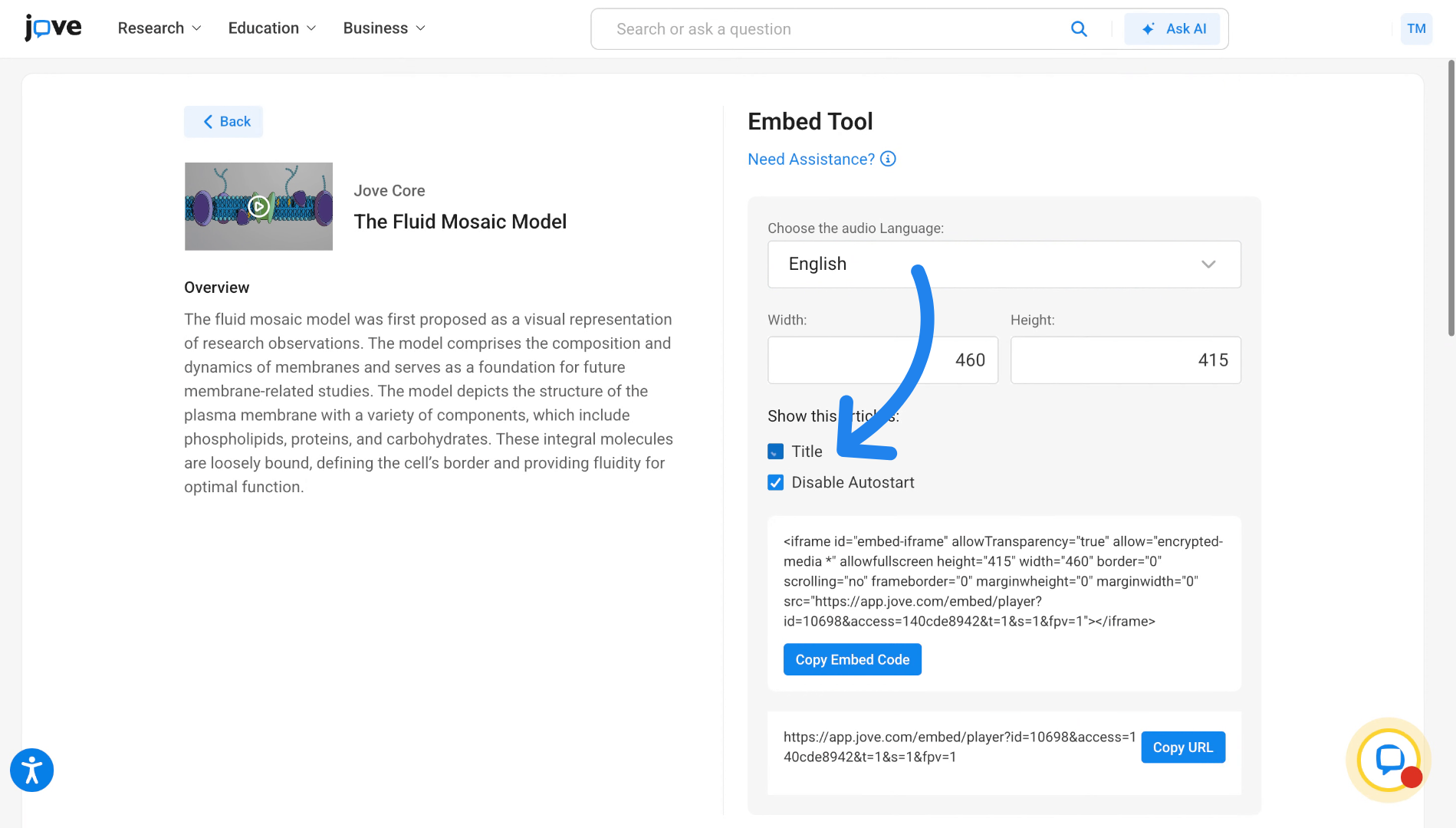
4. Configure Video Title
You can use this checkbox to decide whether the evideo should display a title when embedded.
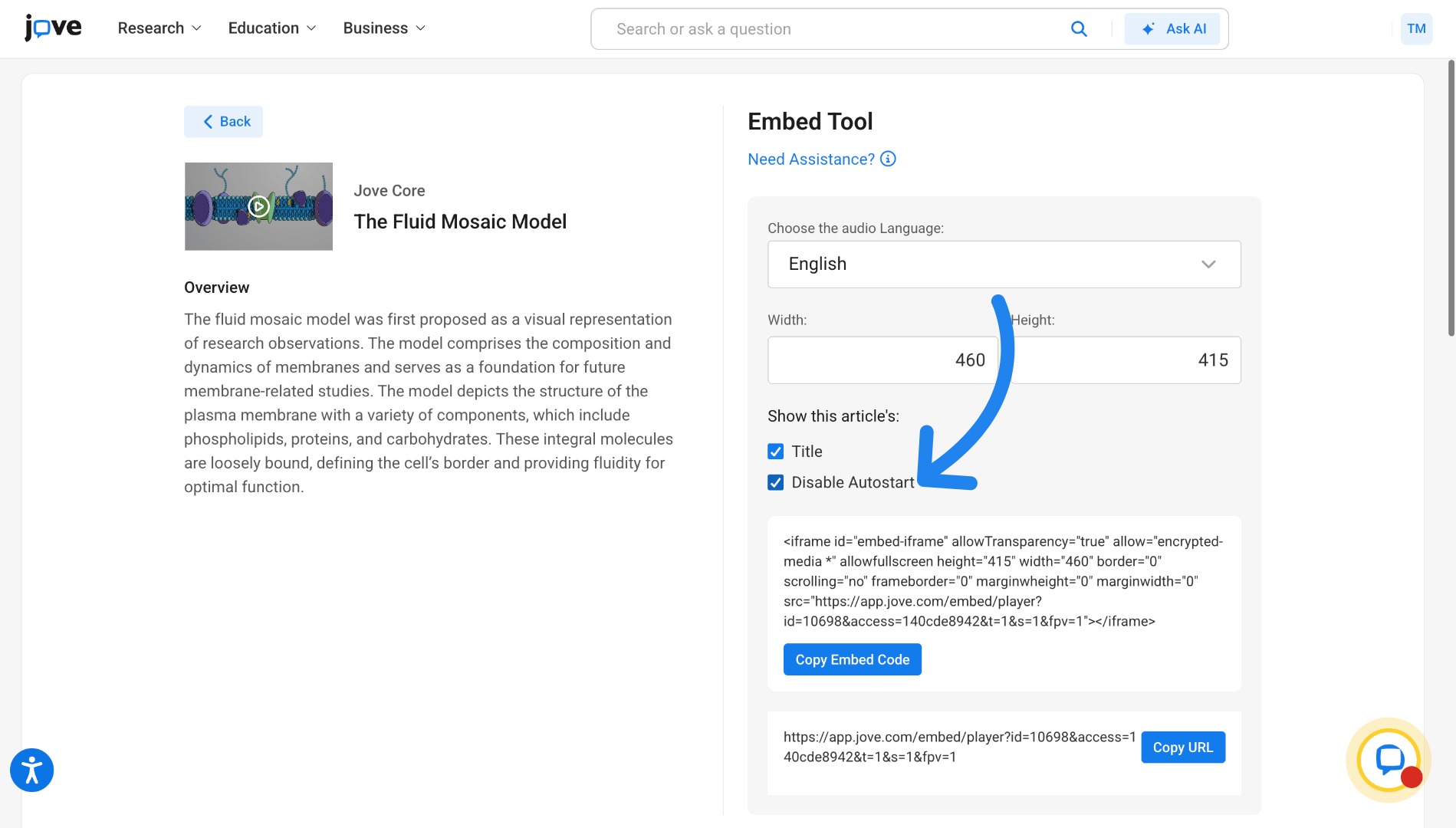
5. Access Auto-Start Setting
Click here to configure whether the video should start playing automatically upon loading. You can uncheck this if you want the video to start autoplay upon loading.
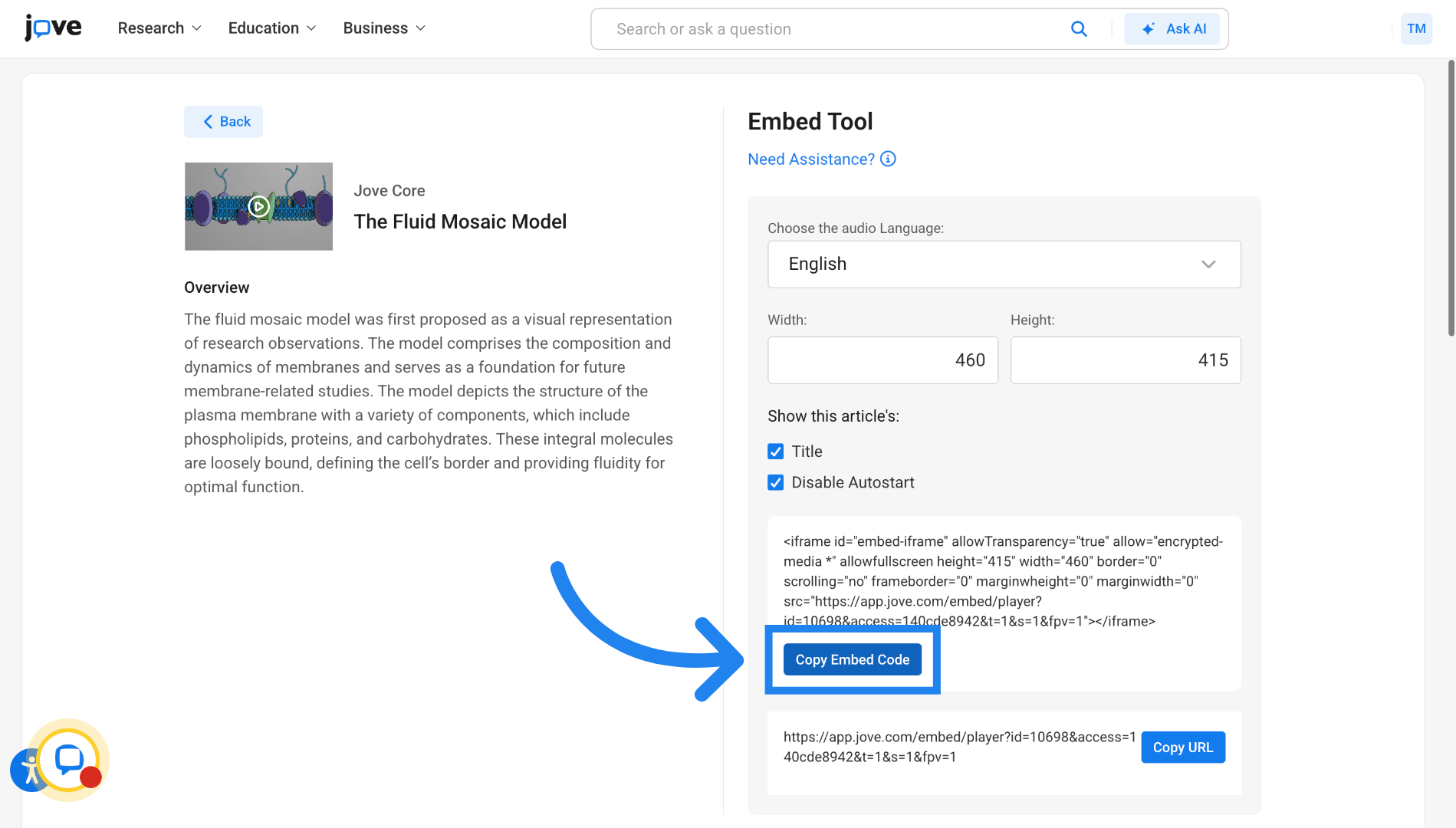
6. Copy Embed Code
Click the "Copy Embed Code" button to copy the embed code to your clipboard.
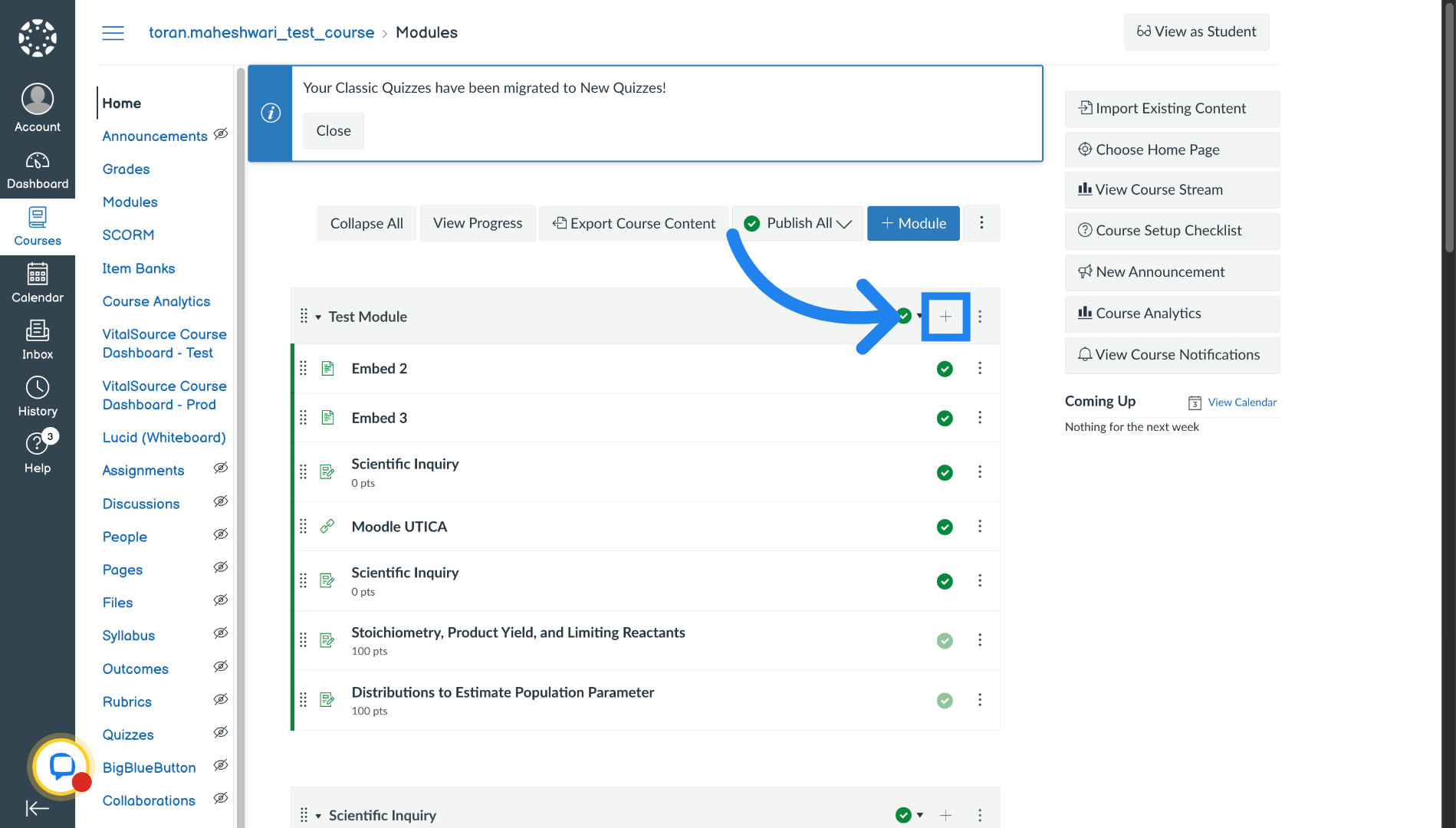
7. Embedding a video in Canvas
Now, lets switch to the Canvas LMS to begin embedding the video into a course. Click the plus sign to add a page in the course module.
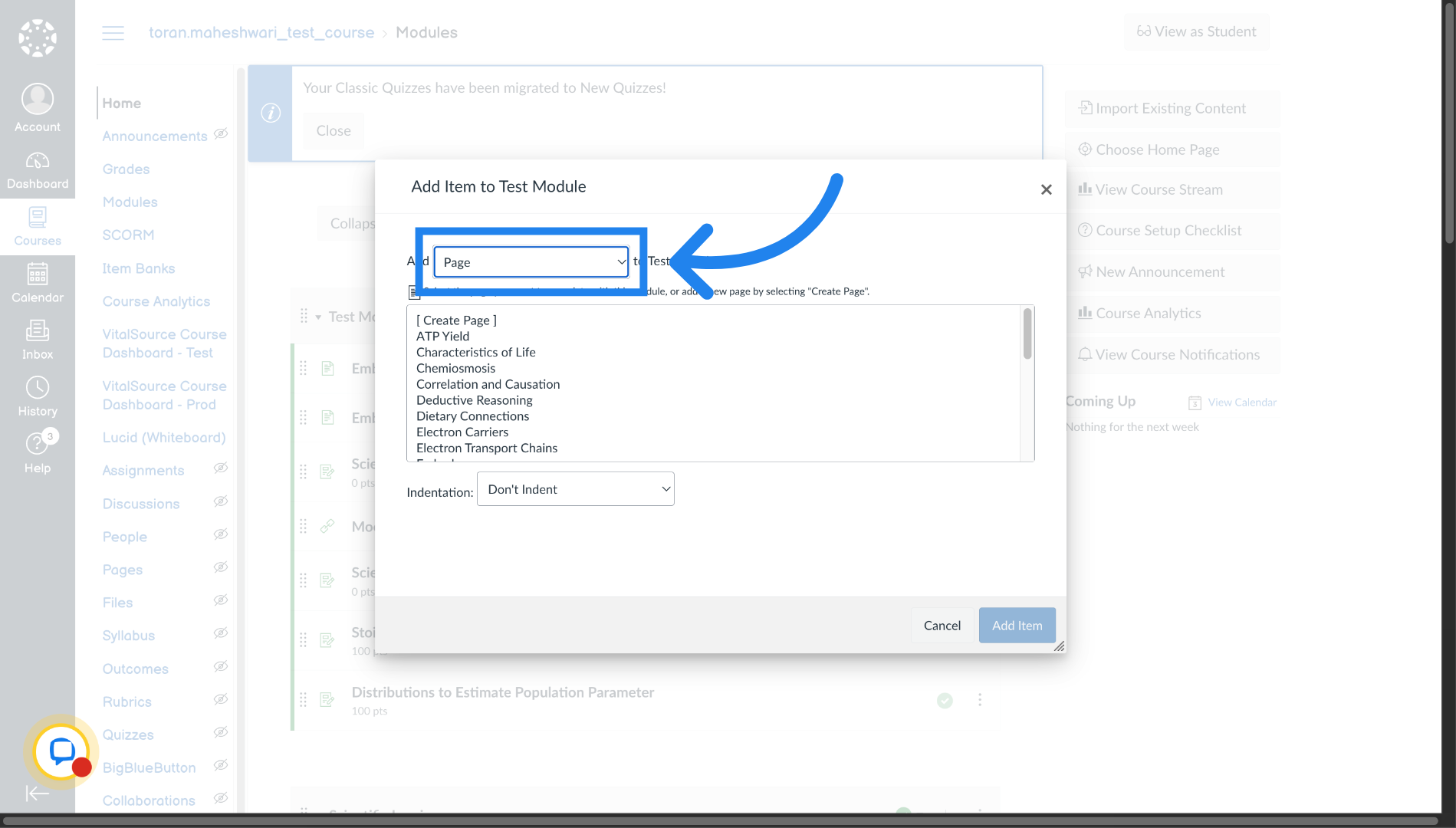
8. Select Content Type in Canvas
Select the content type field to Page.
9. Create New Page in Canvas
Click the "[ Create Page ]" button to start creating a new page for embedding the video.
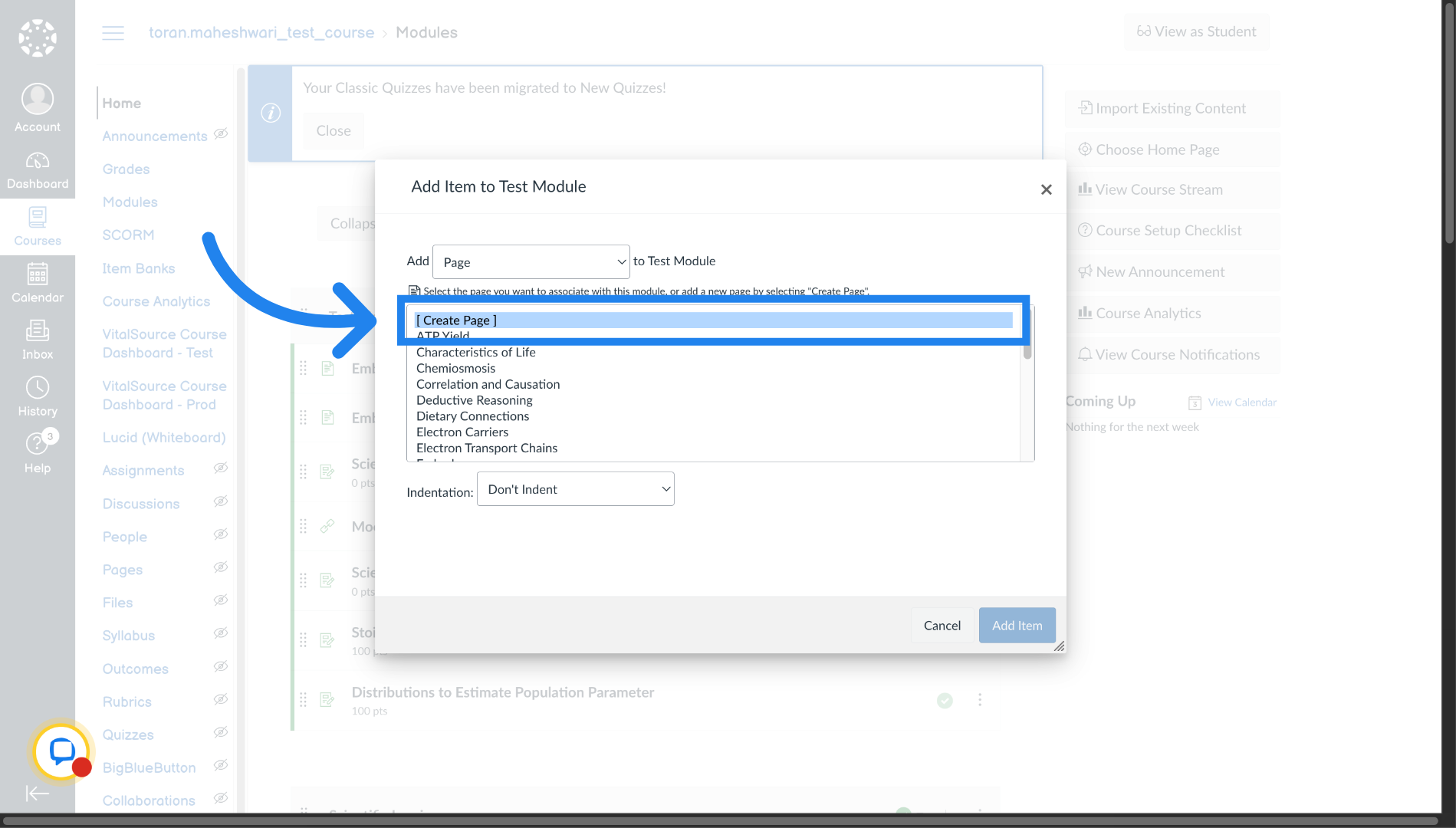
10. Enter Page Title in Canvas
Lets name the page "How to Embed".
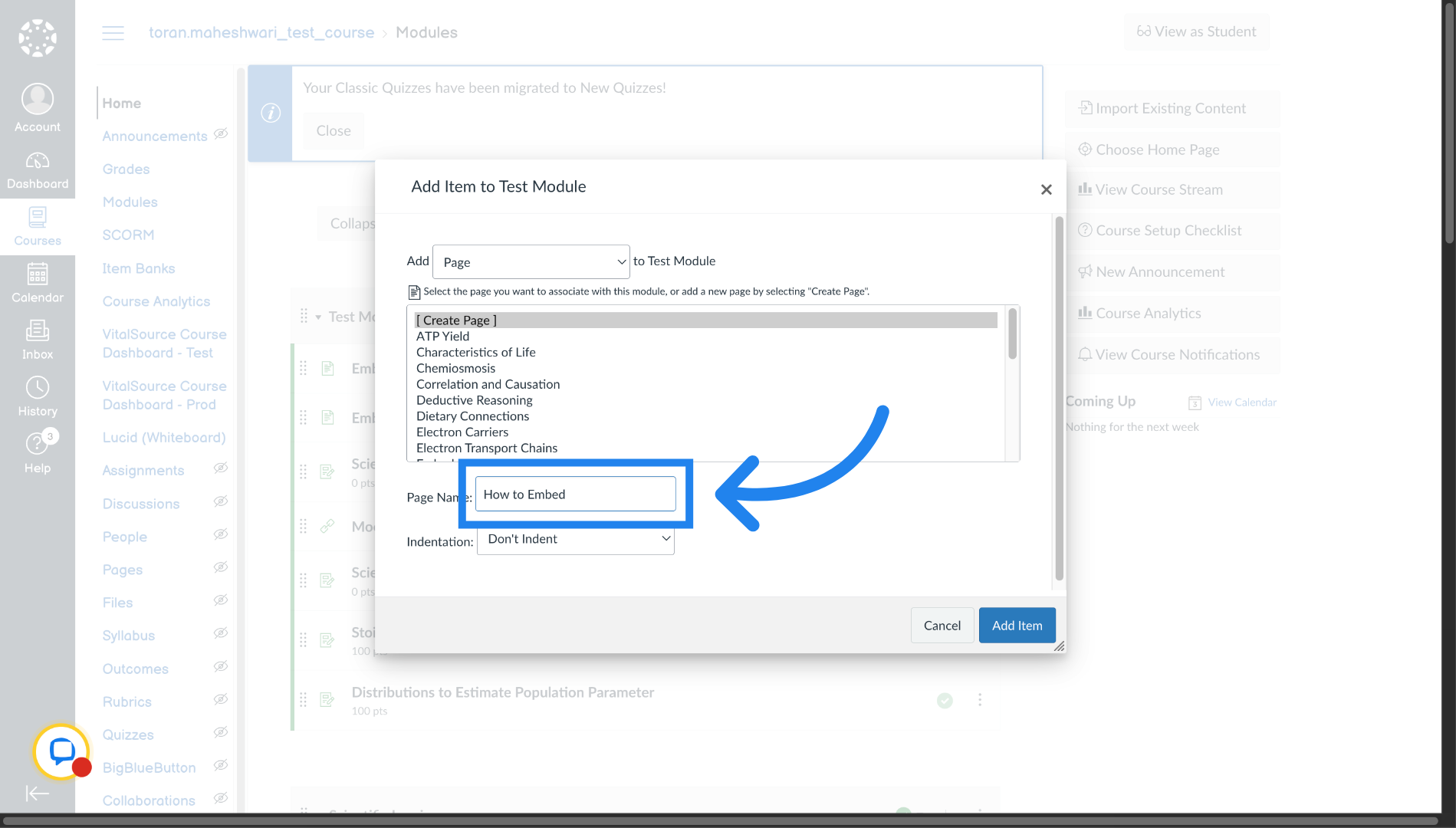
11. Add Content Item in Canvas
Click the "Add Item" button to insert the newly created page into course module.
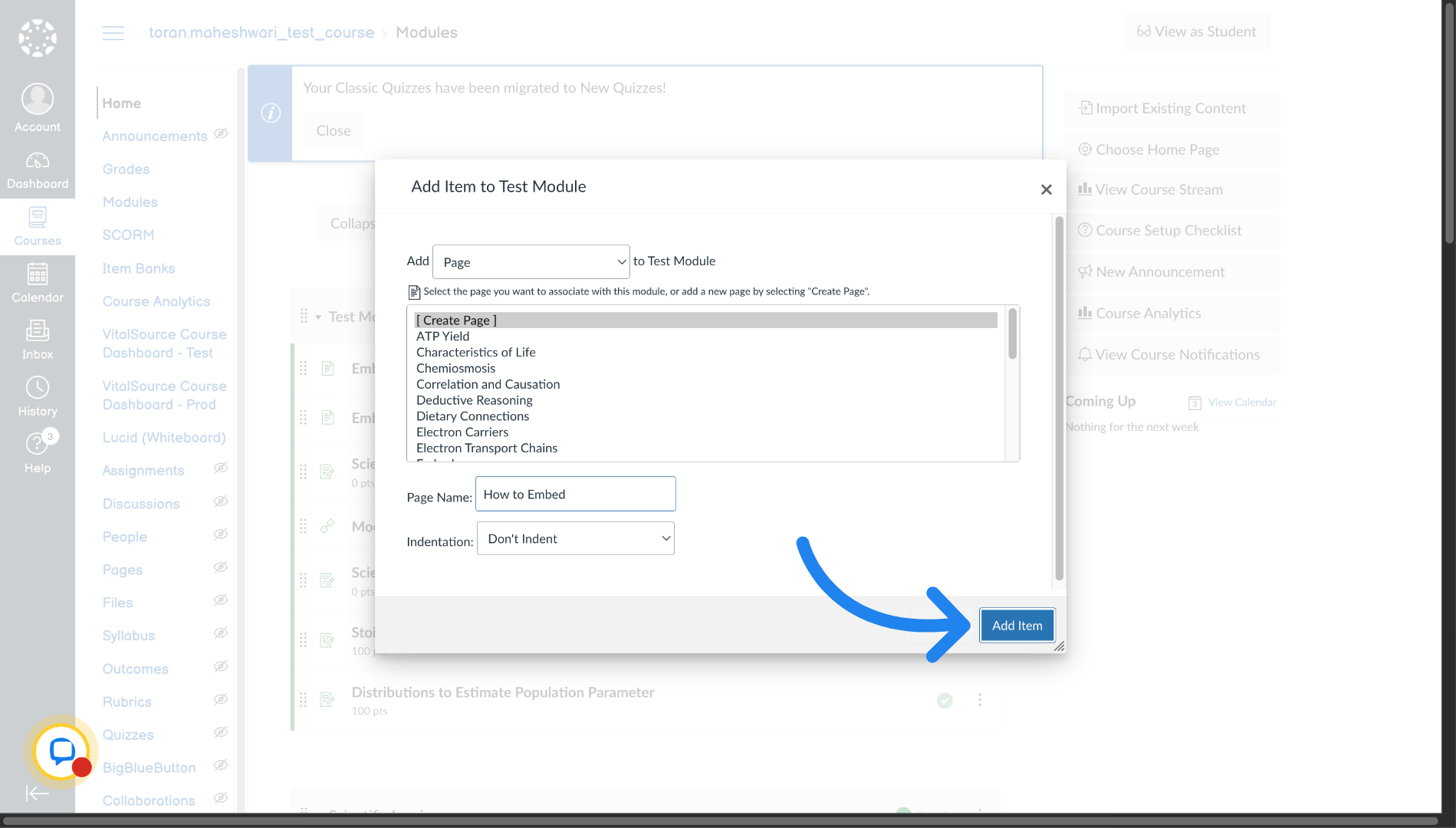
12. Select Page for Editing in Canvas
Click "How to Embed" to open the page for editing and embedding the video.
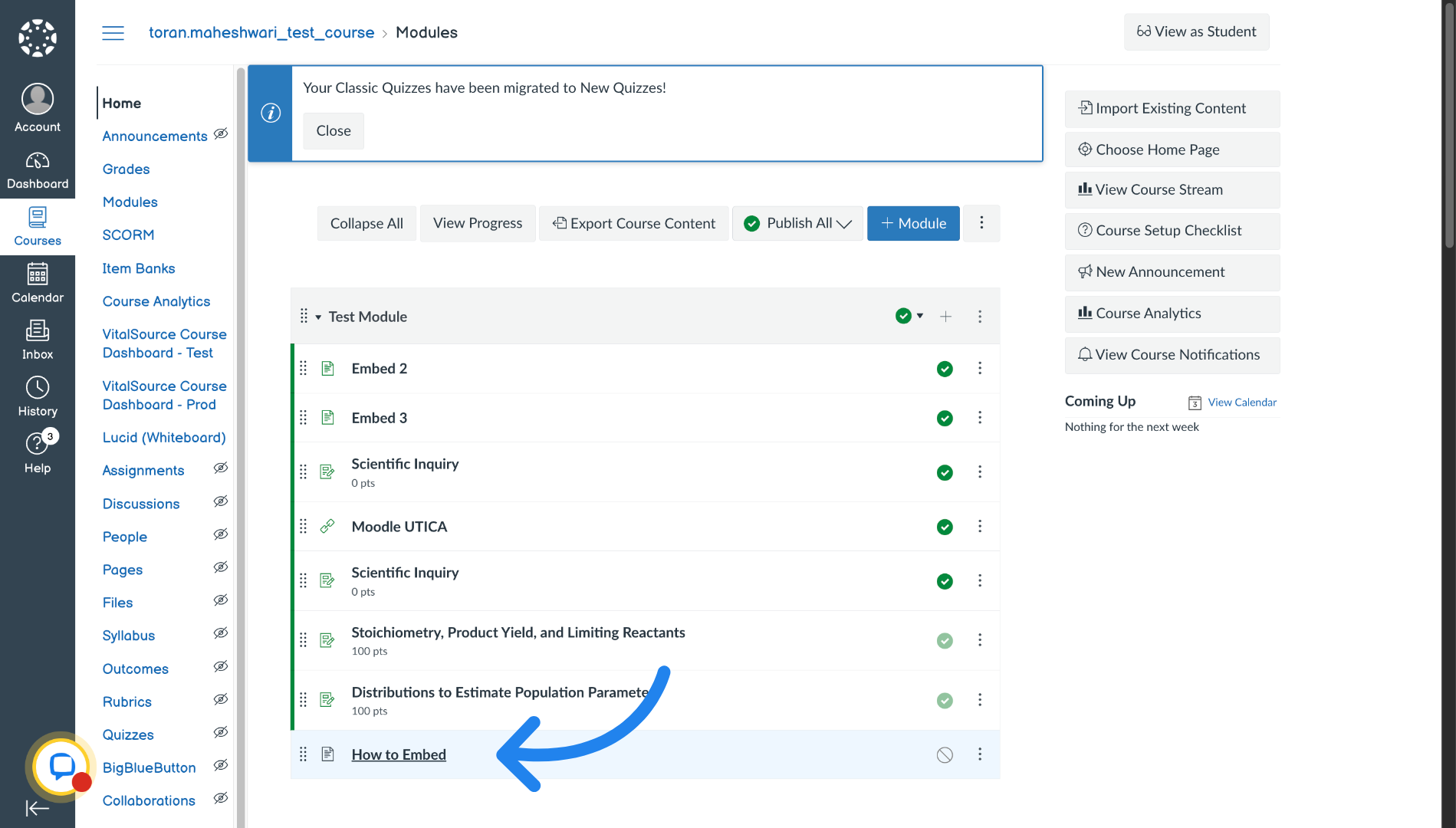
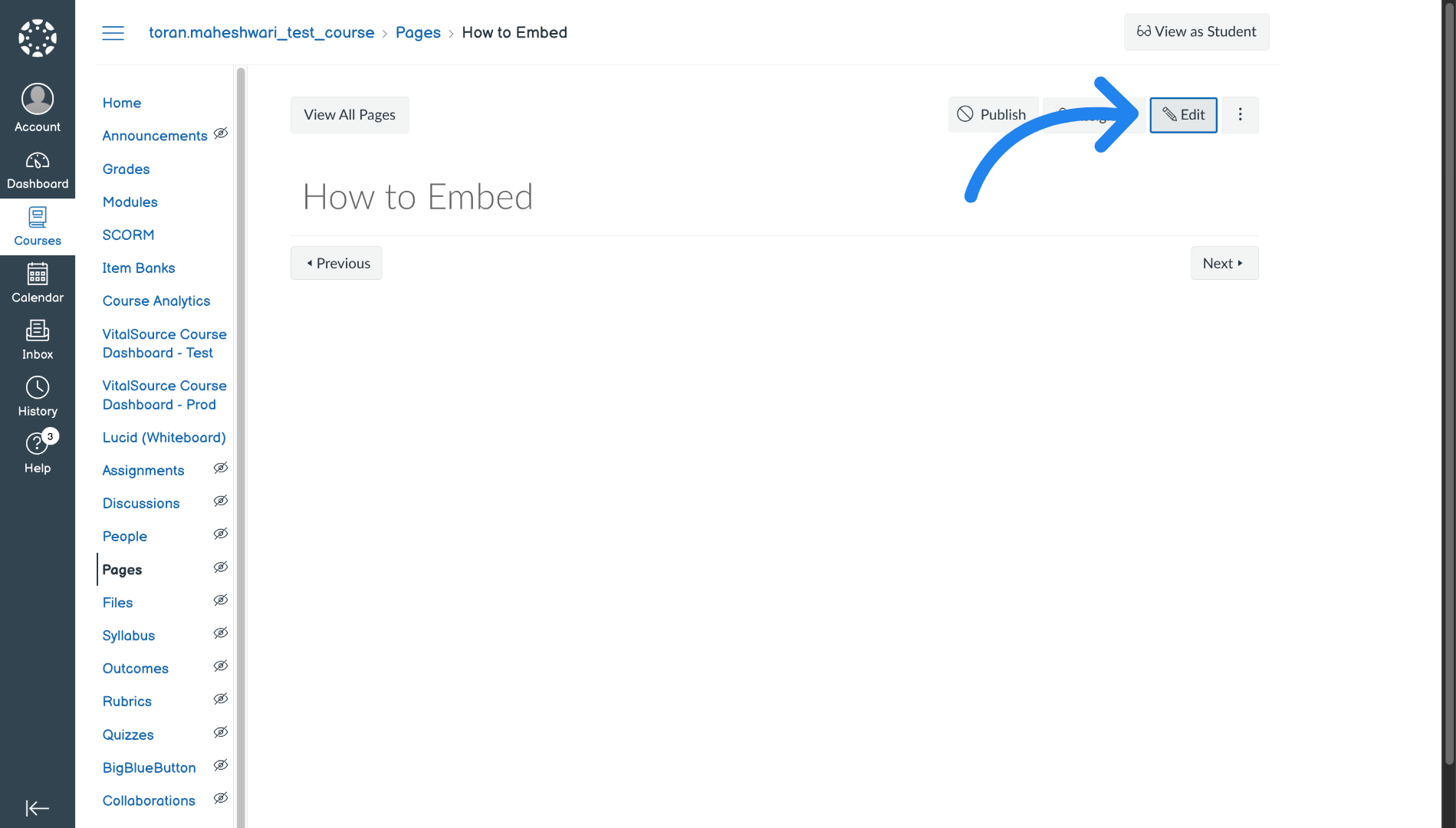
13. Enter Edit Mode in Canvas
Click the "Edit" button to modify the content of the page.
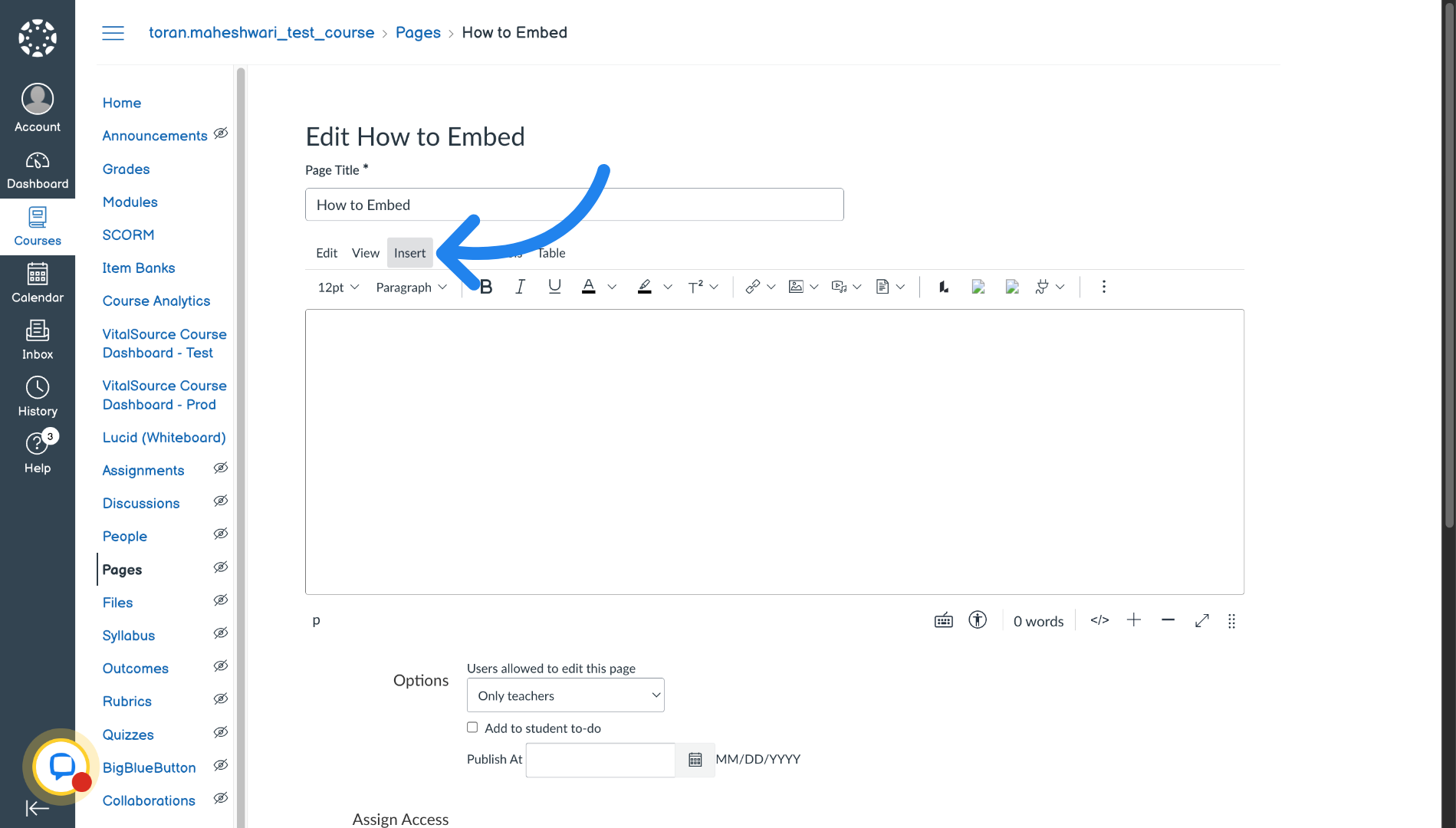
14. Open Insert Menu in Canvas
Click the "Insert" menu to access options for adding media and other elements.
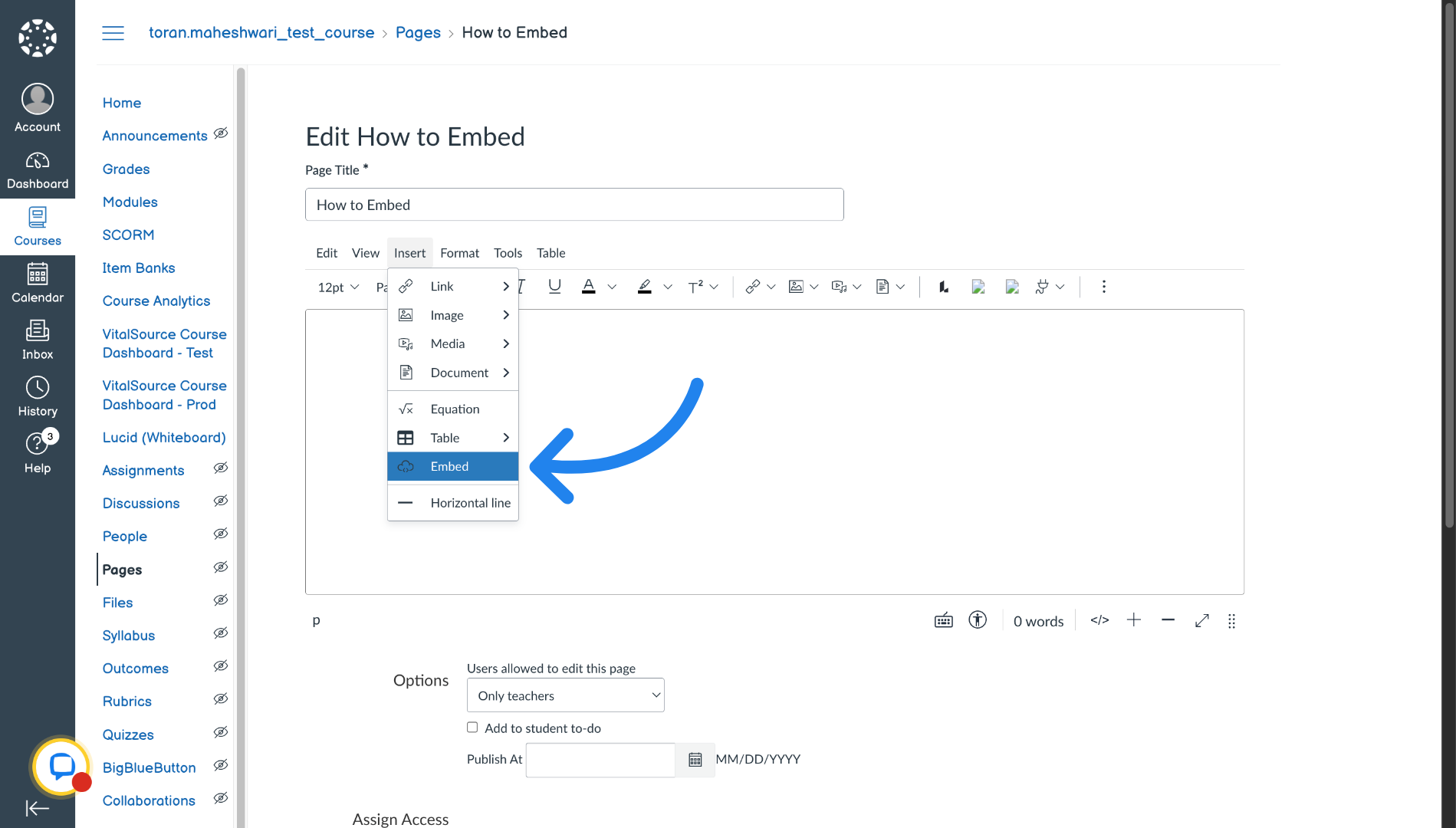
15. Choose Embed Option in Canvas
Click the "Embed" option to insert embed code into the page content.
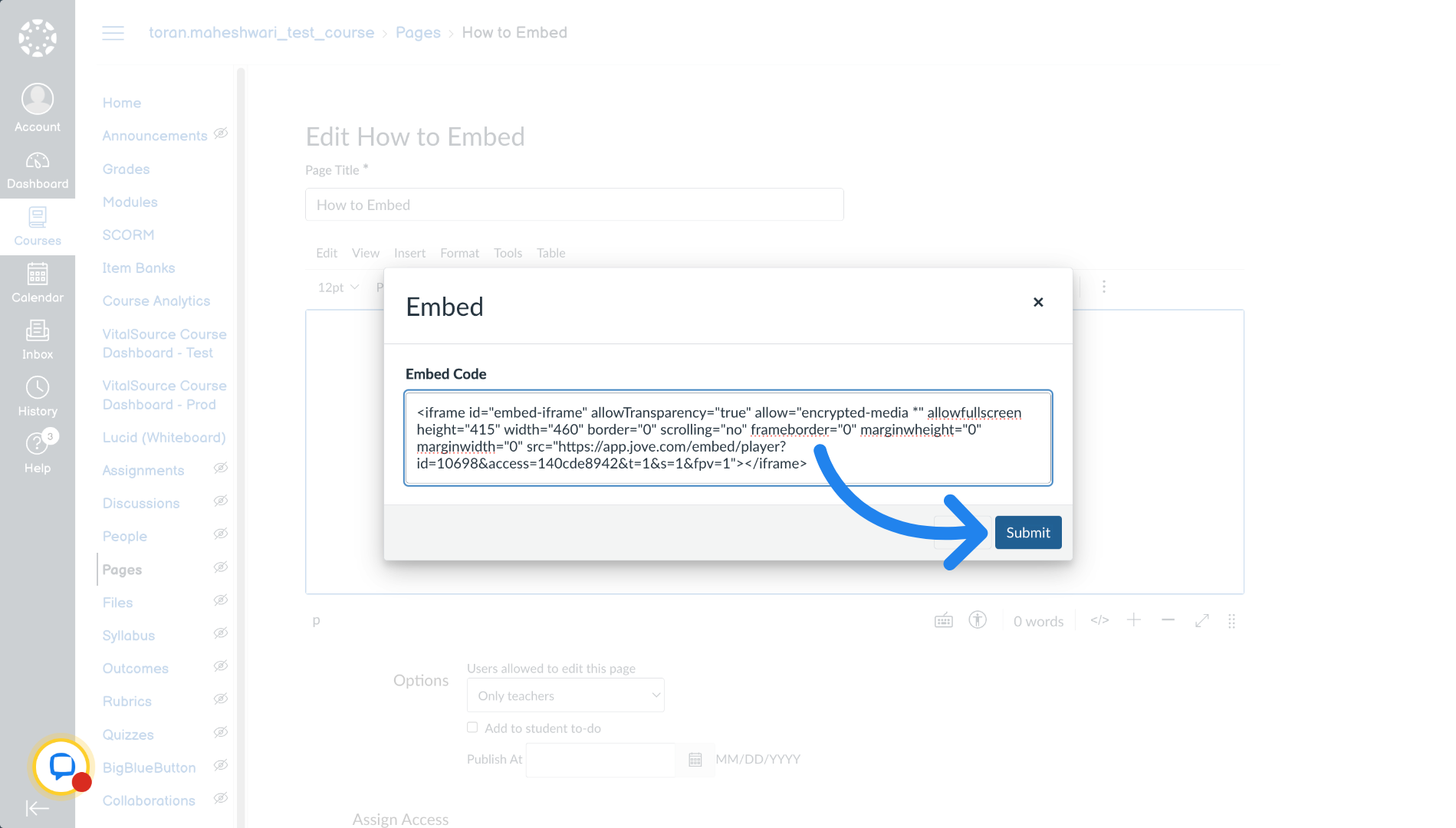
16. Paste Embed Code in Canvas
Fill in the embed code field with the iframe HTML code copied from the Jove video page.
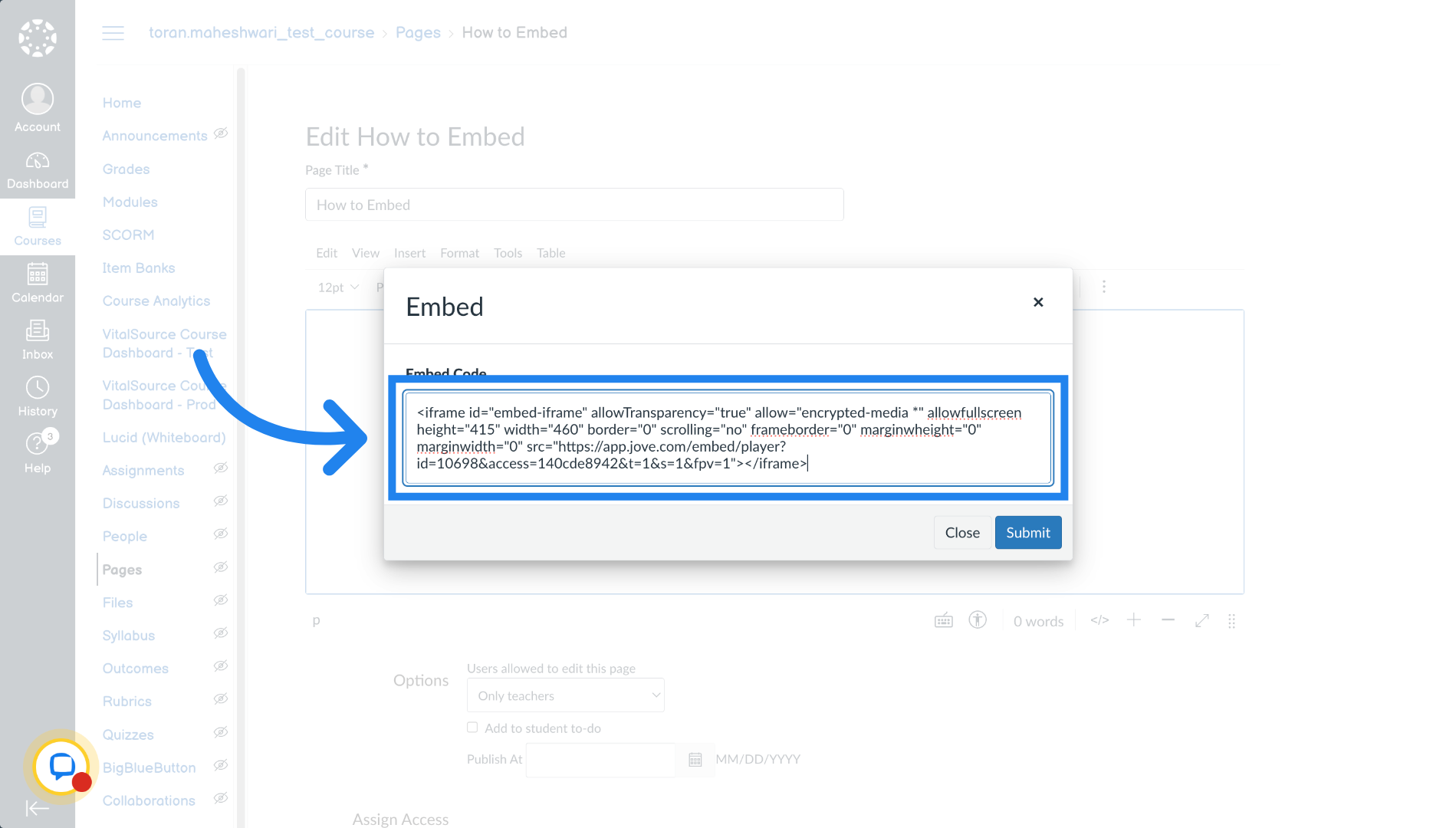
17. Submit Embed Code in Canvas
Click the "Submit" button to save the embedded video code into the page content.
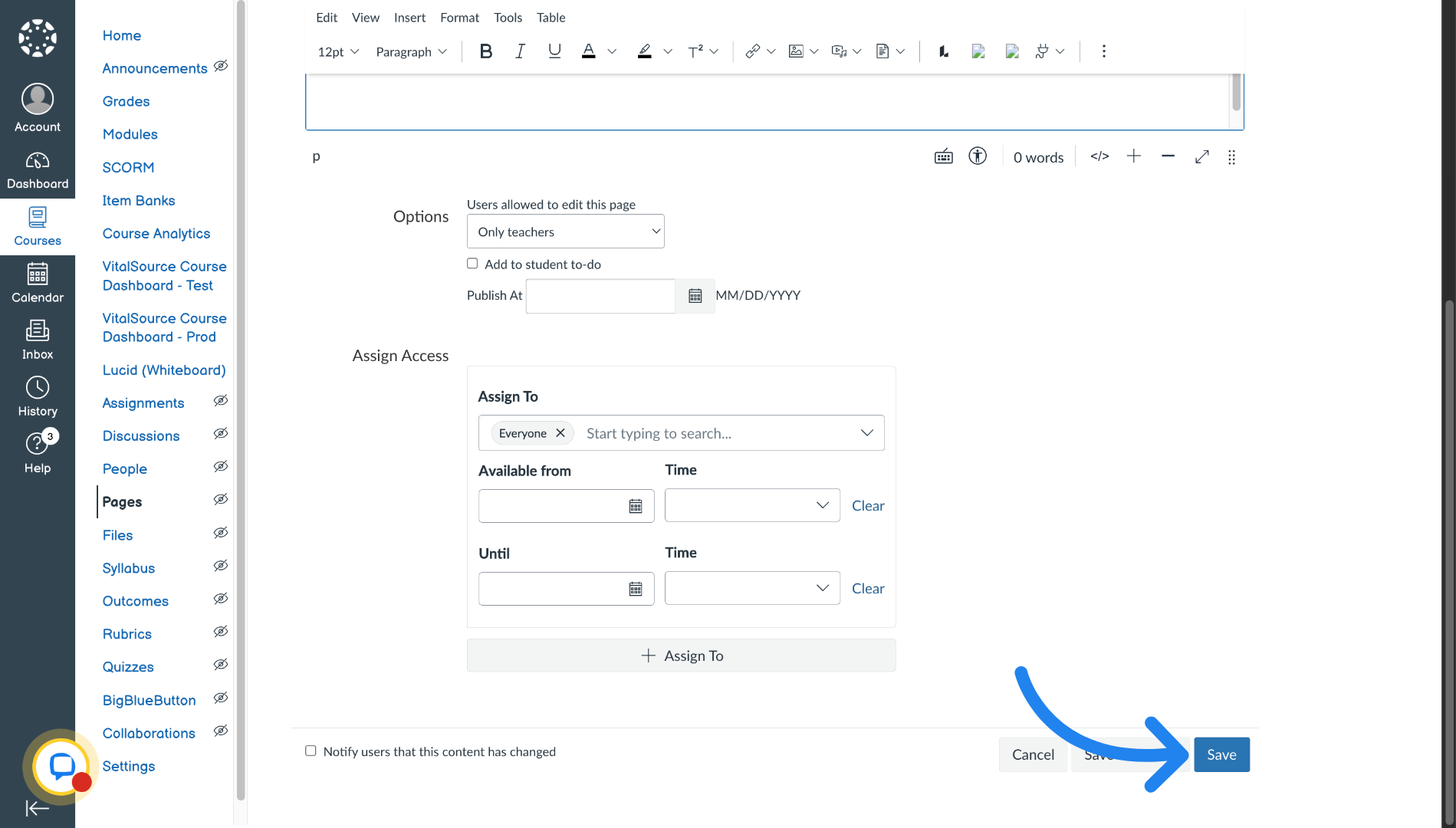
18. Save Page Changes in Canvas
Click the "Save" button to save all changes made to the "How to Embed" page.
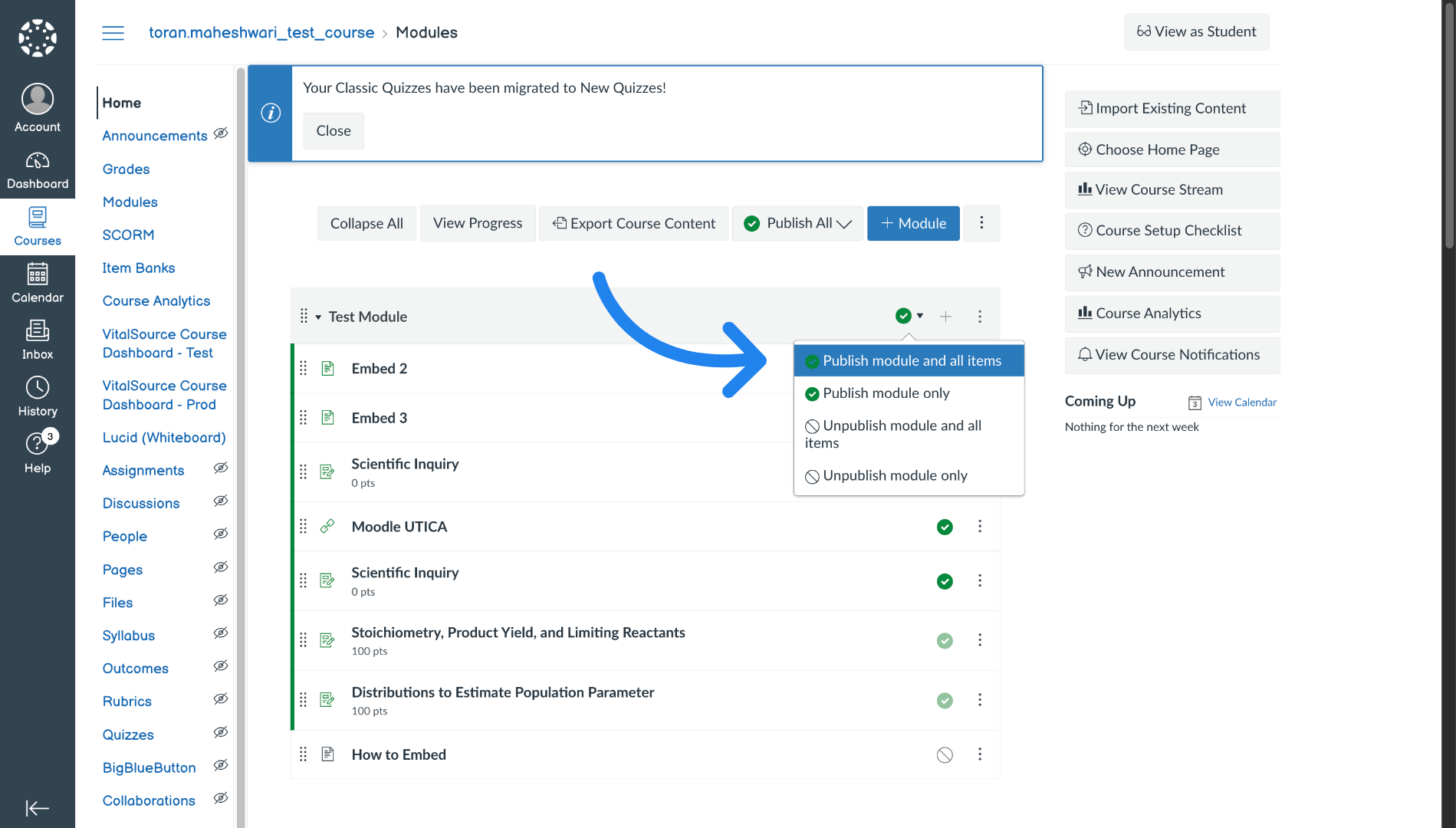
19. Make the uploaded content available to students in Canvas
Click "Publish module and all items" to make the module and its contents available to students.
Related to